How to Create Bulk Instagram Accounts: From Setup to Management

Instagram makes it easy to add a second account, but that simple in-app flow is not the same as creating accounts in bulk. As the number grows, signup and management require a more structured setup. This guide explains how to create bulk Instagram accounts by comparing 4 practical methods, starting with Instagram's official option for small batches and moving to setups for larger or more specialized workflows. It also covers account organization after signup.
Can You Have Multiple Instagram Accounts?
Yes. Instagram's built-in account switcher lets you keep up to 5accounts logged in on one device and move between them without signing out. That's usually enough for someone juggling a personal profile and a few business or project accounts. For agencies and marketing teams handling a much larger account set, however, the native app quickly becomes impractical. Instagram explains the feature in its multiple-account help guide.
Having multiple accounts is allowed, but how you use them still matters. Instagram may request additional verification and restrict accounts involved in spam, impersonation, unauthorized access, or prohibited automation. Its Terms of Use do not provide a safe activity threshold, and no third-party tool can make large-scale account use unlimited or risk-free.
What You Need Before Creating Accounts
A little preparation will save you from sorting out missing logins and mixed-up accounts later. Before signing up, get these basics ready:
Account plan: Decide how many accounts you need, what each one is for, and who will manage it.
Contact details: Prepare a reliable email address or phone number for any verification Instagram requests. Avoid temporary contact information you may lose later.
Login security: Create strong passwords and choose how you'll store recovery details, two-factor authentication codes, and backup codes.
Account environment: Decide whether the accounts will run in the Instagram app, browser profiles, cloud phones, or dedicated devices. Have proxy credentials ready if your browser workflow requires them.
Tracking system: Record each account's owner, contact method, assigned environment, and current status in a spreadsheet or password manager.
With these basics ready, the next question is which setup fits your workload. The 4 options below range from Instagram's built-in tools for a few accounts to environments designed for larger or more specialized workflows.
4 Ways to Create Bulk Instagram Accounts
So, which method fits your needs? That depends on how many accounts you plan to create and where you'll manage them. The table below gives you a quick look at the best use case and main drawback of each option.
Method | Suitable scale | Best for | Main limitation |
Instagram app | Small | Personal, business, or project accounts | Limited app capacity |
Browser profiles and proxies | Large | Scaled web-based workflows | Fewer mobile features |
Cloud phones | Medium to large | Remote mobile workflows | Recurring costs |
Dedicated devices | Small to medium | High-value accounts | Hardware overhead |
Method 1. Create Small Batches With Instagram's Official Tools
For a second personal profile, a new business account, or a small project batch, start with Instagram's own app. It requires no extra software and lets you move between added accounts without signing out.
Open Instagram and go to your profile.
Open the menu, scroll down, and tap Add account.
Select Create new account to begin a new signup.
Choose a username and password, then complete the information Instagram requests.
Confirm your email address or phone number if prompted.
Return to the account switcher to move between the added profiles.
Don't confuse Create new account with Log into existing account. The first starts a new registration, while the second adds a profile that already exists. Instagram's official account-switching feature covers adding and moving between accounts, though the exact menu labels may vary by app version.
Method 2. Create Multiple Accounts With Browser Profiles and Proxies
Once the workload grows, though, keeping every account organized in one app becomes difficult. Browser profiles offer a more structured web-based setup by separating cookies and login sessions. Proxies handle the network connection for profiles that need one. Neither component creates an Instagram account on its own. Putting the two together is straightforward.
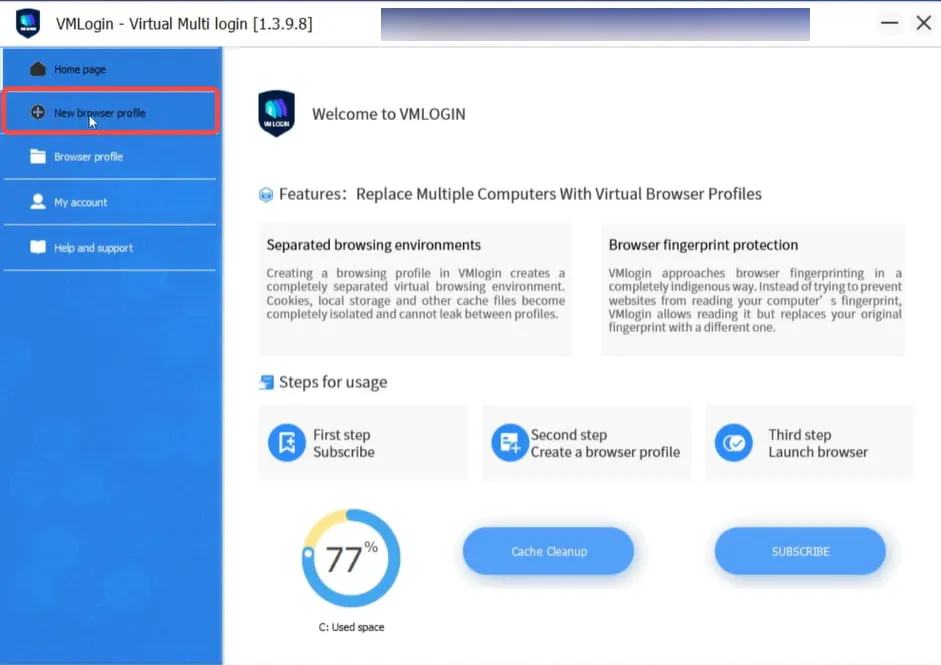
Step 1. Choose a browser profile tool such as VMLogin that keeps cookies, local storage, and login sessions separate for each profile. For a larger setup, check whether it supports external proxies and bulk credential imports.
Step 2. Create the required profiles and give them a clear naming system. For example, a project involving 100 accounts could use Project-001 through Project-100. Confirm that each profile appears as a separate environment in the tool. These profiles only prepare the browser environments. They do not create Instagram accounts.
👀Using VMLogin as an example, the image below shows where to begin creating a new browser profile.
Step 3. Next, set up the proxy connections for the new profiles. Choose the required proxy type, location, protocol, and session type. Then generate the hostname, port, username, and password required by your browser profile tool.
Residential proxies are a practical fit for larger batches managed through browser profiles. IPcook Residential Proxies provide access to 55M+ IPs across 185+ countries, with country and city targeting. They support rotation with every request or at set time intervals, giving you control over how often the IP changes. Beyond flexible rotation options, compatibility with both HTTP and SOCKS5 protocols allows seamless integration with common browser profile tools.
IPcook keeps setup and monitoring in one place. From a single dashboard, you can choose the credential format and download the complete proxy list for import. Once the proxies are active, you can monitor traffic and data usage in real time. First-time users can follow IPcook's setup and configuration guide for a quicker start.
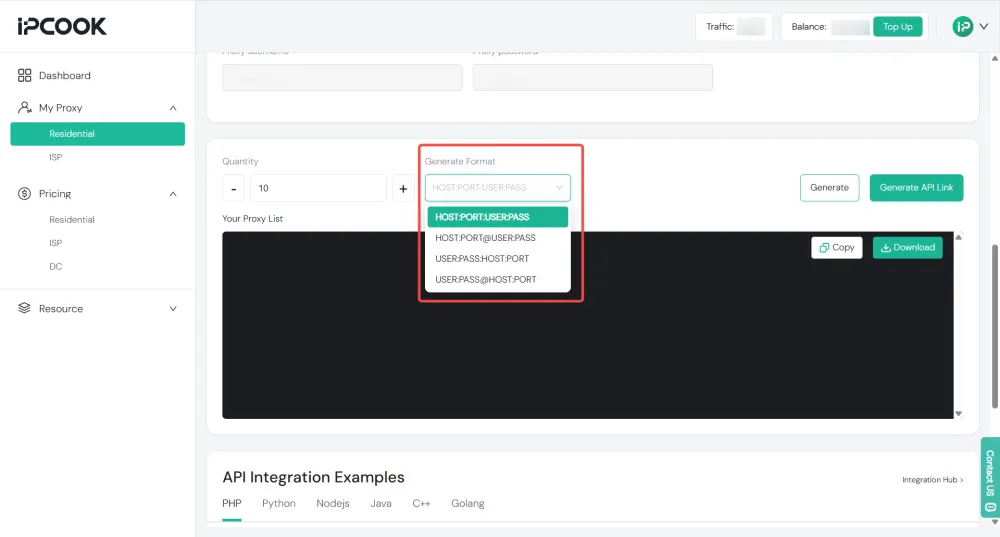
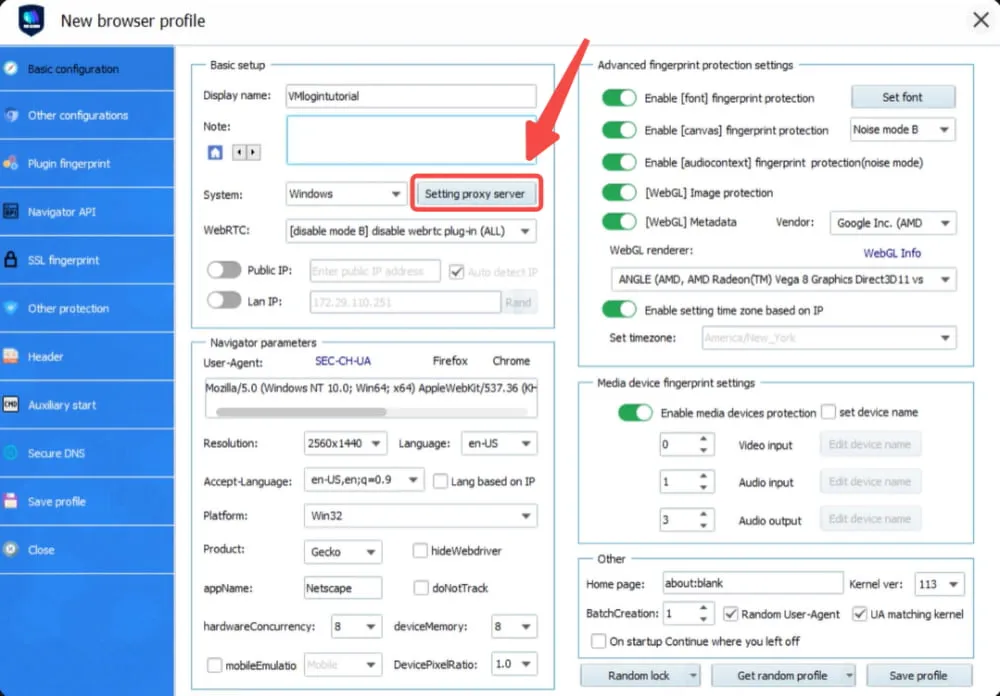
Step 4. Add the credentials through the proxy settings of the corresponding browser profile. Depending on the tool, you can enter them manually or import the list downloaded from IPcook. Open an IP checking page in the profile to confirm that the proxy is connected and showing the intended location.
👀Take VMLogin as an example. The Setting proxy server option appears during profile creation, as shown below.
Step 5. Open Instagram inside the prepared profile and follow the standard signup process. Enter the requested account details and complete any email, phone, or security verification required by Instagram. The browser profile and proxy do not replace these checks.
Step 6. Record the new Instagram account, browser profile, and proxy connection in your tracking system before moving to the next profile. This keeps their relationships clear as the account list grows.
👀Related Reading:
Method 3. Use Cloud Phones for Mobile Workflows
A cloud phone provides a remotely hosted Android environment. It lets remote teams access Instagram's mobile app without keeping every session on a physical device. This method is useful for testing mobile features or handling tasks unavailable in a browser. The steps below use DuoPlus as a simple example.
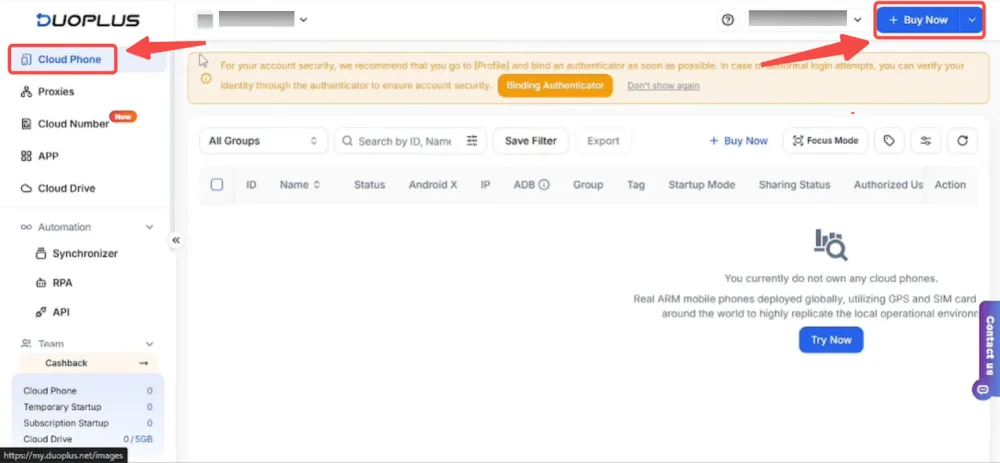
Step 1. Set up Cloud Phone. Choose a cloud phone provider and purchase the required instances. In DuoPlus, this process begins in the Cloud Phone section. Once purchased, give each instance a clear name and assign it to the appropriate project or team member.
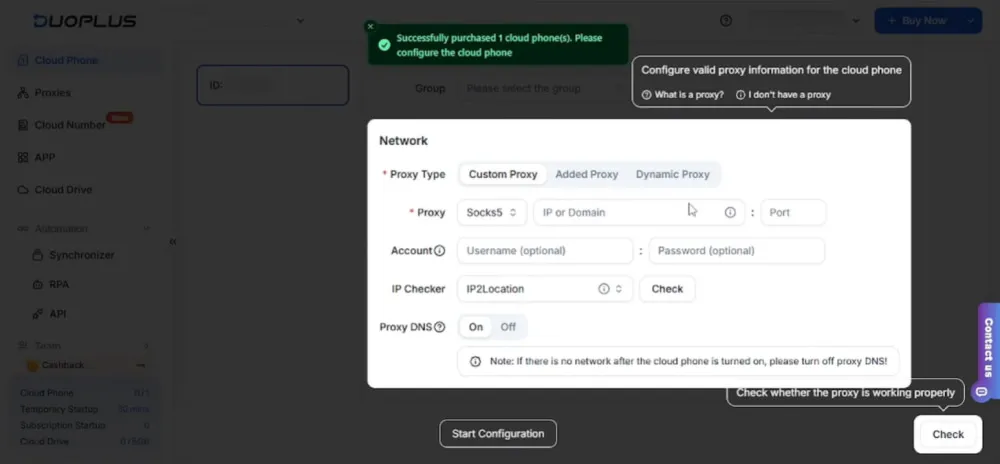
Step 2. Configure the Proxy Connection. DuoPlus requires proxy credentials before the instance can be initialized. These include the protocol, hostname, port, username, and password. The details come from a proxy provider. With IPcook, you can choose HTTP or SOCKS5 and copy or download the credentials from the dashboard. Enter them in DuoPlus, test the connection, and complete the configuration.
Step 3. Start the cloud phone and confirm that the Android environment loads correctly. Check that its name, project assignment, and team access permissions are correct.
Step 4. Install the official Instagram app from the store supported by the mobile environment. Use Google Play on Android or Apple's App Store on iOS. DuoPlus currently supports Android, so its cloud phones use Google Play. Open the app and complete Instagram's standard signup and verification process.
Step 5. Record the instance ID, Instagram account, project, recovery method, and responsible team member.
Cloud phone performance depends on the provider and plan. For high-value accounts that need tighter ownership and access controls, a dedicated physical device may be a better fit.
Method 4. Use Dedicated Devices for High-Value Accounts
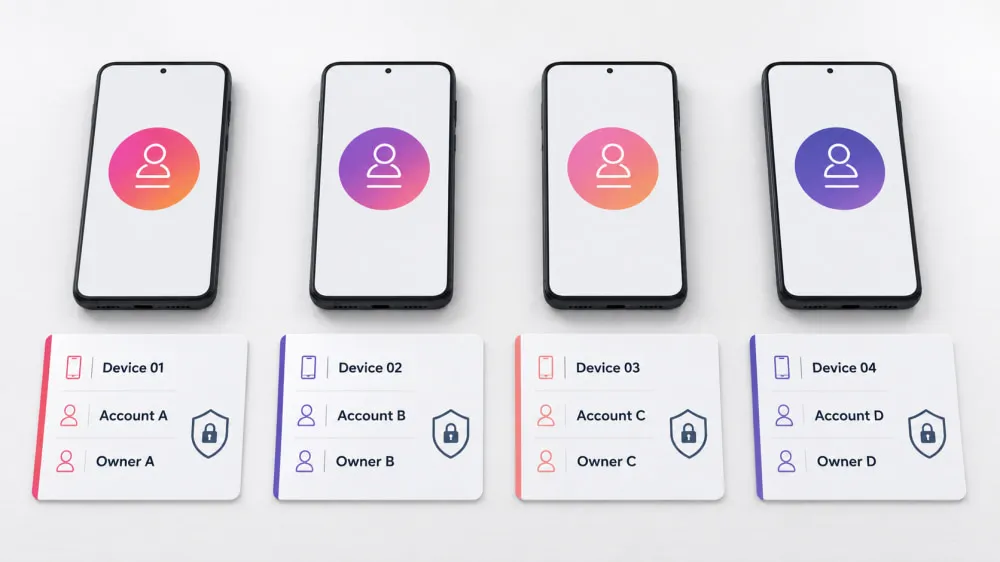
Dedicated devices trade scalability for clearer control. A business can assign one phone or tablet to a specific account, client, or operating unit, making it easier to define who has physical and administrative access.
Step 1. Assign the device to an account, project, or responsible team member.
Step 2. Install or update the official Instagram app. Use Google Play on an Android device or Apple's App Store on an iPhone or iPad.
Step 3. Open the app and complete Instagram's standard signup and verification process.
Step 4. Protect the device with a passcode. Then enable two-factor authentication for the Instagram account.
Step 5. Record the device, account owner, recovery method, and access permissions.
The main drawback is cost. Devices need charging, updates, secure storage, and eventual replacement. This method is therefore better suited to high-value accounts than large batches. Whichever setup you choose, account creation is only the first stage. The next step is keeping credentials, recovery methods, environments, and team access under control.
How to Manage Bulk Accounts After Creation
Once the accounts are active, consistent organization matters more than adding new tools. Keep login details, environments, recovery methods, and team access connected through one clear system.
Create a record for each account. Include the username, recovery email or phone number, two-factor authentication status, account owner, and current status.
Keep each account assigned to the same browser profile, cloud phone, or physical device. If the workflow uses a proxy, a static ISP proxy provides a consistent connection for ongoing access. IPcook ISP Proxies support HTTP and SOCKS5 and provide stable, low-latency connections. Plans currently start at $0.05 per IP per day. These features make IPcook one of the best Instagram proxies for managing multiple accounts.
Limit access to responsible team members. Record any changes to passwords, recovery details, device assignments, or proxy settings.
Review the account list regularly. Remove outdated access, renew required services, and update records when an account changes owners or environments.
Final Thoughts
Creating bulk Instagram accounts works best when the method matches the scale. Instagram's official tools suit small batches, browser profiles and proxies support larger web-based workflows, cloud phones cover mobile tasks, and dedicated devices provide clearer control for high-value accounts.
For larger browser-based creation, IPcook Residential Proxies fit larger browser-based setups that need flexible locations and session control, while IPcook ISP Proxies are better suited to keeping established accounts on a fixed, stable connection.
👀Related Guides: Need a similar setup for another platform?
Explore our guides for bulk Facebook accounts, multiple YouTube accounts, and multiple TikTok accounts. For automation, see how to create an X (Twitter) bot.