How to Fix and Prevent the Facebook “Session Expired” Error

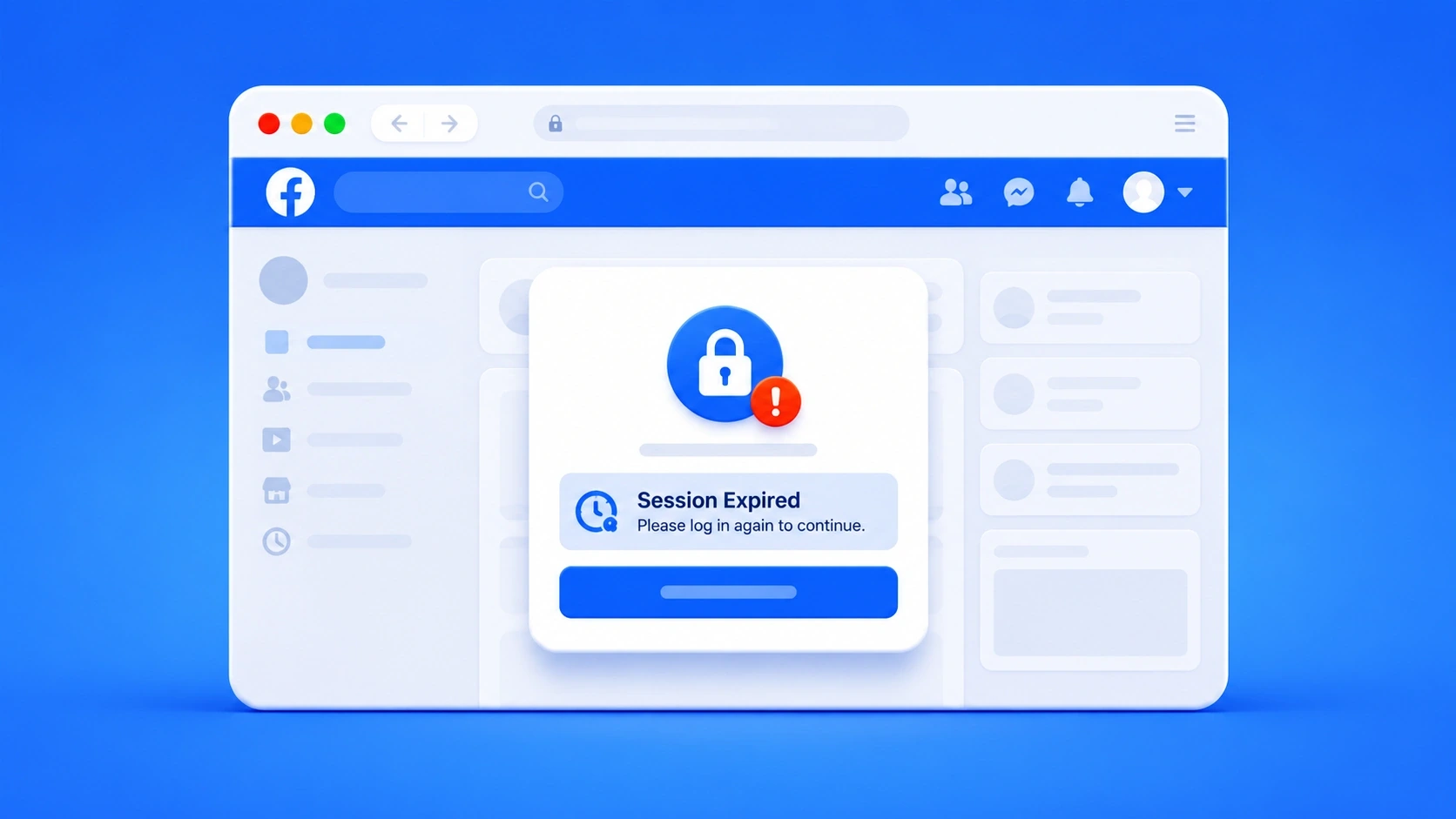
When you log into Facebook, the platform generates a session token—a temporary authentication key stored in your browser cache or app data that keeps you logged in as you browse. A "Session Expired" message simply means Facebook has invalidated this token and no longer recognizes your login as active.
Whether you are a casual user annoyed by a sudden logout or a power user managing multiple accounts, this guide will break down exactly why it happens, how to fix it on any device, and how to stop it from coming back.
Key Takeaways
The error means Facebook's background login token has become invalid.
Usually caused by shifting IP addresses, corrupted cache, or outdated apps.
Re-logging, clearing your cache, or updating the app fixes most issues instantly.
For multi-account managers, dedicated Facebook proxies stop loops by unstable IPs.
Why Does Facebook Keep Saying Session Expired? The 7 Real Causes
While it feels like a random glitch, Facebook usually has a specific reason for kicking you out. Let’s dive into the seven most common culprits and how to pinpoint yours.
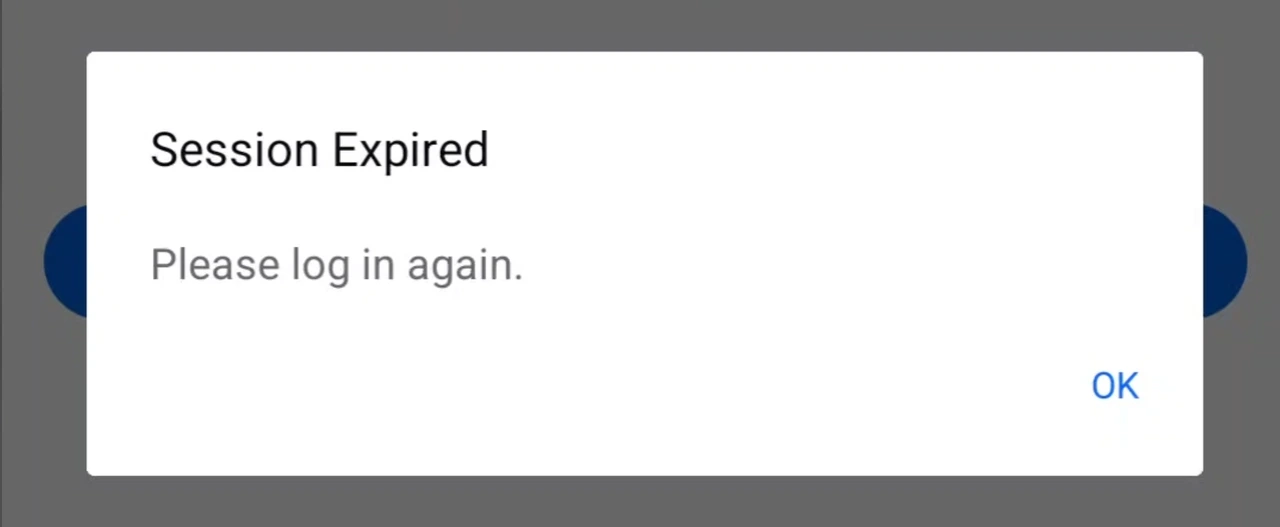
1. Inactivity Timeout
Facebook automatically ends sessions after a period of inactivity. If you leave a tab open overnight or stay away from the app for too long, the platform quietly invalidates your token. This is the most common and least alarming cause. Fortunately, it is also the easiest to confirm. If the error only appears after hours of downtime and a single re-login fixes it, inactivity was almost certainly the trigger.
2. IP Address Changes Mid-Session
This is the cause you may miss, especially when using mobile data, VPNs, or shared networks. Facebook ties your session to your IP address for security. If your IP changes mid-session, such as switching from Wi-Fi to cellular or connecting to a VPN, Facebook flags it as suspicious and logs you out. The telltale sign is the “Session Expired” message popping up immediately after a network switch or location change. This is also what typically drives the endless logout loop on unstable connections.
3. Corrupted or Expired Cache and Cookies
Browsers and the Facebook app cache session data to speed up loading, but this data can corrupt or expire over time. When Facebook tries to validate a corrupted token, authentication fails. If the issue is isolated to one device or browser, and clearing the cache fixes it instantly, local data is the culprit.
4. Multiple Device Logins
Logging into one Facebook account from multiple devices within a short window can trigger security alerts. Facebook interprets rapid multi-device access as a potential hack and terminates active sessions to protect the account. If you switch from your phone to a laptop and the previous device immediately logs out, this is likely why.
5. Outdated App or Browser Version
Older software versions often have bugs in session handling or lack support for updated security protocols. This causes sessions to drop unexpectedly or fail to renew. If the error strikes frequently without an obvious trigger but stops immediately after an update, outdated software was the root cause.
6. Suspicious Browser Extensions
Ad blockers, privacy tools, and VPN extensions can interfere with Facebook's cookie management or modify request headers, triggering security flags. If the error only happens in one specific browser, extensions are the prime suspect. The quickest way to confirm this is to open an incognito window to disable them by default. If Facebook works perfectly there, you have found the problem.
7. Password or Security Setting Changes
Changing your password, toggling two-factor authentication (2FA), or modifying security settings immediately invalidates all active sessions across all devices. This intentional safety feature ensures only the owner retains access. The connection is usually obvious because the logout happens right after a security update, whether made by you or someone else. If that's the case, the system is simply working exactly as designed.
Quick Diagnostic Table
Before jumping into fixes, use this to narrow down your specific cause:
Test | If it passes | If it fails |
Does the error happen on all devices? | → Likely account-level issue (password change, security flag) | → Likely device/browser-specific |
Does it happen right after switching Wi-Fi ↔ mobile data? | → IP change is the trigger | → Look at cache or extensions |
Does it only happen in one browser? | → Extensions or browser cache issue | → Broader issue |
Does incognito/private mode fix it? | → An installed extension is the culprit | → Cache, network, or account issue |
Did you recently change your password? | → Normal behavior, re-login on all devices | → Check for unauthorized access |
Is it a persistent loop you can't break? | → IP instability or cache corruption | → See advanced fixes below |
How to Fix Facebook Session Expired: Step-by-Step
Now that you know what might be triggering the error, resolving it is usually straightforward. Work your way through these step-by-step fixes, starting with the simplest solutions.
Fix 1: Re-Login on All Devices (Start Here)
The simplest fix for most users. Log out of Facebook on the device showing the error, wait 2–3 minutes, then log back in. This forces Facebook to issue a fresh session token.
Note: If you're stuck in a "session expired loop" where logging back in immediately triggers the same error, don't stop here—move on to Fix 2.
Fix 2: Clear Cache and Cookies
Corrupted cached data is behind a large share of persistent session errors. Here is how to clear your cache across Android, iOS, and desktop browsers:
On Android:
Go to Settings → Apps → Facebook.
Tap Storage.
Select Clear Cache and Clear Data.
Relaunch the app and log in.
On iPhone:
Open the Facebook app and tap the three-line menu.
Go to Settings & Privacy → Settings.
Scroll down to Preferences and tap Browser.
Tap Clear next to "Cookies and cache".
Note: iOS doesn't allow direct cache clearing for Messenger. If Messenger is looping, completely uninstalling and reinstalling the app achieves the same result.
On Desktop Browsers:
Go to your browser's Privacy and Security settings.
Select Clear browsing data.
Check "Cookies and other site data" and "Cached images and files".
Set the time range to "All time".
Click Clear data, then restart your browser.
Fix 3: Update the Facebook App or Browser
Older software versions can cause authentication protocols to fail. Check for pending updates in the App Store (iOS) or Google Play Store (Android). On desktop, ensure your browser is updated to the latest version through its settings menu.
If your app is already updated but the error persists, perform a clean reinstall. Uninstalling the app completely eliminates any deeply residual corrupted files before you log back in.
Fix 4: Disable Browser Extensions (Desktop)
Third-party extensions frequently interfere with Facebook's cookie management. To test this, open a fresh incognito or private window and try logging into Facebook. If it works perfectly there, an extension is the culprit.
Go back to your normal window and re-enable your extensions one at a time to identify the offender. Once found, you can either keep it disabled or whitelist Facebook within its settings. Common offenders include aggressive ad blockers, privacy add-ons, and standalone VPN extensions.
Fix 5: Stabilize Your Network Connection
If your session expires whenever you move around, your network stability is likely the issue. You can minimize these disruptions with a few habits:
Stick to one connection (like your home Wi-Fi) during active Facebook sessions.
If you must switch networks, expect that you may need to re-login.
Avoid using Facebook on public or heavily shared Wi-Fi networks that frequently drop connections.
If you travel frequently, switch networks during the workday, or manage multiple accounts, a more consistent IP setup is essential. No matter how often your physical connection changes, static residential or ISP proxies keep your IP address consistent from Facebook’s perspective.
🎁 Pro Tip: Stop Facebook from logging you out with premium Facebook proxies. Just $0.05/IP.
Fix 6: Secure Your Account
If none of the technical fixes work, Facebook might be proactively terminating your sessions due to unrecognized or unauthorized login attempts. To secure your account:
Go to Settings & Privacy → Settings.
Tap Accounts Center (Meta's centralized settings) and select Password and Security.
Tap Where You're Logged In and review the list of active devices.
Select and log out of any unrecognized devices or locations.
Change your password immediately if you spot suspicious activity, and ensure Two-Factor Authentication (2FA) is enabled.
Fix 7: Remove and Re-Add Your Account (Mobile)
If the mobile app continues to loop, forcing the OS to forget your Facebook account completely will reset its background authentication state.
On Android:
Go to Settings → Passwords & Accounts (or Users & Accounts depending on your device).
Select Facebook or Messenger from the list.
Tap Remove Account.
Re-open the app and log back in from scratch.
On iPhone:
Go to iPhone Settings → General → iPhone Storage.
Scroll down and select Facebook.
Tap Delete App (this deletes the app and clears all its local credential data).
Re-download Facebook from the App Store and log back in.
Note: Modern iOS versions handle account credentials via the native Keychain rather than system-level social integration.
What to Do When the Facebook Session Expired Loop Won't Break
If you’ve tried the basic fixes above and Facebook still instantly logs you out every time you enter your password, you are stuck in a persistent "session expired loop." This deadlock is usually caused by one of three things:
Cause 1: Persistent IP Instability
Your network keeps changing IPs faster than Facebook can validate new sessions. Each time you authenticate, your IP shifts, and Facebook terminates the session again before you can act.
Solution: Switch to a completely different network (like turning off Wi-Fi and using cellular data) to test, or use a proxy with a stable, consistent IP address.
Cause 2: Deep cache corruption
Cached session data is so deeply corrupted that it continuously interferes with new login attempts, instantly invalidating fresh tokens.
Solution: On mobile, fully uninstall and reinstall the app. On desktop, create a completely fresh browser profile (via Chrome or Firefox settings), then log into Facebook from there with no extensions or prior data.
Cause 3: Account-level security lock
Facebook has quietly flagged your account for review due to suspicious activity patterns, such as rapid IP changes, unusual login behavior, or automation flags.
Solution: Log in via a desktop browser to see if Facebook is prompting an identity check. Complete any verification requested. If the account is completely locked, open an incognito window and use Facebook's recovery flow at facebook.com/login/identify.
How Proxies Help You Avoid Facebook Session Expiry
The seven fixes above work well for casual users. But for social media managers, agencies, and power users running multiple accounts in anti-detect browsers, manual troubleshooting quickly becomes a recurring headache.
Facebook's security system dislikes unstable IP behavior. When your IP keeps changing because of weak Wi‑Fi, mobile data switches, or low-quality VPNs, it can look like suspicious access and trigger a forced re-login. High-quality proxies help by keeping each account tied to a more stable, consistent network identity.
Why Choose IPcook to Prevent Facebook Session Dropouts
IPcook is a dedicated proxy provider that offers stable, high-performance IPs to keep your Facebook workflows uninterrupted. By pairing your anti-detect browser profiles or automation tools with our reliable proxy network, you can minimize login disruptions and keep your daily operations running smoothly.
55M+ Global IPs: Isolate accounts to prevent cross-contamination and bans.
99.99% Uptime: Maintain stable connections to reduce forced re-logins.
<0.5s Response Time: Fast speeds for quick page loads, posting, and automation.
Flexible Rotation: Switch IPs on demand to suit any automated workflow.
24/7 Technical Support: Get expert assistance whenever you need it.
Starting at just $0.5/GB or $0.05/IP, IPcook makes stable Facebook account management accessible for individuals, teams, and agencies.
📚 Related Reading:
Summary
While Facebook's security systems are designed to block hackers, you can still get caught in the crossfire due to routine network shifts. For casual users, the fix is simple: clear your cache, update the app, or reconnect to Wi-Fi. However, for social media professionals, agencies, and developers managing multiple accounts, IP instability is often one of the biggest causes of repeated logouts. With IPcook's trusted proxies, your accounts stay active and your operations run without interruption.