


How to Unblock Steam: 3 Easy Methods to Access Steam

Steam is the world's largest PC gaming platform, with more than 130 million monthly active users and a record 42 million concurrent players logged in on a single day in 2026. But while millions play without interruption, some can't even open Steam because school networks, workplace firewalls, public Wi-Fi, or regional restrictions block it.
If Steam won't load, the store page keeps spinning, or the client times out right when you just want to play, this guide is for you. We'll show you how to unblock Steam with a proxy in a few simple steps, including how to choose, how to set it up on your device, and how to get back in fast.
💡Quick note: This guide is about accessing Steam when a network blocks it. If you're looking for how to unblock a friend on Steam, that's handled inside Steam → Friends & Chat → Blocked.
Why Can't You Access Steam?
Before trying to unblock Steam, it helps to identify what is preventing access. The problem usually comes from your network, location, account, or device.
1. Your network is blocking Steam. Schools, workplaces, and public Wi-Fi networks may restrict access to gaming platforms such as Steam. Network administrators can use firewalls or content filters to block certain types of traffic or websites. Public networks at hotels, cafés, and airports may also have restrictions or connection limits that prevent Steam from loading properly.
2. Steam access is restricted in your region. Some Steam features, games, payment methods, or store content may vary by country or region because of local regulations, sanctions, publisher restrictions, or Steam's regional rules. If you're traveling or studying abroad, your current location may also affect which Steam content or services you can access.
3. Your account has an issue. Account-related problems are different from network blocks. For example, repeated failed login attempts, account security issues, or a Valve Anti-Cheat (VAC) ban can affect your ability to use Steam. Changing your network or using a proxy will not resolve an account restriction. In these cases, you'll need to follow Steam's account recovery or support process.
4. Your device or Steam client has a connection problem. Steam may also fail to connect because of local firewall settings, DNS problems, network configuration, or an issue with the Steam client itself. If other websites work normally but Steam does not, checking your device and Steam installation can help determine whether the problem is local rather than network-wide.
How to Unblock Steam
Once you know what is preventing Steam from connecting, you can choose a fix based on the type of restriction. If the problem comes from your current network, switching networks, using a VPN, or setting up a proxy may help restore access.
Method 1. Switch to Another Network
If Steam is blocked by the network you're currently using, the simplest solution is to connect through a different network.
Disconnect your device from the current Wi-Fi network.
Connect to another trusted Wi-Fi network or use your phone's mobile hotspot.
Open Steam and check whether the client can connect normally.
If Steam works on the new connection, the original network is likely causing the problem. This is especially useful for testing whether a school, workplace, or public Wi-Fi network is restricting Steam.
Method 2. Use a VPN
A VPN routes your internet connection through a VPN server, which can help when your current network is preventing Steam from connecting.
Choose a reputable VPN service and install its app on your device.
Connect to a VPN server.
Open Steam and check whether it connects normally.
Method 3. Use a Proxy
A proxy can help you unblock on Steam when the problem is related to your current network or IP address. Your traffic is routed through a proxy server, so Steam receives the connection from the proxy's IP address rather than your usual one. This can help when the original network restricts or blocks the connection.
An ISP proxy with a fixed IP can be a practical choice for longer gaming sessions. The same IP can remain in use throughout your session, so you don't have to deal with frequent IP changes while playing. This makes ISP proxies suitable for players who want a consistent and stable connection when using Steam over extended periods. The steps below use IPcook ISP Proxies as an example to show how to quickly get and configure your proxy.
Step 1. Log in or sign up with IPcook and purchase ISP proxies directly. You can choose IPs from 8 major countries or mix locations in a single order, all with unlimited traffic, so you can play games without worrying about data usage.
IPcook ISP Proxies also support HTTP and SOCKS5 with UDP, giving you flexibility for web-based Steam content and different gaming needs, including online games that rely on real-time communication. 99% uptime helps maintain a reliable connection during longer gaming sessions.
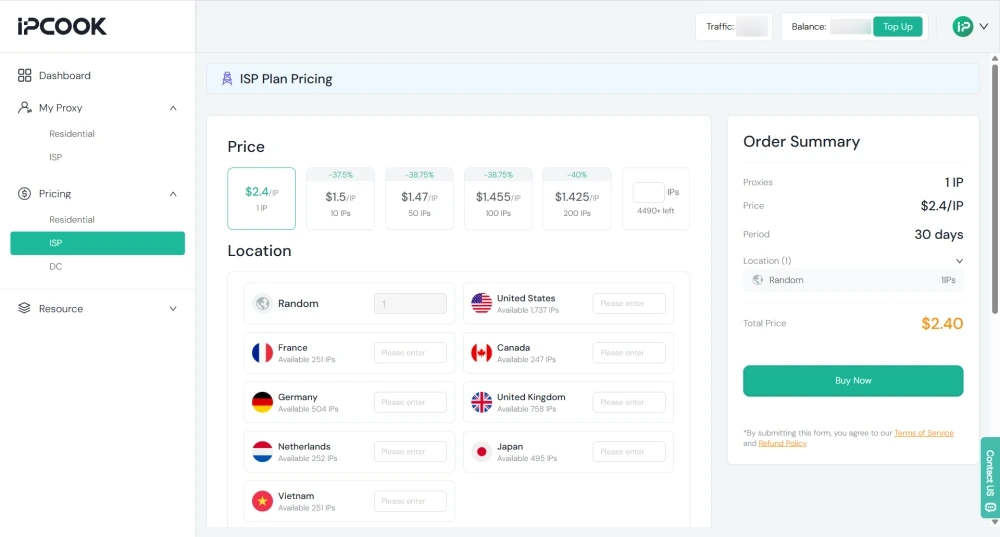
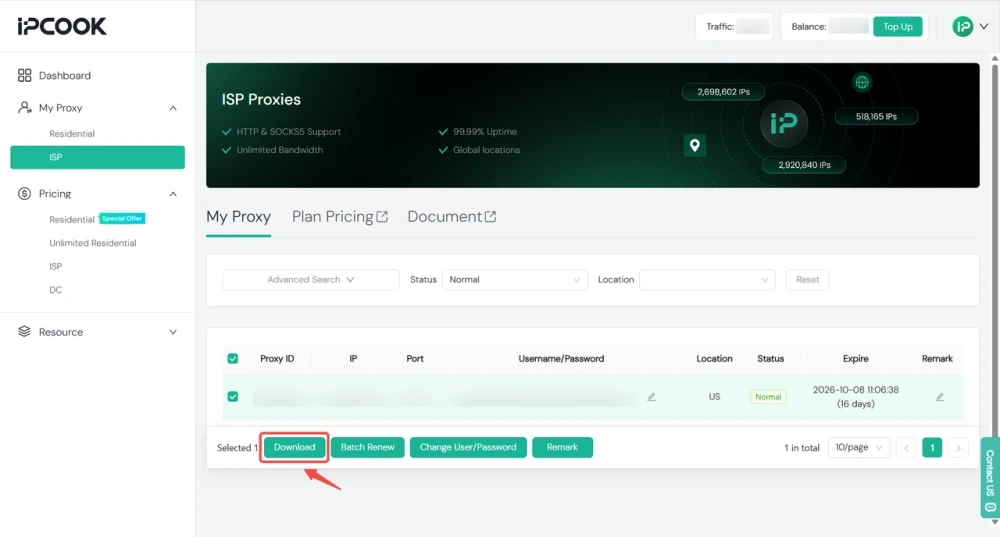
Step 2. Export your proxy credentials. Go to My Proxy > ISP > My Proxy. Select the proxy you want to export, click Download, and choose your preferred format to export the credentials directly. Each proxy comes with a username and password for secure configuration.
Step 3. Set up your proxy based on your device. For detailed configuration instructions, see the How to Configure Your Proxy section below.
Why Use a Proxy to Unblock Steam
Switching networks is the simplest option, but it only works when you have another network that can access Steam. A VPN can also help, but some gaming setups may not work well with VPN connections, and you may have less control over the IP you use. By contrast, a proxy gives you a fixed IP for a more consistent and stable connection during longer gaming sessions.
Reach games and servers anywhere. If you want to access region-locked titles, play with friends on overseas servers, or just get to Steam on a network that blocks it, a proxy gives you the flexibility to route through a different location. Many public Wi-Fi networks also block VPN connections outright.
Get a more stable connection. Lag and bad routing can ruin competitive play. With a proxy, you can choose a location closer to the game server you're connecting to, which often means a shorter, more direct path for your traffic. That means lower latency and a steadier connection during gameplay.
Keep your activity more private. A proxy hides your real IP address, which makes it harder for trackers or other third parties on the network to tie your Steam activity back to you. This matters most on public or unfamiliar Wi-Fi, where you have less control over who else is on the network.
How to Configure Your Proxy
Now use the proxy information you just got to configure things on your end. Pick whichever setup matches your device. Here's how to get it done.
Configure the Proxy on Chrome
Some devices on public or managed networks lock down the system proxy settings. The menu is greyed out, or you simply don't have admin access. If that's your situation, you can still reach Steam through your browser with a proxy extension.
Open Chrome and search for FoxyProxy or Proxy SwitchyOmega in the Chrome Web Store. Click Add to Chrome, then Add Extension when prompted.
.webp)
Click the extension icon in your Chrome toolbar and select Options. Then go to the Proxies tab to add a new connection.
.webp)
Create a new proxy profile, then enter the IPcook proxy credentials: proxy host, port, username, and password. For the protocol, choose HTTP. Chrome extensions handle HTTP proxies smoothly.
.webp)
Then Save and click the extension icon in your toolbar, and select the proxy profile you just created to activate.
.webp)
This method routes only your browser traffic through the proxy. The rest of your device stays on the regular network, which keeps things lightweight and works well, even on managed Chromebooks.
Configure the Proxy on Windows
Setting up a proxy in Windows applies it system-wide, so browsers like Chrome, Edge, and other applications can route through it automatically.
Press Win + I to open Settings, then go to Network & Internet > Proxy.
Under Manual proxy setup, turn on Use a proxy server.
Enter your IPcook proxy address and port, then click Save.
.webp)
If authentication is required, enter your proxy username and password when prompted by the application.
Configure the Proxy on macOS
Here's how to set up a proxy on macOS for Steam:
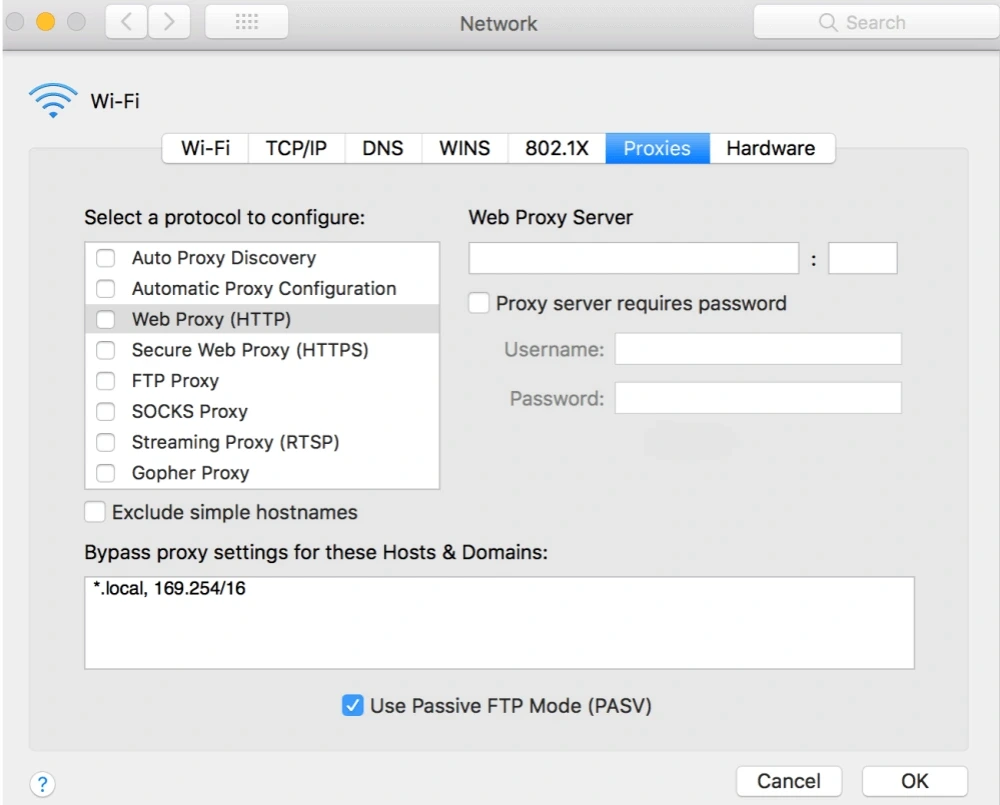
Go to Apple menu > System Settings > Network.
Select your active Wi-Fi or Ethernet connection and click Details.
Open the Proxies tab.
Enable SOCKS Proxy and enter your proxy host and port.
Enter your username and password if authentication is required.
Click OK to save the settings.
Troubleshooting: If Steam Still Won't Load
A blocked network, a stale DNS cache, an unstable proxy route, or Steam server outages can cause the platform to load slowly, freeze at login, or fail to open at all. If you are still hitting issues, try these steps to fix the connection:
Try a different IP. Some IPs perform better than others depending on your current network. Choosing a location closer to your actual physical location usually gives better results. You can easily generate a new proxy or switch to a different location in your IPcook dashboard.
Switch protocols. If HTTP isn't working, try SOCKS5. Some networks handle one better than the other. IPcook supports both.
Check if Steam is down globally. Visit steamstat.us to rule out any official Steam-side outages before troubleshooting further.
Flush your DNS. On Windows, open Command Prompt and type
ipconfig /flushdns. Sometimes stale DNS entries cause connection problems even when the proxy is working.Try the browser version. Open store.steampowered.com in your web browser with the proxy active. If the website loads but the app doesn't, the issue is specific to how the Steam desktop client handles your connection.
Use a dedicated routing tool for the desktop client. If the Steam desktop app still ignores your system proxy settings, try using a dedicated tool like Proxifier. This forces the desktop client's traffic through your proxy, bypassing any limitations of browser or system configurations.
Is Steam Unblocked Safe?
Unblocking Steam is generally safe when you use a trusted network, VPN, or proxy service and follow Steam's rules. Avoid unknown free proxies or services that ask for your Steam password, as they may put your account or personal information at risk. Keep your Steam login details private, and check local network or regional rules before using any method to access Steam.
Summary
When Steam is blocked, switching networks, using a VPN, or setting up a proxy can help restore access. An ISP proxy can also provide a fixed IP for a consistent connection during longer gaming sessions. If you need a proxy to unblock on Steam, IPcook ISP proxies offer unlimited traffic and a stable connection for longer gaming sessions.
You're dealing with blocked sites beyond Steam, we also have guides on how to unblock YouTube, unblock YouTube Music, and unblock OnlyFans.
