How to Unblock Websites: Simple Solutions for Different Situations

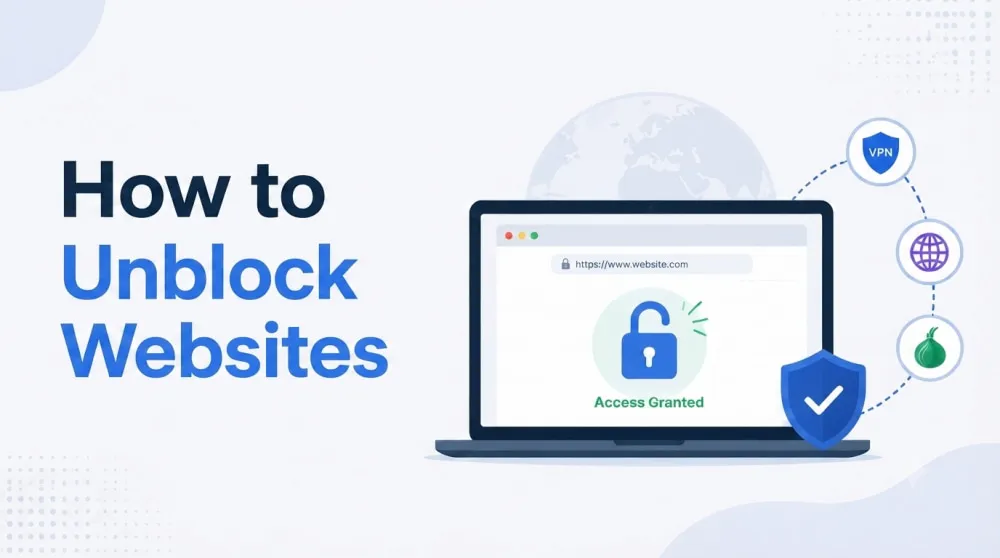
Unable to access a website you need? A blocked website can happen for many reasons, including network restrictions, geographic limitations, or access policies in places like schools and workplaces. The good news is that there are several ways to troubleshoot and restore access.
This guide explains how to unblock websites in different situations, starting with common solutions like proxies and VPNs, followed by DNS changes and privacy-focused options such as Tor Browser. Whether you are dealing with blocked websites on a school network or office connection, you can find a suitable method here.
Why Are Websites Blocked?
Websites can become unavailable for several reasons. Some are intentionally restricted by schools, workplaces, governments, or website owners due to access policies, location limits, or security concerns. Others may fail to load because of technical issues, such as DNS errors, network problems, or IP-based restrictions. Identifying the cause is the first step to finding the right solution.
Quick Overview: 5 Ways to Unblock Websites
Not every blocked website requires the same solution. To help you quickly find the right option, the table below compares the most common methods based on their best use cases, advantages, and limitations.
Method | Best For | Pros | Cons |
Proxy | IP-based restrictions | Flexible for different use cases | Limited encryption |
VPN | Privacy and general access | Encrypts traffic | May reduce speed |
Change DNS | DNS-based blocks | Simple configuration | Limited use cases |
Tor Browser | Anonymous browsing | Strong privacy protection | Slower performance |
Method 1. Use a Proxy
Some websites restrict access by checking where a connection comes from. They can use your IP address to identify your network location, detect restricted regions, or block specific IP ranges. A proxy can help in these cases by sending your requests through another server. The website sees the proxy server’s IP address instead of your original IP, which may allow access when your connection is the reason for the restriction.
Streaming platforms such as YouTube and movie websites may limit content availability based on region, while gaming services may offer different features or access options across locations. In these cases, a proxy can provide a connection from another location. Proxies can also be useful for students and office workers when school or workplace networks restrict certain websites.
💡For more YouTube proxy recommendations, continue reading the guide below: Best YouTube Proxy: 6 Proxy Services for YouTube Views
Step 1: Choose a proxy service
Start by selecting a proxy service that provides the features you need. For example, you can choose a proxy provider like IPcook that offers stable connections, easy-to-use proxy settings, and different proxy types for your specific use case.
Step 2: Choose a proxy type
Select a proxy type based on your needs. ISP proxies are often a better choice for stable, long-term connections, such as streaming, gaming, or account access. IPcook ISP Proxies give you static ISP IPs with 99.9% uptime and low latency. With HTTP and SOCKS5 protocol support, you can use them across different applications with broader compatibility. IPcook SOCKS5 proxies also support UDP forwarding, helping deliver faster data transmission for real-time applications such as online gaming.
You also get unlimited traffic with our ISP and Datacenter Proxies, without worrying about data limits. Pricing starts at $0.05 per IP per day when purchasing 10 IPs, with lower per-IP costs available for larger quantities.
If you need access to websites or content available in different regions, residential proxies can be a suitable choice. IPcook Residential Proxies provide access to 55M+ IPs across 185+ locations, with one-line API integration for quick proxy deployment. Starting at $0.3/GB, they are suitable for use cases such as web scraping and SEO monitoring.
Step 3: Get your proxy details
Obtain the required information from your proxy provider, including the proxy server address, port, username, and password. IPcook provides reliable proxy solutions with ready-to-use proxy details, along with detailed setup guides to help you quickly configure your connection.
Step 4: Configure the proxy
Open your network settings and find the proxy configuration option. Enter the proxy details provided by your provider, then save the settings to enable the connection.
👀Since the setup process varies across devices and browsers, you can check How to Use a Proxy Server: Setup Guide for Beginners for detailed configuration steps.
Step 5: Access the website
Reconnect to the internet and visit the blocked website to check whether access is restored.
Method 2. Use a VPN
VPN creates an encrypted connection between your device and a VPN server. When you connect to a VPN, your internet traffic is routed through the VPN server, so your original network connection is hidden from the website or network administrator. This can help bypass restrictions caused by network policies or location-based access rules.
Schools and workplaces often restrict access to certain websites through their network settings or firewall rules. A VPN can help when the restriction comes from the local network by routing your traffic through a different server and encrypting the connection. Setting up a VPN connection involves a few simple steps:
Step 1: Get a VPN client or setup details
Download the VPN app/client from your provider, or get the required configuration details if you plan to set up the VPN manually.
Step 2: Connect to the VPN
Open the VPN app or enter the configuration details in your device settings. Sign in, choose a server location, and connect to the VPN network.
Step 3: Test website access
Open the blocked website again to check whether access is restored.
💡You May Also Like:
Method 3. Switch to a Different Network
The network you are using may be the reason a website is blocked. Schools, workplaces, and public Wi-Fi providers often apply access restrictions through network settings or firewall rules. Switching to another network can help when the restriction only affects your current connection.
For instance, school Wi-Fi may block social media, entertainment, or other non-academic websites. Workplace networks may restrict access to certain websites based on company policies, while public Wi-Fi networks may limit access for security or bandwidth management reasons.
To switch to a different network:
Step 1: Disconnect from the current network
Disconnect your device from the Wi-Fi network that restricts access.
Step 2: Connect to another network
Switch to another available Wi-Fi network or use mobile data if available.
Step 3: Verify access
Try opening the website again to confirm whether it is accessible.
Method 4. Change DNS Settings
Some website restrictions happen at the DNS level, where your DNS provider blocks or fails to resolve certain domains. Changing your DNS settings replaces your current DNS server with another one, which may help access websites blocked by DNS-level restrictions.
This method works across different devices and browsers. For example, Chrome users can enable Secure DNS to use a different DNS provider, while other users can update DNS settings directly on their devices or routers.
Step 1: Choose a different DNS provider
Select a public DNS provider that supports reliable domain resolution.
Step 2: Change your DNS settings
Update the DNS settings on your device, router, or browser. For Chrome, you can enable Secure DNS in Chrome settings.
Step 3: Check website access
Refresh your browser and try opening the website again.
Method 5. Use Tor Browser
Tor Browser is a privacy-focused browser that helps protect your online identity by routing your traffic through the Tor network. Instead of connecting directly to a website, your connection passes through multiple volunteer-operated relays, making it difficult for websites and third parties to identify your original IP address.
This approach can help users access websites that are restricted based on IP addresses or locations. It is especially suitable for privacy-focused users who want stronger anonymity while browsing. However, because traffic is routed through multiple relays, Tor Browser may provide slower speeds compared with regular browsers, proxies, or VPNs.
To use Tor Browser:
Step 1: Download Tor Browser
Download Tor Browser from the official Tor Project website and install it on your device.
Step 2: Connect to the Tor network
Open Tor Browser and click Connect. The browser will establish a connection through the Tor network automatically.
Step 3: Adjust settings if needed
If the connection is blocked or unavailable in your region, you can configure Tor Bridge settings to connect through alternative entry points.
Step 4: Try accessing the website
Enter the website address in Tor Browser and check whether you can access the content.
Other Quick Ways to Access Blocked Content
The methods above can solve most website access issues, but some simple alternatives may work for specific situations. These options are usually more limited and may not be suitable for complex websites or long-term use.
Use a Web Proxy: A web proxy can help access simple websites by routing browser requests through another server. However, it may not work well with complex websites, video platforms, or websites that require account login.
Use a Browser Extension: Some browser extensions can route your browser traffic through a proxy or VPN service. Keep in mind that they usually only affect browser activity and do not change the connection for other apps on your device.
Use Website Archives: Website archives allow you to view saved versions of web pages. This option is useful when you only need to read information from a blocked page, but it cannot provide access to live website features.
Use Google Translate: Google Translate may occasionally help display basic webpage content through its translation feature. However, it is not suitable for interactive websites or services that require full functionality.
Final Verdict
The best way to unblock a website depends on why access is restricted. For simple network issues, switching networks or changing DNS settings may be enough. Proxies can help with location-based restrictions and provide alternative IP connections, while VPNs are useful for encrypted connections and network-level restrictions. Tor Browser focuses more on privacy and anonymity.
With stable connections and support for different use cases such as streaming, gaming, and website access, IPcook offers a practical solution when you need more consistent access options. You can enjoy reliable performance at an affordable price, helping you access content more smoothly while keeping costs manageable.