


Roblox IP Ban: How to Check, Appeal, and Restore Access

You log into Roblox and suddenly nothing works. One account is banned, another account won't load, and a 403 error may appear when you try to launch the game. At that point, it's natural to wonder whether Roblox has blocked your IP address. The problem is that an IP ban is only one possible explanation. Account-level moderation, experience bans, client errors, and network issues can cause similar problems.
Before trying to fix the problem, this guide will help you understand what a Roblox IP ban is and guide you through the troubleshooting process step by step.
What Is a Roblox IP Ban?
A Roblox IP ban generally refers to a network-level restriction placed on a public IP address rather than one account. Because phones, computers, and consoles on the same home Wi-Fi usually share one public IP, a genuine IP-level restriction could affect multiple devices or accounts using that connection. However, Roblox's public documentation does not define a standard IP-ban category or explain exactly how such restrictions are applied.
That network-level nature is what makes a suspected IP ban look different from an account ban. You may notice several accounts failing on the same network, access-denied messages, or connection errors that disappear when the device switches to mobile data. These signs can point to a network-level problem, but none of them confirms an IP ban on its own.
Are You Really IP Banned From Roblox?
The easiest way to narrow it down is to check what is actually affected. If the problem follows your account, it may be an account restriction. If it only affects one experience or device, the cause may be elsewhere. Compare the same account and device across different networks, and change one variable at a time so you can see what makes a difference.
What happens | Most likely cause | What to check |
Only one account is banned, even on other networks | Account ban | Check the moderation notice and appeal if available |
Only one experience is unavailable | Experience ban | Try another experience and check for Error 600 |
Roblox works on mobile data but not on your home Wi-Fi | Possible IP or network restriction | Test the same account and device on both networks |
Roblox shows 403 only when launching from a PC browser | Client problem | Reinstall Roblox and clear its app data |
Several accounts are restricted, even on different networks | Linked-account enforcement | Check each account's moderation notice |
All devices fail only on the same network | Network problem or possible IP restriction | Check other websites and restart or troubleshoot the network |
💡Error 403 does not always mean an IP ban
A 403 error can indicate an IP or network restriction when it consistently occurs across multiple accounts or devices on the same network. However, on PC, Roblox says Error 403 can also occur when the client fails to initialize correctly after being launched from a website.
How Long Does a Roblox IP Ban Last?
Roblox does not publish a standard duration for suspected IP or network restrictions, so there is no official timeframe you can rely on. Claims that every IP ban lasts a few hours, seven days, or permanently are not supported by Roblox's public documentation.
The table below gives a general idea of how long these restrictions may last.
Typical Duration | What It Means |
Temporary | Access from the affected IP address may be blocked for a limited period, while the account itself may still work elsewhere |
Permanent | Access from the affected IP address may remain blocked indefinitely, potentially affecting multiple accounts or devices using that IP |
Enforcement-related | A suspension or termination can extend to other accounts associated with the affected user, rather than being limited to one account |
Why You May Get IP Banned on Roblox
IP-related restrictions may come into play when activity on a network is associated with repeated abuse, attempts to evade enforcement, or other behavior that puts Roblox services or other players at risk. The specific behavior matters, but the key point is that enforcement can go beyond a single account when activity appears to be connected across accounts or a network.
Behavior | IP Ban Risk | Typical Duration |
Cheating or exploiting | 🚨Very High | Permanent |
Scamming or fraud | 🚨Very High | Permanent |
Spam or abusive automation | ⚠️Moderate | Permanent |
Harassment or safety violations | ⚠️High | Temporary |
Ban evasion | 🚨Very High | Permanent |
Security bypass attempts | ⚠️High | Permanent |
How to Get Unbanned From Roblox
If you believe a Roblox restriction was applied by mistake, you can request a review through the appeal option provided in your moderation notice. Depending on the case, Roblox may direct you to Violations & Appeals or the Support Form. Most account moderation appeals must be submitted within 30 days, while EU users have 6 months to appeal an initial moderation action. Only the account owner can submit an appeal.
For your appeal, clearly explain what happened and provide your username, moderation details, and any relevant evidence. Keep in mind that submitting an appeal does not guarantee that the restriction will be removed. If Error 600 appears only in one experience, contact the experience creator instead, as Roblox Support cannot remove bans issued directly by experience creators.
How to Bypass a Roblox IP Ban
The methods below only change or test your network connection. They will not remove an account suspension, termination, Experience ban, or enforcement ban. If Roblox works normally on another legitimate network but continues to fail on your original connection, you can continue troubleshooting the network or IP layer.
However, if the same moderation notice follows your account across different devices and networks, the issue is not limited to your IP address. Return to the "How to Get Unbanned From Roblox" section above and use the official appeal process instead.
Method 1. Restart Your Router or Use a Mobile Hotspot
Changing your network connection may restore access if the restriction is tied to your current IP or network. Start by trying the simplest options before considering other solutions.
Restart your router. If you use a dynamic IP, your ISP may assign a new public IP. Check your IP before and after restarting to confirm.
Try a mobile hotspot. Keep the same account and device, but switch to mobile data. If Roblox works there but not on your home Wi-Fi, the original network or IP may be the issue.
Compare the results. If Roblox works on the new connection, you can continue using that connection or troubleshoot the original network. If it fails across different networks, changing your IP is unlikely to solve the problem.
Method 2. Use a Proxy with an Antidetect Browser
A proxy gives your connection a different IP, which may help restore access if the issue is related to your IP address. An antidetect browser keeps the test in a separate browser profile, including its cookies and stored session data. If you need to use a different IP or test whether access can be restored through another network, IPcook is a great choice.
IPcook ISP Proxies provide fixed proxy IPs that can replace your original public IP and help maintain a stable connection during gameplay. They support HTTP and SOCKS5 and offer unlimited traffic, making them suitable for longer gaming sessions. For location-specific testing, IPcook Residential Proxies offer sticky sessions for up to 24 hours and access to 55M+ IPs across 185+ countries, making it easier to test Roblox access from different regions.
Below are the steps for configuring a proxy with an antidetect browser, using IPcook ISP Proxies and AdsPower as examples.
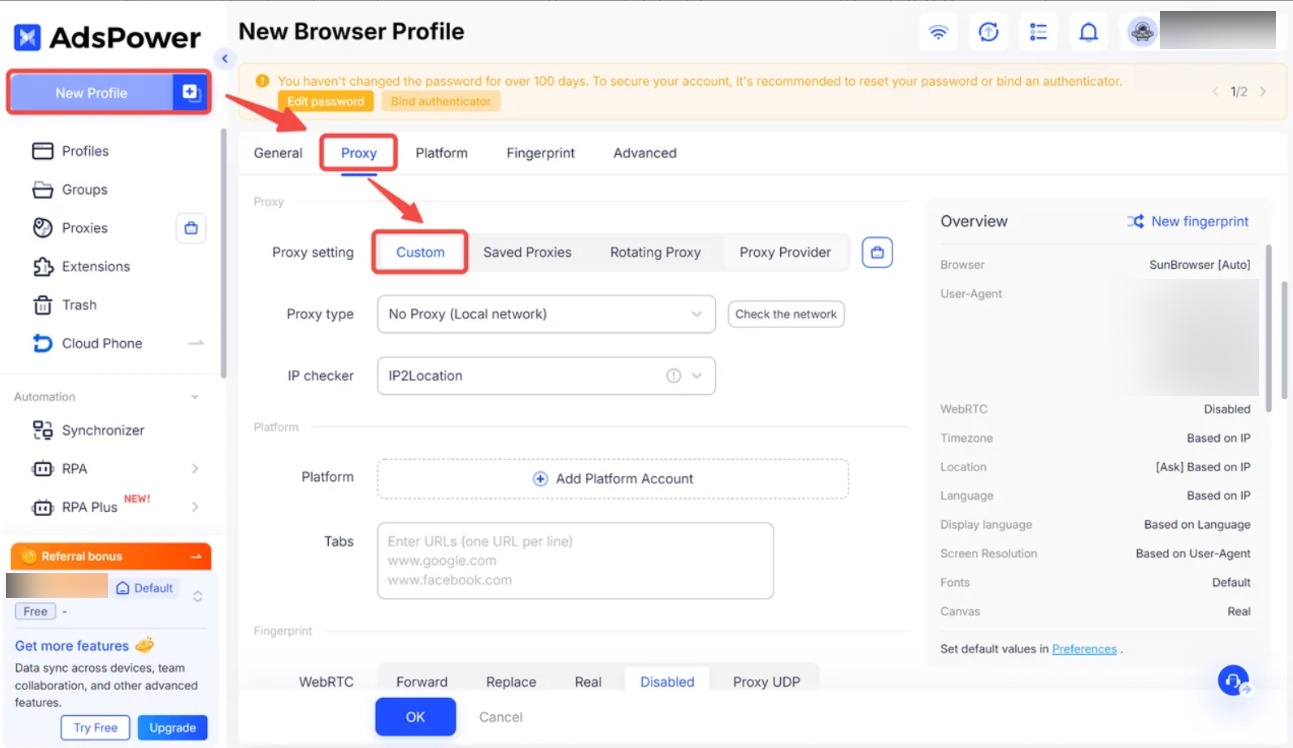
Step 1. Create a new antidetect browser profile. Download and open AdsPower, create a New Profile, and go to the Proxy settings.
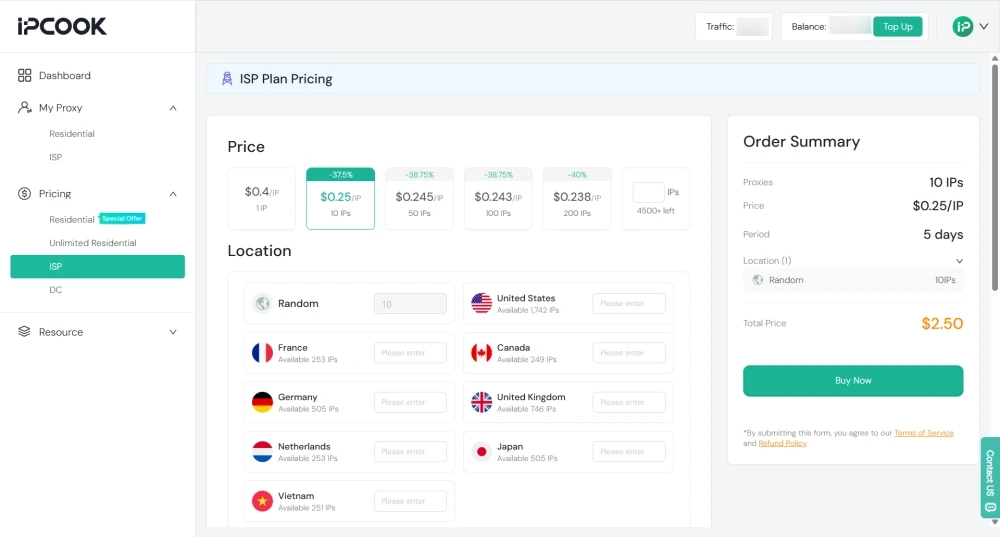
Step 2. Get your proxy details from IPcook. Sign up or log into your dashboard, select ISP Proxy under Pricing, and complete your purchase. Then go to My Proxy > ISP and have your IP, port, username, and password ready.
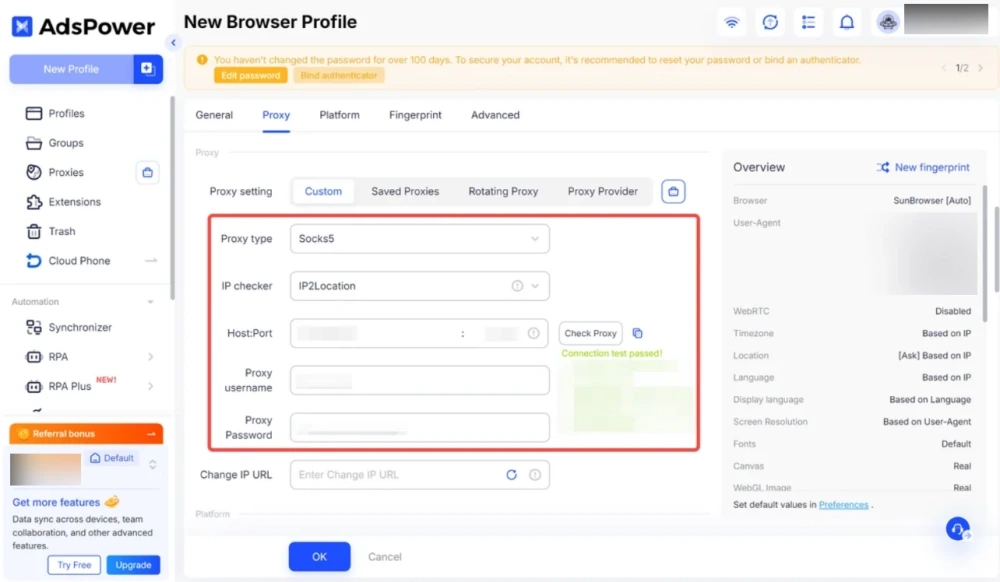
Step 3. Select the Proxy type, then enter the IP host, port, username, and password.
Step 4. Save the profile and click Open to launch the configured AdsPower browser profile. Then open Roblox and test whether access works through the new proxy connection. If the issue was limited to the original network or IP, Roblox may be accessible through the new connection.
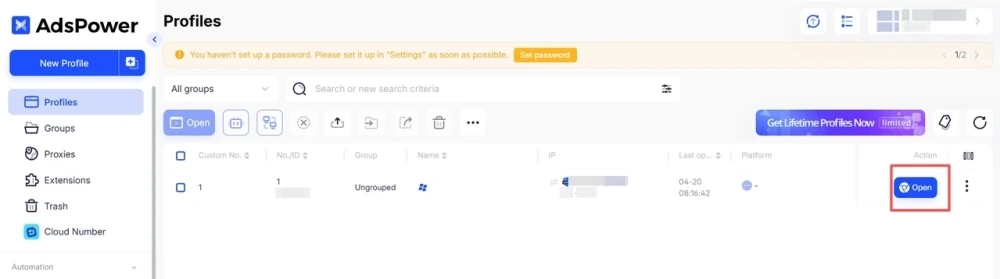
💡Browser limitation: A proxy configured in AdsPower applies to that browser profile. When you click Play, Roblox may launch the separate Roblox Player application, which may not use the same proxy. This setup can test browser-based access, but it does not guarantee that game traffic uses the proxy.
Conclusion
A Roblox IP ban can be difficult to distinguish from an account, Experience, device, or network restriction. Check where the restriction occurs first, then take the appropriate route or troubleshoot the connection when the issue is limited to a specific network. For network-level issues, IPcook provides ISP proxies that can replace your original IP and help maintain a stable connection, as well as residential proxies for location-specific testing.
