


IP Ban on Pinterest: What It Means and How to Restore Access

When Pinterest blocks your IP, it can feel like you've suddenly been locked out. One minute you're saving ideas or posting content, and the next, you can't access your feed or create a new account.
This can happen to creators, marketers, and small businesses managing multiple accounts or using automation tools. Pinterest monitors unusual network activity to protect its platform, but legitimate users can sometimes get caught in the mix. In this guide, you'll learn why IP bans happen, how to tell if your IP is blocked, and what you can do to regain access and avoid running into the same issue again.
What Is a Pinterest IP Ban?
A Pinterest IP ban is when Pinterest blocks access from a specific IP address. Think of it as Pinterest putting a restriction on a network connection rather than blocking a particular website visitor by name. Anyone using that IP address may have trouble accessing Pinterest while the restriction is in place.
How to Tell If Your IP Is Banned on Pinterest
A few quick checks can help you figure out whether the problem is related to your IP address or something else.
Step 1: Check Whether Pinterest Loads. Open Pinterest and see if you get an error or can't access the site. If other websites work normally, the issue may be specific to Pinterest.
Step 2: Switch Networks. Switch from Wi-Fi to mobile data. If Pinterest works on mobile data but not on Wi-Fi, your original IP may be restricted.
Step 3: Try Another Device. Open Pinterest on another device using the same Wi-Fi. If the problem persists, your network may be the cause.
📌Account Ban vs. IP Ban on Pinterest:
Account Ban: Pinterest identifies and restricts a specific user account. The restriction follows the account, even when you access it from a different IP address.
IP Ban: Pinterest flags the network address used to send requests to its servers, so access is restricted based on where the connection comes from rather than which account is being used.
Why Pinterest Blocks Your IP
Pinterest may restrict an IP address when its systems detect activity that looks suspicious or potentially abusive. Common triggers include:
Too many actions in a short time: Rapidly logging in, saving Pins, or performing other actions may look like spam.
Managing multiple accounts: Several accounts accessed from the same network may trigger security checks.
Using automation tools: Certain tools or activity patterns may resemble bots or fake engagement.
Connecting through shared VPNs or public Wi-Fi: Other users' activity on the same public IP may affect its reputation.
False positives: Legitimate activity from marketers or small teams may sometimes be mistaken for suspicious behavior.
7 Practical Ways to Fix an IP Ban on Pinterest
After confirming that your IP is blocked, try the following methods to restore access. Start with the simpler fixes first, then move on to advanced solutions if the problem persists.
1. Wait for Temporary Restrictions to Clear
Some Pinterest restrictions are temporary and may clear on their own after a short wait. If you suspect your IP has been flagged, stop retrying repeatedly and give it some time before accessing Pinterest again. Avoid rapid logins or repeated actions while waiting, as these may trigger further security checks.
2. Switch to Another Wi-Fi or Mobile Network
If Pinterest still won't load, try switching to a different network to see whether the problem is tied to your current IP.
Disconnect from your current Wi-Fi. Then connect to mobile data or another Wi-Fi network.
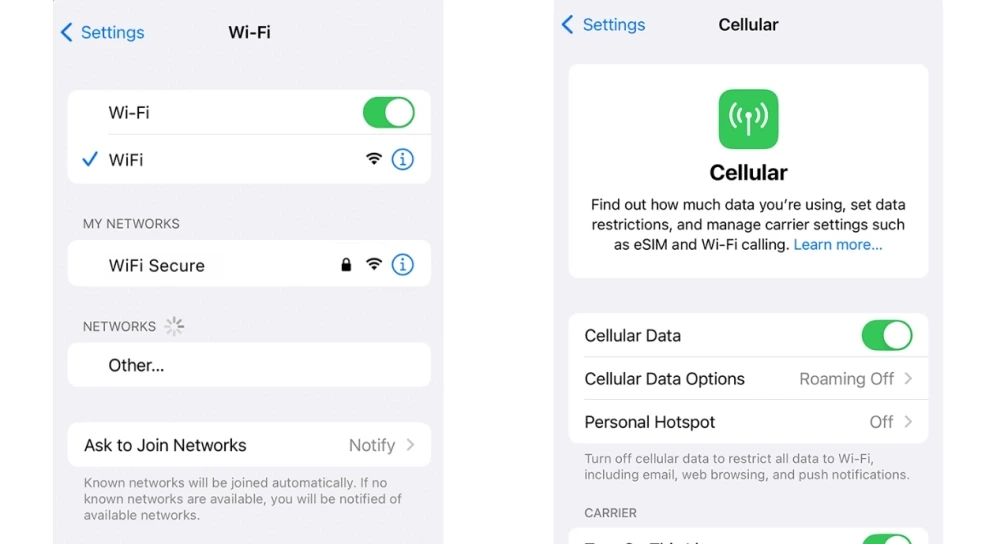
2. Open Pinterest and check whether it works.
If Pinterest loads on the new network but not the original one, your original IP may be restricted.
3. Restart Your Router to Check for a New IP
Restarting your router may help you get a new public IP address, depending on how your internet provider assigns IPs. Here's how to check:
Turn off your router and unplug its power cable.
Wait a few minutes, then plug it back in and turn it on.
Check your public IP using an IP lookup tool before and after restarting.
If the IP changes, try accessing Pinterest again.
Keep in mind that restarting your router doesn't guarantee a new IP. Your provider may assign the same address again, especially if you have a static IP.
4. Use Reliable Residential/ISP Proxies
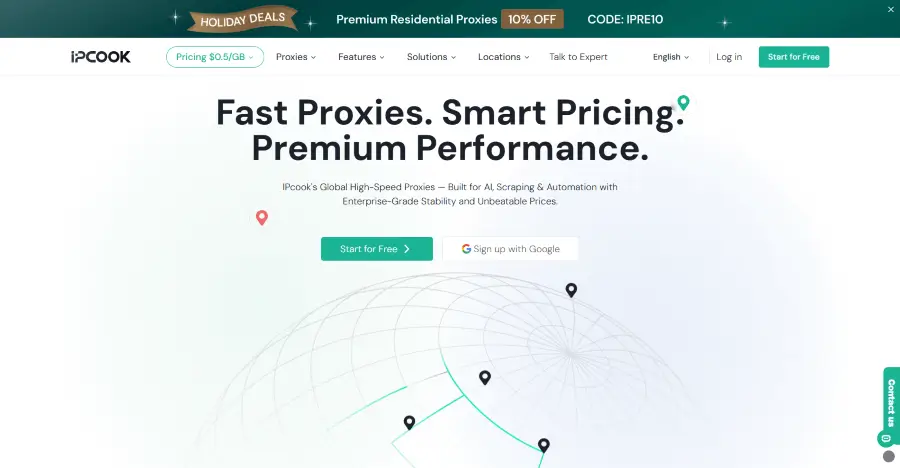
If none of the fixes above resolve the issue and Pinterest still blocks your connection, your current IP address is likely the problem. In that case, a proxy can help by routing your traffic through a different IP address. IPcook is a trusted proxy provider offering both residential and ISP proxies for a variety of use cases. Its ISP proxies are a good fit for stable, long-term Pinterest access. They offer 99% uptime and unlimited traffic, with IPs available in major countries, including the US and Japan. Prices start at $0.05/IP/day.
IPcook Residential Proxies can be useful for collecting publicly available information or temporarily accessing Pinterest through a different IP. They offer a pool of 55M+ IPs across 185+ countries and locations, with country- and city-level targeting. You can rotate IPs with each request or on a set schedule, or use sticky sessions to keep the same IP for up to 24 hours. A one-line API makes it easy to assign proxies and connect without a complicated setup.
5. Check Browser Fingerprinting and Session Issues
Browser settings, stored cookies, and session data can sometimes interfere with Pinterest access. These checks may help rule out browser-related issues.
Open Pinterest in a private or incognito window.
Try another browser to see whether the same problem occurs.
Clear Pinterest's cookies and cache, then sign in again if needed.
Temporarily disable browser extensions that may interfere with Pinterest.
If Pinterest works in another browser but not your usual one, the issue may be related to your browser or session rather than your IP address.
6. Avoid suspicious automation and account abuse
Once you're back on Pinterest, be mindful of how you use the platform. Avoid unauthorized automation tools and repetitive actions that could look like spam. If you manage multiple accounts, make sure each one follows Pinterest's rules rather than using them to manipulate engagement or get around restrictions.
7. Contact Pinterest Support for a Review
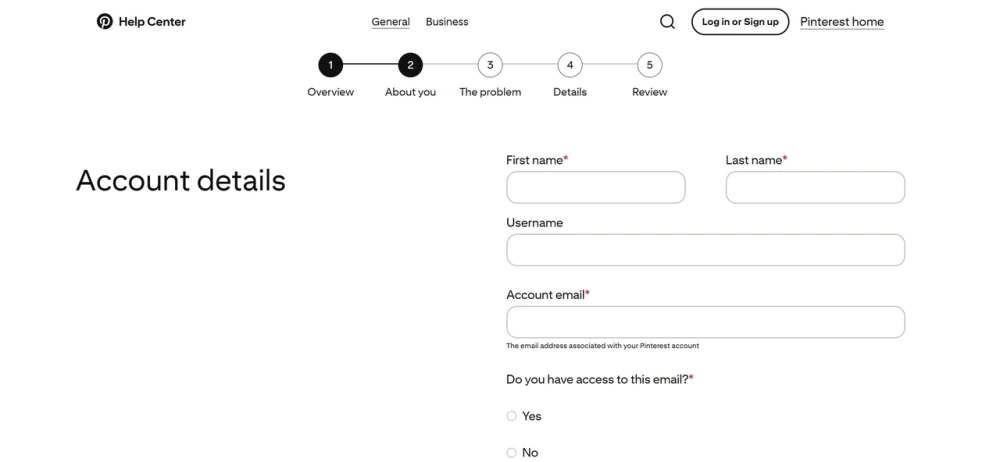
If none of these methods work, contact Pinterest support through the Help Center. Explain what happened, include any error messages, and mention the steps you've already tried. Pinterest may review your case and restore access if the restriction was applied by mistake. Response times can vary, so it may take a while to hear back.
Conclusion
A Pinterest IP ban can be frustrating, especially when you just want to get back to browsing or managing your account. Start with the fixes that match your situation, and avoid repeating actions that might trigger further restrictions. If you've tried everything and still can't connect, IPcook offers another option. Use residential proxies for temporary access and public data collection, or ISP proxies for a stable, long-term connection.
FAQs
- What Is a Pinterest IP Ban?
- How to Tell If Your IP Is Banned on Pinterest
- Why Pinterest Blocks Your IP
- 7 Practical Ways to Fix an IP Ban on Pinterest1. Wait for Temporary Restrictions to Clear2. Switch to Another Wi-Fi or Mobile Network3. Restart Your Router to Check for a New IP4. Use Reliable Residential/ISP Proxies5. Check Browser Fingerprinting and Session Issues6. Avoid suspicious automation and account abuse7. Contact Pinterest Support for a Review
- Conclusion
- FAQs
