


How to Solve or Bypass Yandex Smart Captcha Fast

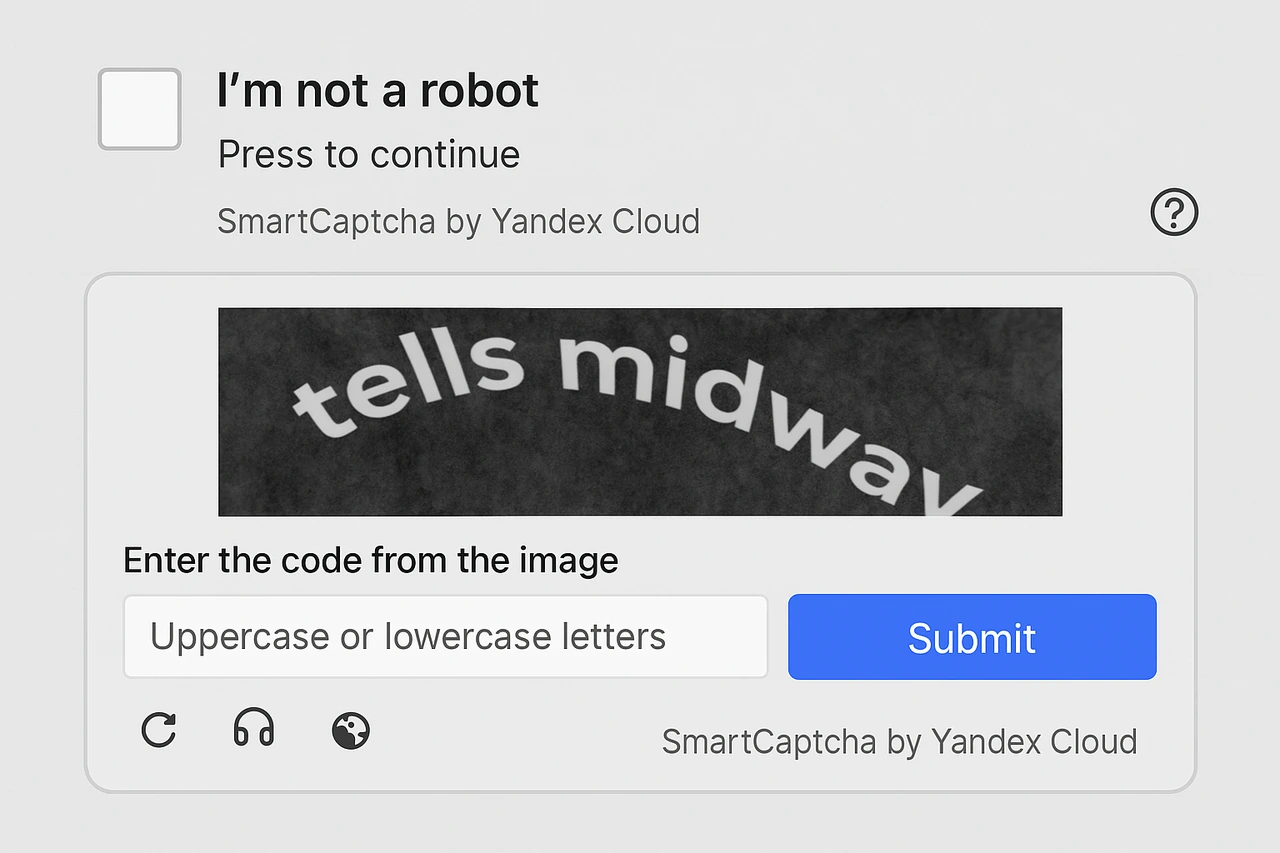
If Yandex keeps asking you to complete a Smart Captcha, it can block you from browsing or signing in. That usually means Yandex detected something unusual about your connection, IP, or request behavior.
This guide explains what Smart Captcha is, why it appears, and five practical ways to get past it safely. You’ll find quick browser fixes to try right away and more reliable network solutions for when you need steady, repeatable access.
⚡ Reduce Yandex Captcha interruptions with a cleaner IP
Use high-quality residential proxies for smoother Yandex access, starting at just $0.50/GB.
What Is Yandex Smart Captcha
Yandex Smart Captcha is a security system that checks whether a request is made by a real user or by automated traffic. It protects Yandex services from spam, scraping, and abnormal request patterns. When the system notices unusual activity such as too many requests, irregular timing, or a sudden change in IP, it activates a Captcha challenge.
To determine when to show a challenge, Yandex reviews signals such as IP reputation, browser configuration, device fingerprint, and request frequency. Even regular users may encounter Smart Captcha when using VPNs, shared Wi-Fi, or unstable networks. The purpose is to block automated abuse while keeping legitimate browsing smooth. Since Smart Captcha adapts to new bot behavior, it may appear more often during higher-risk activity.
How Yandex Smart Captcha Works
Yandex monitors user interactions and compares them with normal behavior patterns. It observes how quickly pages load, how frequently users click or scroll, and whether their actions follow natural timing. Perfectly timed or repetitive requests can make the system suspect automation.
The system also checks IP stability and network behavior. Connections that switch IPs frequently, share an address among multiple users, or come from data centers are more likely to trigger verification. The same happens when browser extensions or scripts send repetitive queries at high speed.
After analysis, Yandex assigns a temporary trust score to the session. A low score activates Smart Captcha. Completing the test successfully restores the session’s trust level, but continued irregular activity can cause the verification to appear again.
Common Yandex Captcha You May See
Yandex may show different types of Smart Captcha depending on the risk level it detects. Each challenge works differently, and knowing how to complete them helps you pass verification faster.
Text Captcha: enter the distorted letters or numbers shown in an image.

Slider Captcha: drag a slider or puzzle piece until it fits the correct position.

Silhouette Captcha: click the silhouettes in the picture in the specific order indicated on screen.
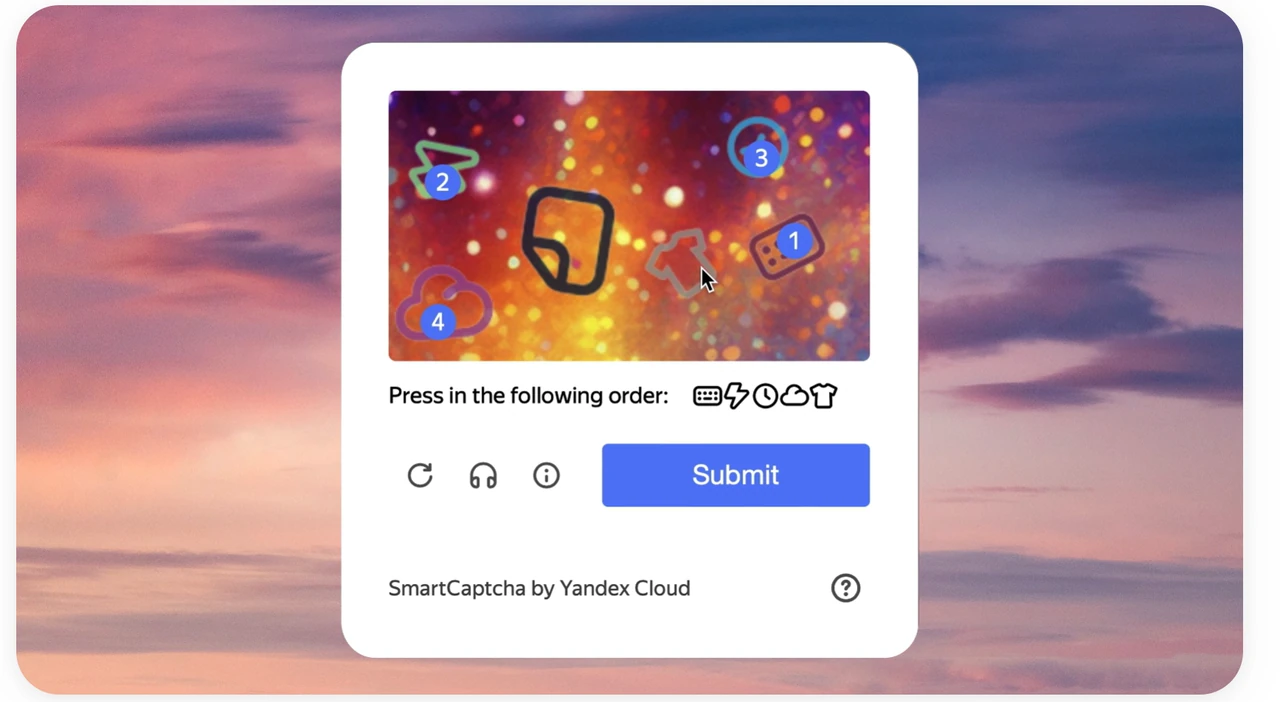
Kaleidoscope Captcha: rotate a fragmented or patterned image until it aligns correctly.
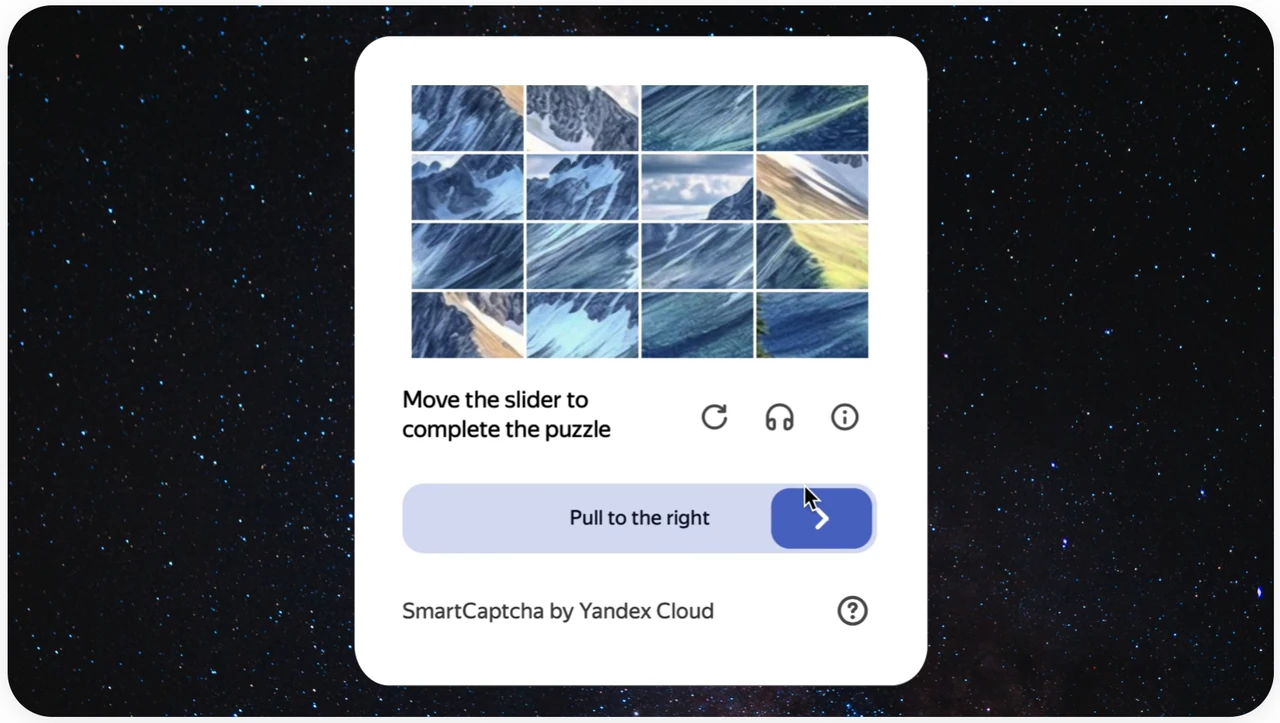
Invisible Captcha: sometimes Yandex silently checks your actions and decides whether to grant access without showing any visible test.

Why Yandex Keeps Showing You Captcha
Yandex Smart Captcha appears when your connection behaves in a way that resembles automated traffic. The system flags any activity that seems abnormal or inconsistent with typical browsing patterns. Below are the most common triggers.
Frequent Access or High Request Volume
Sending many searches, refreshes, or page requests in a short time makes your traffic appear automated. Bulk queries, rapid actions, or multiple Yandex tabs loading at once can quickly raise the alert level and trigger Captcha checks.
Using Shared or Low-Quality IPs
Connections from datacenter IPs, public proxies, or addresses shared by many users have lower trust scores. When several unrelated requests come from the same IP, Yandex increases Captcha frequency to confirm the traffic is genuine.
🔥 Recommended: Switch to stable Residential Proxies or ISP Proxies for a cleaner IP reputation, smoother Yandex access, and fewer CAPTCHA interruptions.
Browser or Automation Issues
Automation tools such as Selenium or Puppeteer generate repetitive patterns that differ from normal human behavior. Browser extensions or modified headers, fingerprints, cookies, or user-agent data can also make the system suspect automated activity, resulting in repeated Captcha prompts.
How to Solve or Skip Yandex Captcha
You can reduce or even avoid Yandex Smart Captcha by adjusting your browsing habits, refreshing your network, and improving IP stability. Try the following methods to restore smooth, uninterrupted access.
Method 1: Clear Browser Cache and Cookies
Old session data or conflicting cookies can keep Yandex stuck in verification mode. Clearing them resets your browsing environment and removes potential triggers.
Steps:
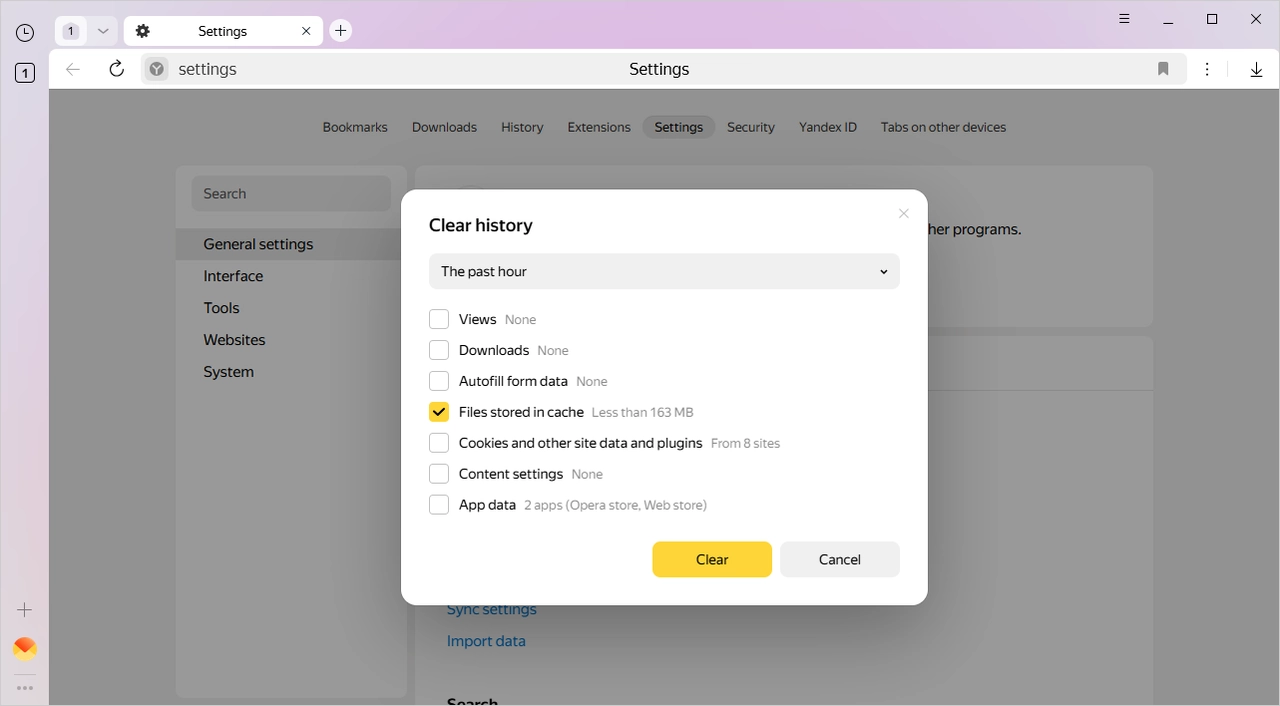
Open your Yandex browser Settings and select History → Clear history, or press Ctrl + Shift + Del (Windows) / Shift + ⌘ + Backspace (macOS).
Choose the time range you want to delete.
Check Cached files and Cookies and other site data.
Click Clear to finish, then restart your browser.
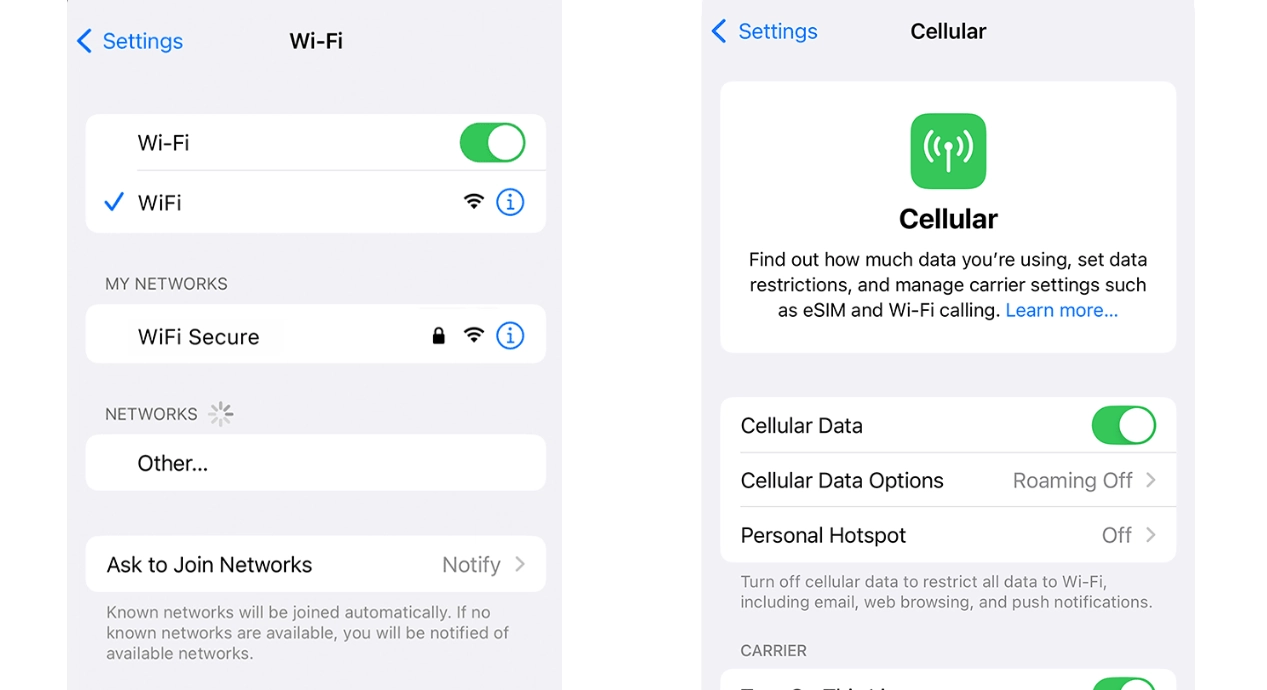
Method 2: Restart Router or Switch Networks
Refreshing your network connection helps assign a new IP address, especially if your current one has been temporarily flagged.
Steps:
Turn off your router and wait about 30 seconds.
Restart it or switch to another Wi-Fi or mobile hotspot.
Reconnect to Yandex and check if Captcha appears less frequently.
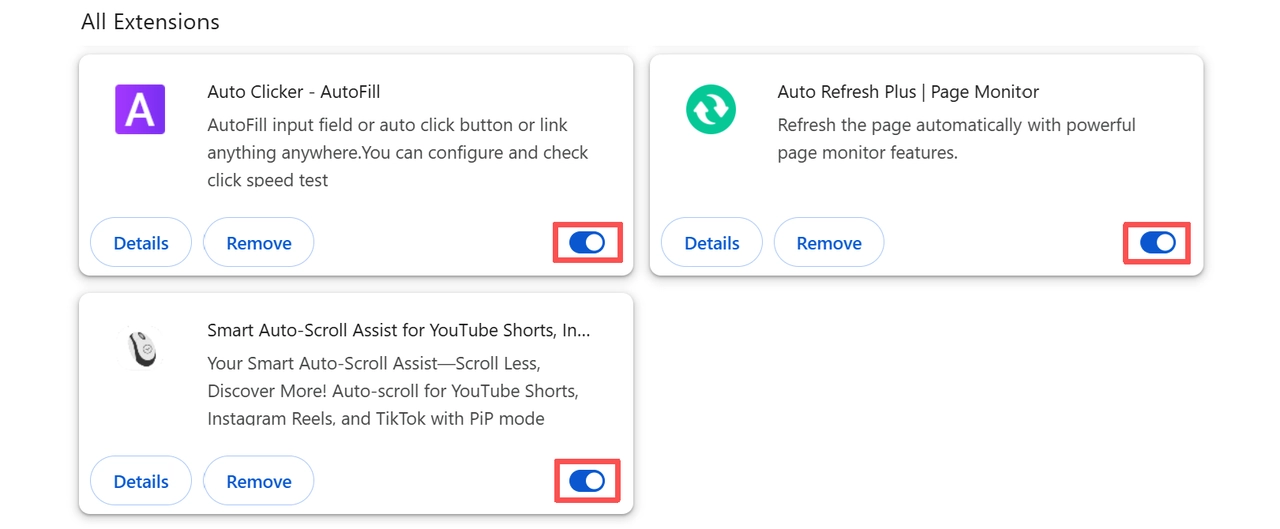
Method 3: Disable Automation Tools or Extensions
Automation tools and browser extensions can make your traffic appear non-human. Disabling them removes those signals and helps Yandex recognize your browsing as genuine.
Steps:
Review your installed browser extensions and disable any that automate or modify browsing behavior.
If you use automation frameworks such as Selenium, Puppeteer, or Scrapy, close those programs before visiting Yandex.
Restart your browser and try accessing Yandex again.
Method 4: Use Residential or ISP Proxies
Using clean, stable residential or ISP IPs is one of the most effective ways to reduce repeated Captcha prompts. These IPs appear as genuine home or ISP connections, helping Yandex recognize your traffic as consistent and trustworthy.
With IPcook’s trusted residential and ISP proxies, you can maintain stable sessions, consistent IP reputation, and uninterrupted access while minimizing Captcha interruptions.
Why IPcook works well for Yandex access
55M+ real residential IPs from verified sources
Sticky sessions for more consistent browsing
Clean IP quality with lower shared or public proxy risk
High uptime and low latency for smoother access
Wide global coverage with precise region targeting
24/7 technical support and proactive monitoring
Method 5: Limit Request Frequency and Mimic Normal Browsing
Avoid sending too many requests or refreshing pages too quickly. Slow down your searches, keep fewer tabs open, and browse at a steady pace.
Regular, human-like activity helps stabilize your session and naturally reduces Captcha appearances.
Conclusion
Yandex Smart Captcha protects its network by verifying unusual activity, but it should not disrupt normal browsing. Once your connection is stable and your behavior consistent, Captcha prompts usually disappear. For a reliable and secure experience, IPcook’s reliable proxies help you maintain smoother, more trusted access to Yandex.
