


Proxy Server Refused Connection: What It Is and 7 Ways to Fix It

Seeing a "proxy server refused connection" error can interrupt your work. The cause may be a simple configuration issue or a problem with the proxy server itself. This guide explains what the message means, the most common causes, and 7 clear ways to get you back online.
What "Proxy Server Refused Connection" Means
This error means your browser tried to connect to a proxy server, but the connection was rejected by the server. This can happen when your proxy settings are incorrect, your login details are wrong, or access is restricted. It doesn't automatically mean the server is down.
It is easy to confuse with a "connection failed" error, but the two point to different problems. Here's how they compare and what typically causes each one.
Error Type | What It Means | Common Cause |
Connection Failed | Browser cannot reach the proxy server | Wrong IP, offline server, network timeout |
Refused Connection | Proxy online but rejects the request | Blocked by rules or proxy configuration |
Why the Proxy Server Is Refusing Connections
A proxy connection can be refused for several reasons, including incorrect settings, account restrictions, and network issues. Here are the common connection refused reasons:
Possible Cause | What Happens | Related Fix |
Incorrect browser proxy settings | Your browser uses the wrong proxy settings, so requests go to the wrong place or fail to connect. | |
Wrong proxy address or port | The IP address or port doesn't match the proxy details provided by your service. | |
Incorrect proxy credentials | Login details are invalid or expired. | |
Missing IP whitelist or restricted location | Your IP isn't authorized, or the selected location is restricted. | |
Account issues or usage limits | The account is suspended, traffic is exhausted, or concurrency limits are reached. | |
Firewall, VPN, or network restrictions | Security software or network rules block proxy traffic. | |
Proxy node issues | The selected proxy server is down, overloaded, or temporarily unable to accept connections. |
Fix 1: Check Your Browser Proxy Settings
Incorrect proxy settings can prevent your browser from connecting to the proxy server. Follow the steps for your browser to check and correct its configuration.
Google Chrome and Microsoft Edge
Open "Settings" and go to "System" (Chrome) or "System and performance" (Edge). Then select "Open your computer's proxy settings". The screenshot below shows Chrome as an example.
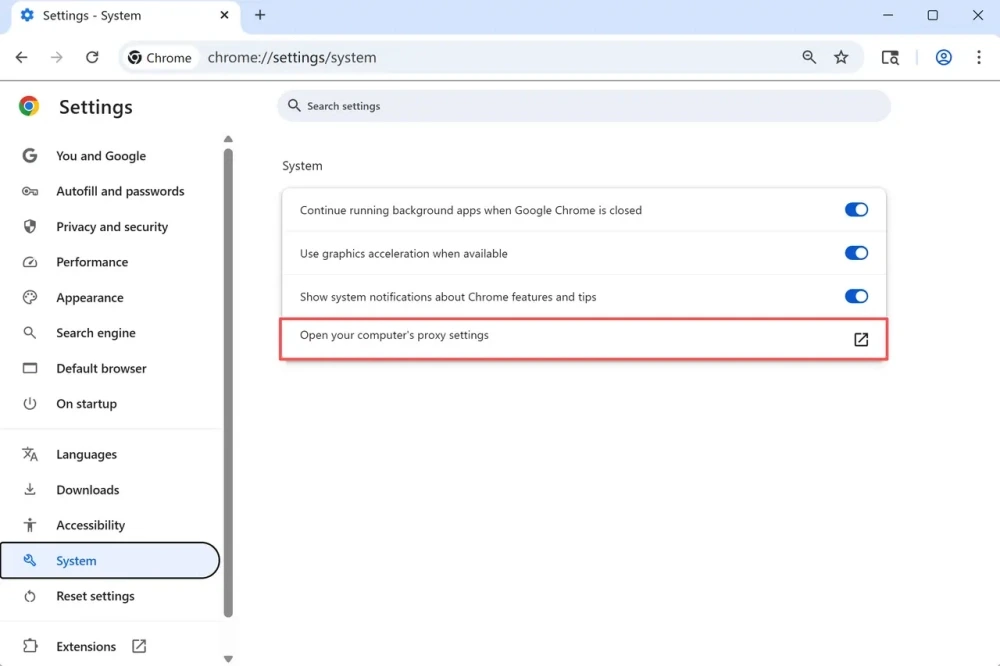
Check the following options:
Automatically detect settings: Turn it on if your network requires automatic proxy detection.
Use setup script: Make sure the script URL matches the one provided by your network administrator or proxy provider. Replace it if it's incorrect or outdated.
Manual proxy setup: Check that the proxy address and port are correct. Fix any errors, or turn off Use a proxy server if you no longer need it.
Save your changes if prompted, reopen the browser, and test the connection again.
Firefox
Open "Settings", search for "Network", and open "Advanced Settings". Then scroll down and select "Configure Proxy".
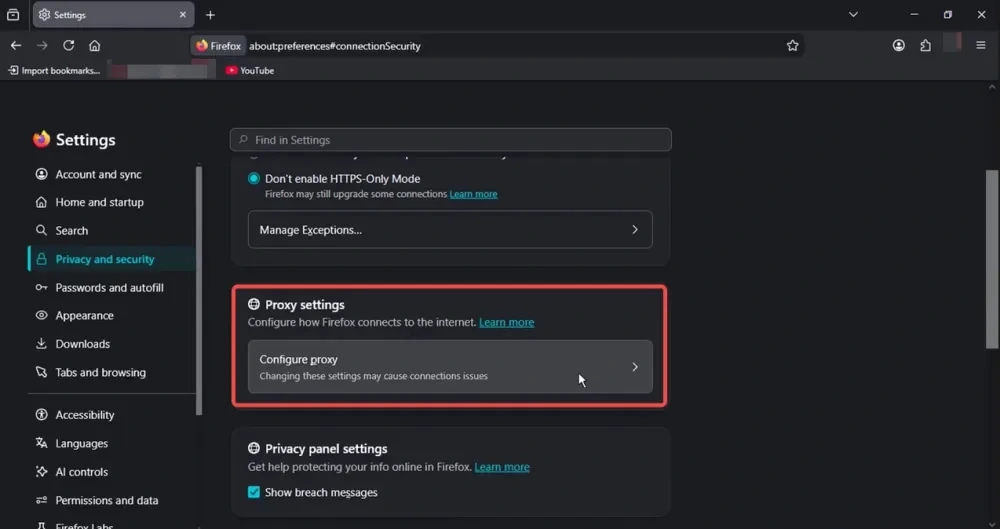
Check the selected proxy option and make sure it matches your setup:
No proxy: Firefox connects directly to the internet. Keep this option if you don't need a proxy.
Use system proxy settings: Firefox follows your computer's proxy settings. Check your system settings if the connection fails.
Manual proxy configuration: Verify the proxy address and port, and correct any errors.
Automatic proxy configuration URL: Check that the URL is correct and update it if necessary.
Click "OK" to save your changes, then test the connection again.
Fix 2: Verify the Proxy Address and Port
Even if your proxy settings are enabled, an incorrect server address or port can prevent the connection.
Check the server address: Compare the IP address or hostname in your proxy settings with the details provided by your proxy provider.
Check the port number: Make sure the port matches your provider's instructions. Don't confuse it with a port used by another service.
Correct any errors: Update incorrect values, save your changes, and test the connection again.
If both details are correct, continue to the next fix.
Fix 3: Re-enter Your Proxy Credentials
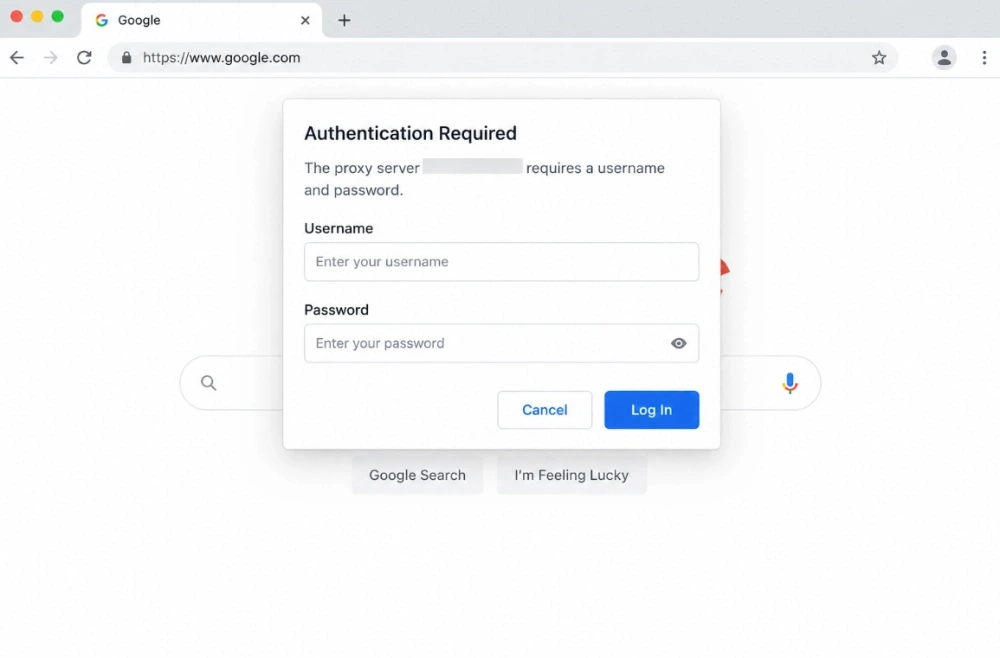
Incorrect or outdated proxy login details can cause authentication errors, such as 407 Proxy Authentication Required. Follow these steps to check your credentials and reconnect.
Check your proxy login details. Sign in to your proxy provider's dashboard and confirm that you're using the correct username and password.
Re-enter your credentials. Open a website through the proxy. If a proxy authentication prompt appears, enter your current username and password, then submit them.
Restart your browser. If you've updated your credentials but the error persists, close and reopen the browser, then try again.
Check your account status. If the login prompt keeps appearing, confirm that your account is active and your credentials are valid. Contact your provider if the issue continues.
Fix 4: Add Your IP to the Proxy Whitelist or Switch Location
Some proxy providers only allow connections from approved IP addresses. If your current IP isn't on the whitelist, the proxy may reject your connection.
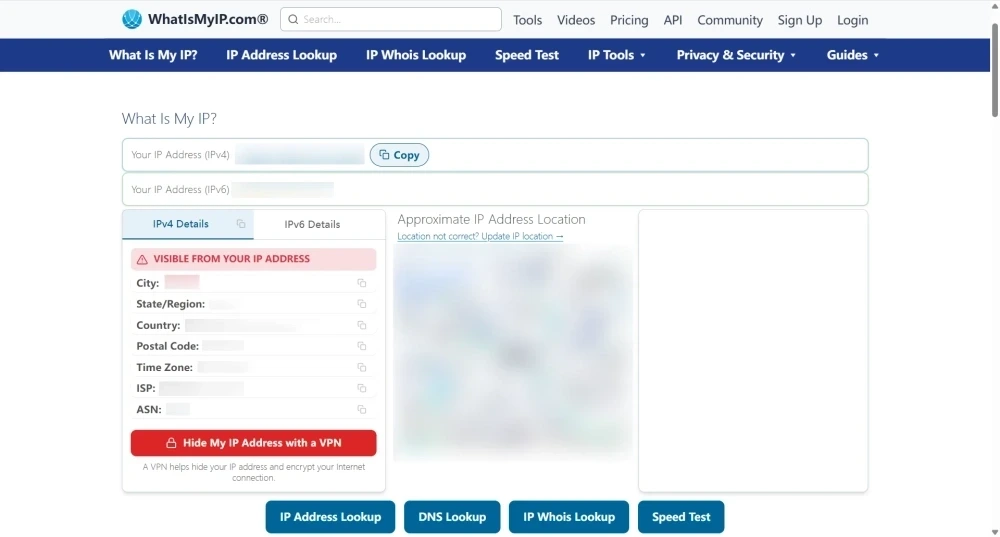
Check your public IP: Search what is my IP on Google to find the public IP address of your current network.
Add your IP to the whitelist: Log in to your proxy provider's dashboard, find the IP whitelist or access control settings, and add your current public IP. The image below shows IPcook's IP whitelist settings as an example.
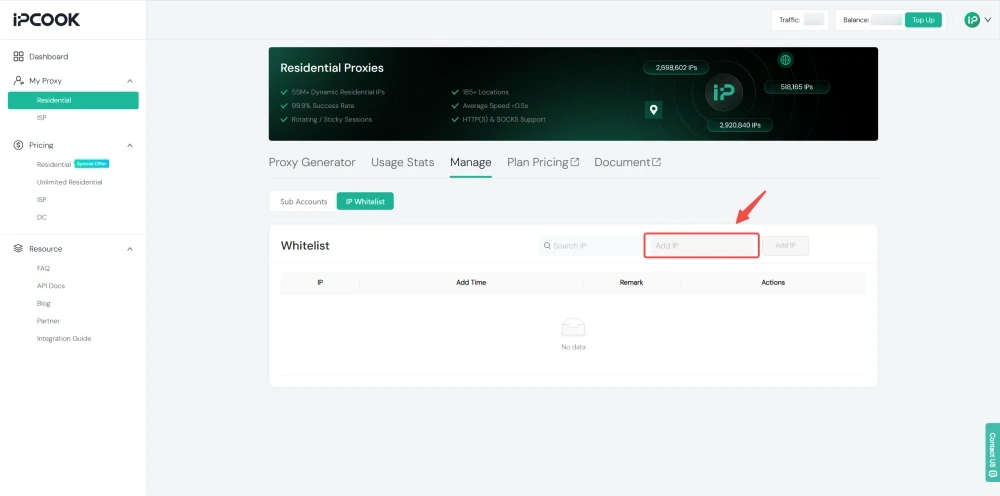
Update your whitelist if your IP changes: If your ISP assigns you a new IP address, replace the old entry with the new one. If your provider supports username-and-password authentication, you can use it instead of IP whitelisting.
Try another network or proxy location: If you can't whitelist your current IP, test another network, such as a mobile hotspot, or choose a proxy location permitted by your provider.
Fix 5: Check Your Account Status and Usage Limits
Even with the correct proxy settings and credentials, account issues or usage limits can prevent a connection. Follow these steps to find the cause.
Check your account status: Log in to your proxy provider's dashboard and make sure your account and subscription are active. Check for expired plans, unpaid invoices, or other account restrictions.
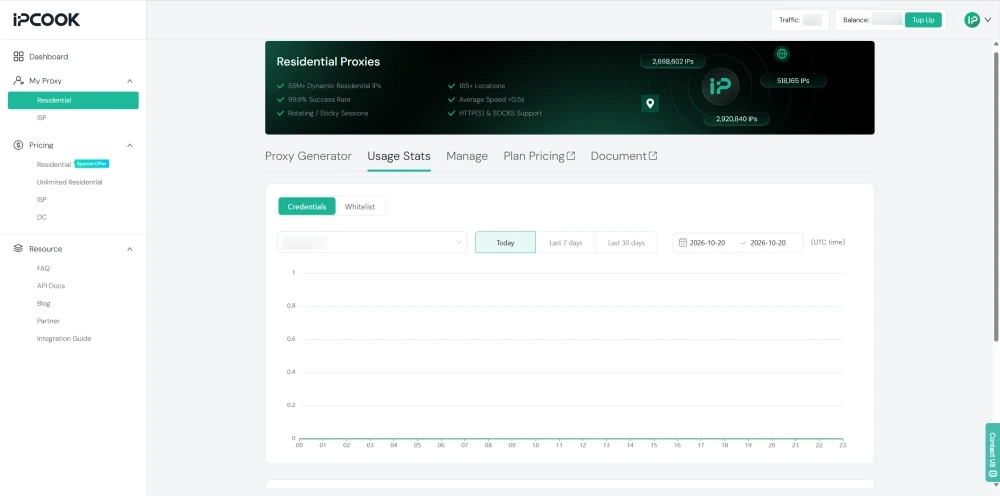
Review your traffic and connection limits: Check how much bandwidth you have used and whether you have reached any session or concurrency limits. Upgrade your plan or add more traffic if needed. Here is an example of IPcook's traffic monitoring dashboard, which supports real-time usage tracking and report exports.
Verify your proxy location: Check whether your plan supports the country or region you selected. If the location is restricted, switch to a supported region and test the connection again.
Fix 6: Check Your Firewall, VPN, and Network Restrictions
Your VPN, firewall, or antivirus software may block proxy connections by interfering with the ports they use. Some corporate or public networks also restrict proxy traffic. Follow these steps to identify the cause.
Temporarily disconnect your VPN: If you're using a VPN, disconnect it and test the proxy connection again. If the connection works, the VPN may interfere with the proxy.
Check your firewall and antivirus settings: Review their settings to see whether the proxy connection has been blocked. If needed, briefly test with the relevant protection disabled, but only on a trusted network. Turn it back on immediately after testing.
Add an exception for the proxy: If disabling a security tool resolves the issue, re-enable it and add an allow rule for the proxy's IP address and port, if your software supports it.
Try another network: If the connection still fails, switch to another trusted network, such as a mobile hotspot. If the proxy works there, your original network may block proxy traffic. For work or school networks, contact the network administrator before changing any restrictions.
Fix 7: Test Another Proxy Node or Contact Your Provider
A proxy connection may be refused if the selected server is overloaded, under maintenance, or blocked by an upstream provider. If the problem affects only one proxy endpoint, switching nodes may resolve it.
Switch to another proxy node: Choose a different server or endpoint, then test the connection again.
Try another location: If your provider offers multiple locations, switch to a different city or country. For example, if a US East proxy fails, try a US West or European location.
Test another proxy provider: If the same error occurs across multiple nodes, try another provider to determine whether the issue is specific to your current service. IPcook is a great alternative. With 55M+ IPs, it offers 4 types of proxies, including residential proxies with city-level targeting and unlimited-traffic ISP proxies. All proxies support HTTP and SOCKS5. You can also try 100MB of free residential proxy traffic with no expiration to test whether switching providers resolves the connection issue.
Contact your provider: If none of these steps work, ask your provider to check for server outages, account restrictions, or other connection issues.
Conclusion
A proxy connection error can come from something as simple as a typo or an expired subscription, so start with the basics before changing your setup. When the usual fixes don't work, testing another proxy can help narrow down the cause. If the issue lies with your current proxy service, IPcook is worth a try, with a range of proxy options and a 100MB free residential proxy trial to test the connection.
FAQs
- What "Proxy Server Refused Connection" Means
- Why the Proxy Server Is Refusing Connections
- Fix 1: Check Your Browser Proxy Settings
- Fix 2: Verify the Proxy Address and Port
- Fix 3: Re-enter Your Proxy Credentials
- Fix 4: Add Your IP to the Proxy Whitelist or Switch Location
- Fix 5: Check Your Account Status and Usage Limits
- Fix 6: Check Your Firewall, VPN, and Network Restrictions
- Fix 7: Test Another Proxy Node or Contact Your Provider
- Conclusion
- FAQs
