


How to Fix Netflix Proxy Error with 7 Proven Solutions

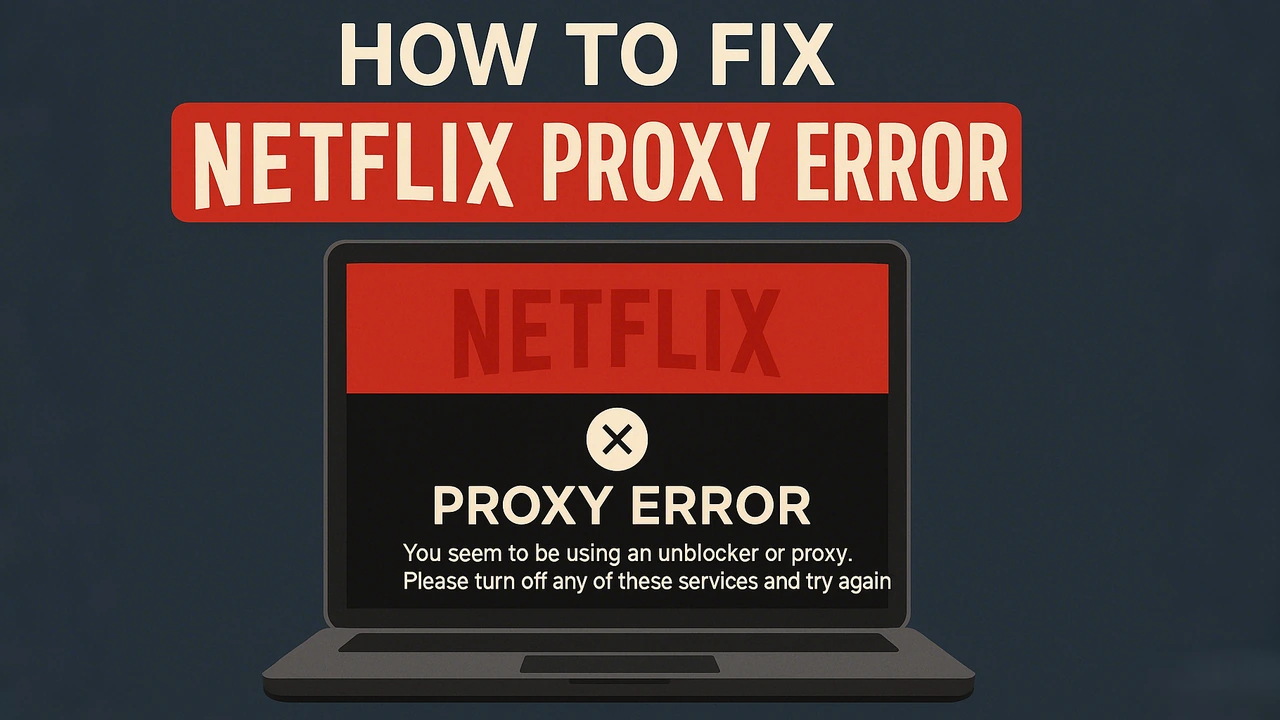
Sometimes Netflix stops playing mid-stream and shows the message: “You seem to be using an unblocker or proxy.” This happens when the platform believes your current IP address doesn’t look like a typical home network connection. It’s not only VPN users who encounter it. Even a normal household IP can be blocked if it’s been reused by many people or mistakenly falls into a flagged range.
As Netflix keeps tightening its regional controls, these checks have become much more sensitive. The system examines where each connection originates and how the IP behaves on the network. When the traffic pattern doesn’t resemble a genuine residential signal, Netflix marks it as untrusted and pauses streaming access. This guide explains why the error appears and shares practical ways to fix it, from quick steps to more reliable long-term solutions that help you restore smooth Netflix streaming.
What Is the Netflix Proxy Error and Why It Happens
The Netflix proxy error appears when the platform decides that a connection does not look like it is coming from a normal household network. Netflix relies on trust signals to understand whether an IP behaves like residential internet. When these signals fall below the expected range, the platform pauses playback and displays the proxy message.
This does not mean there is anything wrong with your account. It usually happens when the connection is routed in a way that looks unfamiliar or inconsistent with typical home traffic, even if you are not using a VPN at all.
How Netflix Detects Proxies and VPNs
Instead of checking which device you use, Netflix looks at what kind of network the connection appears to come from. It considers whether the IP looks like a home broadband line or a shared route that many unrelated users are passing through.
When the IP comes from a public gateway, a data center range, or a network that does not resemble private household access, Netflix classifies it as non-residential. Once the connection no longer matches the pattern of a home network, streaming is temporarily restricted.
Common Scenarios That Trigger the Error
This message often appears in everyday situations, even when no VPN is running. Common examples include:
Streaming on hotel, airport, or other public Wi-Fi
Using free VPNs or shared proxy services
Watching from workplace or campus networks
Receiving a recycled IP address from your ISP
Connecting through infrastructure that originates from cloud providers
In these cases, the issue is not with your Netflix account but with how the network is being identified. When the connection once again resembles a residential route, streaming usually returns to normal.
How to Fix Netflix Proxy Error
When Netflix shows the proxy warning, the goal is to help the platform recognize your connection as a normal household network again. Start with lighter resets first. If the issue keeps returning, move step by step toward methods that correct how the network is being identified.
1. Clear Browser Cache and Cookies
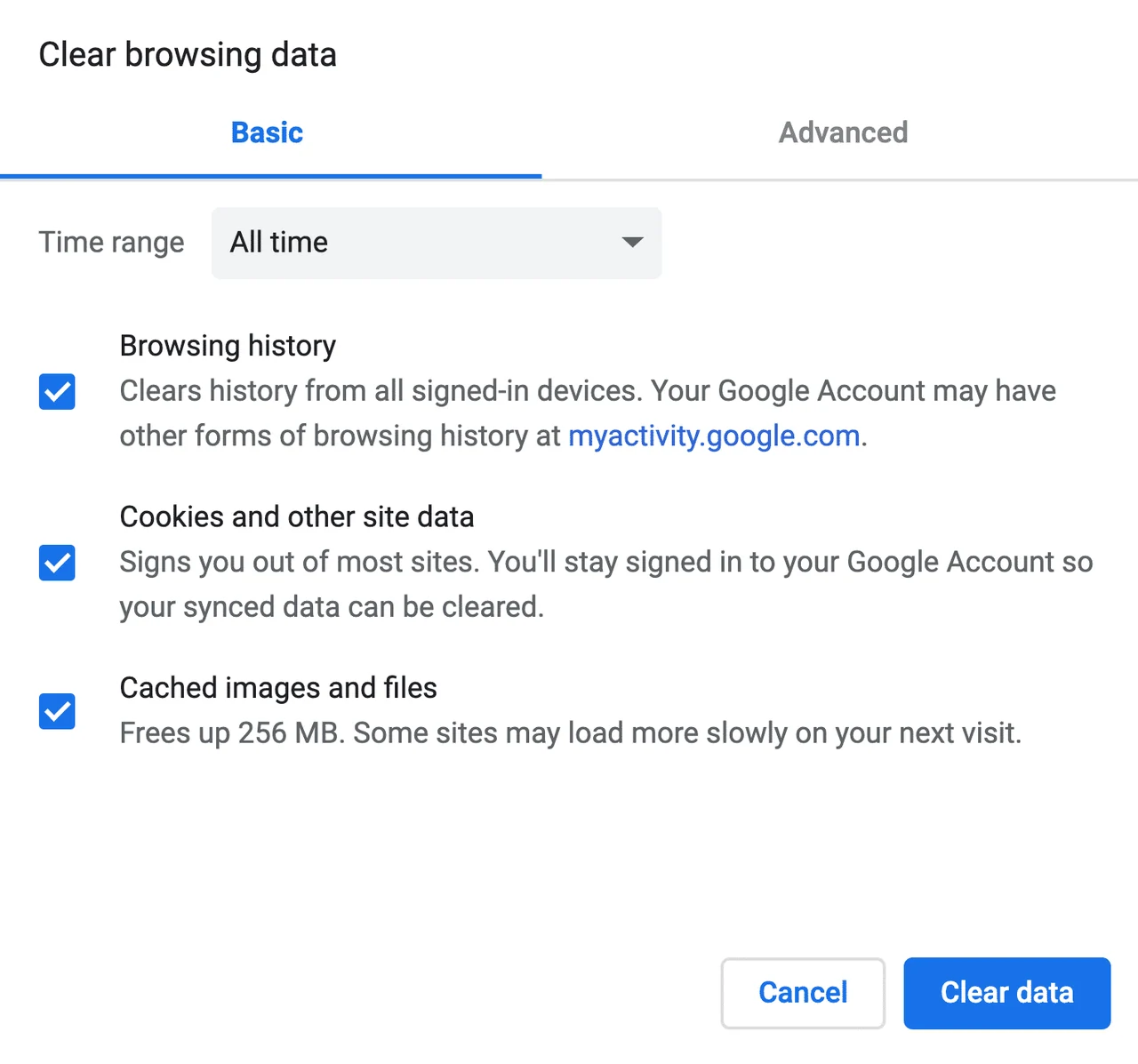
Sometimes Netflix continues using an old session even after the connection is already normal. This can happen when the login was created before the network changed or when Netflix cached a route that no longer matches your current IP. Clearing cache and cookies removes that hidden session fingerprint and forces Netflix to recheck your connection from scratch. After clearing, reopen Netflix and try loading a title again. If the message disappears immediately, the issue was tied to outdated session data and the reset worked.
2. Restart Your Router and Device
If the session refresh is not enough, restarting the router can assign a new IP address from your provider. This helps when the previous IP was recycled or briefly flagged after being shared by other users. Restart your device as well so Netflix reads the connection as entirely new. After restarting, open Netflix again and try any title. If playback works normally, the old IP was the cause. If not, the platform is still treating the network as non-residential and a deeper fix is needed.
3. Disable DNS or IPv6 Leaks
Netflix treats location mismatches as a sign of masking. This step helps when restarting the router doesn’t solve the issue but streaming still works on another network such as mobile data. That usually means your IP is fine, but the route is sending mixed regional signals.
To fix this, check for DNS or IPv6 leaks and disable them temporarily:
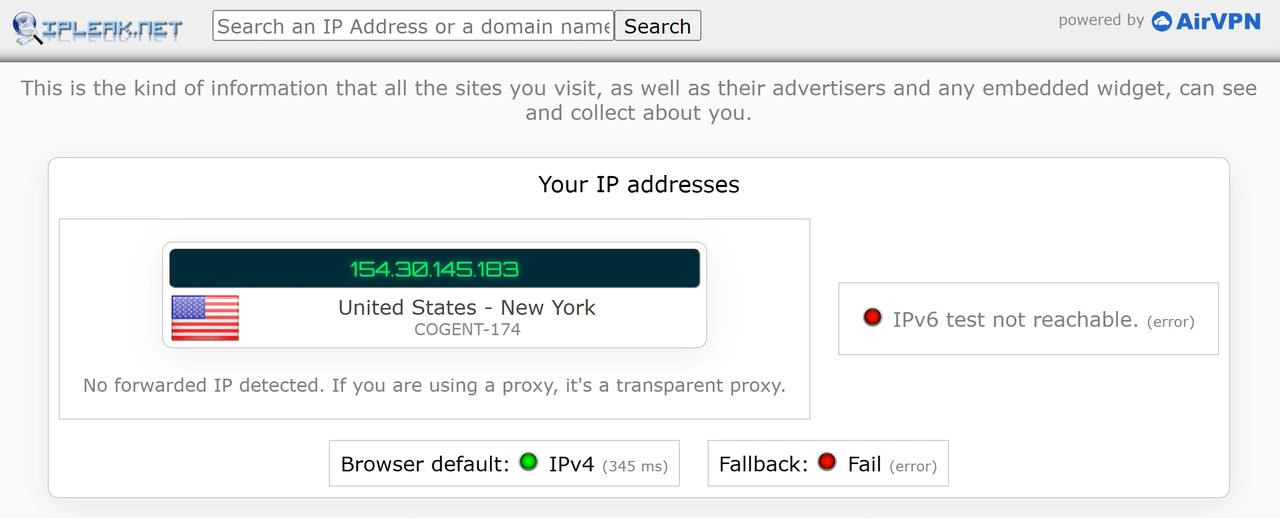
① Run a leak test at dnsleaktest.com or ipleak.net.
If you see more than one country or internet provider listed, a leak is active.
② Disable IPv6 or switch to a secure DNS service like Cloudflare (1.1.1.1) or Google DNS (8.8.8.8).Depending on your operating system, follow the steps below to update your network settings:
For Windows:
Press Windows + R, type control ncpa.cpl, and press Enter to open the Network Connections window.
Right-click your active connection and select Properties.
To disable IPv6: Uncheck the box for Internet Protocol Version 6 (TCP/IPv6).
To change DNS: Select Internet Protocol Version 4 (TCP/IPv4), click Properties, then choose Use the following DNS server addresses and enter:
Preferred DNS server:
1.1.1.1Alternate DNS server:
8.8.8.8Click OK, then restart your connection.
For macOS: Press Command + Space, type “Network”, and press Enter to open System Settings → Network. Select your active connection, click Details, then Advanced.
To disable IPv6: Go to the TCP/IP tab and set Configure IPv6 to Off.
To change DNS: Go to the DNS tab, remove any old entries, and add:
1.1.1.18.8.8.8Click OK, then Apply to save the changes and reconnect.
4. Avoid Free VPNs and Public Proxies
Shared VPNs and public proxy services are used by many people at once, which makes them easy for Netflix to identify. This step is useful when your route is already consistent but Netflix still will not treat it as household traffic. A common sign is that streaming works on mobile data but fails through a free VPN or browser-based proxy. Even if these services connect briefly, they often trigger the warning again on the next request. Disable any background apps, extensions or proxy settings, then refresh Netflix. If the warning disappears, the connection was coming through a shared route and Netflix is no longer flagging it.
5. Use Reliable Residential Proxies
If the proxy error still appears after basic resets, Netflix is likely flagging your network rather than your browser session. The most effective fix is to make your connection look like a genuine household line again, which a residential proxy can easily achieve.
A residential proxy routes your traffic through real home IP addresses provided by verified ISPs so that Netflix sees your session as a normal user instead of a shared proxy connection. Setting one up with IPcook only takes a few minutes.
Here’s how to do it:
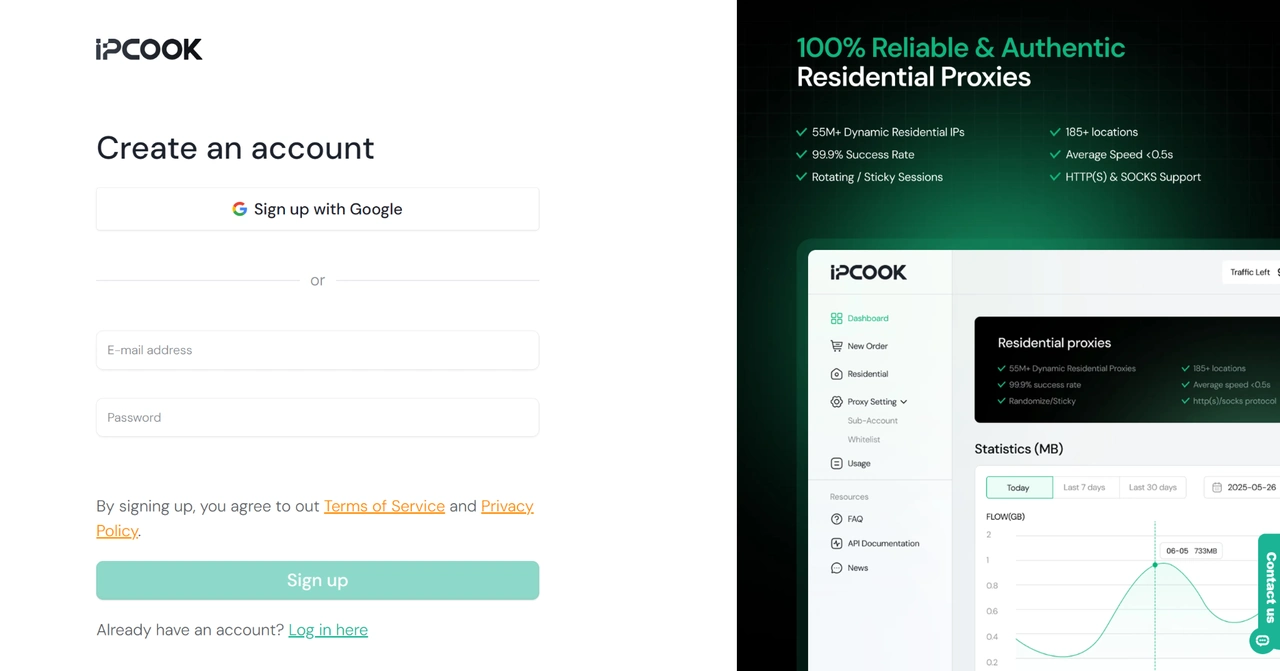
Create an IPcook account
Go to the IPcook sign-up page and register with your email or Google account.
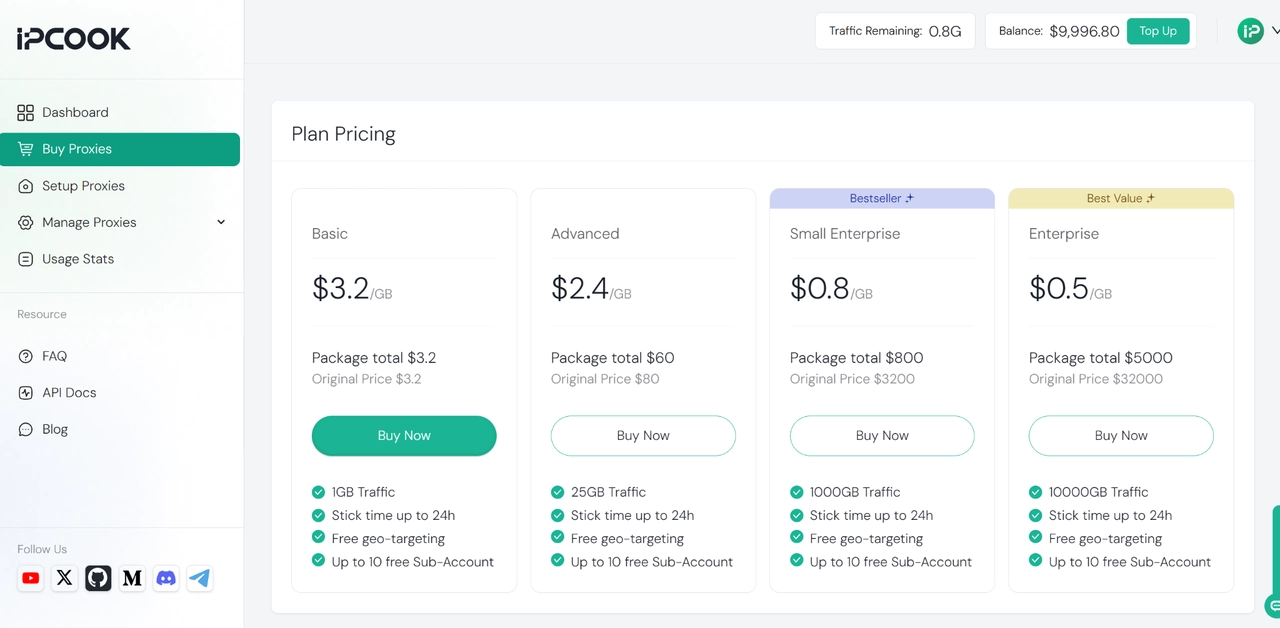
Choose a residential plan
After logging in, open Buy Proxies and select a plan that fits your usage. Each plan includes geo-targeting and high-speed residential traffic.
Set up proxy credentials
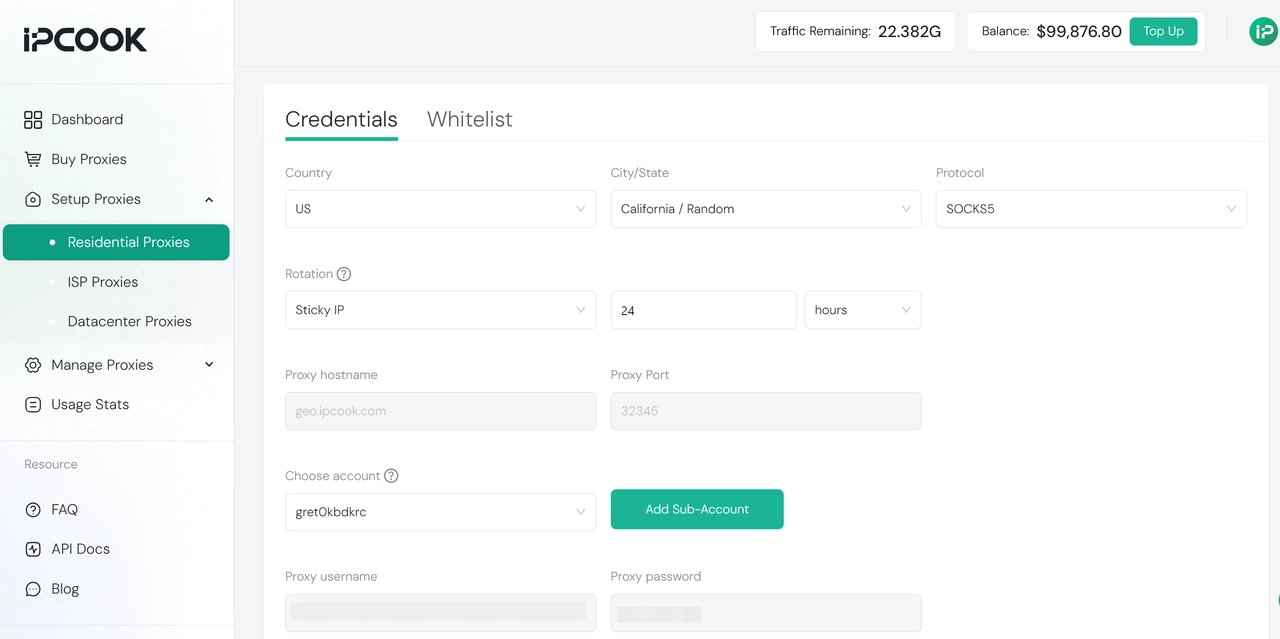
In the Setup Proxies section, select your target country such as the United States, choose rotation type sticky or dynamic, and copy the generated hostname, port, username, and password.
👉 Want a simple step-by-step guide to setting up your proxy in the IPcook dashboard? Check our quick setup proxy guide.
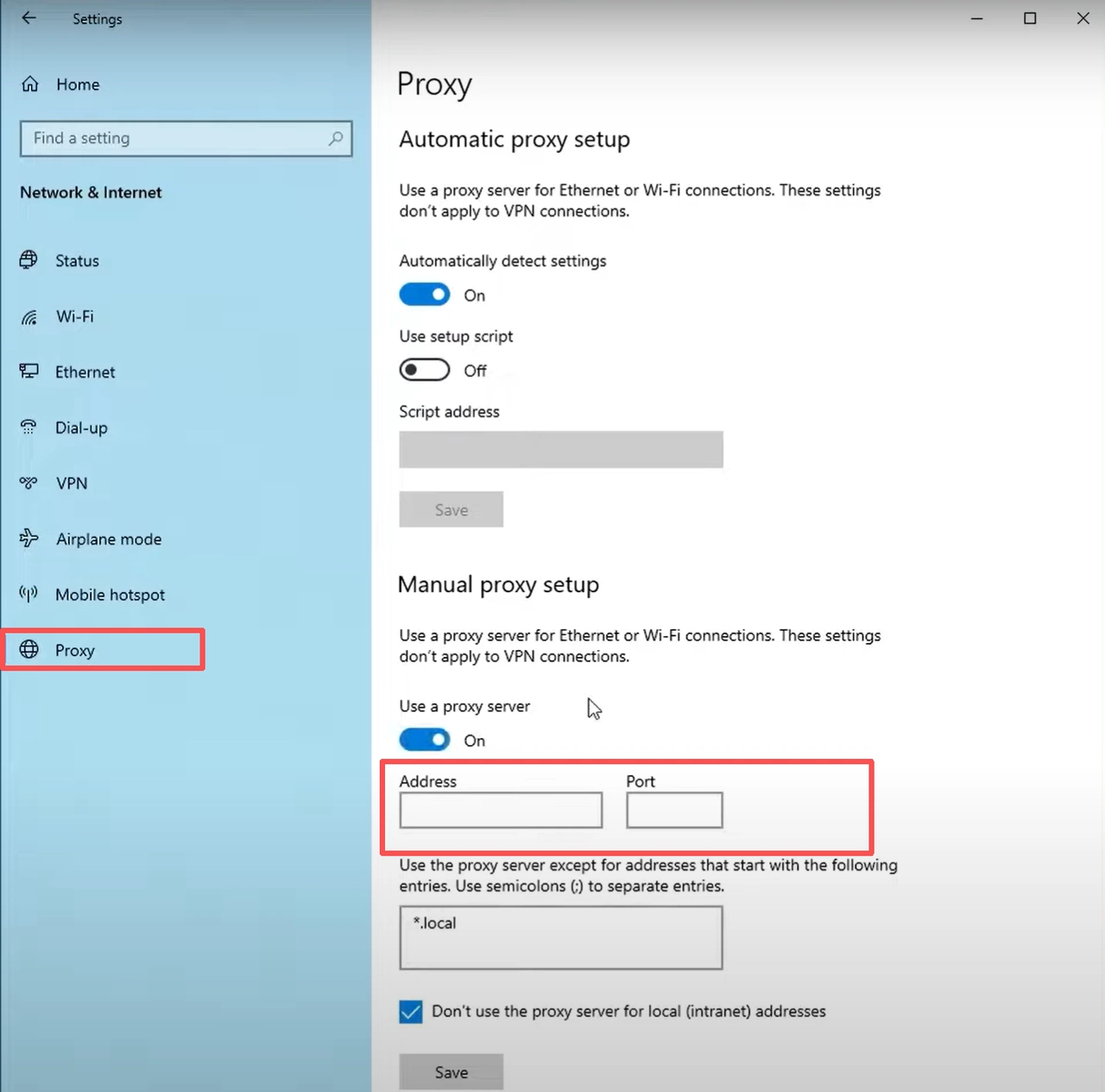
Enter the proxy details in Windows or macOS settings On Windows, open Settings → Network & Internet → Proxy, enable Use a proxy server, and paste your IPcook address and port.
👉 Need clearer instructions for Windows proxy settings, follow our Windows proxy setting guide.
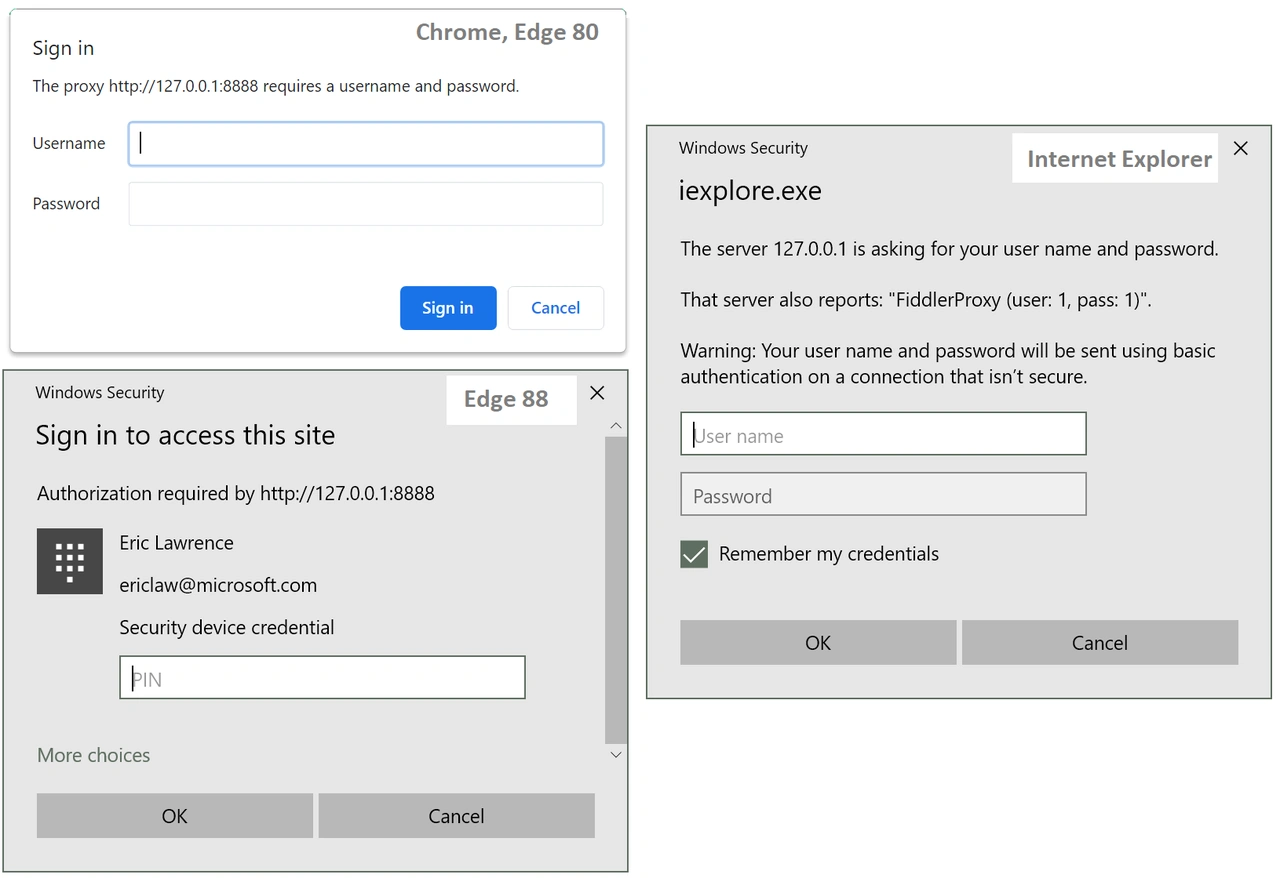
Sign in with your proxy credentials in the browser After saving your system proxy settings, open Netflix in your browser. A login pop-up will appear asking for authentication. Enter your IPcook username and password to complete the proxy connection.
Once the connection is active, open Netflix again. Your stream should now play normally without triggering the proxy warning.
Why it works:
Real residential IPs that meet Netflix’s trust and geo-location criteria
Stable low-latency performance for smooth HD streaming
Clean IP pools across 185+ regions for consistent global access
High uptime and natural traffic behavior resembling home users
6. Switch to a Different VPN Server or IP
If you are already using a paid VPN and the error still appears, the issue may be tied to the specific server. Some servers become overcrowded or repeatedly reported, which makes them easy for Netflix to detect. Switching to another endpoint or region often clears the warning because the traffic no longer resembles a shared route. After switching, refresh Netflix and test playback again. If it works, the previous server was the one being flagged.
If you are using IPcook, you can get new residential proxies directly from your dashboard. Each new line provides a clean IP address from a verified household source, so Netflix recognizes it as a completely new connection. This approach works faster and more reliably than switching between VPN servers, especially when streaming requires stable, region-specific access.
7. Contact Netflix or Your ISP If Misflagged
This step is only needed when you are already using a residential-style connection and the warning still does not clear. In that case, your IP may be misclassified.
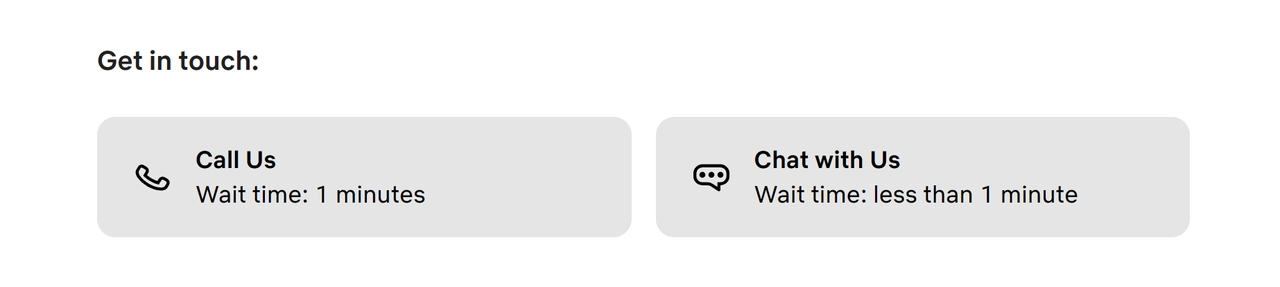
Go to the Netflix Help Center and open the Contact Us page. If available, choose Chat with Us or Call Us to reach Netflix Support directly. If those options don’t appear, describe your issue in the message box and submit it through the form. Provide the error text “You seem to be using an unblocker or proxy” and explain that you are using a regular home connection so Netflix can refresh the IP classification.
If the issue persists, contact your Internet Service Provider (ISP) and request a clean IP address. Most providers can reassign one by restarting your modem or refreshing your account.
Afterward, reopen Netflix and test playback. If it works normally, the issue was caused by an incorrect IP reputation rather than your setup.
👀 You May Also Want to Know
IP ban on Pinterest: 6 Proven Ways to Fix and Bypass It Fast
Instagram IP Ban: 6 Easy Ways to Fix and Restore Your Account
Conclusion
The Netflix proxy error is mainly a trust issue, not a device or account failure. The platform pauses playback whenever the connection no longer resembles a normal household network, and it resumes as soon as the traffic looks residential again. Most users can fix the warning by restoring a clean and consistent network identity rather than changing apps or hardware.
For long-term stability, the key is to maintain a connection that Netflix can immediately recognize as genuine home access. IPcook helps keep that trust intact by providing residential routes with a consistent, household-style footprint, so the connection remains verified over time and streaming continues without interruption.
