


Instagram IP Ban: How to Check, Fix, and Prevent IP Blocking

Instagram might suddenly stop you from logging in, liking posts, or even opening the app. You may see "Action Blocked" across your accounts and be unable to perform basic actions. When this happens, your IP address could be involved. It identifies your internet connection and helps Instagram determine where activity is coming from.
In this guide, you'll learn why Instagram blocks IP addresses, how to tell if you have an Instagram IP ban, and what you can do to fix and prevent it safely.
What Does an IP Ban Mean on Instagram?
An Instagram IP ban happens when Instagram temporarily restricts your network after detecting unusual or excessive activity. If too many requests or login attempts come from the same IP address, Instagram may block it to prevent automated or suspicious behavior.
Your IP address works like a digital home address for your internet connection. Once it is flagged, accounts using the same Wi-Fi or router can also be affected. Even if you switch to another account or device, the restriction can remain as long as you stay on the same network.
📌How Instagram Identifies Your IP:
When you connect to Instagram, your internet request passes through your network and includes your IP address. Instagram can read this address from the connection and associate activity with that network.
4 Types of Instagram Restrictions: IP, Account, Device, and App
When all accounts on your Wi-Fi face login or access issues, an IP ban could be the cause. A restriction affecting only one profile is more likely to be account-related. Problems limited to one device or specific app features can point to other types of restrictions. See the differences below.
Feature | IP Ban | Account Ban | Device Ban | App Restriction |
Scope | Affects all accounts using the same network | Affects a specific account | Sccess from a specific device | Specific actions or features |
Cause | Repeated or unusual activity associated with an IP address | Policy violations, suspicious activity, or reports | Suspicious activity associated with a device | Excessive or unusual activity |
Typical Error | "Action Blocked" or "Try Again Later" | "Account disabled" or other account warnings | Login or access issues on the device | "Action Blocked" or feature limits |
Typical Recovery | Access usually restores after IP changes or resets | Submit an appeal to Instagram | Resolving the device-related restriction | Waiting for the restriction to expire |
Duration | Usually hours or days | Temporary or permanent | Can vary | Usually temporary |
Common Signs of an IP Ban on Instagram
You may be facing an IP ban if you notice these situations:
All Instagram accounts stop working on the same Wi-Fi network.
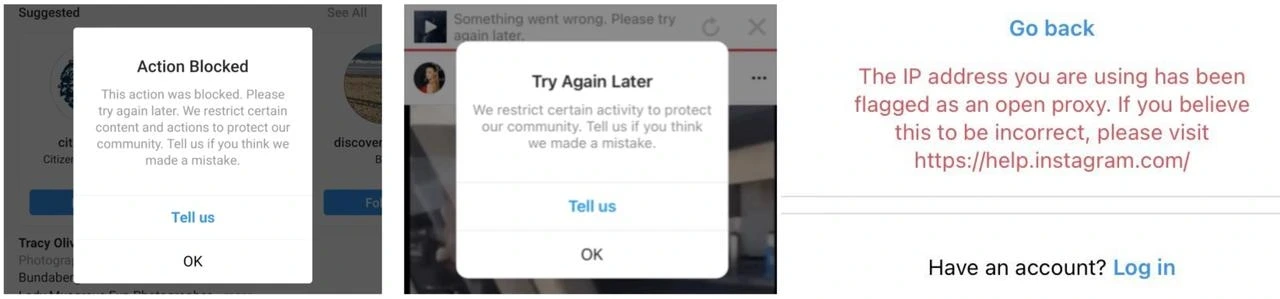
The app keeps showing "Action Blocked," "Try again later," "The IP address you are using has been flagged as an open proxy", or fails to load posts.
Everything works normally when you switch to mobile data or another Wi-Fi connection.
Logging in from another device on the same network fails in the same way.
When several accounts experience the same issue at once, it's usually an IP-level restriction rather than an account problem.
Why Does Instagram Ban or Block Your IP Addresses
Instagram may restrict an IP address when its automated systems detect activity that appears unusual or potentially abusive. These systems help protect the platform from spam, data scraping, and other forms of automated abuse. Repeated or unusual traffic patterns can lead to temporary restrictions on the IP address associated with that activity.
Here are some common factors that can contribute to an IP restriction:
Using multiple accounts on the same connection. Frequently switching between several accounts on one Wi-Fi network can make the activity appear unusual.
Performing too many actions too quickly. Rapid likes, comments, or follows can resemble automated activity.
Using automation or third-party tools. Bots and scraping tools can generate repeated or automated requests that trigger security measures.
Sharing a network with other users. In offices, schools, cafés, and other shared networks, multiple users may appear to come from the same public IP address.
Sending unusual or high-volume traffic. Large numbers of repeated requests or aggressive data collection can lead to temporary restrictions.
These restrictions are generally intended as security measures rather than personal penalties. The restriction may be lifted after the unusual activity stops, but the timing and outcome can vary depending on the situation.
How Long Does an Instagram IP Ban Last
You might also wonder how long an Instagram IP ban will last. There is no fixed duration for an IP restriction. Short-term blocks may last a few hours or several days, while more serious or repeated issues can result in longer restrictions. The duration can depend on factors such as the type and severity of the activity.
A few hours to 48 hours: Short-term restrictions can occur after unusually high activity, such as performing too many likes or follows in a short period. The restriction may lift once the block expires.
3 days to a week: Repeated or more persistent unusual activity can lead to longer restrictions. The exact duration can vary depending on the situation.
Longer-term blocks: More serious or sustained activity, such as repeated automated requests or aggressive data scraping, can lead to longer restrictions. The duration is not fixed and depends on the circumstances.
Indefinite restrictions: In more serious cases, access can remain restricted for an extended or indefinite period. This does not mean every severe IP restriction becomes permanent, as Instagram does not publicly provide a fixed duration for IP-based restrictions.
How to Tell If Instagram Has Blocked Your IP
If Instagram suddenly stops loading, shows "Action Blocked," or prevents all accounts on your network from logging in, you might be facing an IP ban. Before trying to fix it, confirm whether the issue comes from your IP address, your account, or the app itself. The steps below can help you verify the cause.
1. Try Logging In Using Mobile Data
Disconnect from your Wi-Fi and switch to mobile data on the same device, then open Instagram and try logging in again.
If the app works normally on mobile data, the IP address of your Wi-Fi network is likely restricted rather than your account or device. However, if the problem continues even with mobile data, it may be related to your account or a temporary service issue.
2. Test on a Different Device or Account
Use another phone, tablet, or computer to access Instagram on the same Wi-Fi network, or try logging in with a different account on your current device.
If none of the accounts load properly under the same Wi-Fi but work on other networks, your IP is more likely to be involved. On the other hand, if only one account fails while others work normally, the restriction is more likely account-based rather than IP-related.
💡Tips: You may also see messages such as "Registration is currently blocked in your location." This message does not necessarily indicate an IP ban. It can point to a location-based or registration-related restriction instead.
3. Use Online Tools to Check Your IP Status
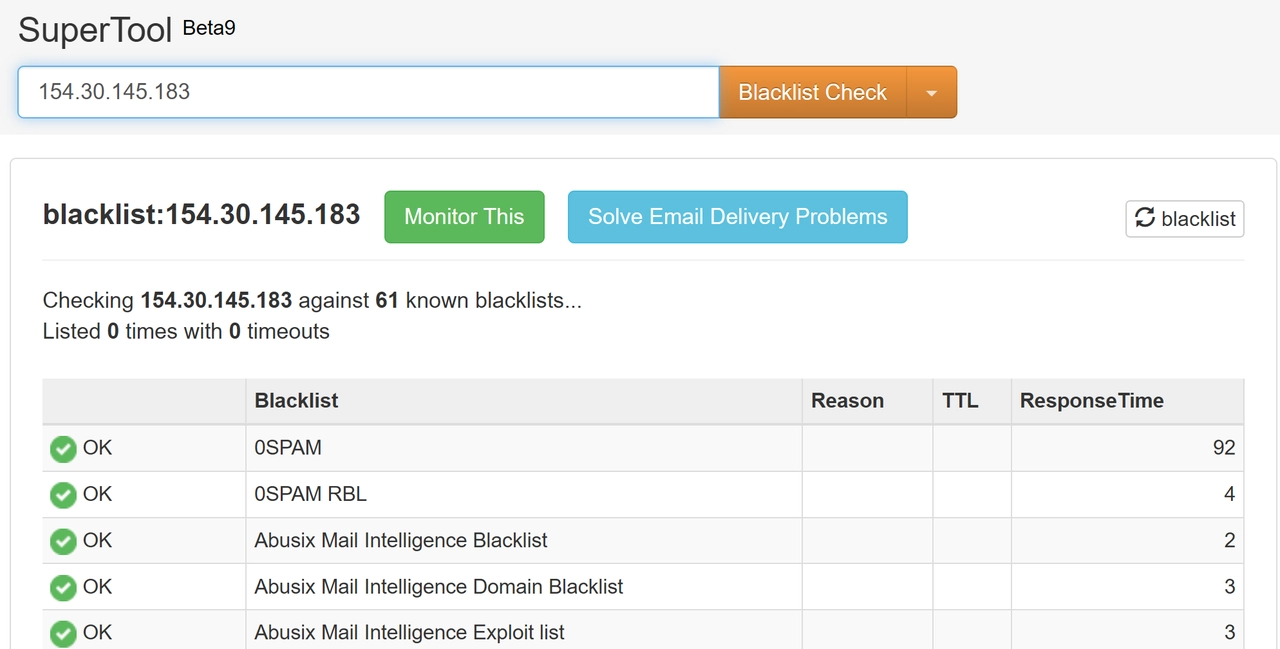
Use an IP reputation or blacklist checker to see whether your address appears on any spam or abuse databases. Tools like MXToolbox, Spamhaus, MultiRBL, or AbuseIPDB can check multiple real-time blacklists (RBLs) and provide information about your IP reputation.
If your IP is flagged, Instagram may consider the connection risky, which can contribute to temporary access restrictions.
If your IP shows a clean reputation but Instagram still restricts access, the issue is more likely platform-specific and related to Instagram's internal security systems rather than a global blacklist.
How to Fix an Instagram IP Ban and Restore Access
After confirming that your IP is restricted, try the following methods to restore access. Begin with simple fixes like clearing the app cache or changing your network, then move to more stable options if the issue continues.
Method 1. Clear App Cache and Cookies
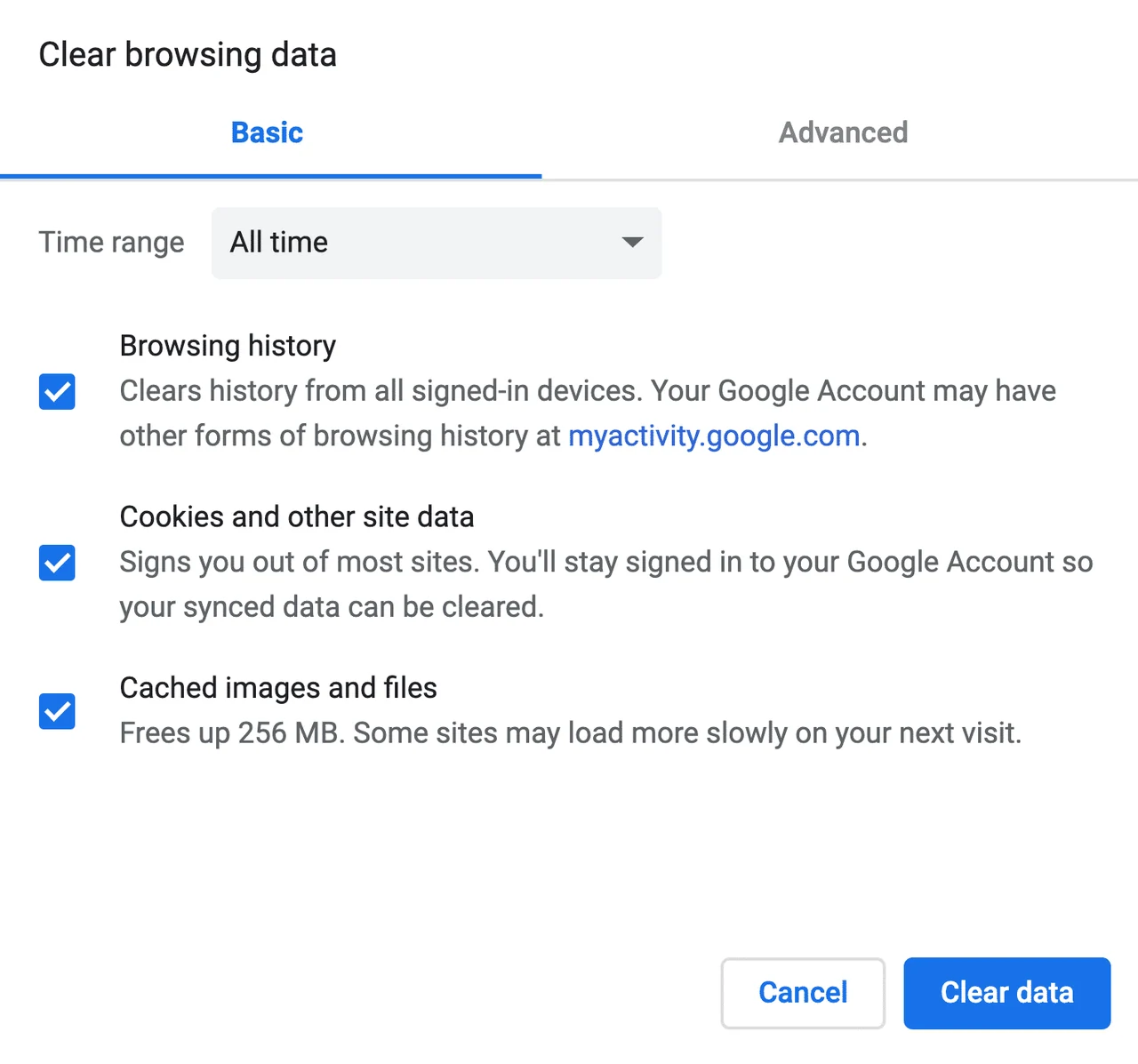
Outdated or corrupted session data inside the Instagram app can keep your connection blocked even after the restriction period ends. Clearing the cache and cookies refreshes the app and removes stored conflicts that interfere with access.
Follow these steps to clear the cache:
Open your phone's Settings.
Select Apps or Application Manager and find Instagram.
Tap Storage, then choose Clear Cache and Clear Data.
Reopen Instagram, log in again, and test if the connection is restored.
This process resets your session completely and removes any saved data that may prevent the app from reconnecting to Instagram's servers.
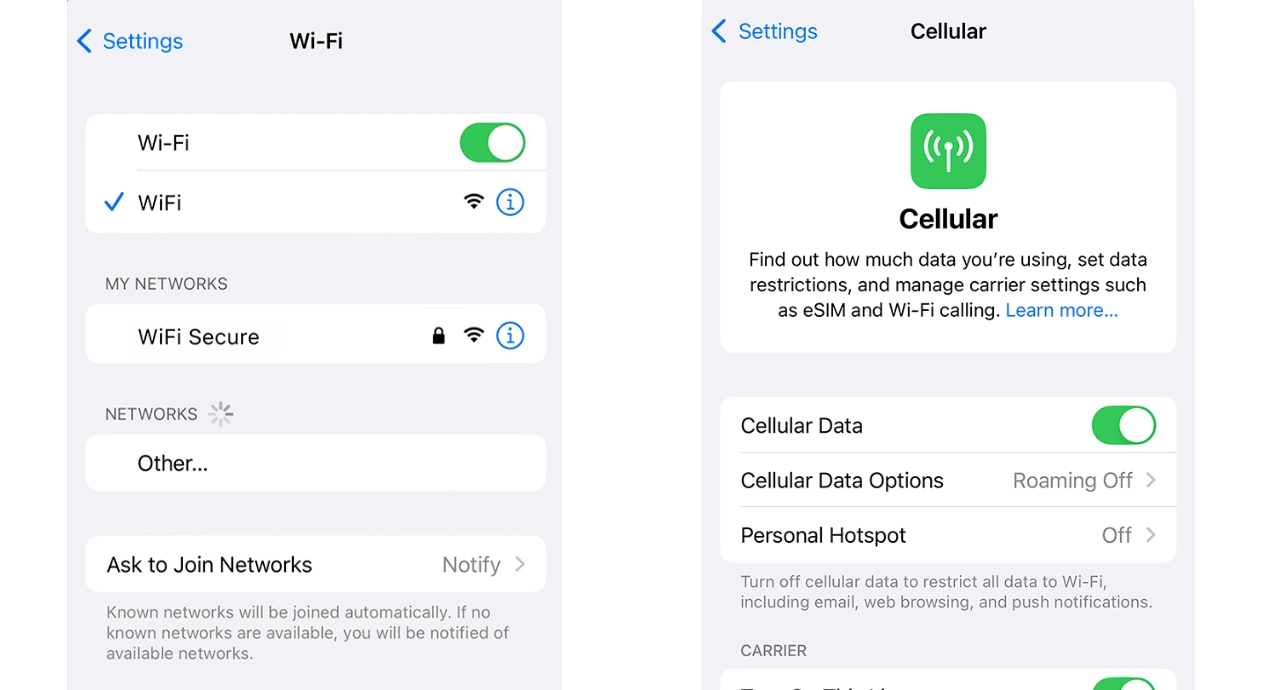
Method 2. Switch to Another Wi-Fi or Mobile Network
Changing your network helps determine whether the issue lies with your IP address or your account. A new connection gives you a different IP, which can often bypass the restriction if your original IP is still blocked.
Try the following:
Disconnect from your current Wi-Fi.
Enable mobile data and try logging in again.
If Instagram works properly, the issue is with your original network, not your account.
For a more stable test, connect to another private Wi-Fi instead of a public hotspot.
Switching networks temporarily assigns you a new IP, which often restores normal access.
Method 3. Reboot Your Router to Get a New IP
Many internet providers use dynamic IP addresses, which can change when your router reconnects to the network. If Instagram has restricted your current IP, getting a different public IP may restore normal access. However, some ISPs use fixed addresses or long DHCP leases, so restarting your router does not always result in a new IP.
To reboot your router:
Turn off your router and unplug it for about one minute.
Plug it back in and wait for the internet connection to fully recover.
Visit a site like whatismyip.com or ipinfo.io to check whether your public IP has changed.
If the address is different, open Instagram again and test access.
If the IP remains the same after several restarts, your provider may use a fixed IP or a long DHCP lease. In this case, switching networks or using an ISP proxy can provide an alternative connection.
Restarting your router is a simple way to check whether your public IP changes. If the address stays the same, you will need another network or connection to test whether the restriction is tied to your current IP.
Method 4. Wait for the Temporary Ban to Expire
Some IP bans lift automatically once Instagram detects normal traffic again, usually within 24 to 72 hours depending on activity.
While waiting:
Stop all login attempts and automated activity.
Wait at least 24 to 48 hours before reconnecting.
Test Instagram again after the waiting period.
Avoid frequent logins or network switching during this time, as it may extend the restriction. Patience is often the simplest and safest way to recover access.
Method 5. Use a Proxy When the Issue Is IP-Level
Using a proxy can give you a different IP address and network connection when your current IP is restricted. Different proxy types can meet different needs, from stable account management to high-volume posting. The following steps use IPcook as an example to show how to choose, set up, and configure a proxy.
How to do it:
Choose a proxy type that fits your workflow.
💡For multi-Instagram account management or account use:
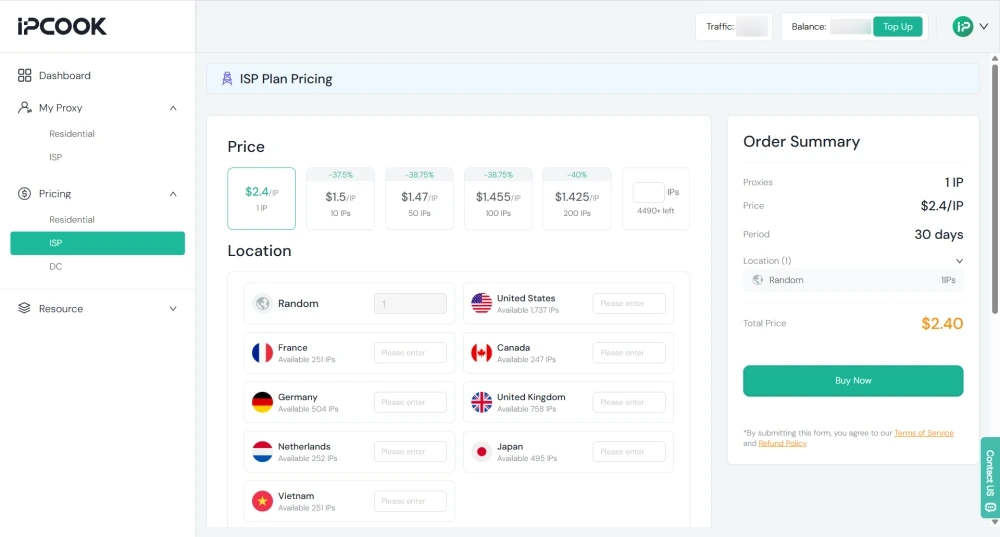
ISP proxies provide a fixed IP address, helping reduce IP changes and security checks during long-term multi-Instagram account management. IPcook ISP Proxies offer unlimited traffic and 99.9% uptime, helping maintain a stable connection for ongoing Instagram activity. They support HTTP and SOCKS5, while username and password authentication make proxy configuration safer.
For higher-volume activities:
Residential proxies offer access to large pools of rotating real-user IPs, making them well suited for high-volume Instagram posting where frequent requests can otherwise lead to rate limits. IPcook Residential Proxies provide 55M+ IPs across 185+ countries. Sticky sessions up to 24 hours and per-request or time-based IP rotation support different workflows. You can also add 10 free subaccounts for permission management, with pay-as-you-go and subscription plans available.
Log in to IPcook and purchase a proxy.
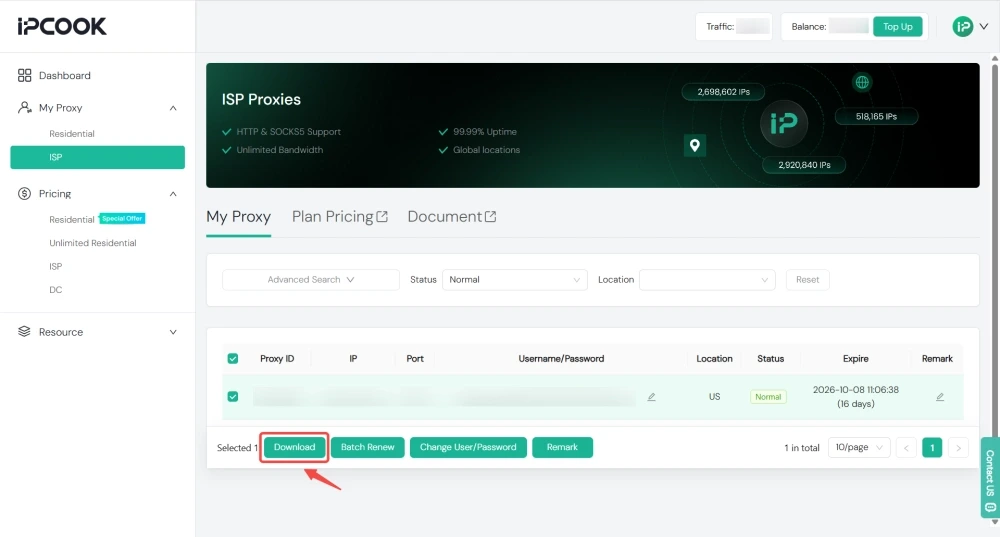
Export proxy credentials. For example, you can export the credentials from IPcook ISP Proxies as shown below.
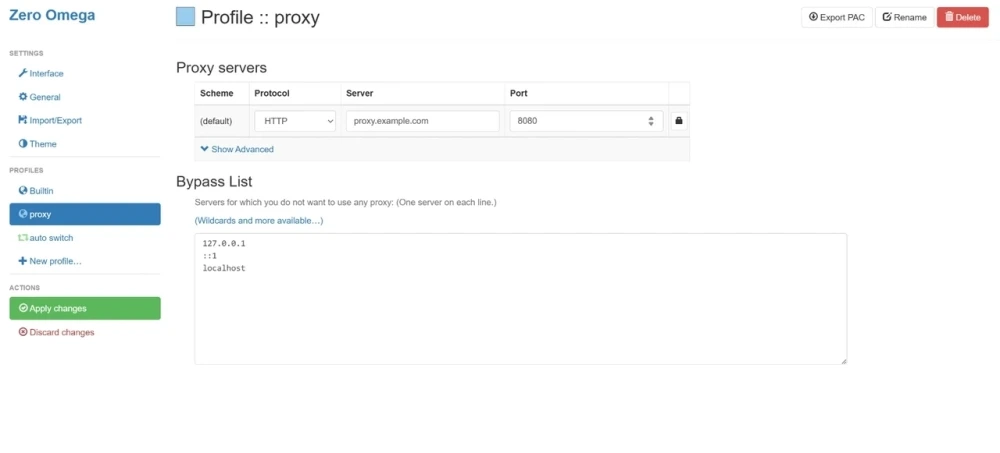
Add the proxy to your browser, device, or proxy-supported app. Here is an example of configuring the proxy in a proxy-supported app.
Connect to Instagram through the proxy.
Check whether the previous errors or access restrictions still appear.
💡For more detailed proxy setup and configuration, see A Quick Start to Proxy Setup and Configuration.
How to Avoid Another Instagram IP Ban
To reduce the risk of another IP-related restriction, keep your Instagram activity consistent and avoid sudden changes in login locations, devices, or account behavior. If you manage multiple accounts, use separate and stable connections where appropriate instead of frequently switching between unrelated IP addresses.
You should also follow Instagram's rules and avoid spam, fake engagement, or other activity that may trigger enforcement. Keep your account security information up to date and enable two-factor authentication to protect against suspicious logins.
Conclusion
An Instagram IP ban can be difficult to identify because similar access problems may come from an account, device, network, or temporary platform restriction. Start by checking what is actually affected, then use the appropriate troubleshooting method. If the issue is IP-related, using a stable proxy connection can help you test whether your IP is the cause.
If you need a proxy for stable Instagram activity, IPcook offers ISP and Residential proxies for different use cases, with flexible IP locations and secure configuration.
FAQs
- What Does an IP Ban Mean on Instagram?
- 4 Types of Instagram Restrictions: IP, Account, Device, and App
- Why Does Instagram Ban or Block Your IP Addresses
- How Long Does an Instagram IP Ban Last
- How to Tell If Instagram Has Blocked Your IP
- How to Fix an Instagram IP Ban and Restore Access
- How to Avoid Another Instagram IP Ban
- Conclusion
- FAQs
