How to Unblock DuckDuckGo Fast with a Clean Proxy [2026]

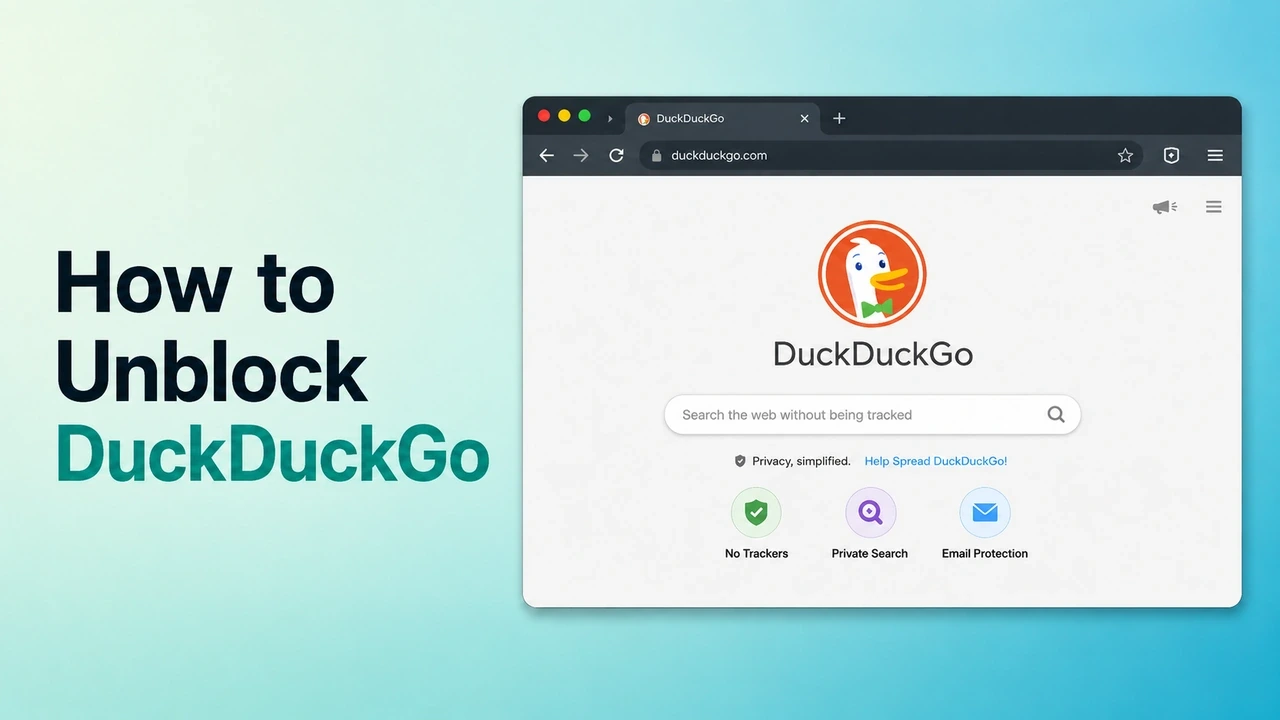
DuckDuckGo is famous for putting privacy first, achieving absolute privacy by rejecting targeted profiling, skipping search history, and delivering straight answers. That's why it's the go-to search engine for students, researchers, and SEO pros.
But what happens when you are blocked? Whether you are facing endless loading, a DNS error, or a silent timeout, this guide is for you. Here is exactly why DuckDuckGo is blocked and how to quickly bypass it using a clean proxy and a fresh browser profile.
Why Is DuckDuckGo Blocked or Not Working?
When DuckDuckGo stops working, the issue is usually rooted in your network, your device, or somewhere in between. Here are 5 common reasons why:
1. IP Blocks or Restrictions
Your current IP might be flagged without you knowing it. Free VPNs, public proxies, and crowded Wi-Fi networks often share one address across many users, so one bad history can affect everyone on that IP. Switching to a clean proxy gets you off that flagged route and back to normal browsing.
2. Managed Network Restrictions
Network administrators at schools, offices, and libraries restrict which search engines you can use to enforce content policies. Firewall rules, DNS filtering, or domain blacklists can trigger errors like "access denied," DNS_PROBE_FINISHED, or connection timeouts. Since DuckDuckGo prioritizes privacy and handles filtering differently, it can end up on these blocklists.
3. Regional, ISP, or DNS-Level Blocking
Sometimes the restriction sits even higher up, such as your ISP or a regional network gateway. DNS can resolve just fine, and the page still won't load, because a firewall further down the path quietly cuts the connection before it reaches DuckDuckGo.
4. Automated or Repeated Search Activity
If you are running high-volume tasks like SEO rank checks, keyword monitoring, or market research, your browsing can start to look like bot behavior to security systems. Sending repeated queries from a single IP address quickly triggers automated defenses, causing temporary slowdowns or access restrictions. Using residential proxies helps separate that activity from your original IP for data gathering.
5. Browser, Extension, or Security Software Conflicts
Your local environment might actually be sabotaging your own connection. Aggressive ad blockers, antivirus software, local firewall rules, corrupted cache, or old cookies can interfere with DuckDuckGo. If you are using a proxy, WebRTC or DNS leaks can also make the setup less clean. Starting fresh with a clean browser profile is the quickest way to clear out these hidden local conflicts.
Best Way to Unblock DuckDuckGo: Use a Clean Proxy with an Antidetect Browser
A reliable proxy from a provider like IPcook solves the network side of the problem by bypassing restrictions, protecting your privacy, and enabling region‑specific access. It swaps your restricted or overused IP address for a fresh one, giving you an unflagged entry point that avoids most IP blocks and public Wi‑Fi restrictions.
An antidetect browser handles the device side by creating a completely separate environment. Instead of carrying over a browser cluttered with old cookies, cache, and hardware signatures, it builds a fresh profile with matching timezone, language, and WebRTC settings to complement your proxy. Together, they change both the IP and browser environment DuckDuckGo sees, which makes access more consistent.
How to Unblock DuckDuckGo with a Clean Proxy and Browser Profile
Here's how to unblock DuckDuckGo quickly, step by step.
Step 1. Prepare your Proxy details from IPcook
To bypass restrictions, you need a reliable proxy service. IPcook provides affordable, high-quality DuckDuckGo proxies. First, get your credentials ready.
You can choose what you need:
Generate Your Rotating Residential Proxy
Residential proxies work well for repeated searches, location testing, or flexible DuckDuckGo access.
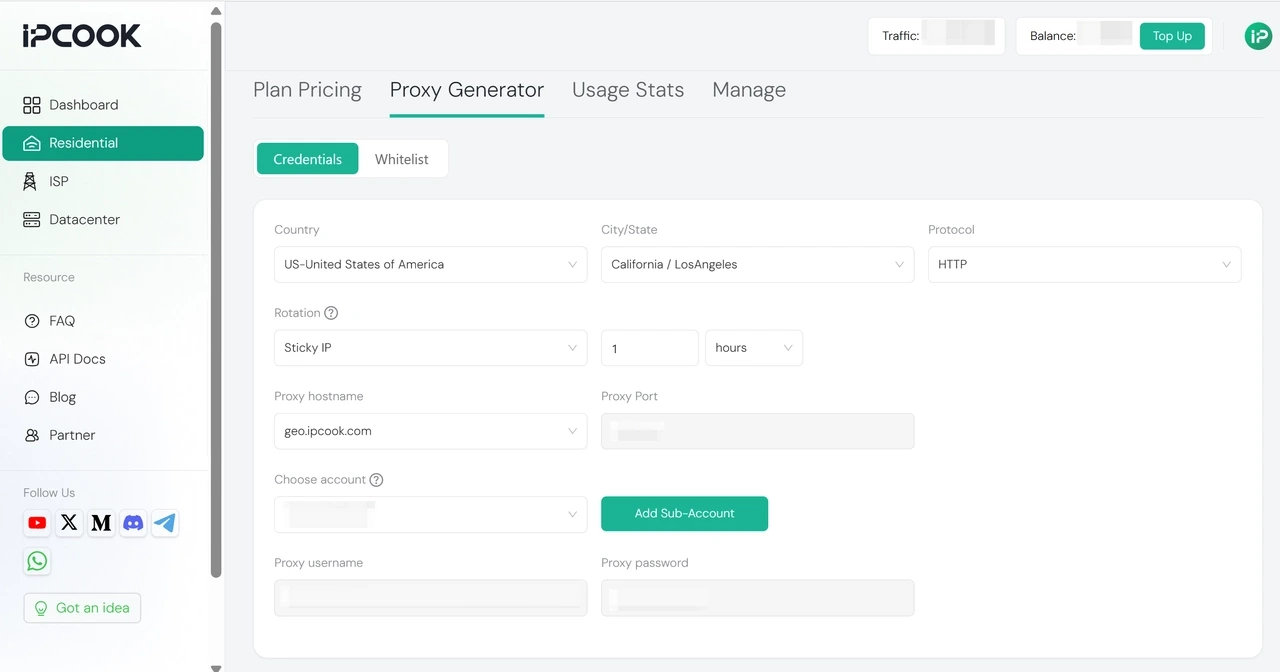
Head to Residential > Proxy Generator. Select your preferred proxy type, choose your desired location and session mode, then copy the proxy details you need, including the IP address, Port, Username, and Password.
Generate Your Static ISP Proxy
ISP proxies are better when you want one stable IP for the same browser profile and search environment.
Navigate to ISP, choose your location and duration, then open My Proxy after purchase. Copy the IP, Port, Username, and Password from your proxy list.
.webp)
Make sure the proxy location matches the search environment you want. For example, if you want DuckDuckGo to load through a US connection, prepare a US proxy before creating the browser profile.
Step 2. Create a Fresh Browser Profile
Download and log in to your antidetect browser. We will use AdsPower as the example, but the same setup works with tools like Dolphin Anty, DICloak, and Incogniton.
Click New Profile in AdsPower. Avoid reusing an old profile, since old cookies, cache, or local storage may keep the issue tied to your old browser environment.
.webp)
Step 3. Add Your Proxy Details
In the new browser profile, open the Proxy tab and choose Custom. Select the correct proxy protocol, such as HTTP(S) or SOCKS5, then enter your IPcook proxy details.
You can also run the built-in proxy test to confirm the proxy is active and your profile is ready to use.
.webp)
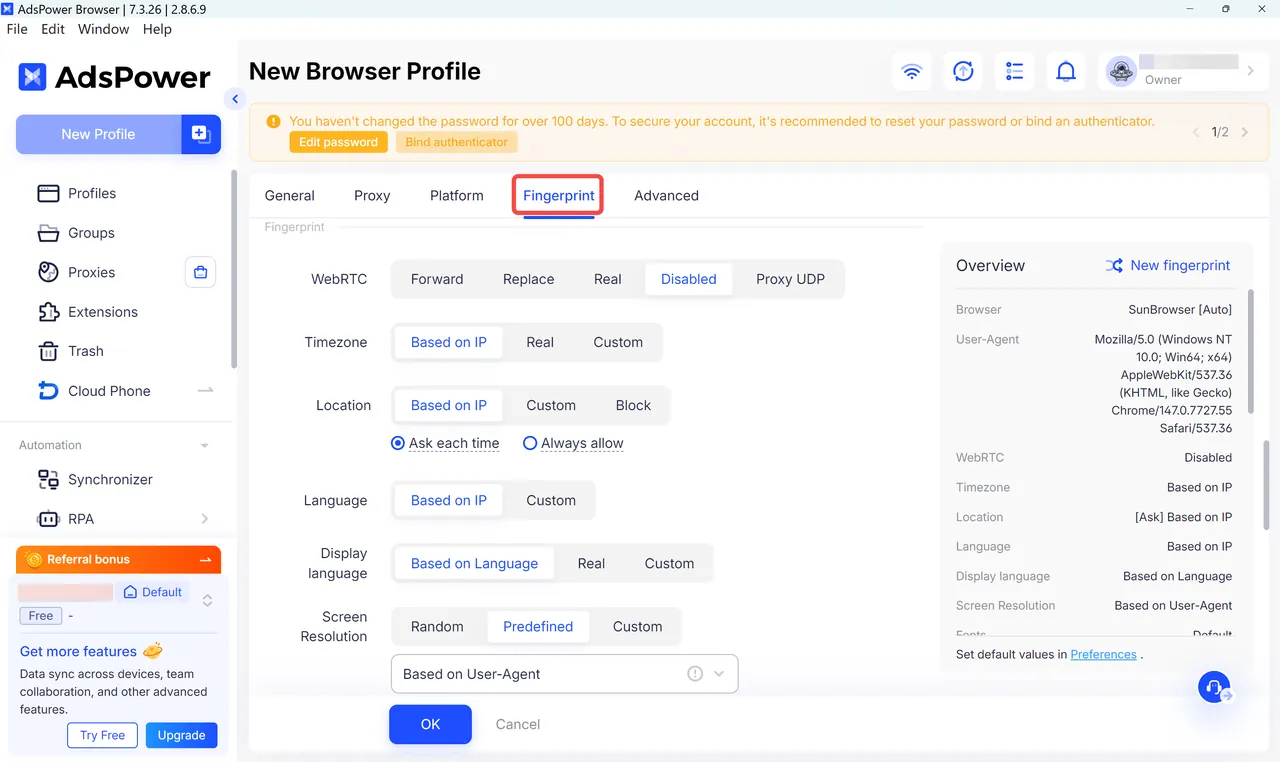
In the Fingerprint settings, keep location and language settings based on the proxy IP, so the browser environment stays consistent with your new connection. Then click OK to save the profile.
Step 4. Open DuckDuckGo in the New Profile
Launch the new profile and open duckduckgo.com. Start using the new profile and proxy for your searches.
.webp)
If you need to check DuckDuckGo from multiple regions, create a separate profile with a separate proxy for each one to prevent linking.
Other Ways to Access DuckDuckGo
The clean proxy and browser profile method we discussed earlier is your best bet for a reliable, long-term fix. But if you just need a quick test or a temporary workaround to get you back to searching right now, here are a few alternatives you can try in seconds.
Quick Tip: You can try a free web proxy like FreeProxyPro to see whether DuckDuckGo is only blocked on your current network.
Try DuckDuckGo’s HTML Version
Think of html.duckduckgo.com as a stripped-down, lightweight version of the search engine with barely any scripts running in the background. Because it is so basic, it often loads even when the main site or the app is completely stuck.
Step 1. Open up any browser on your desktop or phone.
Step 2. Head straight to html.duckduckgo.com.
Step 3. Type in your query and start searching.
Change DNS or Switch Networks
If your local network or default DNS resolver is blocking the site, switching either of them can instantly get you back online.
Step 1. Go into your device's network settings or your router's admin panel.
Step 2. Swap your current DNS for a reliable public resolver like Cloudflare
1.1.1.1or Google8.8.8.8.Step 3. Restart your browser or quickly disconnect and reconnect to your network.
Step 4. Open DuckDuckGo to see if it loads.
If that does not do the trick, try turning off your Wi-Fi and switching to mobile data, or connecting to a different hotspot. If the site suddenly works, you will know the block was tied directly to your original network.
Use Browser Proxy Settings or a VPN
You can also set up a proxy directly in your browser settings without spinning up a full antidetect browser, or use a VPN to reroute your traffic through a different server.
While this successfully changes your IP address, keep in mind that it does not clean up your browser environment. If you find that the block keeps coming back after a few searches, upgrading to the clean proxy and fresh browser profile combo we mentioned earlier is the way to go. For a step-by-step walkthrough on how to set this up, check out our guide on configuring a proxy with DuckDuckGo.
Conclusion
DuckDuckGo being blocked or acting up usually comes down to one of a handful of things: a flagged IP, a managed network, a DNS or ISP hiccup, too many searches too fast, or a browser environment carrying too much baggage.
IPcook's residential and ISP proxies give you the clean IP side of that equation, with real addresses across 185+ countries and a setup that takes minutes. Pair one with an antidetect browser profile, and DuckDuckGo unblocked stops being something you have to fight for every time your IP gets flagged.
Running into the same problem elsewhere? Check out our guides on unblocking Steam, unblocking YouTube, and getting YouTube Music unblocked.