


How to Unblock YouTube: 6 Effective Methods

Expecting to watch a video on YouTube, you're instead shown "This video is unavailable," a blank page that won't load, or a message saying access is restricted in your area or network. It's frustrating, especially when you don't know why it's happening.
This isn't always caused by the same thing, and different causes call for different fixes. Below, we'll cover the main reasons YouTube gets blocked, then walk through 6 ways to unblock YouTube. Keep reading to find the method that works best for you.
What causes YouTube to be blocked?
YouTube not loading doesn't always mean something is wrong with YouTube itself. The restriction could be happening at different levels, and each one shows up differently and needs a different fix. Figuring out which one you're dealing with is the first step to solving it.
1. Network Restrictions
Some networks, like those at schools, workplaces, or other managed environments, are set up to block YouTube on purpose. This is a common reason users look for ways to unblock YouTube at school or access it on a restricted work network.
In this situation, YouTube may fail to load only on that specific network, while other websites work fine and the site loads normally on a different network, like mobile data.
2. Regional Restrictions
What you can watch on YouTube depends on where you're located. Sometimes YouTube itself is restricted in a region entirely, and other times only specific videos are unavailable due to local licensing rules. Your location is commonly inferred from your IP address and network location, so content availability can differ from one region to another.
If YouTube loads fine but a specific video shows as unavailable in your country, a regional restriction is the likely cause.
3. DNS or ISP Restrictions
Your ISP's DNS service or other network-level filtering can affect whether YouTube connects properly. Common signs include YouTube failing to load, connection timeouts, or domain resolution errors, while other websites work as usual.
If most sites load normally but YouTube specifically has trouble connecting, the issue may be happening at the DNS or ISP level.
4. Browser or Device Issues
YouTube not working doesn't always mean it's being blocked. Sometimes the problem is local to your browser or device. This might show up as YouTube failing in one browser while working fine in another, or having issues on one device but not others.
If the problem is limited to a specific browser or device rather than your whole network, it's likely a local issue rather than an actual access restriction. It's worth telling these two apart, since a local issue needs a different fix than a network or regional block.
6 Ways to Unblock YouTube
Once you have a sense of what's causing the block, you can pick a fix that actually matches the problem instead of guessing. Here are 6 methods to try, starting with the most flexible options.
1. Use a Proxy to Unblock YouTube
A proxy routes your traffic through a proxy server, so YouTube sees the proxy's IP address instead of your own. This makes it useful in a few situations:
Your current IP address may be flagged or restricted, so switching to a different IP can help you unblock YouTube videos and regain access.
You want to watch content that's only available in a specific region, so you need an IP based there.
You're on a network that restricts access to YouTube, and the proxy connection itself is allowed on that network.
Here's a walkthrough using IPcook as an example, starting with getting a proxy from IPcook.
Step 1: Sign Up and Prepare Your Proxy Details
Sign up for an IPcook account and log in to your Dashboard, then choose one type of YouTube proxy based on your needs.
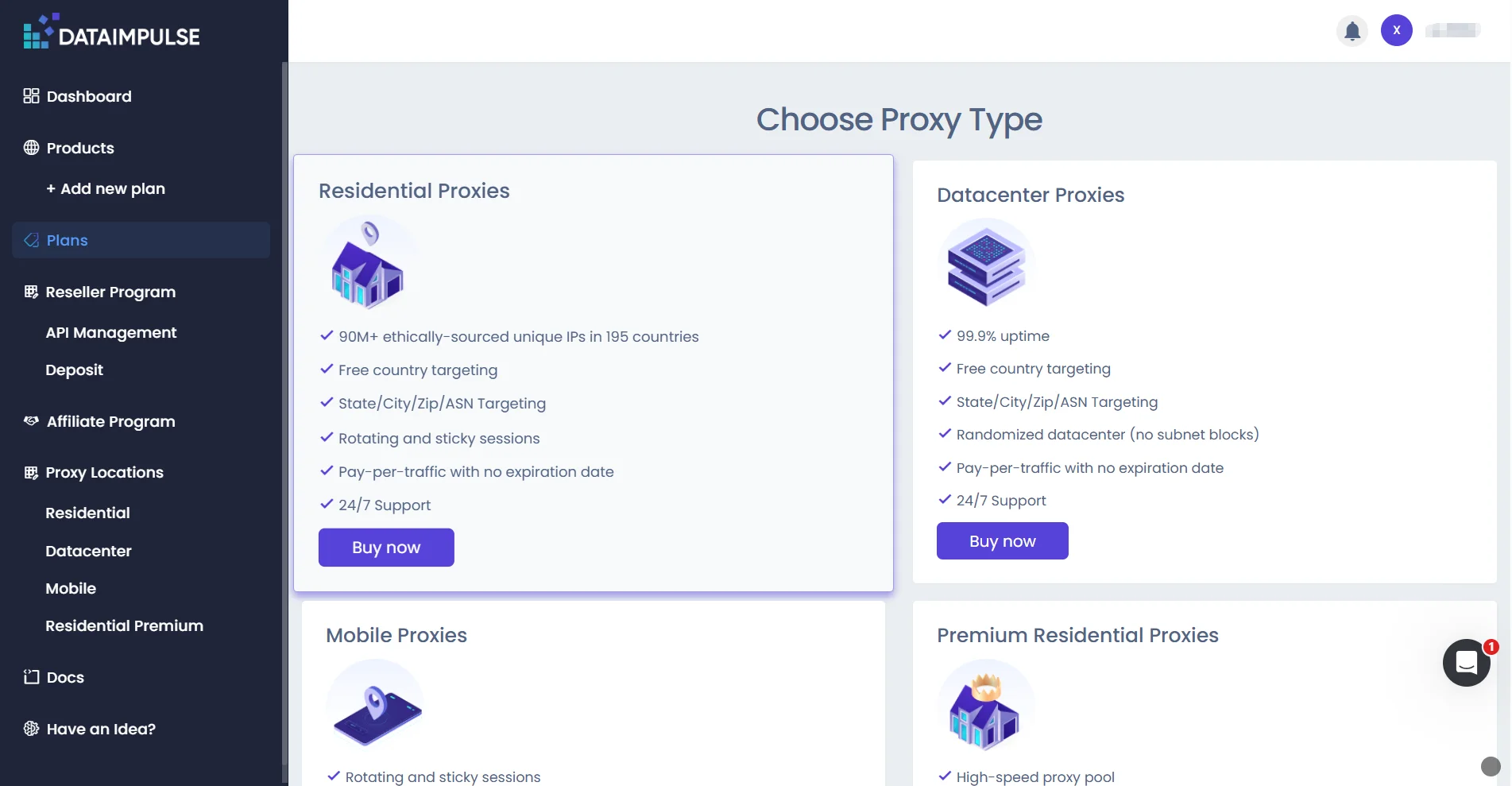
For students and office workers, the priority is usually simple: keep YouTube working without burning through data. IPcook ISP Proxies with static IP and time-based billing fit that, while IPcook residential Proxies are better for quick regional checks. Both support HTTP and SOCKS5. While an HTTP proxy easily unlocks YouTube in your web browser, mobile apps require a different approach. Since SOCKS5 routes all types of network traffic, pairing it with a mobile proxy tool is the best way to access the YouTube app on your mobile devices.
After choosing a proxy type, select a country where YouTube is available. Then copy the IP, Port, Username, and Password from your IPcook Dashboard.
Step 2: Configure the Proxy on Your Device
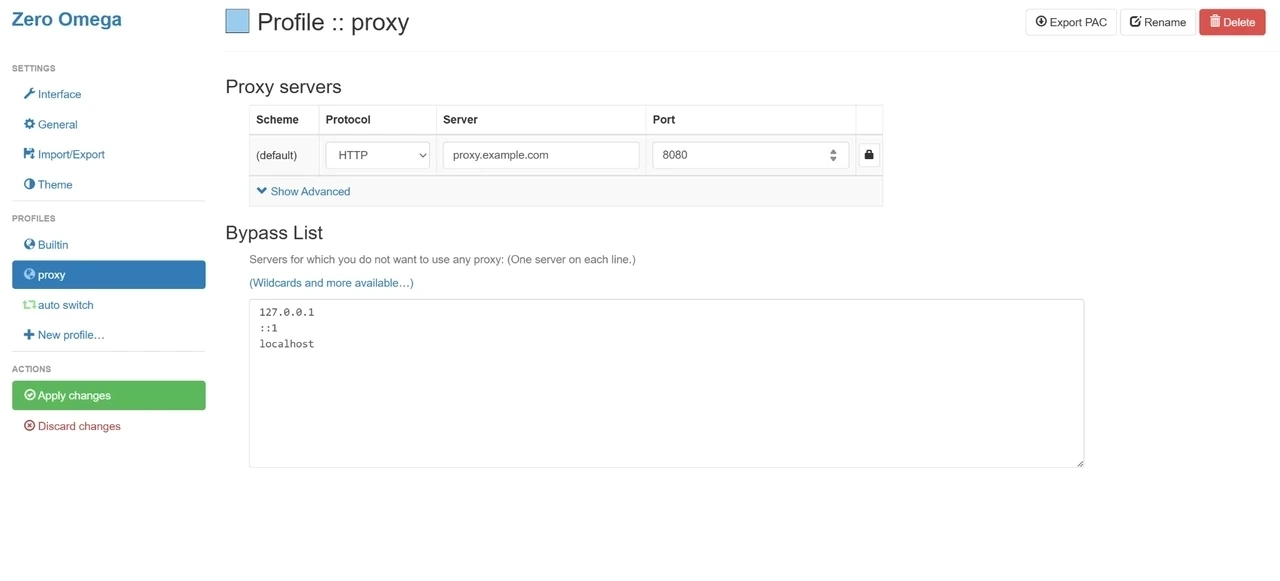
On Chrome, you can use a proxy management extension such as ZeroOmega.
Install a proxy management extension and create a new proxy profile.
Select the proxy protocol supported by your proxy, such as HTTP or SOCKS5.
Enter your Host/IP, Port, Username, and Password.
Save the profile and activate the proxy from the extension.
On Android or iPhone, you can also configure a proxy manually through the Wi-Fi settings by entering the proxy server, port, and authentication details when required.
👀Related Reading:
Step 3: Open YouTube and Check the Connection
Before opening YouTube, visit IPinfo or another IP checker to confirm that your IP has changed to the selected region. Then open YouTube and check whether the page and videos load normally.
A proxy provides an alternative access route when your current IP or network is restricted, but it may not resolve every access issue. For example, region-specific content can still be subject to YouTube's licensing or availability rules.
2. Use a VPN to Change Your IP Address
A VPN changes your IP by sending all your device's traffic through a VPN server, not just what happens in your browser. This makes it a good fit if you want everything on your device covered and encrypted, not just YouTube, or if privacy matters just as much as getting access back.
To use one:
Pick a VPN provider that has servers in a country where YouTube is accessible.
Install its app on your device.
Open the app and choose a server in that country.
Connect and wait for the app to confirm the connection is active.
Reopen YouTube and check whether it loads.
Keep in mind a VPN won't fix every YouTube issue either. It won't help if the problem is Restricted Mode or a locked-down device, and a crowded VPN server can still get flagged by YouTube.
🤔Not sure which one fits you? See how a Proxy vs VPN stacks up before you decide.
3. Switch to Mobile Data or a Different Network
This is the simplest and fastest way to test what's going on. It works well if you suspect the current network itself is the problem, or if you just need YouTube working right now and don't have time to set anything else up.
To try it:
Disconnect from your current Wi-Fi.
Turn on mobile data, or connect to a different network.
Reopen YouTube.
If YouTube loads normally after switching, that's a good sign the original network was restricting access. Keep in mind this only changes your current connection. It doesn't change anything about the original network, so you'll run into the same block again once you reconnect to it.
4. Change Your DNS Settings
This method targets DNS-related access problems specifically. It's worth trying if YouTube simply won't load, with no clear restriction message, since that pattern often points to a DNS issue.
On Windows:
Open Network Settings.
Go to your network's properties and find the DNS settings.
Switch from automatic to manual, and enter a public DNS server such as 8.8.8.8 (Google) or 1.1.1.1 (Cloudflare).
Save the settings.
Reopen YouTube and check if it loads.
This fix works when the block happens at the DNS level. If the actual cause is an IP or regional restriction, changing DNS on its own usually won't restore access.
5. Clear Browser Cache and Disable Extensions
This targets access problems at the browser or device level. It fits if YouTube only fails on one specific browser or device, while it works fine elsewhere, and you suspect the cause is a conflicting extension, Restricted Mode, or parental controls rather than a network block.
To troubleshoot:
Clear your browser's cache and YouTube-related cookies.
Temporarily disable browser extensions.
Restart the browser.
Reopen YouTube.
If it starts working, re-enable your extensions one at a time to find the one causing the conflict. If YouTube still fails across multiple browsers, devices, and networks, clearing the cache usually isn't the fix worth chasing.
6. Contact Your Network Administrator
This applies if you're on a school, company, or library network, particularly when you don't have permission to change network settings yourself, or you'd rather go through official channels than risk flagging your account with an unauthorized proxy or VPN. Reach out to your network administrator or IT department and ask whether YouTube is restricted by policy, whether access can be requested, and what rules apply.
There's nothing to configure here, but for users who aren't allowed to install or configure their own network tools, this may be the only option available.
Final Word
Getting YouTube unblocked comes down to figuring out which layer is causing the issue, whether that's your network, your region, your DNS, or your browser. Figure out which one you're dealing with first, then match it to the right fix.
When the basics don't work, and the issue comes down to your IP or region, a proxy or VPN is worth considering. A YouTube proxy offers more flexibility for a specific region's IP or a stable, longer-term connection. For students and everyday users, IPcook offers solid value for the price.
