OnlyFans Unlocked: How to Fix OnlyFans Blocked Access

When you're blocked from accessing OnlyFans, refreshing the page may not help. Trying random fixes can leave you just as stuck, especially if you have misidentified the problem.
This guide helps you narrow down the cause before choosing a fix. Once you know what is preventing access, you can go directly to the relevant solution and get OnlyFans unblocked without wasting time on steps that do not apply to your situation.
💡What you'll learn:
Identify the type of block affecting your access.
Learn how to reactivate a restricted OnlyFans account.
Explore ways to get OnlyFans unblocked and restore access.
Why Is OnlyFans Blocked or Restricted?
A blocked OnlyFans page does not always reveal what needs fixing. Match what you are experiencing with the 5 situations below to determine whether you are dealing with an account restriction or a blocked-access issue.
1. Regional Restrictions
OnlyFans may be inaccessible in regions where adult websites are subject to legal restrictions or internet filtering. This type of block generally affects access from the region rather than a specific browser, device, or OnlyFans account.
Why it may happen:
Local laws restrict access to adult content.
Regional filtering systems block the OnlyFans domain.
Internet providers must apply government-mandated restrictions.
2. Network or ISP Blocking
OnlyFans may be blocked only on a particular Wi-Fi or internet connection. Managed networks at schools, workplaces, hotels, and public locations often apply their own browsing policies. Home connections can also have content filters enabled.
Why it may happen:
A network administrator blocks adult websites.
DNS filtering prevents the domain from loading.
Parental controls restrict adult content.
An internet provider applies optional or legally required filtering.
3. Browser or Device Access Issues
In some cases, OnlyFans is not being blocked by the platform or network. Browser data, extensions, or device settings may prevent the site from loading or interfere with the login process.
Why it may happen:
Stored cookies or cached data are no longer working correctly.
A browser extension blocks required page elements.
Cookies or JavaScript are disabled.
Device-level content restrictions affect the site.
4. IP-Related Restrictions
A security system may challenge or temporarily reject traffic from a public IP address that shows unusual activity. Shared VPN and proxy addresses can be more likely to encounter this problem. However, a loading error or failed login does not confirm that OnlyFans has blocked the IP.
Why it may happen:
One IP sends an unusual number of requests.
Repeated login attempts trigger a security check.
Automated traffic has previously used the shared address.
The connection is subject to temporary rate limiting.
5. Account Restrictions
When the OnlyFans website loads normally but access to the account remains limited, the restriction may be account-specific. A notice inside the account or an email from OnlyFans provides stronger evidence than a general browser error.
Why it may happen:
The account may have violated the Terms of Service or Acceptable Use Policy.
Required identity or age verification is incomplete.
Payment disputes or suspected fraudulent activity require review.
The account is undergoing a security or compliance review.
💡Find the Right Fix Below
Account-specific restriction: Go to How to Reactivate a Restricted OnlyFans Account.
Regional, network, browser, device, or IP-related issue: Go to How to Get Your OnlyFans Unblocked: 4 Methods.
How to Reactivate a Restricted OnlyFans Account
This section applies when the OnlyFans site is accessible, but your account has been restricted, suspended, or deactivated. Restoring access requires you to address the account status directly.
Review the notice from OnlyFans. Check the message shown when you sign in and any email sent to your registered address. It should indicate whether the issue involves verification, security, or a policy decision.
Complete any requested action. If OnlyFans asks for verification or additional information, follow the instructions in the notice and submit only the requested materials through an official OnlyFans channel.
Request a review when available. If you believe the restriction was applied incorrectly, use the appeal or support option provided by OnlyFans. Explain the situation accurately and include relevant evidence. OnlyFans will decide whether the account can be reactivated.
How to Get Your OnlyFans Unblocked: 4 Methods
If your OnlyFans account is not restricted but the site still will not open, the problem may lie between your device and the platform. The methods below begin with basic network and browser checks, then move to a VPN or proxy when a different connection route is needed. Use these tools only where permitted by local law and network rules.
Method 1. Switch Networks
Switching networks can reveal whether your current connection is filtering OnlyFans. If so, another network may restore access immediately.
Switch to another connection based on your device:
Phone or cellular tablet: Turn off Wi-Fi and use mobile data.
Laptop or Wi-Fi-only tablet: Connect to a personal hotspot or another trusted network.
Desktop computer: Use another Wi-Fi network or connect through phone tethering if supported.
Open OnlyFans again. Enter the official website address directly in your browser.
Compare the result. If OnlyFans loads on the second connection, the original network or its content filters are likely causing the block.
Method 2. Check Your Browser or Device
Browser settings and device-level filters can both prevent OnlyFans from loading. Check them separately to identify where the restriction is applied.
Step 1. Open OnlyFans in a private window or another browser.
Works in the second browser: Go to Step 2 to fix the original browser.
Blocked in both browsers: Go to Step 3 to check device restrictions.
Step 2. Check the original browser. Clear the cookies and cached data saved for OnlyFans. Then confirm that JavaScript is allowed and no content blocker is restricting the site.
👀Where to Check These Browser Settings:
Chrome on a computer: Settings > Privacy and security > Site settings
Chrome on Android: Chrome > More > Settings > Site settings > JavaScript
Microsoft Edge: Settings > Privacy, search, and services > Site permissions > All permissions
Safari on Mac: Safari > Settings > Security for JavaScript and Safari > Settings > Websites > Content Blockers for blocking tools
Safari on iPhone or iPad: Settings > Apps > Safari > Advanced for JavaScript. Also review any Safari extensions or content blockers.
Step 3. Check device-level content controls. Do this if OnlyFans remains restricted in every browser on the same device.
👀Where to Check Device-Level Controls:
Windows: Go to Microsoft Family Safety, select the family member, and review the Edge content filters. These filters work through Edge and may block other browsers when enabled.
Mac: Open System Settings > Screen Time > Content & Privacy > App Store, Media, Web, & Games. Check whether Safari is set to "Limit Adult Websites" or "Allowed Websites Only".
iPhone or iPad: Go to Settings > Screen Time > Content & Privacy Restrictions > App Store, Media, Web, & Games > Web Content. Check whether "Limit Adult Websites" or "Only Approved Websites" is selected, or whether OnlyFans appears in the restricted list.
Android: If the account is supervised through Google Family Link, open the Family Link app on the family manager's device. Select the supervised account, then go to Controls > Content restrictions > Google Chrome. These settings may not be editable from the supervised Android device.
Step 4. Reopen your browser and visit OnlyFans. If the site still does not load, continue to the VPN or proxy methods below.
Method 3. Try a VPN
A VPN is most useful when OnlyFans is blocked by your current Wi-Fi, internet provider, or regional network controls. It encrypts your traffic and routes it through a VPN server, which may bypass local filtering and replace a restricted public IP.
Install a reputable VPN. Use the provider's official mobile app or desktop client. A browser extension protects only traffic inside that browser.
Choose an appropriate server. Connect to a nearby location where OnlyFans is legally available. Avoid changing locations repeatedly during the same session.
Reconnect to OnlyFans. Close the previous page, open the official site again, and check whether access has returned.
Check any warnings carefully. If OnlyFans displays an account or verification notice, follow the platform's instructions instead of changing VPN servers.
Method 4. Use a Proxy
A proxy can route a specific browser or application through another IP address. This matters when OnlyFans is blocked through your current network or public IP, while the rest of your device stays on its regular connection.
Setting up a proxy requires connection details from a provider. The steps below use an IPcook ISP Proxy to show you how to obtain those details. IPcook is an IP proxy provider offering residential, ISP, and datacenter proxies. Its ISP proxy provides a static IP associated with an internet service provider (ISP), which may help restore access when your current IP is restricted and reduce IP-related interruptions after login.
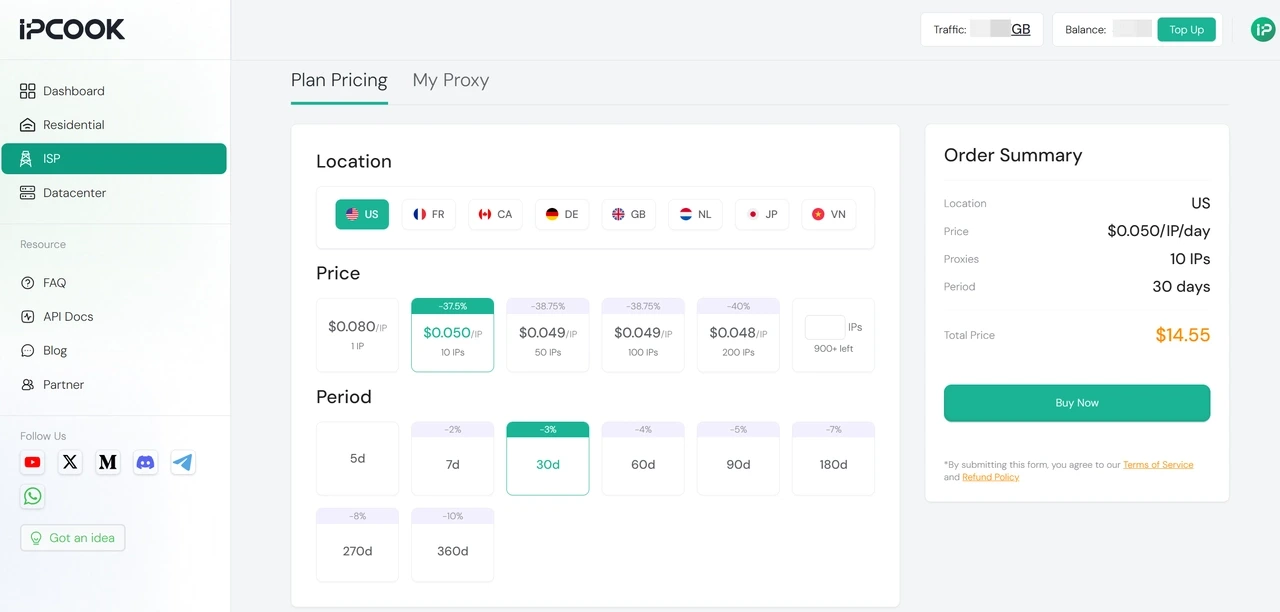
Step 1. Log in to IPcook or create an account, then purchase an ISP proxy with the number of IPs and service period you need.
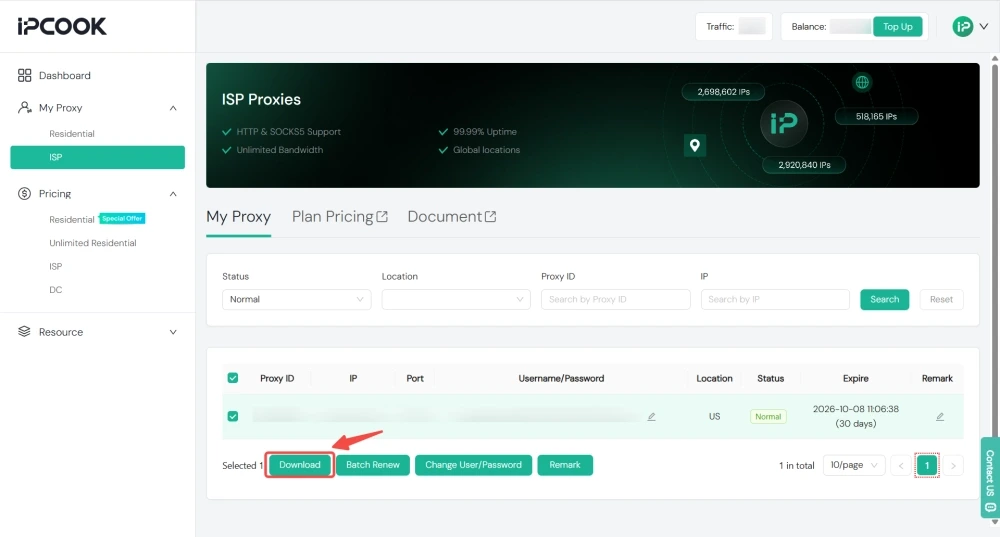
Step 2. After purchasing an ISP proxy, go to My Proxy > ISP. Select the IPs you want to export and click Download. In the pop-up, choose your preferred credential format, then click Confirm to export the connection details.
Step 3. Enter the exported server address, port, username, and password into your proxy settings. For device-specific instructions, follow proxy setup guide for beginners.
Step 4. Open an IP-checking site in the same browser or app and confirm that it shows the assigned proxy IP. Then open OnlyFans.
Step 5. If OnlyFans loads, keep the proxy enabled and use the same IP throughout the session to avoid unnecessary connection changes.
💡You May Like:
Proxy vs VPN: The Real Differences You Need to Know
Types of Proxies Explained: Which One Should You Actually Use?
IPcook User Guide: A Quick Start to Proxy Setup and Configuration
Why Choose IPcook to Help Unblock OnlyFans?
For regular OnlyFans use, a proxy should be affordable and suitable for media-heavy browsing. IPcook ISP Proxies address both needs with volume pricing and unlimited traffic. IPcook ISP plans start at $0.05 per IP per day, with lower per-IP rates for larger packages. Since traffic is not billed by the gigabyte, viewing creator feeds and videos will not raise your proxy costs based on data usage.
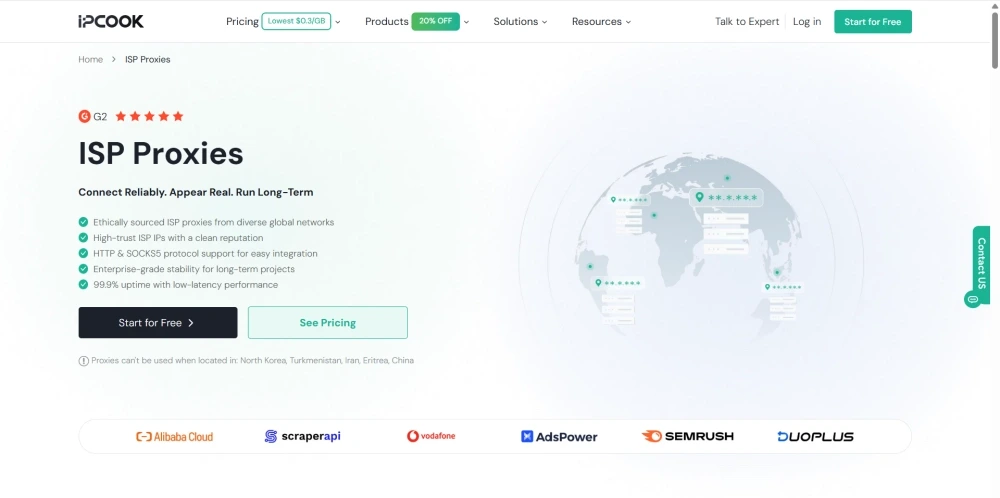
Reliable performance matters too. IPcook's ISP service offers 99.99% uptime and low-latency connections, helping minimize slow page loads, buffering, and connection interruptions on OnlyFans. Support for HTTP and SOCKS5 also makes it easier to use IPcook with a compatible browser, app, or proxy tool that fits your preferred setup.
Conclusion
The fastest way to get OnlyFans unblocked is to address the source of the restriction. Account restrictions require official review, while browser, device, network, and IP issues call for connection troubleshooting. Start with the simplest relevant check and change your route only when necessary. For IP-based access problems, IPcook ISP Proxies offer a stable, budget-friendly option with unlimited traffic.