


How to Bypass IP Ban: 6 Safe Ways to Regain Access

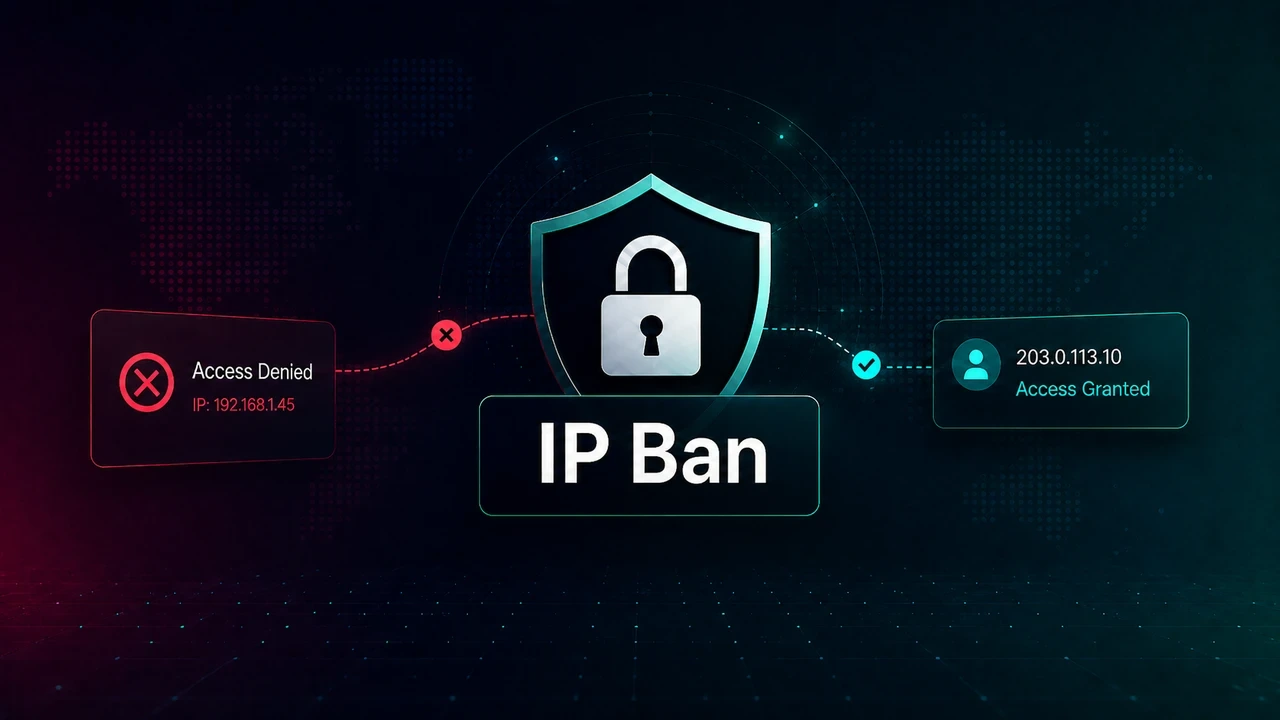
Getting blocked by a website can leave you guessing because the page rarely explains what went wrong. You may see a 403 error, a CAPTCHA loop, or “Access Denied,” while the same site still opens on mobile data. That points to the IP address behind your WiFi, office network, or automated tool, which may have been flagged or banned.
In this guide, we cover everything you need to know about how to bypass IP ban safely, including what may have triggered the block and which fix helps you get back online. You’ll learn:
Ways to check whether you’re dealing with an IP ban, account block, DNS issue, or site glitch
6 useful ways to regain access, from waiting or switching networks to using trusted proxies
Tips to reduce future blocks with cleaner IPs, stable sessions, and smarter request habits
➡ Quick Answer: How to Bypass an IP Ban
If this is your situation | Start with this fix |
The block may be temporary after too many requests or login attempts | Wait for the ban to expire and avoid repeated refreshes |
Your home WiFi is blocked but mobile data works | Restart your router or ask your ISP for a new IP |
You need a quick way to test whether your IP is the issue | Switch to mobile data or another trusted network |
You only need light personal browsing access | Use a trusted VPN, but expect limits on some sites |
Your SEO tool, scraper, or price monitor keeps getting blocked | Use residential proxies with clean IPs |
Blocks keep returning because too much traffic comes from one IP | Use rotating proxies and stable sessions |
What Is an IP Ban?
An IP ban is a rule that limits traffic from a specific internet address. Once that address is flagged, the website may reject requests, show extra verification, or block access before the page loads. Any visit using that IP can run into the same restriction until the block expires or the site removes it.
Some IP bans are temporary, while others can be permanent. It depends on the website’s rules and what triggered the block. A short burst of suspicious traffic may only lead to a temporary ban, but repeated abuse or serious violations can result in a longer or permanent restriction.
IP Ban vs. Account Block
An IP ban is different from an account block. With an account block, the website may still load, but login, posting, checkout, messaging, or other account actions may be restricted. With an IP ban, the site may not load properly from that network at all. Therefore, changing networks won’t fix an account issue, and appealing an account block won’t always solve a network-level restriction.
*Not every access error is an IP ban, so check the likely cause before changing networks or using a new tool.*
Issue Type | What Gets Limited | Quick Way to Check |
IP ban | Traffic from one IP address | Try mobile data or another trusted network |
Account block | Your account actions | Check whether the site loads before login |
DNS or browser issue | Your local setup | Try another browser, clear cache, or change DNS |
Temporary site glitch | The website or server | Test again later or check from another device |
Why Websites Ban IP Addresses
Websites don’t block IPs randomly. Most websites enforce these restrictions using signals they can observe at the application level, such as IP address/range, request rate, account/session identifiers, cookies, and sometimes device/browser fingerprints. Most bans come from automated rules that trigger when traffic patterns look too fast, repetitive, or risky to the server. Here are the main reasons your address might have been flagged.
Rate Limit Enforcement: A website may flag one IP when pages load too fast or requests arrive without enough pause. Dozens of page visits in seconds don’t look like normal browsing, and large web scraping or automated jobs can trigger the same defense when they skip rate limits.
Shared Network and IP Reputation: Office WiFi, public hotspots, shared VPNs, and proxy gateways can send many users through one IP. Even normal browsing can look automated when too much traffic comes from the same address. Someone else may also have damaged that IP’s reputation before you used it. You can inherit the bad reputation of an IP you never controlled. We recommend using reliable and dedicated proxy resources from IPcook.
Competitive and Data Protection: Some businesses limit IPs linked to competitors, bots, or known data collection services. They may do this to protect pricing, inventory, product pages, or market strategy. Even when data is public, the website may still restrict unusual access patterns.
Login and Account Security Checks: Repeated failed logins, sudden location changes, or a spike in account checks can trigger security filters. Platforms often read these signals as possible account takeover attempts and block access early.
Spam and Policy Violations: Frequent posting, messaging, form submissions, comments, sign-ups, or repeated rule-breaking can get an IP blocked. Sites set these limits to reduce fake activity and protect real users from noise.
Security Threat Mitigation:
Brute-force attempts, malware traffic, uncontrolled automation, and known attack patterns are often blocked quickly. Security systems may ban the IP before the traffic reaches the main site.
6 Safe Ways to Bypass an IP Ban
Start simple. If the block keeps coming back, reach for more controlled tools.
Method 1. Wait for a Temporary Ban to Expire
Many IP bans lift on their own. Rate-limit blocks often clear in hours, stricter flags within a few days. Not sure if the ban is still active? Try loading the site from a different network. If it opens elsewhere but not on your original IP, the restriction hasn't expired yet.
A few hours of inactivity handles most short-term blocks. Don't refresh, retry logins, or push more automated requests during that window. Those actions reset the clock and make your traffic look worse. Waiting costs nothing and works cleanly. If the same block returns right after waiting, a pattern is in play and pausing alone won't fix it.
💡 Note: Contact the website if you think the ban is a mistake. Reach out to platform support. For account-related issues, an appeal is safer than changing networks and hoping the problem disappears.
Method 2. Restart Your Router or Ask Your ISP for a New IP
Most home connections use dynamic IPs. Unplug your router for five to ten minutes, then power it back on. That gap often releases the old address and pulls a fresh one. Leaving it off overnight improves the odds. If the same IP returns, call your ISP and ask for a manual refresh or a static IP upgrade. Some providers handle this quickly, others push back or charge a small fee. For more details, see our guide on how to get a static IP address.
Office networks and static IP plans rarely change after a reboot. A new IP can also carry old baggage. If a previous user got the address flagged, you inherit a block you never caused. ISP changes only affect your home network. Blocks tied to other platforms or services won't budge. Good move for home users. Less useful when the block hits a shared office line or a remote server.
Method 3. Switch to Mobile Data or Another Trusted Network
Your phone carrier uses a completely different IP range than your home or office WiFi. Open the blocked site on mobile data. If it loads fine while WiFi still fails, the original IP is almost certainly restricted. Need a fresh mobile IP? Toggle airplane mode on for 30 seconds, then off. Most carriers assign a new address on reconnection. Mobile IPs rotate across millions of users, so websites rarely hard-block them without locking out countless legitimate visitors.
Mobile data handles troubleshooting and short-term access well. Scaling it gets expensive and slow. You can't control which city or region the IP comes from, and session continuity is hard to maintain. If you're running scripts, monitoring dashboards, or pulling data on a schedule, a phone hotspot runs out of steam fast.
Method 4. Use a VPN for Casual Browsing
A VPN changes the IP address websites see by routing your traffic through an external server. For daily browsing, public WiFi privacy, or temporary region access, it can be enough. It is easy to set up and works across most devices.
The limit is reliability. Many VPN IPs are shared by large numbers of users, and some websites already recognize common VPN server ranges. If the server IP has been flagged before, you may still run into access errors, CAPTCHAs, or blocks. For repeated tasks that need stable access, a VPN may not hold up well.
Method 5. Use Residential Proxies for Smooth Access
Residential proxies are the most effective way to bypass an IP ban because they route traffic through real household IP addresses. These IPs come from genuine internet service providers, so websites are less likely to treat the connection as suspicious server traffic.
The target website sees a normal residential connection from a real location instead of your original IP. Blocking that traffic too aggressively may also block real users, which is why residential proxies usually have a lower detection risk than datacenter or public proxies.
With IPcook, you can access 55M+ real residential IPs across 185+ locations, use free country or city-level targeting, and choose rotating or sticky sessions based on the task. For web scraping, SEO monitoring, ad verification, price tracking, and localized market research, IPcook's residential proxies help reduce blocked IP issues and keep data collection running more smoothly.
Method 6. Use Rotating Proxies to Reduce Repeated Blocks
Automatic IP rotation helps prevent bans by changing your IP address after each request or at set intervals. When too many requests come from one address, websites can detect repeated activity, apply rate limits, or block the IP. A rotating proxy spreads those requests across many IPs, making patterns harder to track.
Per-request rotation gives each request a fresh IP, which works well for large-scale data collection and high-volume scraping. Timed rotation changes IPs at regular intervals, while sticky sessions keep the same IP active when a website needs session consistency, such as login status, cart sessions, or multi-page browsing.
IPcook supports request-based rotation, timed rotation, and sticky sessions from 1 minute up to 24 hours, so you can rotate fast for scale or keep one IP stable for continuity. For e-commerce monitoring, automated testing, multi-region research, and long-running scraping projects, IPcook gives you better control over IP rotation, session length, and regional access.
How to Avoid Getting IP Banned
Most repeat blocks come down to a handful of fixable habits, not bad luck. Here’s how to lower your IP ban risk:
Control your request speed Websites flag traffic that moves faster than normal user behavior. Add realistic delays between page loads, limit concurrent connections, and avoid cramming too many requests into a short window. A slower, steadier pace usually works better.
Use clean, reliable IPs Free proxies and crowded public IPs may already be on blocklists before you use them. Long-running projects are more stable when they use clean residential or ISP proxies from trusted providers. For example, IPcook gives you access to ethical residential IPs across 185+ locations, with better control over targeting, rotation, and session stability.
Keep sessions consistent Jumping between countries, devices, browsers, or login environments can make normal activity look suspicious. If a task needs several steps on the same site, keep the session as consistent as possible. Sticky sessions help by keeping the same IP active for a set period, so the site sees one steady visitor instead of many changing identities.
Respect website rules and public data boundaries
Check a site’s terms of service, robots.txt, stated rate limits, and local laws before you build around it. Compliance is not just about avoiding risk. It helps reduce failed requests, account issues, downtime, and repeated fixes. A project that stays inside the rules usually runs longer and breaks less often.
📚 Different platforms, such as Discord, Reddit, Roblox, Instagram, and Pinterest, may require different fixes for IP bans. For platform-specific steps, read:
How to Fix a Roblox IP Ban and Restore Access Fast
Final Thoughts
Dealing with a one-off block on a home connection? Start simple. Wait for the ban to expire, restart your router, switch to mobile data, or use a trusted VPN for light browsing. If it looks like an account issue or a mistaken block, contact the website’s support team first.
However, if the IP ban keeps interrupting your work, a cleaner, more controllable proxy setup pulls its weight. Residential proxies route traffic through real household IPs, while rotation helps prevent one address from being overused or blocked again.
IPcook supports this with:
55M+ residential IPs across 185+ locations worldwide
Built-in rotation with request-based, timed, or sticky session control
City-level targeting for precise geographic needs
Average response time under 0.5 seconds and 99.99% uptime
Start with IPcook and spend less time staring at access-denied pages.
- What Is an IP Ban?
- 6 Safe Ways to Bypass an IP BanMethod 1. Wait for a Temporary Ban to ExpireMethod 2. Restart Your Router or Ask Your ISP for a New IPMethod 3. Switch to Mobile Data or Another Trusted NetworkMethod 4. Use a VPN for Casual BrowsingMethod 5. Use Residential Proxies for Smooth AccessMethod 6. Use Rotating Proxies to Reduce Repeated Blocks
- How to Avoid Getting IP Banned
- Final Thoughts
