


How to Scrape Google Play Store Data with Python and Playwright

If you are collecting Google Play data for ASO research, competitor tracking, or review analysis, you have likely tried to scrape google play with a simple script. At first, basic fields appear accessible. The reviews dialog opens but loads only a few entries. Descriptions remain truncated after expansion. Entire sections return empty content after several requests. This sequence repeats across many google play scraper attempts, not because parsing logic is flawed, but because Google Play pages behave as dynamic content, where key sections load through client side interaction rather than static HTML.
In this article, you follow a single engineering route using Python with Playwright. The approach mirrors how Google Play loads app data and product reviews within a real browser context. The focus stays on matching page behavior rather than relying on direct HTTP responses. You will also see which parts of this workflow tend to degrade as request volume increases, so scaling limits remain visible before long running jobs fail.
What Data You Can Extract from Google Play
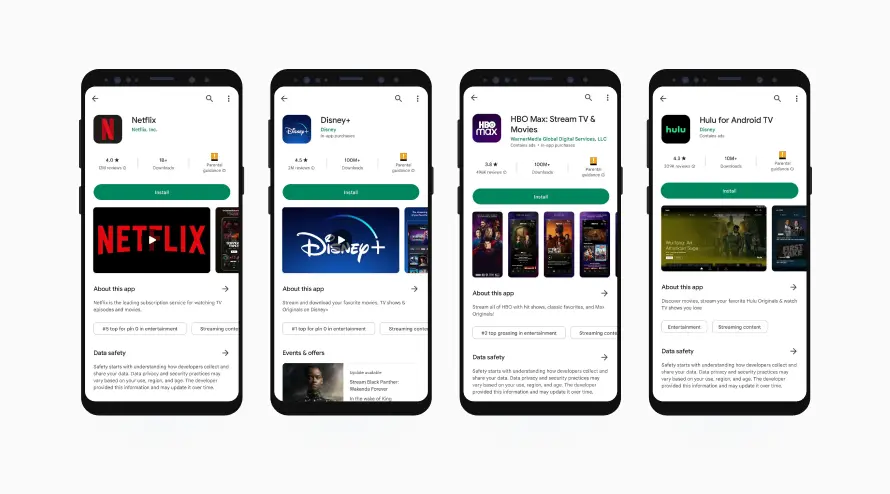
A typical google play store scraper can extract the following field groups from Google Play app pages and review sections.
App Metadata
Field | Description |
App name | Display name shown on the app page |
Package name | Unique application identifier used in URLs |
Developer | Publisher name associated with the app |
Category | Primary category assigned by Google Play |
Install range | Public install count range |
Last updated | Most recent update date |
Version | Current version label |
ASO Signals
Field | Description |
Rating | Average user rating |
Rating count | Total number of ratings |
Review count | Total number of written reviews |
Ranking indicators | Relative position within category listings |
Reviews Data
Field | Description |
Review text | User submitted review content |
Rating | Star rating given by the user |
Date | Review submission date |
Language | Detected review language |
Sort order | Ordering mode including NEWEST or MOST_RELEVANT |
Media and Assets
Field | Description |
App icon | Primary application icon |
Screenshots | App preview images |
Feature graphics | Promotional banner images |
Localization Fields
Field | Description |
Language | Page language context |
Region specific text | Market specific text variants |
Localized description | Translated app description content |
Mapping Use Cases to Data Fields
When scraping data google play store, different use cases require different fields.
Use case | Required field groups | Update frequency |
Competitor monitoring | App metadata, ASO signals | Weekly |
Review sentiment tracking | Reviews data, localization fields | Daily |
ASO analysis | App metadata, ASO signals, reviews data | Weekly |
Market research | App metadata, media and assets, localization fields | Ad hoc |
Why Playwright Is Needed for Google Play Scraping
Dynamic Content and Client-Side Rendering
Google Play pages do not expose complete data in the initial HTML response. Core sections are rendered after page load and depend on client side execution.
App descriptions are gated behind a See more interaction
The reviews interface is locked inside a modal dialog that must be opened
Additional review entries load incrementally, triggered by scroll events
A request based approach retrieves only surface level markup and stops before these interaction gates are crossed.
Key Interaction Points That Gate Data
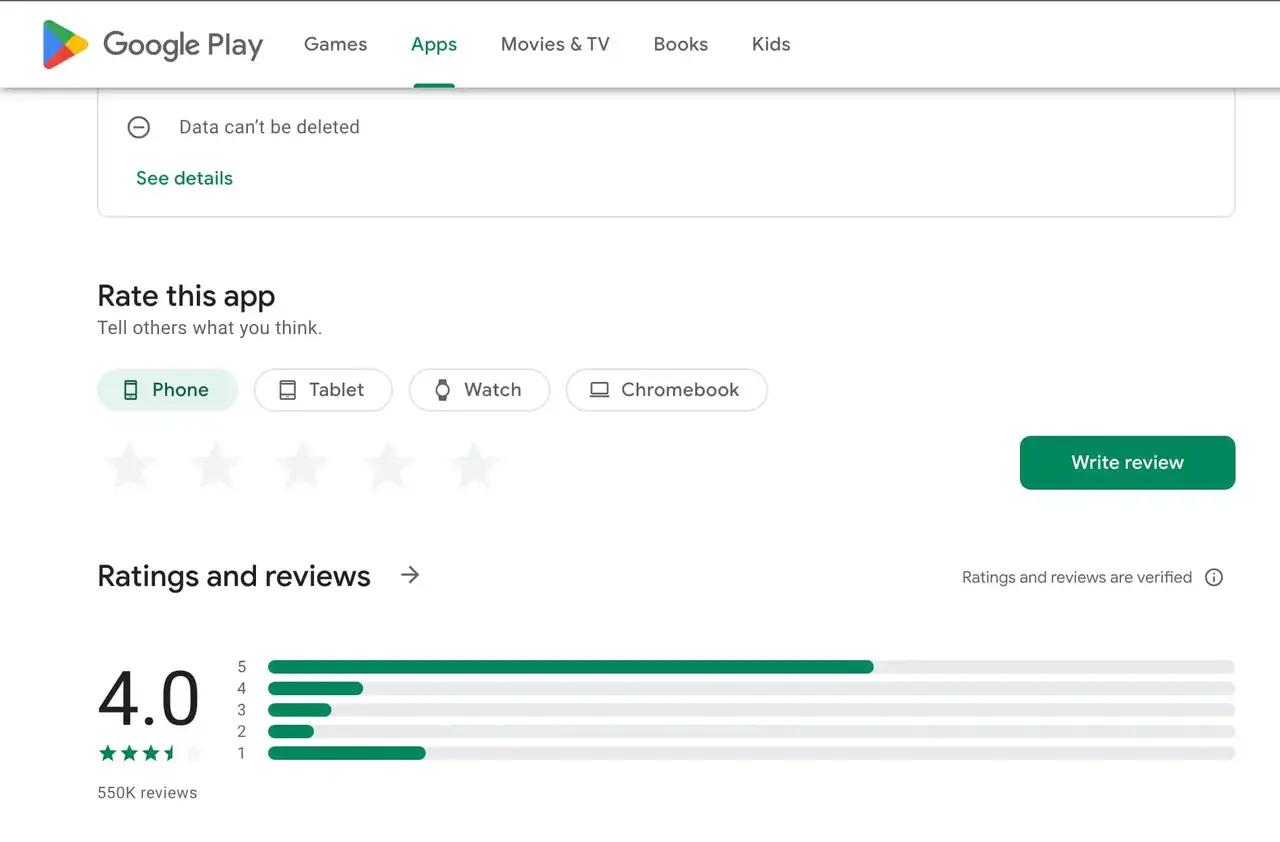
Several user actions control when data becomes accessible on a Google Play page.
Selecting See more expands the full app description
Opening Ratings and reviews loads the review interface
Scrolling within the review panel triggers incremental data loading
This is why the approach used throughout this article relies on Playwright.
Before Scrape Google Play Store: Setting Up Playwright with Python
This section verifies that Playwright can load a Google Play app page without rendering issues. The page must open fully inside a real browser context and expose the same structure a user would see.
Environment Requirements
Python 3.9 or newer is required. Older versions often introduce dependency conflicts or browser installation failures during setup. Any modern operating system that supports Chromium based browsers works. No platform specific adjustments are needed.
If Python runs normally and packages install without permission errors, the environment is ready.
Install Playwright
Install Playwright and download the browser binaries it controls.
pip install playwright
playwright install
After installation completes, Playwright should be able to launch a local browser without additional configuration.
Create a Basic Playwright Script
This script is used to verify browser rendering and page stability. It does not extract data.
from playwright.sync_api import sync_playwright

with sync_playwright() as p:
    browser = p.chromium.launch(headless=False)
    page = browser.new_page()
    page.goto("https://play.google.com/store/apps/details?id=com.spotify.music")
    page.wait_for_load_state("networkidle")
    print(page.title())
    browser.close()
If the browser opens, the page renders fully, and the title prints without errors, the setup is complete.
How to Scrape Google Play Store App Details Step by Step
This section runs one continuous workflow to scrape a single Google Play app listing. You load the page, extract stable fields, expand the description, open the reviews dialog, collect a bounded set of reviews, then save the output.
Step 1. Load an App Page
Every Google Play app is accessed via its package name. This identifier is the most reliable entry point when you need to scrape google play store data from a specific listing.
from playwright.sync_api import sync_playwright

APP_URL = "https://play.google.com/store/apps/details?id=com.spotify.music"

with sync_playwright() as p:
    browser = p.chromium.launch(headless=False)
    page = browser.new_page()
    page.goto(APP_URL, wait_until="domcontentloaded")
    page.wait_for_selector("h1 span", timeout=15000)
The app title should be visible and the layout should look normal.
Step 2. Extract App Metadata
Extract fields that are visible in the initial page structure.
title = page.locator("h1 span").first.inner_text().strip()

rating_label = page.locator('div[role="img"][aria-label]').first.get_attribute("aria-label")
rating = rating_label.strip() if rating_label else None

category = page.locator('a[itemprop="genre"]').first.inner_text().strip()

installs = None

app_data = {
    "title": title,
    "rating_label": rating,
    "category": category,
    "installs": installs
}
A successful run returns a non empty title.
Step 3. Handle Expandable Sections
The full app description is often collapsed behind a See more button.
see_more_button = page.locator('button:has-text("See more")')
if see_more_button.count() > 0:
    see_more_button.first.click()
    page.wait_for_timeout(800)

description = None
desc_loc = page.locator('div[itemprop="description"]').first
if desc_loc.count() > 0:
    description = desc_loc.inner_text().strip()

app_data["description"] = description
Step 4. Open the Reviews Dialog
Building a reliable google play review scraper requires crossing this interaction gate. Reviews are loaded inside a modal dialog.
reviews_button = page.locator('button:has-text("Ratings and reviews")')
reviews_button.first.click()
page.wait_for_selector('div[role="dialog"]', timeout=15000)
dialog = page.locator('div[role="dialog"]').first
Step 5. Load More Reviews
Reviews load incrementally as you scroll. Keep the scroll count bounded.
for _ in range(5):
    dialog.evaluate("el => { el.scrollTop = el.scrollHeight; }")
    page.wait_for_timeout(1200)
Step 6. Extract and Sort Review Fields
Now scrape google play product reviews by parsing review entries.
reviews = []
review_items = dialog.locator('[data-review-id]')
count = review_items.count()

for i in range(count):
    item = review_items.nth(i)

    text = None
    text_loc = item.locator('span[jsname]').first
    if text_loc.count() > 0:
        text = text_loc.inner_text().strip()

    star_label = item.locator('div[role="img"][aria-label]').first.get_attribute("aria-label")
    star = star_label.strip() if star_label else None

    date = None

    reviews.append({
        "text": text,
        "rating_label": star,
        "date": date
    })
Step 7. Save Data as CSV or JSON
Once scraping data google play store is complete, persist results immediately.
import json
import csv

combined_data = {
    "app": app_data,
    "reviews": reviews
}

with open("google_play_data.json", "w", encoding="utf-8") as f:
    json.dump(combined_data, f, ensure_ascii=False, indent=2)

if reviews:
    with open("google_play_reviews.csv", "w", newline="", encoding="utf-8") as f:
        writer = csv.DictWriter(f, fieldnames=["text", "rating_label", "date"])
        writer.writeheader()
        writer.writerows(reviews)
Step 8. Close the Session
browser.close()Closing the browser releases resources and keeps repeated runs consistent.
👀 Related Reading
How to Scrape eBay Listings with Python: 1,000+ Results Step by Step
How to Scrape Amazon Product Data with Python (Safe, Stable, and Accurate)
How to Scrape Shopify Stores: 3 Reliable Methods (Step by Step)
What Breaks When You Scrape Google Play at Scale
A Google Play scraper can appear stable during short test runs and still fail once execution becomes sustained or expands across more targets. These failures follow consistent patterns as Google Play reacts to repeated access.
Failure Signals and Runtime Changes
Failure signal | Observable behavior | Runtime change |
Empty content | Pages load but key app fields or review text return empty values | Client-side rendering is no longer triggered |
Incomplete reviews | Reviews dialog opens, but scrolling stops loading new entries | Scroll events stop producing data |
403 / 429 responses | Requests are limited before rendering completes | Access frequency exceeds tolerance |
CAPTCHA pages | App layout is replaced by verification or challenge content | Traffic no longer matches normal user behavior |
These failures emerge as request frequency, repetition, and session behavior accumulate, not from broken selectors or invalid parsing logic.
How to Keep Google Play Scraping Stable
Stability is controlled at the execution layer, not by adding more scraping logic.
Execution checklist
Headers remain consistent
Request pacing avoids bursts
Retries stay bounded
Sessions avoid frequent resets
Access environmental considerations
As scraping runs continuously and volume increases, request identity, session behavior, and regional signals must remain consistent to preserve stable responses.
For longer workloads, rotating residential IPs combined with session continuity and geo-level routing help reduce empty renders, interrupted review loads, and premature request limits without changing scraping logic. In these scenarios, IPcook’s affordable rotating residential proxy access supports consistent request behavior during long-running Google Play data collection.
Key IPcook capabilities supporting long-running Google Play data collection include:
Entry pricing starts at $3.2 per GB, with per-GB rates decreasing to $0.5 at scale
Flexible IP rotation at request or session level up to 24 hours to preserve interaction continuity
Large residential IP pools supporting distributed access as volume increases
Non-expiring traffic suitable for continuous monitoring and extended scraping runs
You can begin with 100 MB of free residential proxy traffic to verify access consistency and response stability under real Google Play scraping conditions.
Conclusion
Scraping Google Play Store data effectively depends on matching how the page behaves in a real browser. Using Python and Playwright allows app details, ratings, and reviews to render accurately and remain consistent across sessions. Once the setup works reliably, long-term stability depends on maintaining steady access behavior rather than adjusting parsing logic.
For teams that need continuous Google Play data collection for ASO research, competitor monitoring, or review tracking, IPcook provides residential proxy access that keeps scraping stable over time. You can start with 100 MB of free traffic to verify session consistency and test large-scale scraping conditions before expanding your workflow.
- What Data You Can Extract from Google Play
- Mapping Use Cases to Data Fields
- Why Playwright Is Needed for Google Play Scraping
- Before Scrape Google Play Store: Setting Up Playwright with Python
- How to Scrape Google Play Store App Details Step by Step
- What Breaks When You Scrape Google Play at Scale
- How to Keep Google Play Scraping Stable
- Conclusion
