


Need to browse privately, access geo-restricted content, or manage multiple accounts on mobile, Shadowrocket is a powerful proxy client for iOS and Android users. It helps route traffic from your mobile device through proxy servers for specific use cases. In this guide, you'll learn how to configure proxies in Shadowrocket, step by step.
Let's get started.
Before opening Shadowrocket, make sure your proxy details are ready. Shadowrocket will ask for these info when you add a new server, so having it prepared in advance makes things faster.
If you're using IPcook, log in to your dashboard and copy the connection details from Proxy Generator or My Proxy. You can use residential, datacenter, or static ISP proxies, and the setup process in Shadowrocket is almost the same.
Note: In this guide, we'll use the common proxy format below:HOST:PORT:USER:PASS
Here’s what each part means:
HOST: Proxy server address, such as geo.ipcook.com or 1.2.3.4
PORT: Proxy port number, such as 32345
USER: Proxy username
PASS: Proxy password
See our User Guide for more details on generating your proxies.
Setting up Shadowrocket on iPhone or iPad only takes a few taps.
If you don’t have the app yet, open your App Store, search for Shadowrocket, then download and install it on your iOS device.
On the Shadowrocket home screen, tap the + icon or Add Server button. This opens the server configuration page.
In the Type field, choose the protocol that matches your proxy, such as HTTP, HTTPS, or SOCKS5. Then enter your Address, Port, User, and Password.
Use the proxy format you prepared earlier: HOST:PORT:USER:PASS. Copy and paste each part separately.
Set up proxy with Shadowrocket for iOS
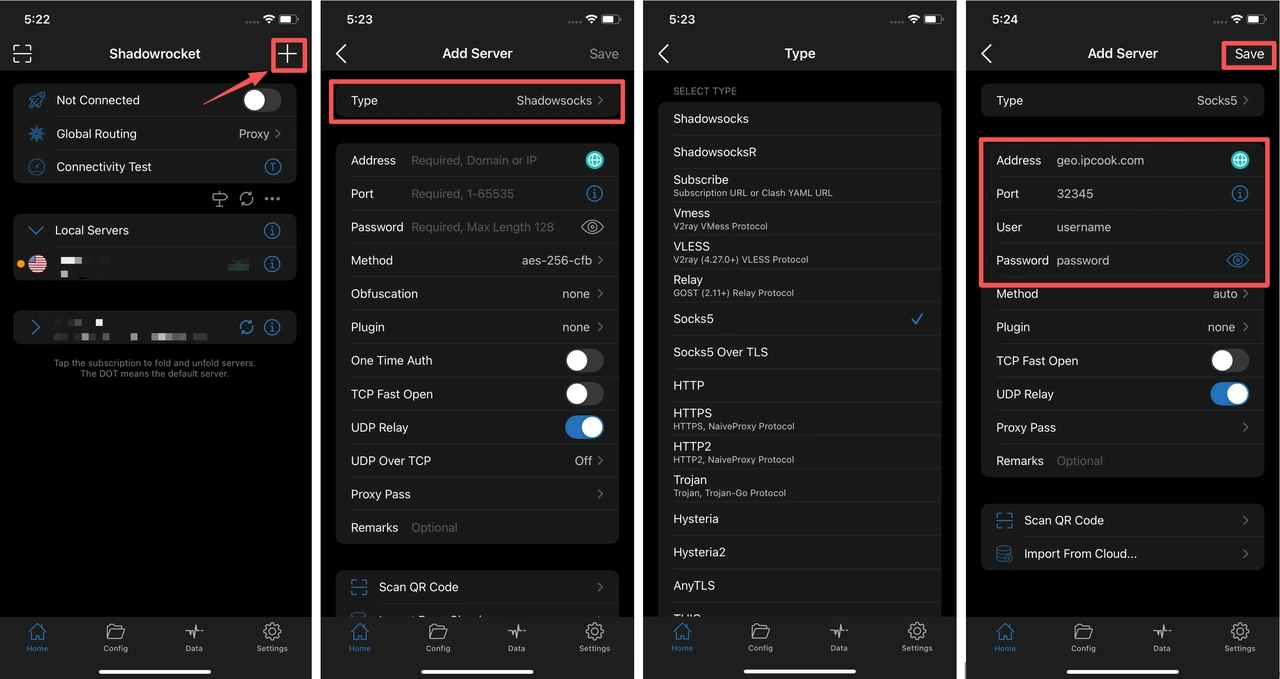
After entering your proxy details, tap Done or Save. You’ll return to the main Shadowrocket screen, where your new proxy server should now appear in the list.
Select the proxy you just added, then turn on the connection toggle. If iOS asks for permission to add a VPN configuration, tap OK/Allow and enter your device passcode if required.
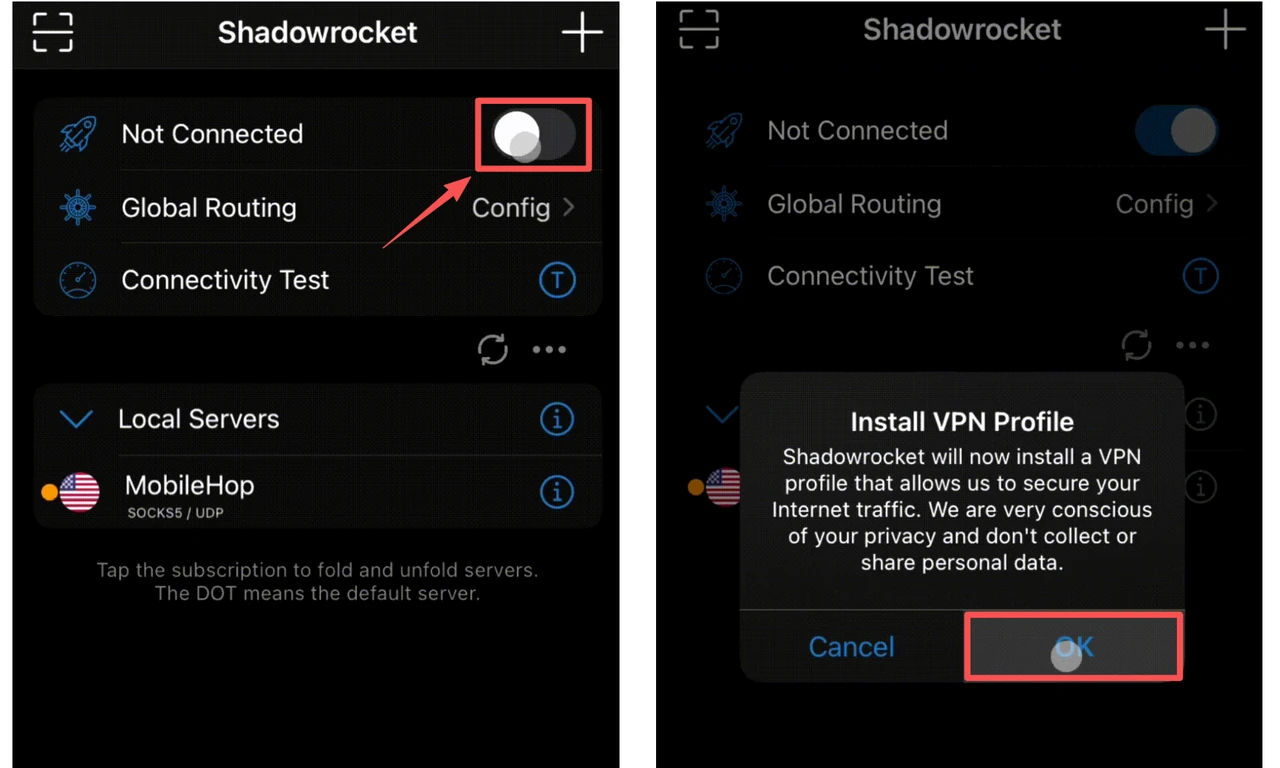
That’s it. The toggle at the top of the app should now be activated. You can open your browser or target app to test the connection.
The Android setup is similar, but the Shadowrocket supports SOCKS proxies only for Android.
Search for Shadowrocket on your app store. Download and install it on your Android device.
Open Shadowrocket and look for the + icon, file icon, or add button. Tap it to create a new proxy profile.
In the proxy type field, select SOCKS. Then enter your Address, Port, User, and Password.
Use the proxy format you prepared earlier: HOST:PORT:USER:PASS. Copy and paste each part separately.
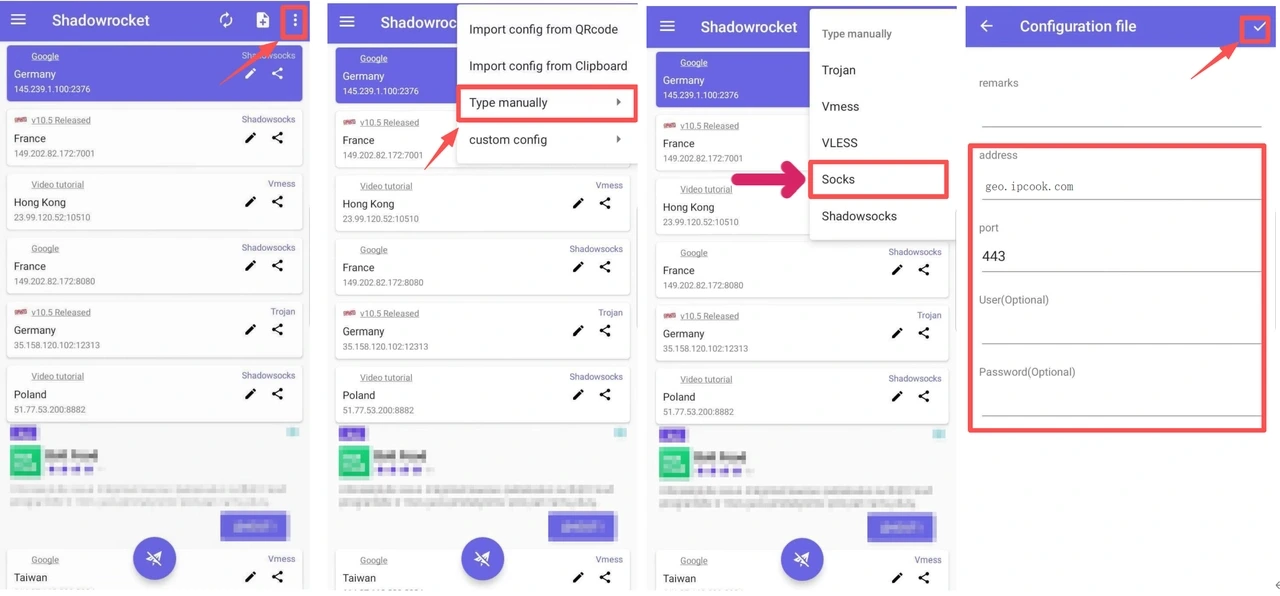
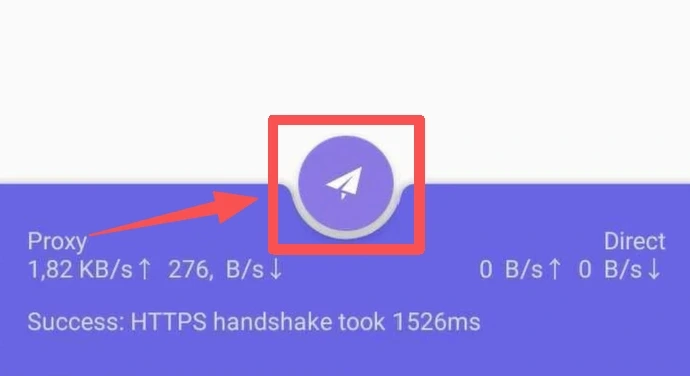
Tap the checkmark, Save, or Done button to save the proxy profile. Once it appears in the Shadowrocket dashboard, select the paper plane icon to connect. Then open your browser or target app and start browsing through the proxy.
If you need to switch to another proxy later, repeat the same steps and select a different server profile.
Most Shadowrocket proxy issues come from incorrect proxy details, the wrong proxy type, or a routing setting that doesn’t send traffic through the selected server. If your proxy doesn’t work right away, check these quick fixes first.
Connection failed: Check your internet connection first, then confirm that the Address, Port, User, and Password are correct. Also make sure the proxy type matches your proxy, such as HTTP, HTTPS, SOCKS5, or SOCKS.
Authentication error: Re-enter your username and password, and make sure there are no extra spaces before or after the text. If you changed your proxy password in the dashboard, update it in Shadowrocket too.
Proxy timeout or red test result: Try opening a website after connecting, because some tests may fail even when the proxy still works. If it doesn’t load, switch to another proxy server, check the port, or use a closer proxy location.
Your IP address doesn’t change: Make sure the correct proxy profile is selected and the connection toggle is turned on. If some traffic still bypasses the proxy, check your routing mode or rule settings.
Some websites or apps don’t load: Switch to another proxy, change the location, or try another supported proxy type. If Shadowrocket freezes, force-close the app, reopen it, and check whether an update is available.
That’s all it takes to set up Shadowrocket with proxies. Together with IPcook proxies, Shadowrocket gives you an easy way to add, manage, and switch proxy connections on both iOS and Android.
For more configuration tutorials, explore our related proxy guides.

