


Proxies are an effective way to secure your online activities and bypass restrictions. Whether you need to protect your privacy, access geo-blocked content, or browse more anonymously, a proxy acts as an intermediary that forwards your requests. Most proxies work with different browsers.
This guide will show you how to quickly set up a proxy in Microsoft Edge through both system settings and browser extensions. You’ll also learn how to check, change, disable, and fix common proxy problems in Edge.
🔥 Prepare Your Proxy for Edge Browser
Do not have a proxy yet? Get started with IPcook, a high-quality proxy provider supporting HTTP(S), SOCKS5, and flexible country/city geo-targeting. Enjoy 100 MB free traffic today.
Setting a proxy in Microsoft Edge only takes a few clicks. Keep in mind that this method may also change traffic for other apps on your computer. If you only want to use a proxy in Microsoft Edge, skip to the next method.
Follow these steps to open Edge proxy settings and configure your proxy on Windows or Mac.
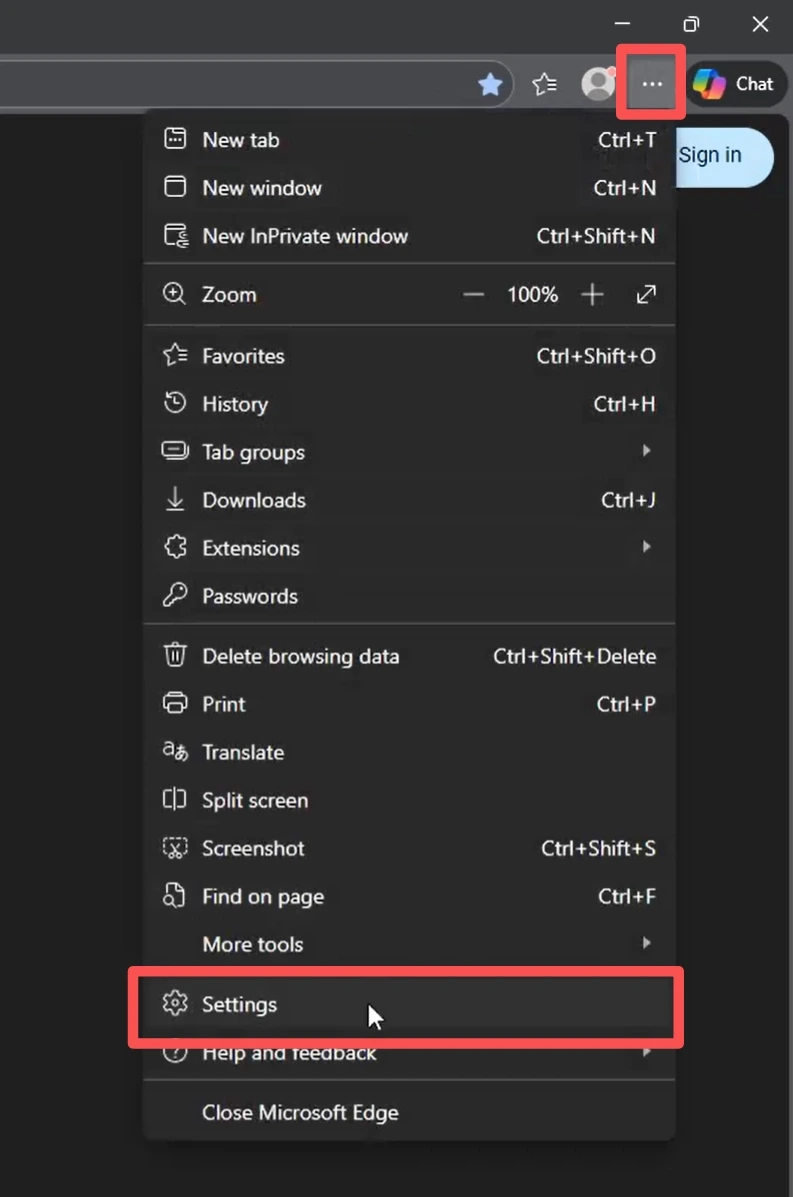
Step 1: Open Microsoft Edge, click the three-dot menu in the top-right corner, and select Settings.
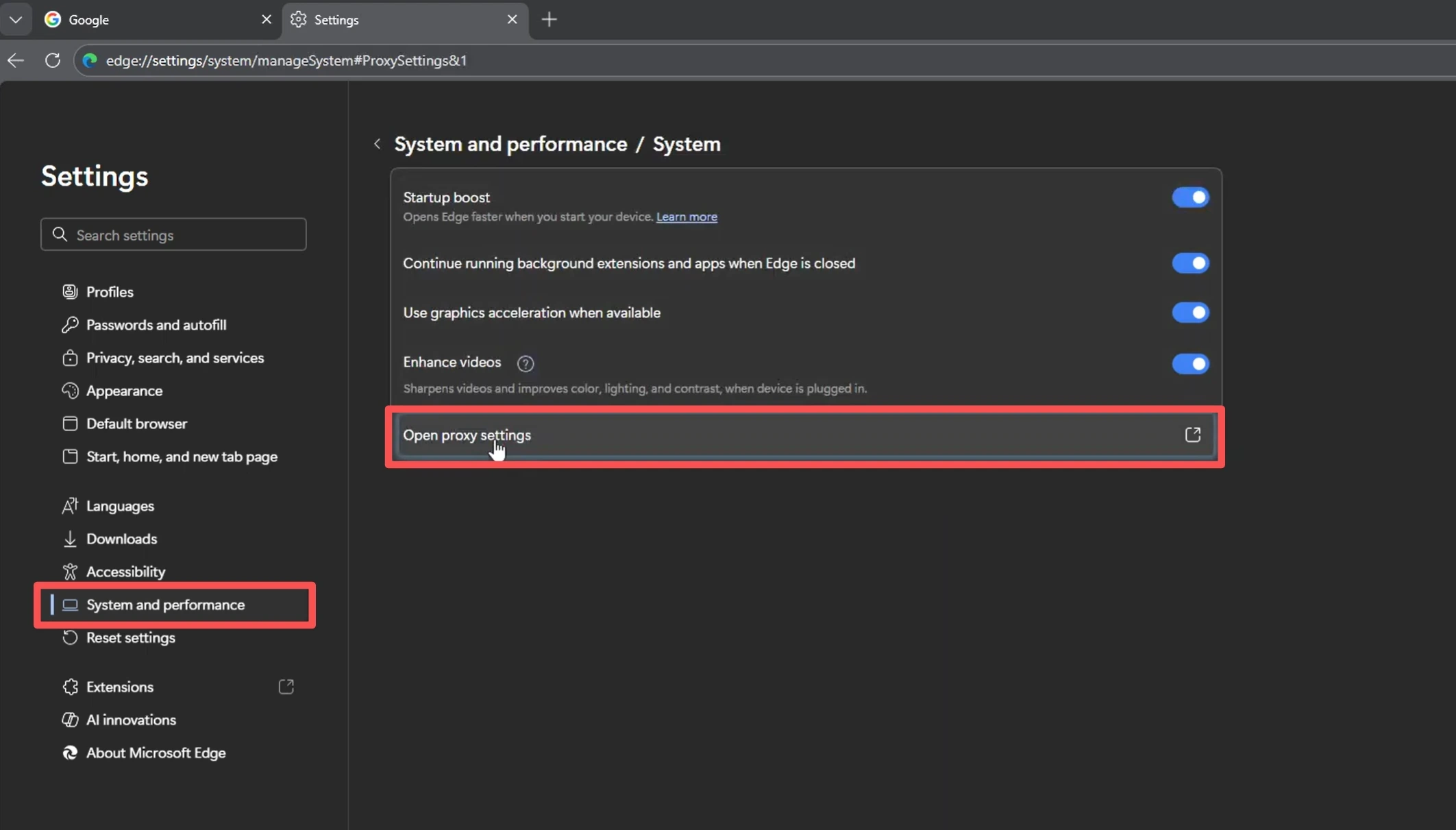
Step 2: In the left menu, click System and performance, then find and click Open proxy settings. In some Edge versions, this option may appear as Open your computer’s proxy settings.
Step 3: Edge will redirect you to your operating system’s proxy settings. From there, configure your proxy details.
>> On Windows, this opens:
Settings > Network & internet > Proxy
Then, configure your proxy:
Go to Manual proxy setup.
Turn on Use a proxy server.
Enter the proxy server address and port.
Click Save.
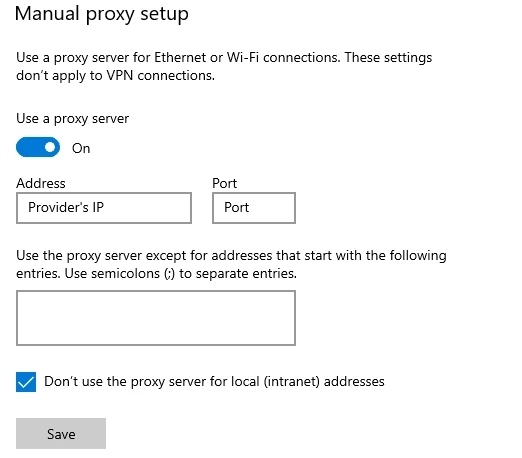
Go back to Edge. Enter your proxy username and password if prompted, unless you use IP whitelist authentication.
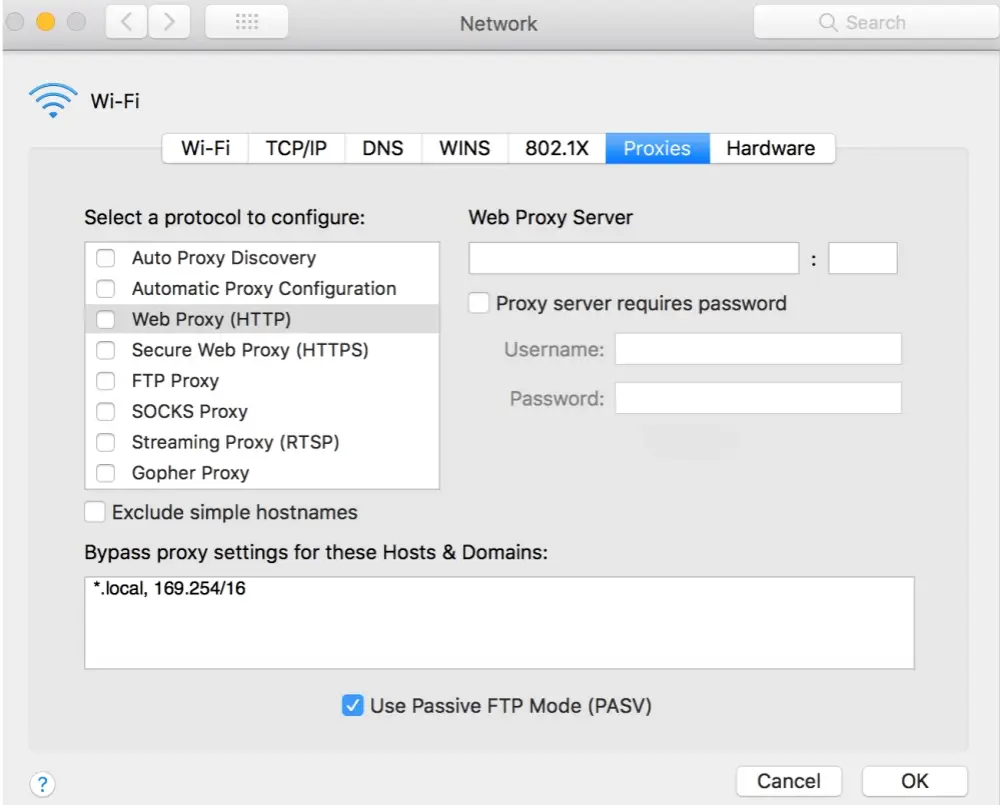
>> On Mac, open proxy settings through:
Apple menu > System Settings > Network > Your active network > Details > Proxies
Then, configure your proxy:
Select the proxy type, such as Web Proxy (HTTP) or Secure Web Proxy (HTTPS).
Enter the proxy server address and port.
Add your username and password if required, unless you use IP whitelist authentication.
Click OK.
🎁 Need a stable proxy for Microsoft Edge?
Explore IPcook residential, ISP, and datacenter proxies for browsing, research, scraping and automation. Start from $0.5/GB and $0.05/IP.
Need a proxy only in Microsoft Edge? Consider using a third-party browser proxy extension, and thus other apps on your computer can keep using your regular connection.
Step 1: Install a free proxy manager like Proxy SwitchyOmega 3 (ZeroOmega) or another trusted proxy manager from Microsoft Edge Add-ons. Search for the extension, click Get, and pin it to your Edge toolbar after installation.
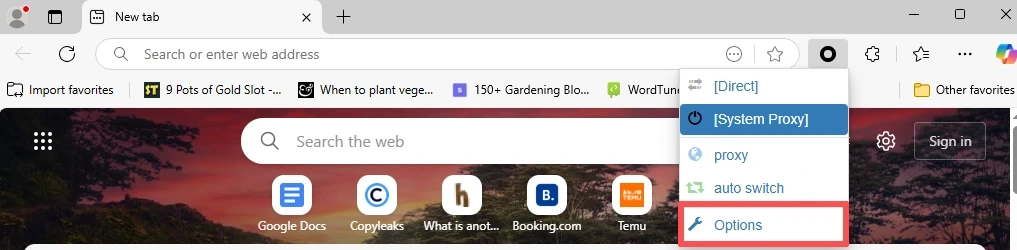
Step 2: Click the extension icon, open Options, and create a new proxy profile. Choose the protocol, then enter your proxy server address and port.
Step 3: If your proxy requires username and password authentication, click the lock icon beside the port field, enter your proxy username and password, and click Save changes.
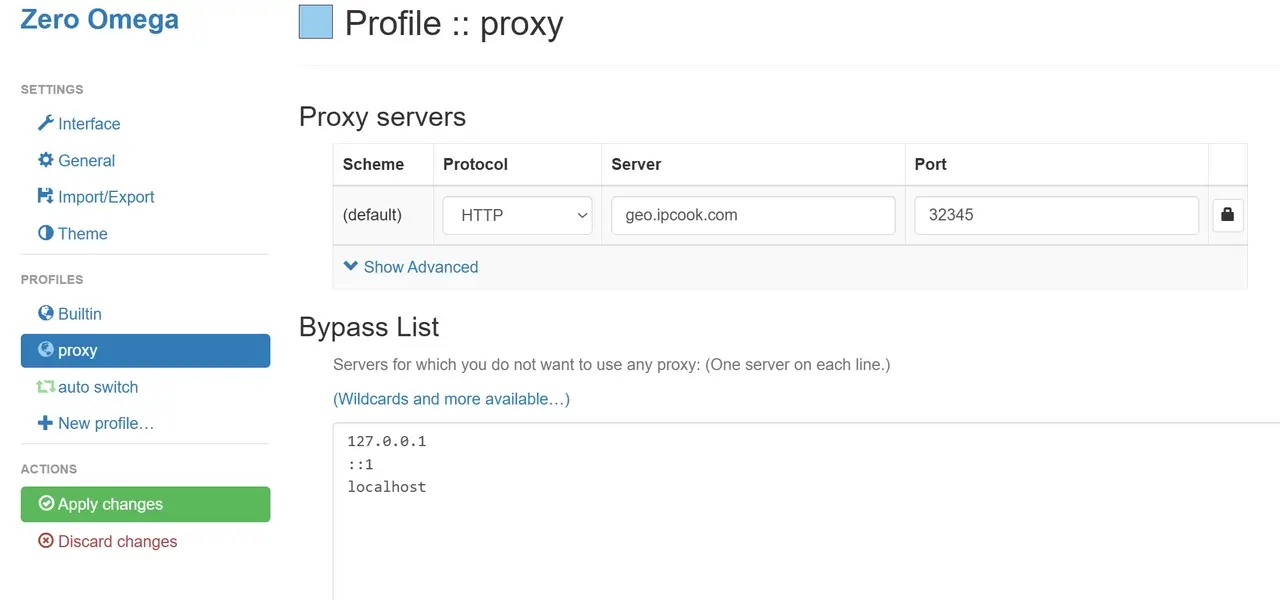
Step 4: Select the green Apply changes button on the left side of the screen. To activate the proxy, open the SwitchyOmega extension dropdown and choose your proxy profile.
Not sure whether your Edge proxy is working? Use an proxy checker tools first, then confirm the setup path you used.
Open a proxy checker site like ipinfo.io in Microsoft Edge. If the IP address or location is different from your original network, the proxy is working.
Windows: Go to Control Panel > Internet Options > Connections > LAN settings. If a proxy server is listed, a system proxy is enabled.
macOS: Go to Apple menu > System Settings > Network > Your active network > Details > Proxies. If a proxy protocol is turned on, a system proxy is enabled.
Proxy extension: Open the extension menu and check whether your proxy profile is selected.
👉 For a detailed guide on testing proxy speed, anonymity, and geo-restrictions, see: How to Test Proxy Connections: A Complete Step-by-Step Guide.
To change or turn off a proxy in Edge, return to the same setup path you used earlier.
To change a system proxy, open Edge Settings > System and performance > Open your computer’s proxy settings. Update the proxy address, port, username, or password, then save the changes.
To change a proxy extension profile, open the extension, select your current proxy profile, edit the server details or login credentials, and click Apply changes.
To disable a system proxy, open your computer’s proxy settings and turn off Use a proxy server under Manual proxy setup.
To disable a proxy extension, click the extension icon and select Direct, No Proxy, or System Proxy. Remove the extension only if you no longer need browser proxy control.
After disabling the proxy, run another IP check. Your regular network IP should appear again.
Edge proxy not working as expected? Here are the most common issues, why they happen, and how to fix them fast.
Problem | Possible Cause | Quick Fix |
Proxy server isn’t responding | Wrong address, wrong port, or offline server | Copy the proxy address and port again from your provider dashboard. Restart Edge and try another endpoint if needed. |
Authentication failed | Wrong login details or IP whitelist mismatch | Re-enter your username and password. If using IP whitelist, add your current IP to the whitelist. |
IP address or location didn’t change | Proxy is off, wrong profile is selected, or page cache is old | Turn on the correct proxy profile. Open a private window and check your IP again. |
Proxy works in Edge but not in other apps | Proxy extension only controls Edge traffic | Use system proxy settings if other apps also need the proxy. |
Websites load slowly | Proxy location is far away, overloaded, or low quality | Switch to a closer location or replace the endpoint. Use ISP or datacenter proxies for speed-heavy tasks. |
Repeated login pop-ups | Saved credentials conflict or authentication is unstable | Clear saved proxy credentials. Re-enter the correct login details or switch to a new endpoint. |
📚 Setting up proxies in other browsers or systems? These guides may help:
How to Set Chrome Proxy Settings on Desktop, Mobile & Extension
Setting up a proxy in Microsoft Edge comes down to two main methods: system proxy settings or browser extensions. System proxy settings route traffic across the whole system, while browser extensions keep proxy control inside Edge.
Follow the steps in this guide, test your proxy after setup, and keep your settings updated. For a smooth and reliable Edge proxy experience, choose high-quality proxies from IPcook.

