How to Turn Off Proxy Settings: A Complete Guide

A proxy can be helpful for privacy or accessing restricted content, but there are times you may simply want to turn it off. Maybe it’s affecting your connection, or maybe you just prefer going back to a direct setup. Either way, the process is easy once you know where to look.
This guide will show you how to turn off proxy settings on Windows, macOS, iPhone, Android, and in browsers like Chrome and Firefox. With clear step-by-step instructions, you’ll be able to disable proxy quickly and get back to browsing the way you want.
How to Turn Off Proxy on Windows 10/11
Proxy settings on Windows can sometimes change automatically or through workplace apps. This may cause websites to stop loading or your internet to slow down. Here are two ways to disable proxy on Windows 10 and 11.
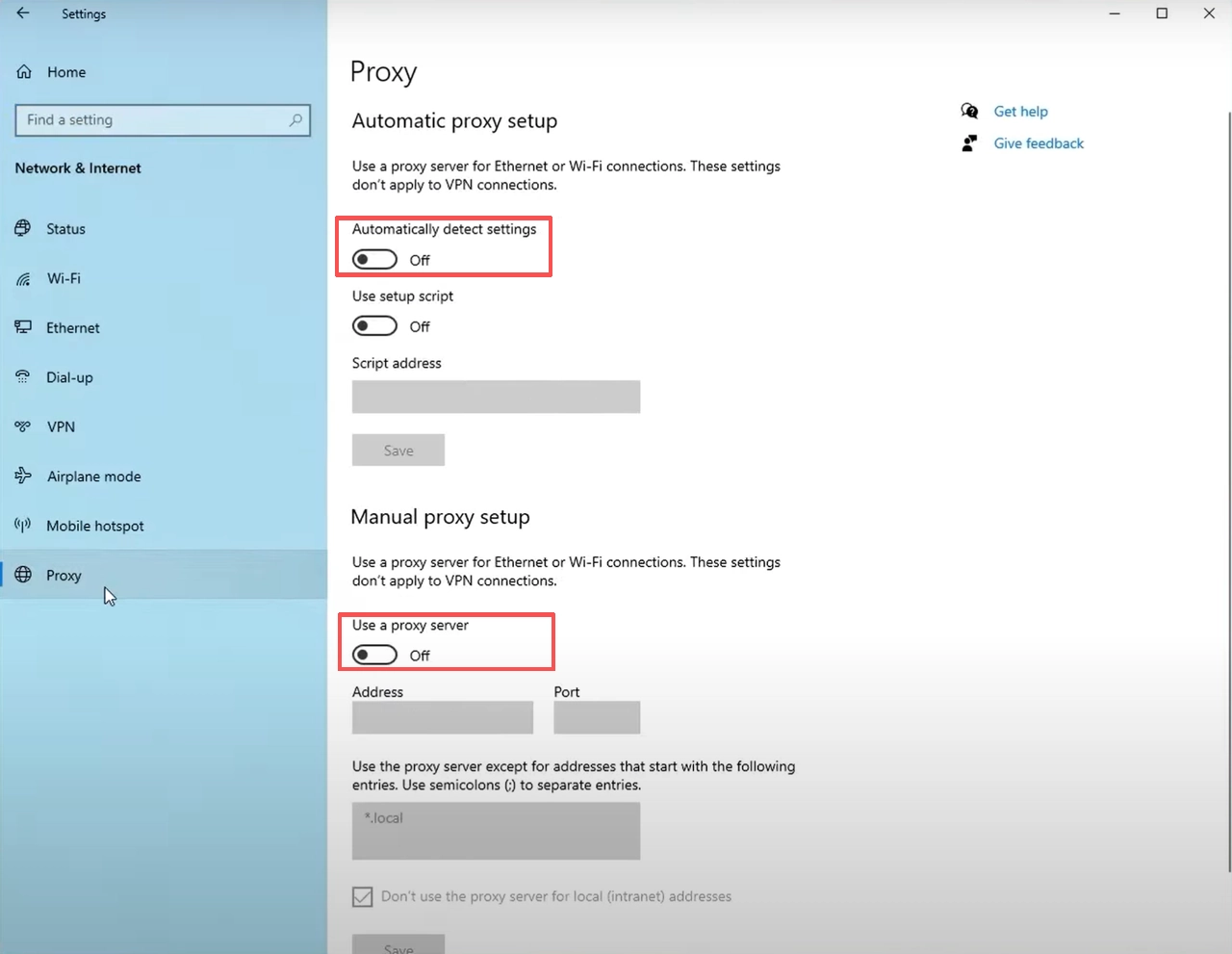
Method 1: Using Windows Settings
Step 1: Click the Start menu and open Settings.
Step 2: Go to Network & Internet.
Step 3: Select Proxy from the left menu.
Step 4: Turn off “Automatically detect settings” and “Use a proxy server.”
Step 5: Close the window and reconnect to the internet.
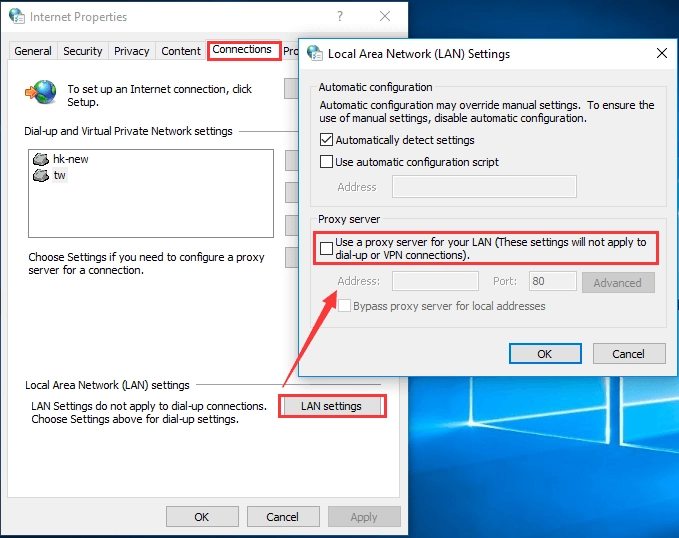
Method 2: Using Internet Options
Step 1: Open the Control Panel.
Step 2: Select Internet Options.
Step 3: Go to the Connections tab.
Step 4: Click LAN Settings.
Step 5: Uncheck “Use a proxy server for your LAN.”
Step 6: Click OK to save.
How to Turn Off Proxy on macOS
On macOS, a proxy may interfere with Safari, Chrome, or certain apps. Disabling it is simple.
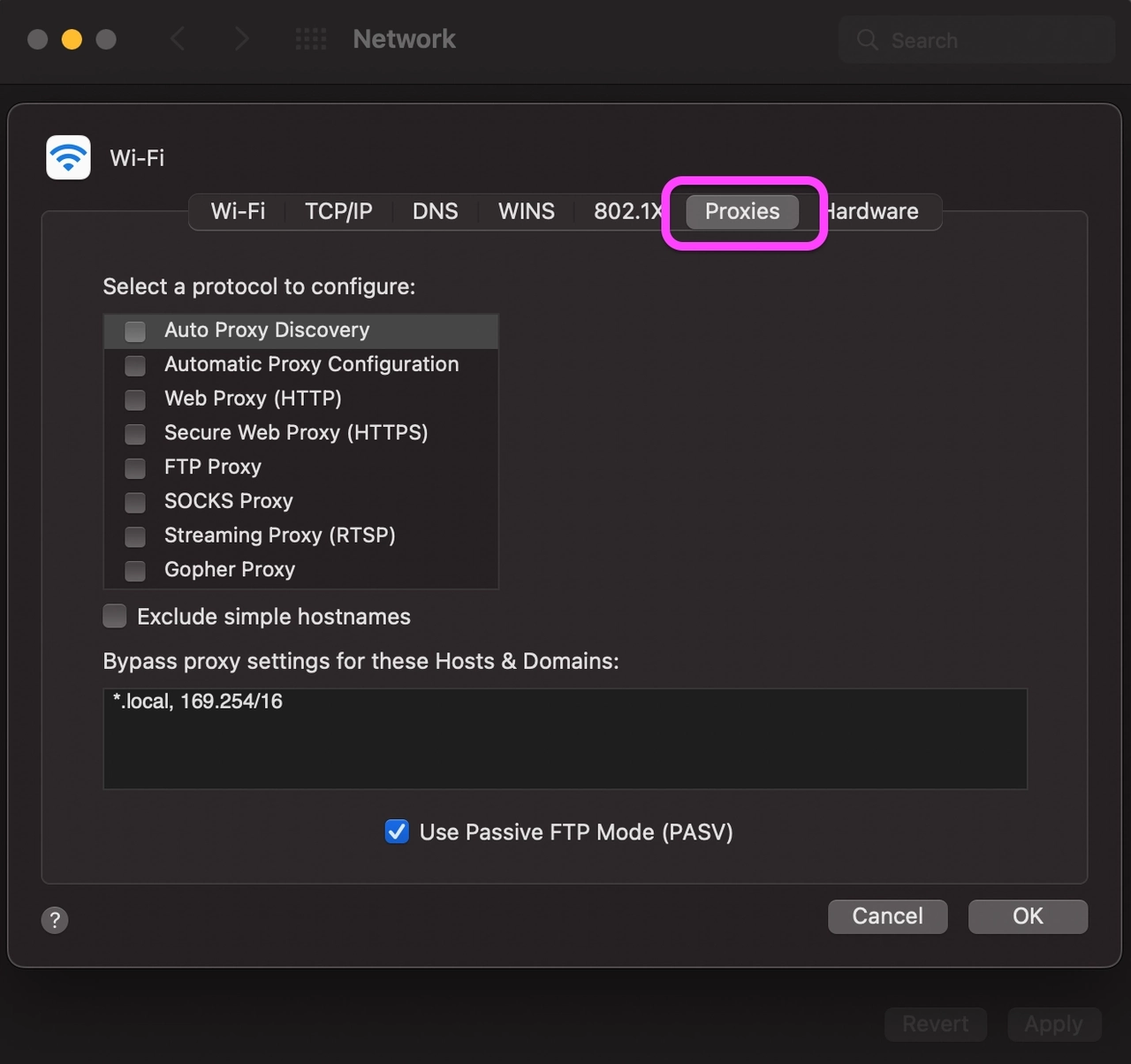
Step 1: Open System Preferences and select Network.
Step 2: Choose your active network (Wi-Fi or Ethernet).
Step 3: Click Advanced… in the bottom-right corner.
Step 4: Open the Proxies tab.
Step 5: Uncheck all proxy options (HTTP, HTTPS, SOCKS, etc.).
Step 6: Click OK, then Apply to save.
💡 Note: For newer macOS versions like Ventura, the layout looks slightly different, but proxy settings remain under the Network panel. If issues persist, try restarting your browser or flushing DNS with dscacheutil -flushcache.
How to Turn Off Proxy on Mobile Devices (iOS & Android)
On mobile devices, proxy settings can sometimes cause problems with Wi-Fi connections, apps failing to load, or even issues with the App Store or Google Play. Fortunately, turning them off only takes a few quick steps.
iPhone (iOS)
On iPhone and iPad, proxy settings are tied to each Wi-Fi network. If a proxy is enabled, you may notice Safari pages not loading or apps having trouble connecting. Here’s how to disable it.
Step 1: Open the Settings app.
Step 2: Tap Wi-Fi.
Step 3: Find your active Wi-Fi network and tap the “i” icon next to it.
Step 4: Scroll down to the HTTP Proxy section.
Step 5: Select Off.
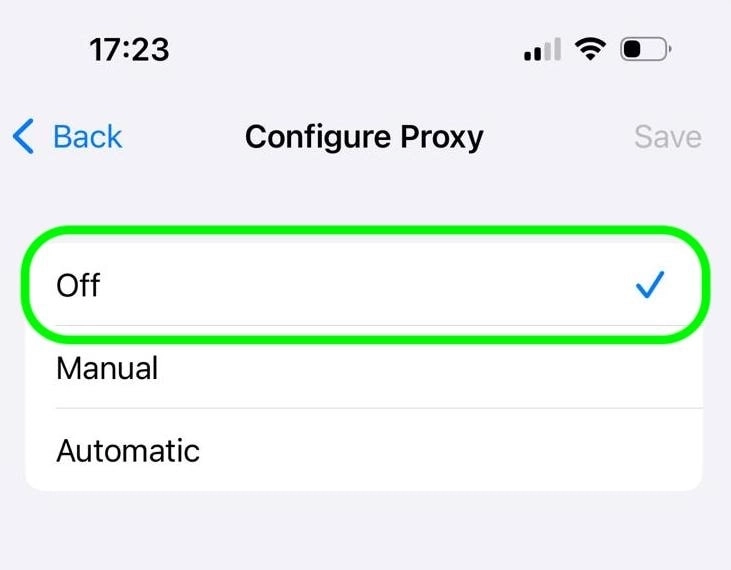
💡 Note: This setting applies only to the Wi-Fi network you selected. If you connect to another Wi-Fi later, check its proxy settings as well.
Android
On Android devices, proxy settings are usually configured under Wi-Fi options. If a proxy is active, apps like Chrome or YouTube may not connect properly.
Step 1: Open the Settings app.
Step 2: Tap Network & Internet (on some phones, this may be called Connections).
Step 3: Select Wi-Fi, then tap the gear icon next to your active network or long-press the network to open options.
Step 4: Expand Advanced options.
Step 5: Under Proxy, select None.
Step 6: Save and reconnect.
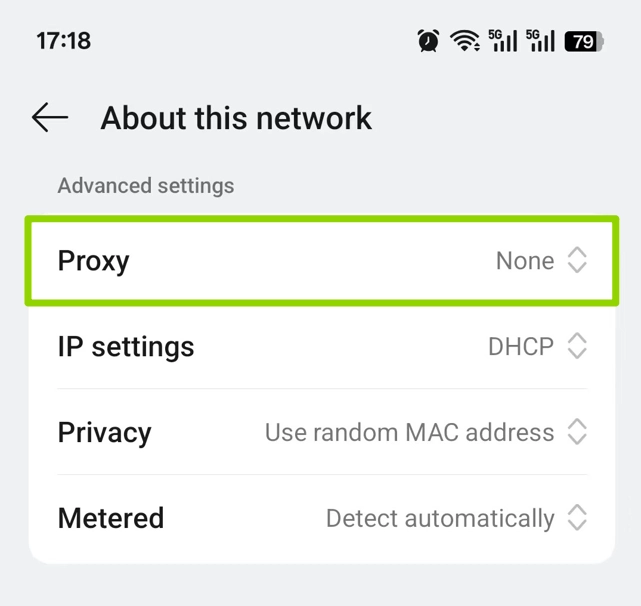
💡 Tip: Different Android manufacturers (Samsung, Pixel, Xiaomi, etc.) may use slightly different menu names, but the process is always the same: go into your Wi-Fi network settings, find the Proxy option, and set it to None.
How to Turn Off Proxy in Browsers
Sometimes proxies are set up inside your browser rather than on the whole system. This can happen through extensions, workplace settings, or manual configuration. If your browser feels slow, fails to load pages, or behaves differently from other apps, you may need to disable the proxy inside the browser itself.
Google Chrome
In Chrome, proxy settings are usually controlled by your computer’s system settings.
Step 1: Open Chrome and click the three dots menu in the top-right corner.
Step 2: Select Settings.
Step 3: Scroll down to the System section.
Step 4: Click Open your computer’s proxy settings.
Step 5: Turn off the proxy from your Windows or macOS settings (see earlier sections for details).
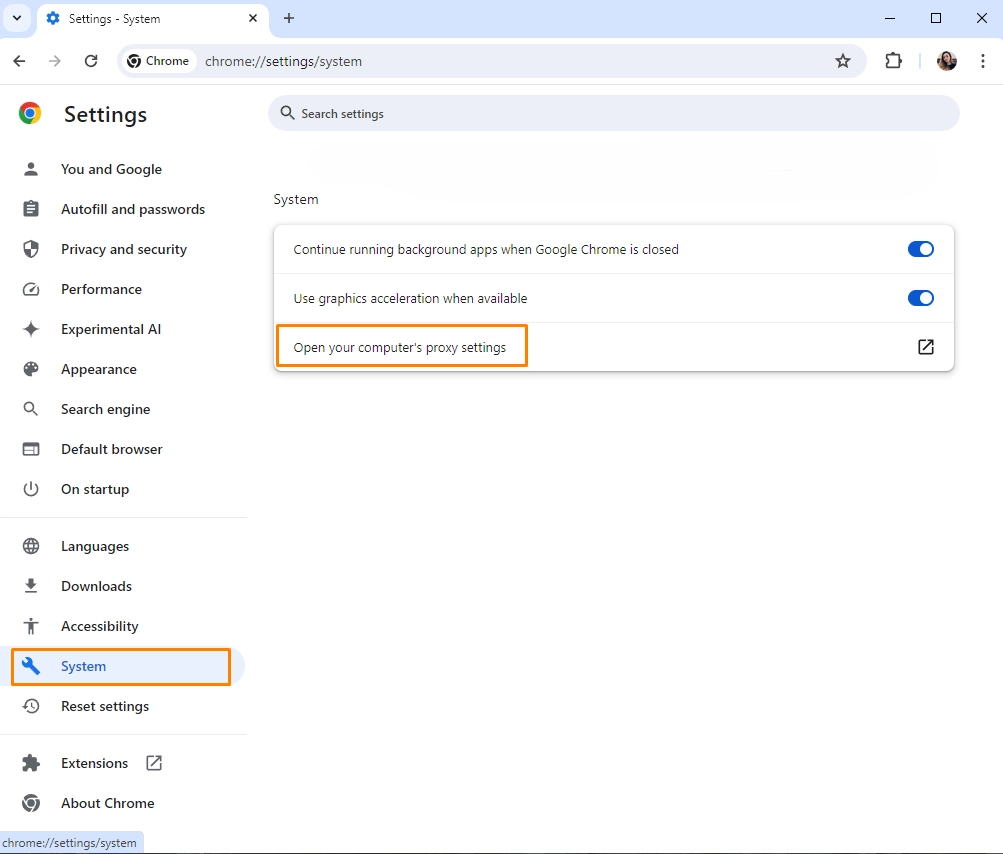
💡 Note: If you’ve installed a proxy-related extension (such as a VPN or proxy switcher), it may override your system settings. Go to Extensions → Manage Extensions, then toggle the extension off or remove it if you don’t plan to use it again.
Firefox
Unlike Chrome, Firefox has its own proxy settings independent from your operating system.
Step 1: Open Firefox and click the menu icon (three horizontal lines) in the top-right corner.
Step 2: Select Settings.
Step 3: Scroll down to Network Settings and click Settings….
Step 4: In the popup window, select No proxy.
Step 5: Click OK to save.
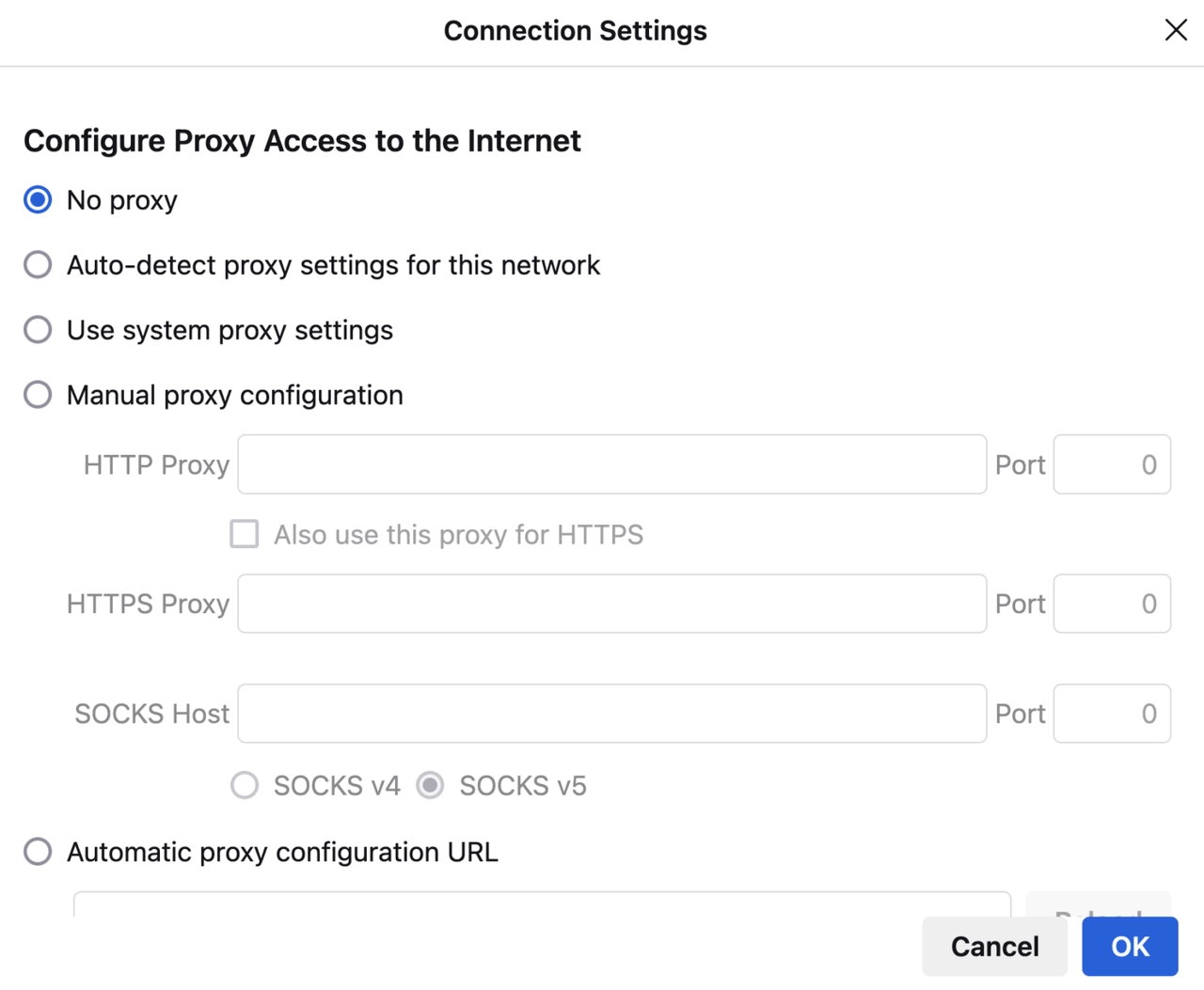
💡 Note: If you’ve added a proxy-related add-on in Firefox, go to Add-ons and themes and disable or remove it. If you don’t see any proxy add-ons, you can simply skip this note.
Turning Off Proxy in VPN or Third-Party Apps
Sometimes even after you turn off proxy in your system or browser, the connection still feels restricted. This often happens when a VPN or proxy client is running in the background and forcing all traffic through its own proxy.
Step 1: Open your VPN or proxy application.
Step 2: Go to the Settings or Preferences menu.
Step 3: Look for a section labeled Proxy, Connection, or Network.
Step 4: If you see an option such as Enable Proxy or Use System Proxy, turn it off.
Step 5: Save the changes and disconnect from the VPN or proxy if necessary.
Step 6: Reconnect your internet and test if the issue is resolved.
💡 Tip: Some VPN apps change your system proxy settings automatically. If disabling proxy in the app doesn’t fix the problem, double-check your Windows, macOS, or mobile proxy settings as well.
Why Reliable Proxies Still Matter
Free or poorly managed proxies may seem convenient, but they often cause more problems than they solve. Slow speeds, unstable connections, and security risks are common issues when relying on low-quality proxy servers. That’s why many users end up turning them off to restore normal access.
Reliable proxies still matter for anyone who needs stability, privacy, and consistent access to online content. IPcook provides enterprise-grade quality with everyday usability, offering fast, secure, and clean residential proxies that keep connections smooth. You can count on high uptime, clean IPs, and responsive performance that make proxies a tool rather than a hassle.
Conclusion
Turning off proxy settings can quickly solve most connection problems, from pages failing to load to apps losing access. Following the steps in this guide helps you restore a direct and stable internet connection on any device.
If you need proxies again in the future, IPcook makes the experience smooth with high uptime, clean IPs, and reliable performance so proxies work for you, not against you.
👉 Sign up with IPcook today and get 100 MB of free residential proxy traffic to start right away.