


How to Add a Proxy on Telegram: Android, iPhone & Desktop


Telegram usually connects directly to its servers, but network restrictions or connection issues can sometimes prevent messages from sending, receiving, or connecting normally. A Telegram proxy provides an alternative route by acting as a middleman between your Telegram app and Telegram's servers.
Adding a proxy is simple, but there are a few things to know first. This guide covers what you need, how to add a proxy on Telegram, where to get one, and how to turn it off.
What You Need Before Adding a Proxy
Before adding a proxy to Telegram, you'll need a proxy and the information provided by your proxy provider to connect to it. This usually includes details such as the server address and port, along with authentication information when required. Having these details ready allows you to enter the proxy information directly in Telegram.
Telegram supports two proxy protocols, SOCKS5 and MTProto, and the information you need depends on which one you use:
SOCKS5 Proxy | MTProto Proxy | |
Protocol | General-purpose proxy protocol | Telegram-specific proxy protocol |
What You'll Need | Server, Port, Username and Password if required | Server, Port, Secret |
Key Strengths | Widely supported for general proxy connections | Designed specifically for Telegram connections |
If you choose SOCKS5 and want a quick setup, IPcook SOCKS5 Proxy is a good fit. It supports SOCKS5 with UDP for a wider range of applications, including Telegram voice and video calls. It also lets you download or export your proxy credentials with a single click and select the format you need.
How to Add and Enable a Proxy on Telegram
To configure a Telegram proxy on different devices, the overall process is similar: find the proxy section, add your proxy details, then enable it.
Method 1. On Android
On Android, you configure the proxy directly inside the Telegram app.
Open Telegram and tap the three-line menu in the top left.
Go to Settings > Data and Storage.
Scroll down and tap Proxy Settings.
Tap Add Proxy and choose a proxy type.
Choose SOCKS5 or MTProto.
Enter your proxy details: Server, Port, and either Username/Password for SOCKS5 or Secret for MTProto.
Tap Done to save and enable the proxy.
.webp "full-step-set-telegram-proxy-on-android")
Method 2. On iPhone
On iOS, proxy settings are also inside Telegram, under Data and Storage.
Open Telegram and tap Settings.
Go to Data and Storage.
Scroll down to Proxy and tap Add Proxy.
Select SOCKS5 or MTProto.
Enter Server, Port, and either Username/Password for SOCKS5 or Secret for MTProto.
Tap Done, then turn on Use Proxy.
.webp "full-step-set-telegram-proxy-on-iphone")
Method 3. On Telegram Desktop
On PC and Mac, you can set up a Telegram proxy from the desktop app settings.
Open Telegram Desktop and click the three-line menu in the top left.
Go to Settings > Advanced > Connection Type.
Choose Use custom proxy.
Pick the proxy type: SOCKS5, HTTP, or MTProto.
Enter your proxy details, including Server and Port.
Add any required credentials, such as Username/Password for SOCKS5 or a Secret for MTProto.
Save the settings to enable the proxy.
.webp "full-step-set-telegram-proxy-on-desktop")
How to Check if Your Telegram Proxy Is Working
Testing your Telegram proxy helps confirm that it is connected and working properly.
Way 1. Check the Status Indicator in Telegram
Telegram shows a shield icon when the proxy is active.
Open Telegram and go to Settings → Data and Storage → Proxy Settings.
Make sure the proxy is turned on.
Return to your chat list and check whether the shield icon appears.
Way 2. Send a Message or Load a Chat
The easiest test is to use Telegram normally.
Open Saved Messages or any chat.
Send a short message.
Load a chat or channel with images.
If the message sends successfully and Telegram loads normally, the proxy is likely working.
💡Want to test your proxy beyond Telegram and check its speed, stability, and IP details? Get the full guide: How to Test Proxies.
Where to Get a Proxy for Telegram
You can get a Telegram proxy from a proxy provider that offers stable IPs and the locations you need. For regular Telegram use, an ISP proxy can be a practical choice when you want a consistent connection without worrying about traffic limits.
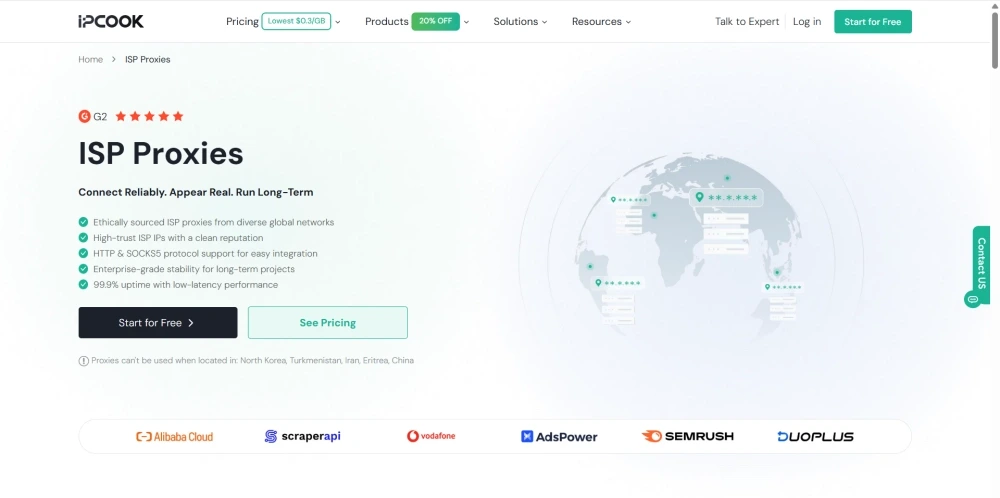
IPcook ISP proxies offer SOCKS5 with unlimited traffic, so you can use Telegram without worrying about data limits. You can also choose IPs from 8 major countries or mix locations in one order, making it easier to use IPs from different regions when needed. Response times average under 0.5 seconds globally and can reach 50ms in major regions, helping keep connections responsive. Pricing starts at $0.05 per IP per day for 10 IPs, with lower rates at higher volumes. IPcook also provides a proxy setup guide to help you get started quickly.
How to Turn Off a Telegram Proxy
If you no longer need a Telegram proxy, you can disable it from the same proxy settings where you enabled it. You can also remove the saved proxy if you do not plan to use it again.
On Android & iPhone (iOS):
Simply toggle off or delete the proxy in the app settings.
Open Telegram and go to Settings → Data and Storage → Proxy or Proxy Settings.
Turn Use Proxy off.
If you do not plan to use it again, delete the saved proxy entry.
On Telegram Desktop:
Switch back to direct connection in advanced settings.
Open Telegram Desktop.
Go to Settings → Advanced → Connection Type.
Turn off the custom proxy or switch back to the default connection.
Final Thoughts
A Telegram proxy can provide an alternative connection when direct access is difficult or unreliable. Knowing how to add a proxy on Telegram is just the first step. Choosing a suitable proxy and configuring it properly can help you stay connected across devices. IPcook offers fast and reliable Telegram proxies with SOCKS5 support at an affordable price, making it easier to stay connected when network restrictions affect Telegram.
