


How to Scrape Naver Images Without Hitting Limits

If you are collecting visual data that reflects real search behavior in Korea, scraping Naver images is often part of the process. This work commonly supports market research, content analysis, or projects that rely on regional image results. The task can look simple at first, but Naver image search behaves differently once scraping is repeated across multiple runs.
Many common methods start to show issues after limited use. Image counts shift, some results fail to load, and identical queries can return different outputs over time. This article shows a Naver image scraping workflow focused on consistency rather than shortcuts, helping keep Naver image collections reliable as your work continues.
👀 Related Scraping Guides
What You Need Before scraping naver images
Scraping Approach Used in This Guide
We focus on the image search results page itself rather than individual image files. The goal is to capture what loads inside a browser, not to look for hidden image URLs. Naver delivers image results as dynamically loaded content, which means new images appear as you scroll and the page updates without a full reload.
To handle this behavior, we rely on browser automation. The script controls a web browser, visits the page, scrolls through results, and then collects data from what is rendered. This mirrors how real users interact with Naver image search and makes it possible to access all image results that appear after multiple scrolls.
Why do we use browser automation for Naver Images Scraping
Simple HTTP requests often miss image results because they cannot execute the JavaScript that loads additional content. Browser automation works with the fully rendered page, which helps keep results consistent when comparing different keywords or running the same search on different dates.
Interacting with the page as a regular visitor also keeps access patterns closer to normal usage. This helps avoid interruptions during a session and supports more stable image collection over time.
What You Need Before Starting
The setup stays minimal. You should have the following ready.
A browser automation tool such as Selenium or Playwright
A script environment to write and run scraping logic
A list of search keywords
A stable network connection
Once these are available, you can move on to the scraping workflow.
Step 1 Environment Setup
Start by confirming that your environment can run browser automation without issues. You need a working script setup and a browser automation tool. Selenium and Playwright are both suitable for this task.
Open Naver Image Search and check whether image results load correctly. If images appear and respond to basic interaction, the environment is ready.
The example below uses Playwright to open a Naver image search page and perform a simple scroll.
from playwright.sync_api import sync_playwright

with sync_playwright() as p:
    browser = p.chromium.launch(headless=False)
    page = browser.new_page()
    page.goto("https://search.naver.com/search.naver?where=image&query=coffee")
    page.wait_for_load_state("networkidle")

    page.evaluate("window.scrollBy(0, 500)")

    browser.close()
If the browser opens, loads the image search page, and scrolls without errors, the setup is working. You can then move on to observing how image results load and change as the page scrolls.
Step 2 Open the Naver Image Search Page
Open the Naver image search page with your keyword. Wait until the page finishes loading and image thumbnails appear without shifting.
Avoid collecting data immediately. Image results load in stages, and the first screen needs time to settle. Starting too early often leads to missing images.
Once the visible images remain stable, the page is ready for scrolling.
page.goto("https://search.naver.com/search.naver?where=image&query=coffee")
page.wait_for_selector("img")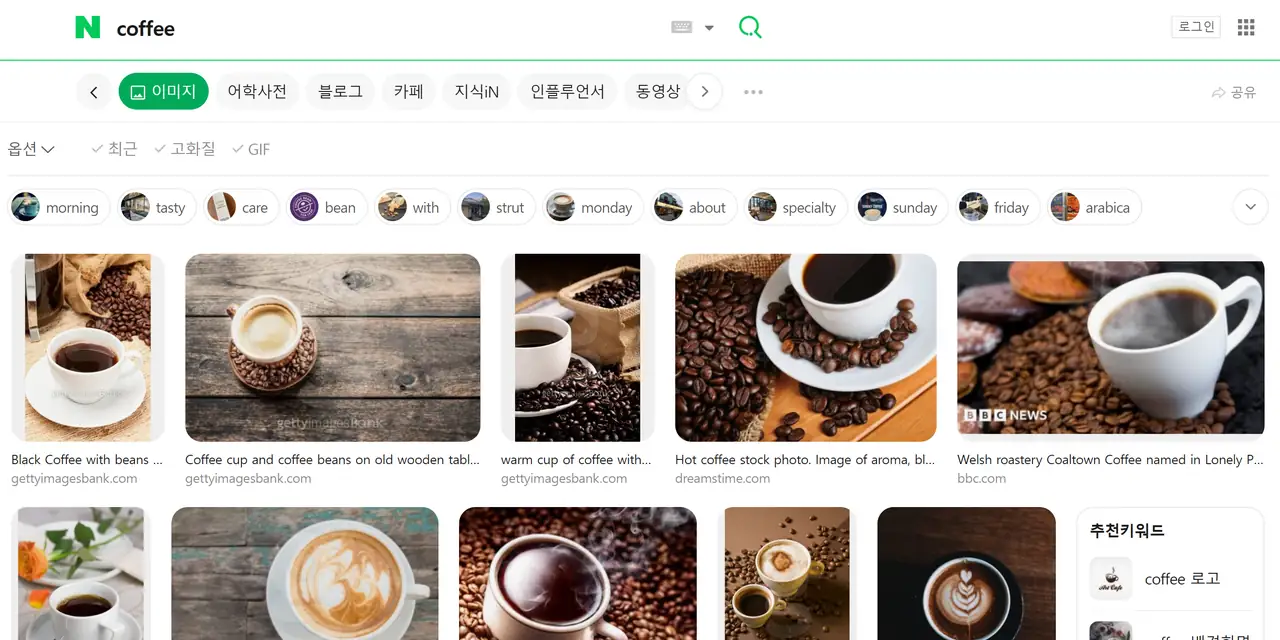
Step 3 Scroll the Page to Load Image Results
Scroll gradually to load more images. After each scroll, pause briefly and allow new results to appear.
Scrolling too quickly can cause images to skip loading. Scrolling without waiting often leads to inconsistent result counts between runs.
A controlled pace with short pauses keeps results stable and predictable.
for _ in range(5):
    page.evaluate("window.scrollBy(0, 800)")
    page.wait_for_timeout(2000)
Step 4 Collect Image URLs and Basic Metadata
After images are loaded, collect their URLs. Start with the image URL itself, and optionally record the source page and search keyword.
Remove duplicates as you go, since the same image can appear more than once.
Result counts can vary between runs, so record the keyword and run time for reference.
images = page.query_selector_all("img")
urls = []

for img in images:
    src = img.get_attribute("src")if src:
        urls.append(src)
urls = list(set(urls))
Step 5 Control Request Frequency During Repeated Runs
When you run the same scraping process multiple times, unstable results often come from how frequently the page is accessed.
Keep each run short and focused. Avoid leaving a single session running for a long time. If you are working with many keywords, split them into smaller batches instead of running everything in one go.
Recommended approach
Run a limited number of keywords per session
Close the browser after each session
Leave a short gap before starting the next run
Avoid running the same workflow continuously without breaks. Short, separated sessions tend to keep image results more consistent across repeated runs.
Step 6 Assign Different IPs to Scraping Sessions
Repeated access from the same IP can link your scraping sessions together, increasing the risk of blocks and contaminating data between runs. Assigning a different residential IP for each session helps isolate each run, making it appear as a unique, independent visitor.
With a rotating proxy setup, your scraper gets a fresh IP at the start of each session without any change to your core logic.
A typical configuration for session isolation includes:
One dedicated IP per scraping session or task.
Automatic IP renewal when restarting the browser or script.
Unchanged page interaction and data extraction logic.
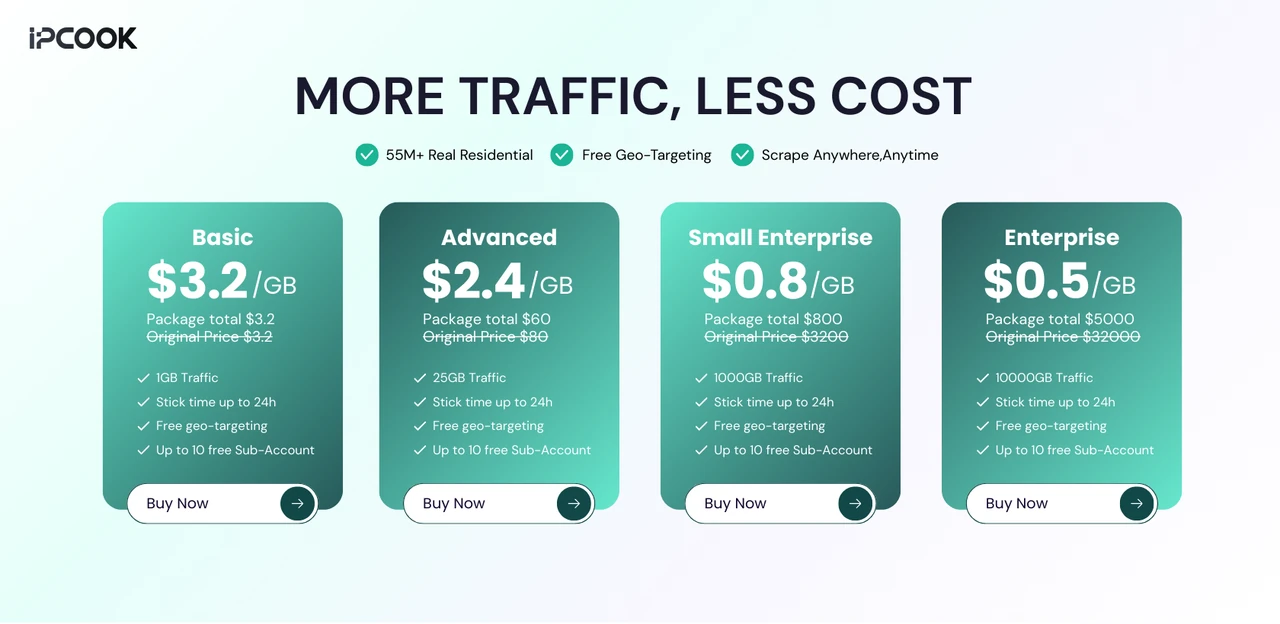
To keep Naver image scraping stable across repeated runs, IPcook uses high-quality rotating residential IPs to reduce rate limits and verification checks:
Reduce Naver image scraping costs: Rotating residential IPs start at $3.2/GB, keeping large image collection jobs affordable as volume grows.
Avoid repeated verification on Naver: Korean-based residential IPs better match local traffic patterns and reduce extra checks during image searches.
Keep sessions stable while scrolling: Sticky sessions up to 24 hours help prevent resets when loading large image result sets.
Control scraping frequency without wasting traffic: Traffic never expires, allowing flexible scheduling without usage pressure.
Work with existing scraping setups: HTTP(S) and SOCKS5 support Python scripts, Selenium, and browser automation tools.
Full pricing details are available on the residential proxy pricing plan.
Step 7 Check Results and Handle Incomplete Data
After each run, check the results before continuing. A finished script does not always mean the data is usable.
Start by comparing the total number of image URLs with earlier runs using the same keyword.
What to check
Total image count
Sudden drops compared to previous runs
Missing images after scrolling
If the numbers look off, pause the workflow instead of continuing. Collecting more data on top of incomplete results makes later analysis unreliable.
Result checking is part of the scraping workflow, not an extra task. Treating it as a normal step helps keep image data usable over time.
Final Notes
Consistent results when scraping Naver images come from stable browsing behavior rather than complex parsing. Short runs, spaced sessions, and the same access behavior each time help keep image outputs aligned across repeated attempts. For recurring Naver image scraping, keeping sessions separate by IP supports consistency. Using IPcook rotating residential IPs allows smoothly image collection without getting limited. Get started with a 100MB free trial from IPcook.
- What You Need Before scraping naver images
- Step 1 Environment Setup
- Step 2 Open the Naver Image Search Page
- Step 3 Scroll the Page to Load Image Results
- Step 4 Collect Image URLs and Basic Metadata
- Step 5 Control Request Frequency During Repeated Runs
- Step 6 Assign Different IPs to Scraping Sessions
- Step 7 Check Results and Handle Incomplete Data
- Final Notes
