Dolphin Anty Review: Multi-Accounting and Proxy Setup

Managing several accounts on the same platform is common for media buyers, affiliate marketers, SMM specialists, e-commerce teams, and recruiters. The problem is that a regular browser was not designed for this kind of work. You can log into multiple accounts, but keeping them separate and switching between them quickly becomes inconvenient.
An antidetect browser solves this by creating separate browser profiles. Each profile has its own cookies, storage, browser fingerprint, and proxy settings, so you can use it for a specific platform and keep the sessions isolated.
Dolphin Anty is one of the tools built around this approach. In this review, we will look at its profile management, explain how to connect IPcook proxies, and show which features make multi-accounting easier.
Proxies: Key Part of the Digital Fingerprint
A browser profile itself is only one part of the setup. It is the IP address that tells websites where a connection comes from, so using an appropriate proxy is important when you need to access accounts from a particular location.
For example, a media buyer working with advertising accounts in different countries may need each profile to connect through an IP from the corresponding geo. The same applies to SMM specialists managing regional social media accounts or e-commerce teams working with local marketplaces.
Using the same IP for many unrelated accounts makes account separation less convincing. A dedicated proxy for each profile keeps the network side of the setup separate as well. IPcook, a premium proxy provider, offers proxies you can connect directly to Dolphin Anty. Once you receive your proxy details, you can add them in several ways.
1. While Creating a Profile
The most straightforward option is to add the proxy directly to a new profile.
Open Browser Profiles and click Create Profile. Find the Proxy section and select New Proxy. Enter the proxy protocol, host, port, username, and password provided by IPcook.
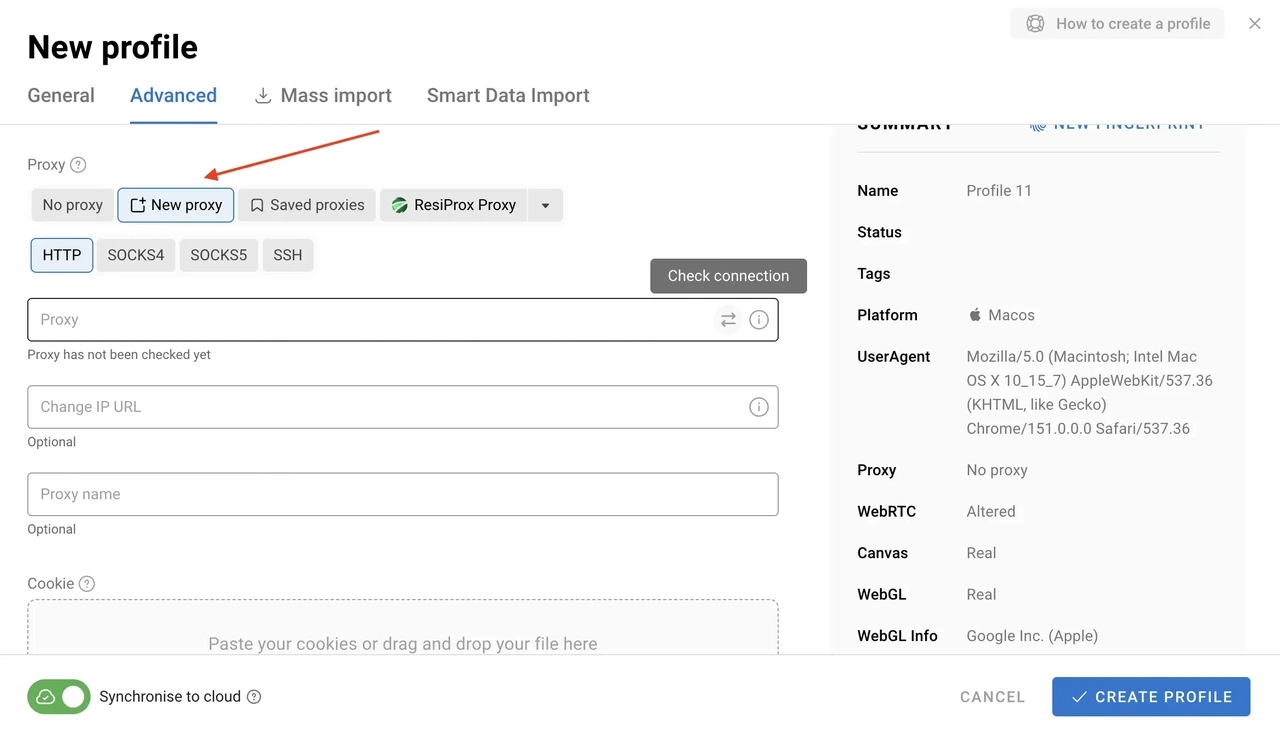
Dolphin Anty lets you check the connection before launching the profile. Run the check and make sure that the proxy connects successfully and returns the expected IP and location. If everything is correct, create the profile.
This method is used when you are setting up an account from scratch because the proxy is assigned to the profile immediately.
2. In the Proxy Section
If you want to prepare your proxies before creating profiles, open the Proxies section in Dolphin Anty.
The process is essentially the same: add a new proxy, enter its connection details, and check it. The difference is that the proxy is simply saved to your proxy list. You can assign it to profiles later.
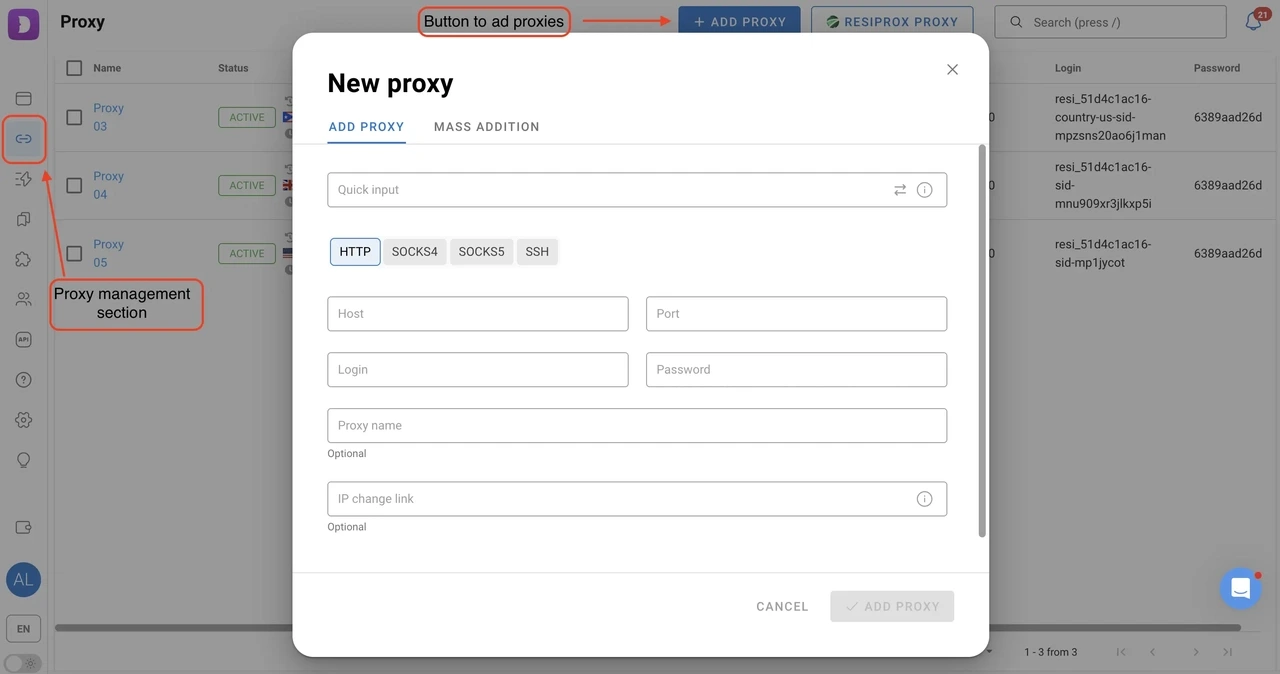
This approach is more convenient when you have a collection of proxies and want to organize them before starting work with your accounts.
3. Adding Multiple Proxies at Once
Adding proxies one by one is fine for a few entries, but it becomes tedious when you have dozens of them. Dolphin Anty supports bulk proxy import, so you can add a list of proxies in the required format instead of entering each one manually.
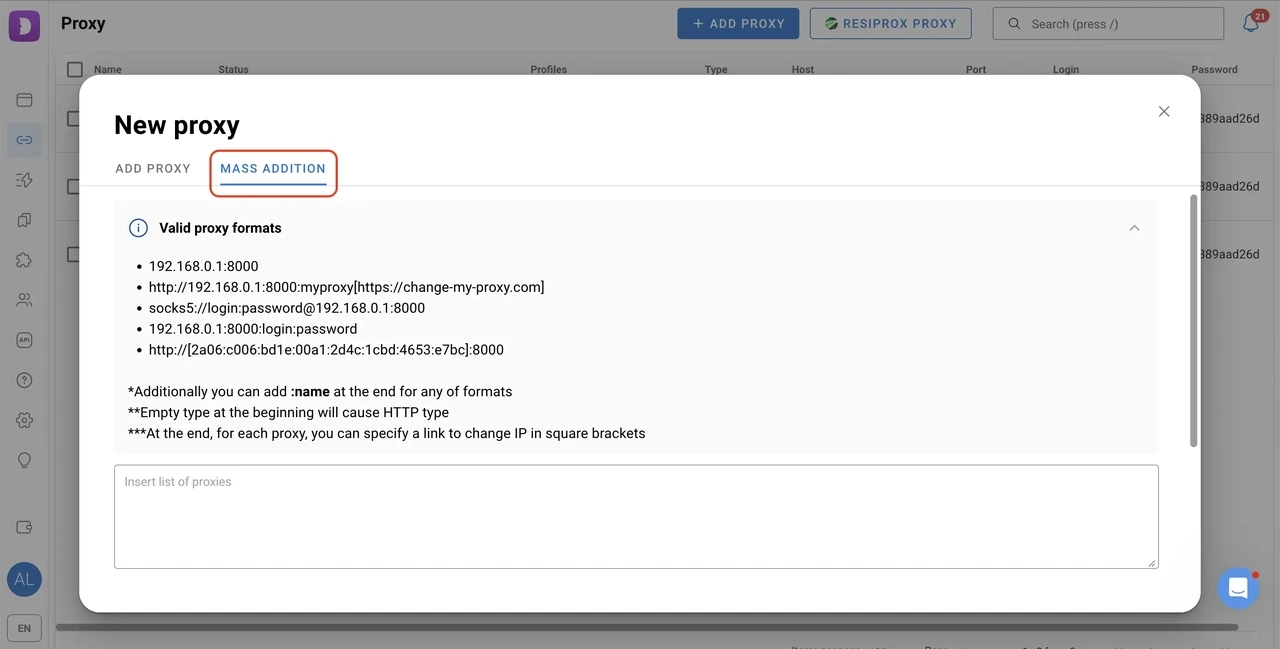
After importing them, the proxies are available in the proxy list and can be assigned to profiles using bulk actions. Just select the profiles and assign proxies to them at once. Dolphin Anty supports different assignment patterns, including assigning one proxy to each selected profile in sequence or distributing proxies according to the selected pattern.
This is particularly useful when creating a large number of profiles because you do not have to open and edit every profile separately.
Multi-Accounting in Dolphin Anty
In addition to integration with proxies, Dolphin Anty boasts many useful features that empower its multi-accounting. Below are the top features you should never miss.
Creating Profiles Flexibly
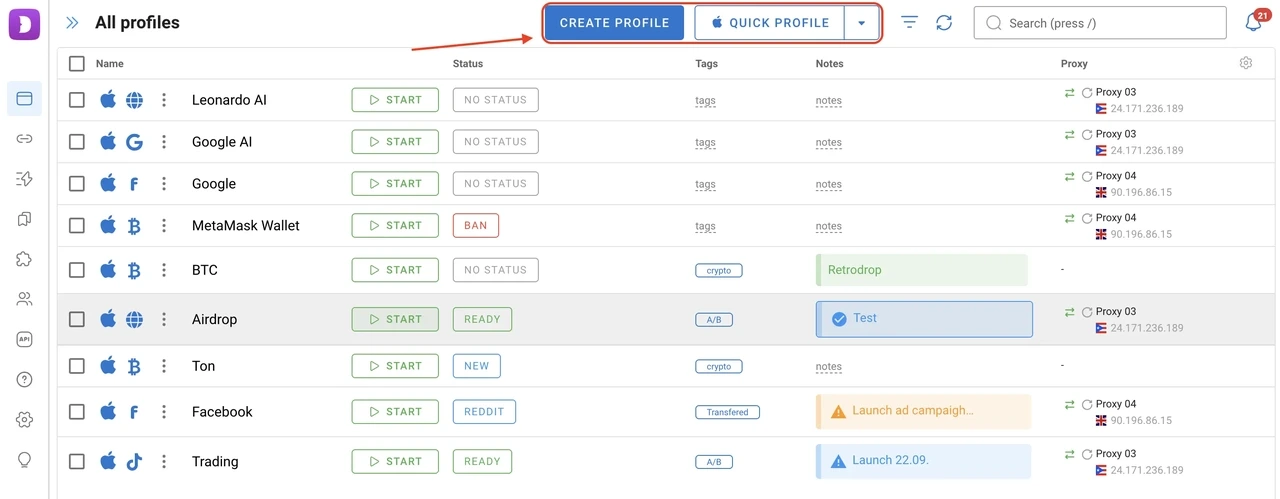
Profiles are the main tool for multi-accounting in Dolphin Anty. Open Browser Profiles and you will see two options for creating them.
Quick Profile creates a profile with minimal input. It is useful when you do not need to adjust every parameter manually.
Create Profile opens the full configuration menu. Here you can customize the browser fingerprint and other settings before launching the profile.
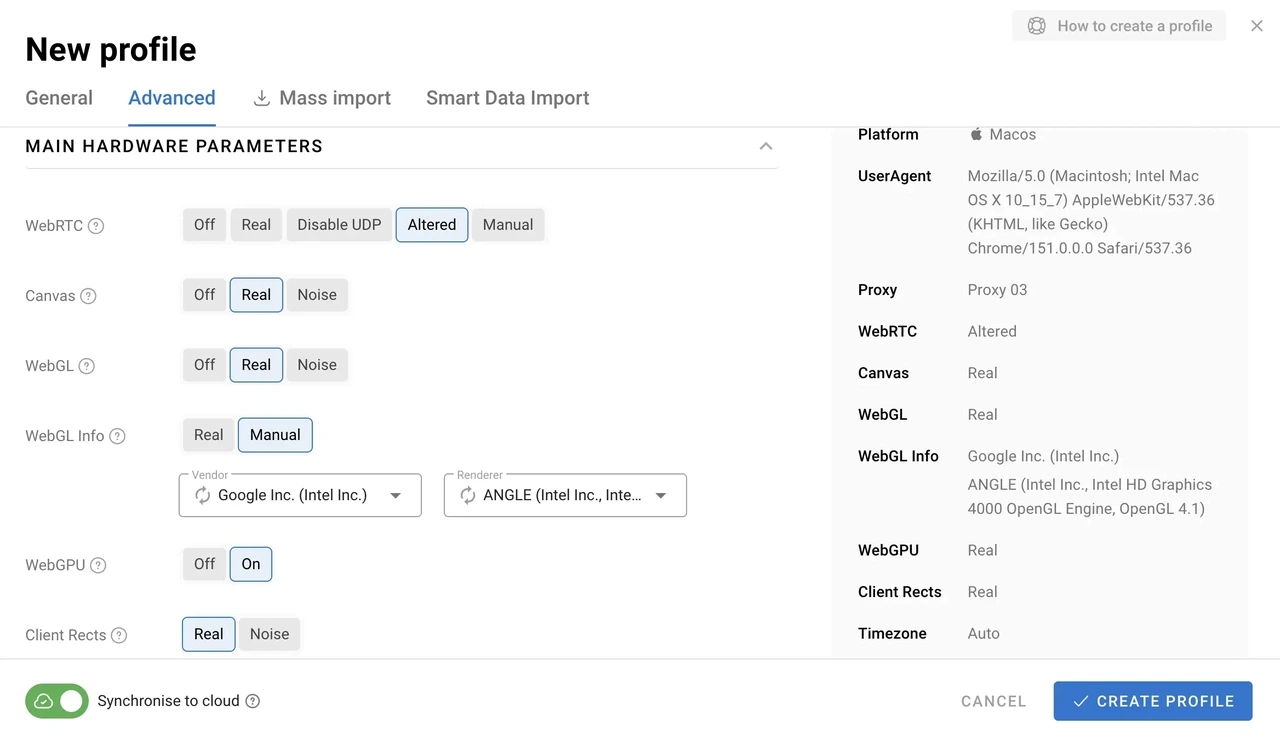
There are quite a few parameters available, including the operating system, User-Agent, screen resolution, Canvas, WebGL, Client Hints, WebRTC, fonts, CPU, memory values, and other browser characteristics.
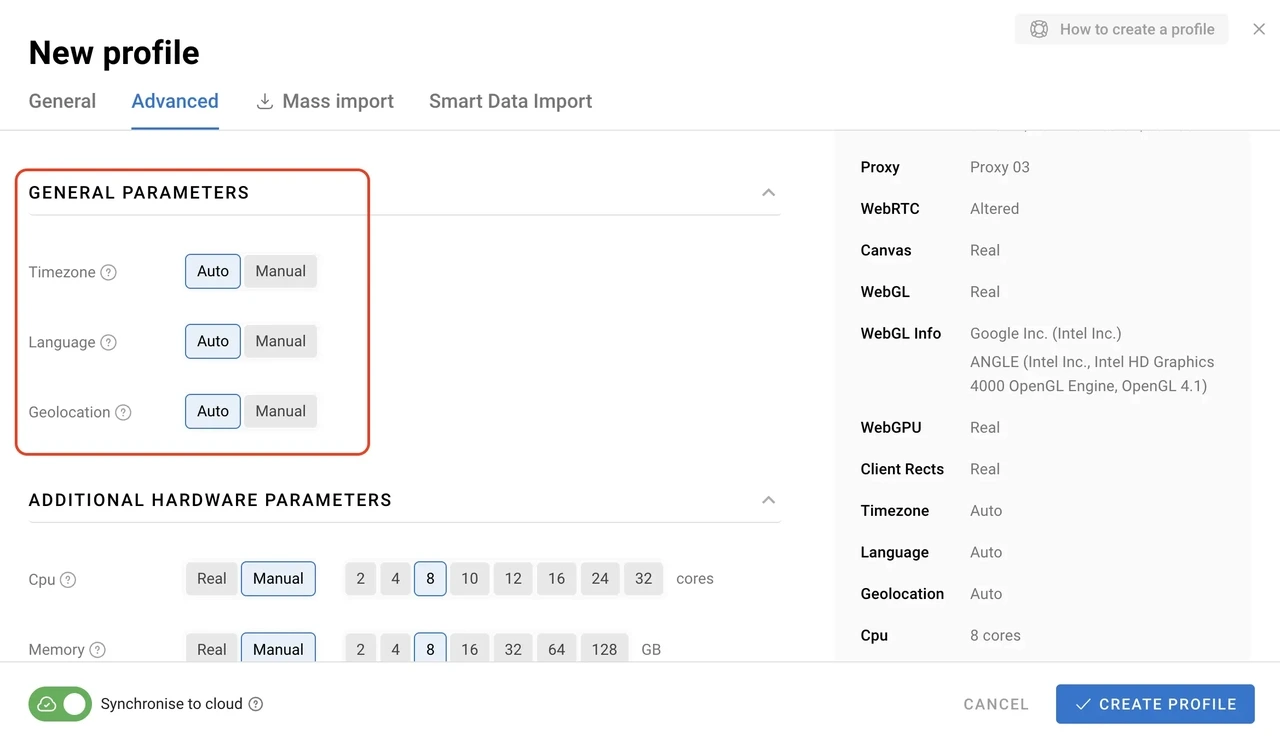
Dolphin Anty can automatically adjust settings according to the selected proxy. Time zone, language and geolocation in Auto mode correspond to the proxy location. You can also change these parameters manually when the required setup is different.
The idea is simple: the profile should have consistent settings rather than a random combination of unrelated parameters.
Navigating Profiles
Managing dozens or hundreds of profiles is complex. Dolphin Anty includes several tools for keeping the profile list organized.
Folders let you group profiles by project, client, geo or any other category that makes sense for your workflow.
Statuses show the current state of an account. For example, you can separate active profiles from those that need attention.
Tags provide another way to categorize profiles. You can assign several tags to a profile and then use them when searching or filtering the list.
Notes are useful for storing short information about a particular account without changing its name or other settings.
Search and Filters let you find profiles by different parameters, including tags, notes, statuses, sites, folders, and users.
These features make any list much easier to navigate.
Customizing Profiles
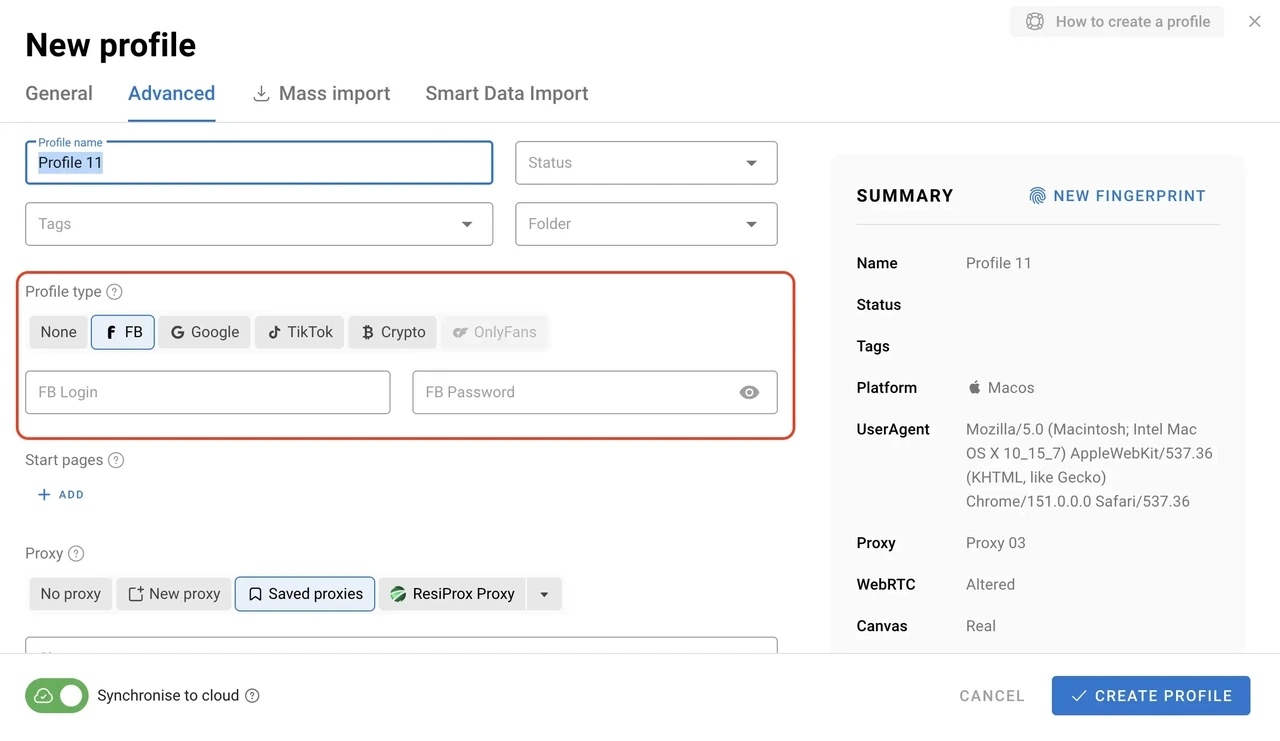
Dolphin Anty also lets you prepare profiles for specific types of work. When creating a profile, you can select a profile type such as Facebook, Google, TikTok, or Crypto. The selected type comes with a predefined set of useful bookmarks.
There are separate sections for Extensions, Bookmarks, and Start Pages. You can configure these once and later add them to profiles of the corresponding type. This is useful in cases, for example, when all Facebook profiles need the same set of extensions and bookmarks.
Automation
Dolphin Anty also includes several tools for automating repetitive actions.
Scenarios let you create sequences of actions and run them on profiles. You just have to build the sequence on an interactive map and launch it.
Synchronizer allows you to perform the same actions across several browser profiles at the same time. Choose profiles, set the master one, and launch the Synchronizer from the bulk actions menu.
Cookie Robot automates work with cookies. It is useful when you need to collect cookies for browser profiles instead of handling them manually.
Dolphin Anty also supports automation through Selenium, Puppeteer, and Playwright as well as local and remote APIs, so developers can connect the browser to their own automation tools.
Team Features
Multi-accounting is rarely a one-person job. Dolphin Anty supports three user roles: administrator, team leader, and regular user. This allows owners to control access to profiles.
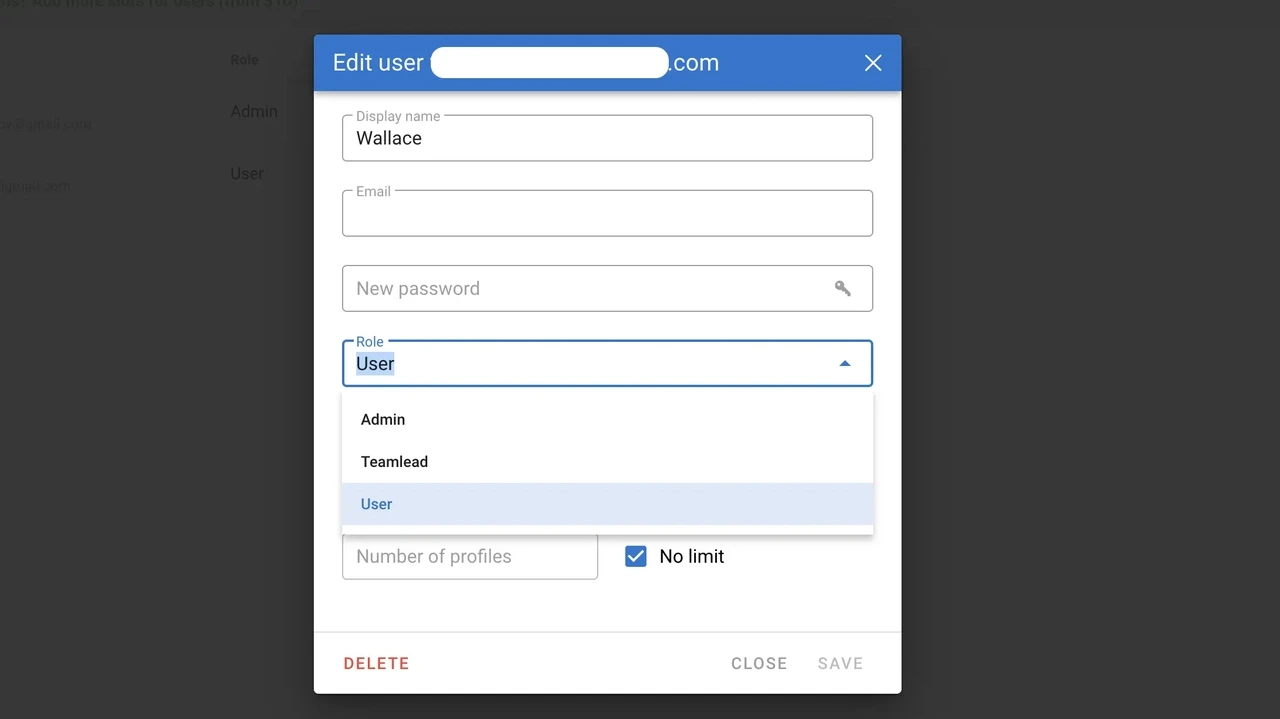
Profiles can also be transferred or shared between users. This is useful when, for example, one team member creates and configures profiles while another person works with the accounts.
The higher Dolphin Anty plans also provide additional team-management features, including profile transfer controls and user-based filtering.
Dolphin Anty Pricing
Dolphin Anty currently has five main plans.
Free — $0/month: up to 5 browser profiles.
Starter — from $10/month: 20 profiles, with options to increase the limit up to 60.
Base — $89/month: up to 100 profiles.
Team — $159/month: up to 300 profiles.
Enterprise — $299/month: 1,000+ profiles, with larger volumes available.
Conclusion
Dolphin Anty covers the tasks involved in multi-accounting: creation of isolated browser profiles and their organization, fingerprint configuration, proxy management, automation, and team access.
For proxy users, the important part is that the browser does not treat the proxy as a separate tool that has to be configured somewhere else. You can add IPcook proxies directly when creating profiles, keep them in the dedicated proxy section, and assign them to multiple profiles in bulk.
This combination gives you the network and browser-side setup in one window without the necessity to switch between accounts in a standard browser.
Use promo code IPCOOK20 and get 20% off your first dolphin{anty} subscription.