How to Use Residential Proxies on Any Device in 2026

When you browse the internet, your real IP address gives away more than you might think, including your location, device type, and even usage patterns. That's why using a residential proxy, which routes your traffic through real home devices with IP residential proxy addresses assigned by ISPs, is becoming essential for anyone who needs privacy, consistency, or access across borders.
Whether you're trying to avoid getting blocked while scraping data, managing multiple accounts, or simulating local user behavior worldwide, this guide will walk you through how to use residential proxies on any major platform, including Windows, macOS, Android, and iOS. We'll also show you how to get started with a reliable proxy provider like IPcook, ensuring a smooth, secure, and scalable experience from day one.
Recommended reading: What are Rotating Proxies? Setup Guide, Pros and Cons Explained
How to Get Residential Proxies via Self-Service Platforms
Obtaining high-quality proxy credentials is the essential first step before configuring any device. If you want to know how to efficiently obtain residential IP addresses, using a residential proxy self-service platform is the most practical approach.
These platforms eliminate the delays associated with manual configuration, allowing you to instantly generate the required hostname, port, and authentication details. Unlike dealing with unreliable free proxy lists, self-service dashboards provide immediate access to global IP pools, ensuring stable connections and high anonymity from the moment you apply the settings.
Why Choose IPcook for Residential Proxies
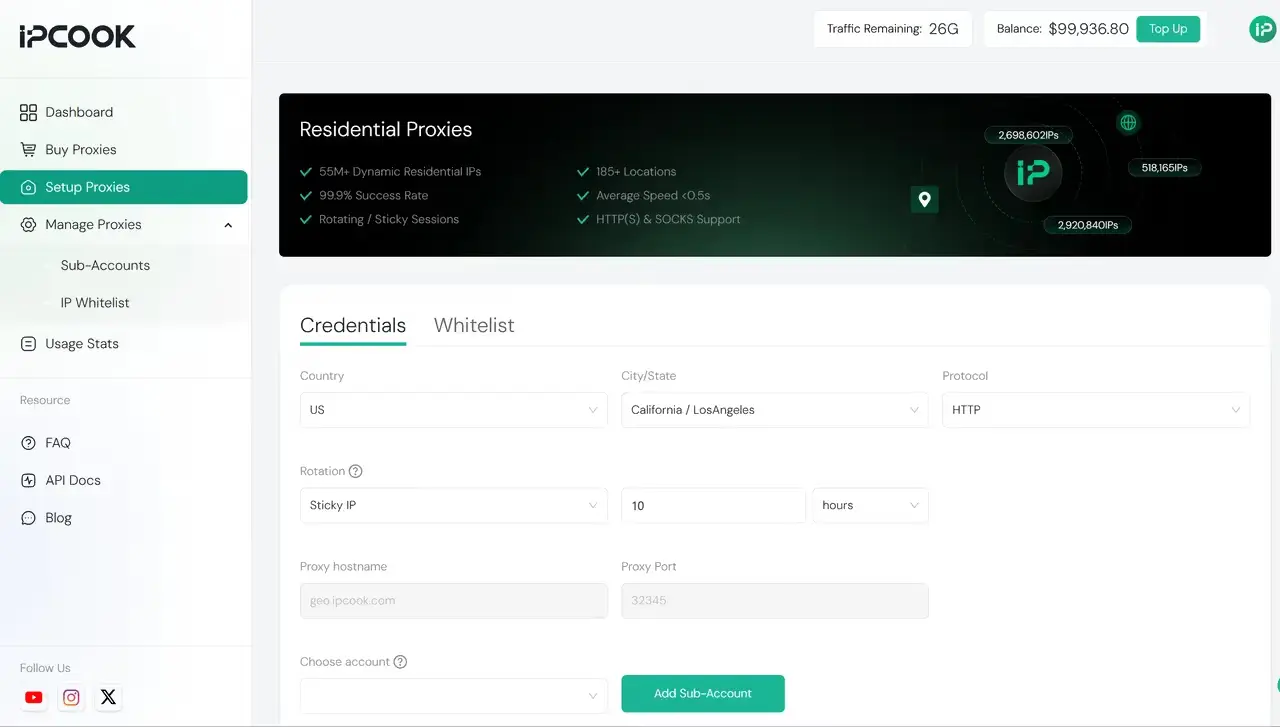
For professional-grade data extraction and anonymity needs, IPcook offers enterprise-level infrastructure built for large-scale operations. By leveraging our massive residential proxy pool, you gain the following technical advantages:
Global Coverage: Access clean, high-quality IPs across 185+ countries/regions, easily bypassing geo-restrictions and reducing block rates.
Superior Performance: Underlying architecture optimized for data-intensive workflows, delivering up to 99.99% uptime.
Seamless Automatic Rotation: Automatically switch IPs to strictly and authentically simulate the online behavior of organic users.
Broad Compatibility: Full support for SOCKS5 and HTTPS protocols.
How to Set up Residential Proxy on Any Device
Before diving into using the residential proxy, it's important to understand what's required to get started. The setup process is generally straightforward, but success depends on two things: having a reliable proxy provider and using a device or application that supports proxy configuration.
Pro Tip: To make the setup process easier and ensure higher stability, better anonymity, and more reliable connections, consider using reliable residential proxy providers, which offer more than just raw IPs.
How to Use Residential Proxies on Windows 10/11
If you're using a residential proxy for data scraping, geo-testing, or account management on a Windows PC, the built-in proxy settings offer a quick and effective way to get started. All you need is your proxy IP, port, and authentication details.
Here's how to use residential proxies on Windows 10 or 11:
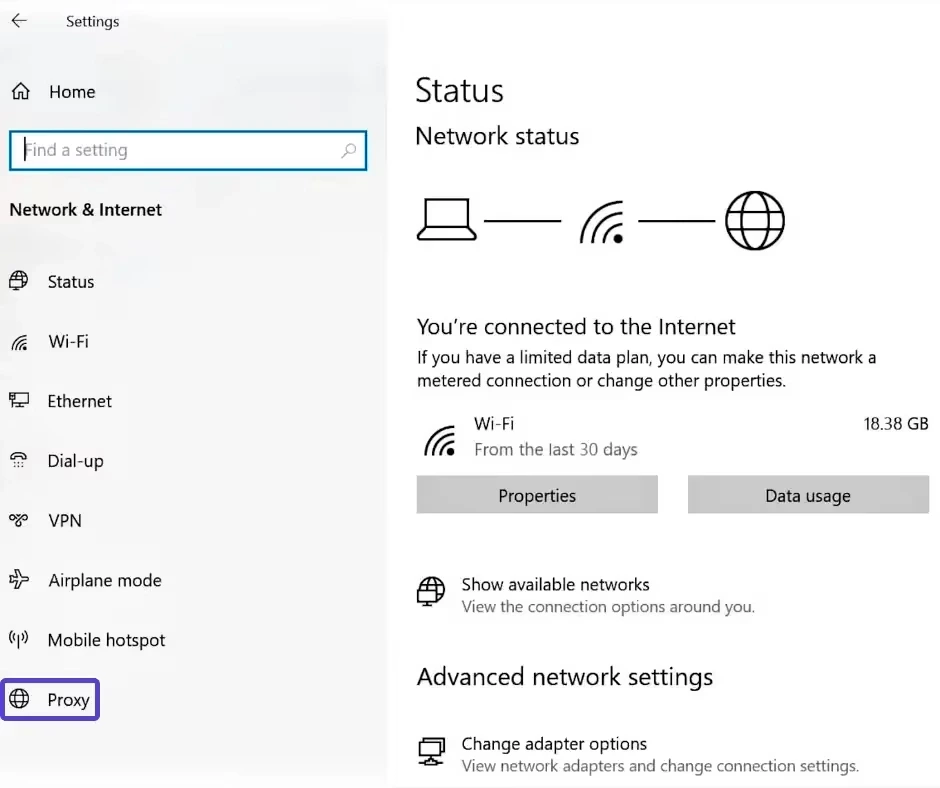
Open Settings → Go to Network & Internet → Click on Proxy in the sidebar.
Under Manual proxy setup, toggle Use a proxy server to ON.
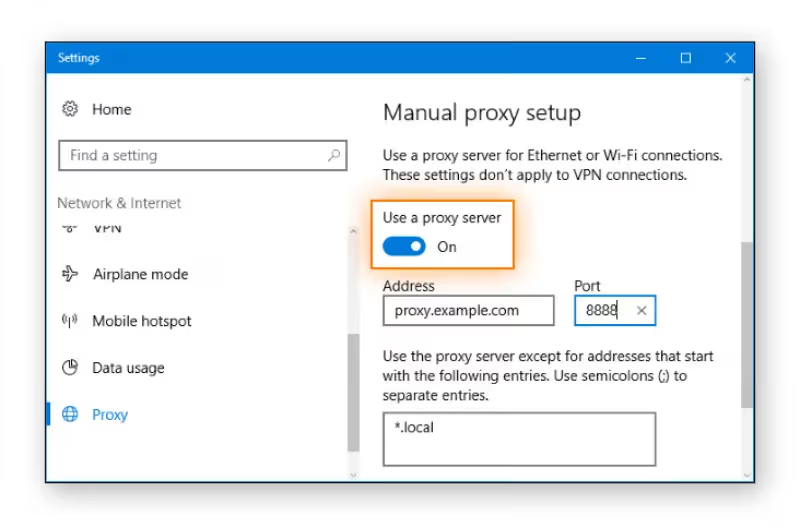
Enter the server address and port provided by IPcook.
If required, input your username and password when prompted.
Confirm the setup, then test your connection:
Use a browser to visit https://whatismyipaddress.com
Or run curl ifconfig.me in PowerShell to check if your IP reflects the residential proxy.
Tip: Disable Automatically detect settings under the same menu to avoid conflicts with the manual proxy configuration.
With these steps, your Windows system routes its traffic through a residential IP, giving you enhanced anonymity and access to geo-restricted or sensitive content without raising red flags.
How to Use Residential Proxies on macOS
Wondering how to use a residential proxy on your Mac? Whether you're managing localized SEO campaigns or simply need a higher level of anonymity, macOS makes it easy to route your traffic through a residential IP, especially with a trusted provider like IPcook.
Follow these steps to configure a residential proxy on macOS:
Open System Preferences → Click Network.
.webp "click-network-mac")
Select your active network connection (e.g., Wi-Fi), then click Advanced in the bottom-right corner.
.webp "click-advanced-mac")
Go to the Proxies tab. Check either SOCKS Proxy or HTTPS Proxy, depending on the protocol provided by IPcook.
.webp "click-proxies-mac")
Enter the IP address and port assigned to your residential proxy.
Click OK, then click "Apply" to save your settings.
Open your browser and visit https://whatismyipaddress.com to confirm your traffic is routed through the residential IP.
Using a residential proxy on macOS is ideal for users who need reliable, location-specific browsing and enhanced privacy across global networks.
How to Use Residential Proxies on Android Devices
For using a residential proxy on Android, the good news is that Android supports manual proxy configuration at the network level, perfect for routing apps and browser traffic through residential IPs from a reliable provider.
Here's how to set it up (using a Wi-Fi network):
Go to Settings → Network & Internet → Wi-Fi.
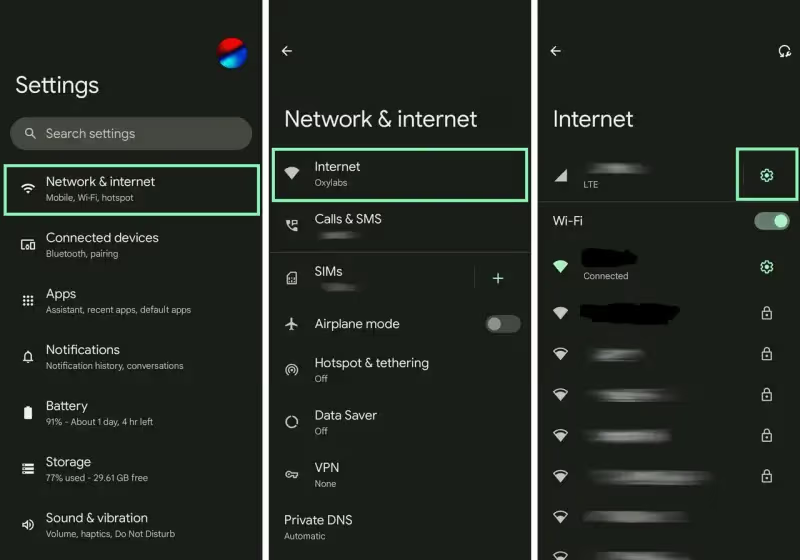
Tap your connected Wi-Fi network, then select Modify network.
Expand "Advanced options" and change Proxy to Manual.
Enter the IPcook proxy hostname and port number provided.
Tap Save to apply the changes.
Open your browser and visit a site like https://ipinfo.io to verify your new residential IP.
Note: Android's system settings may not apply the proxy globally. For full-device proxy support or SOCKS5 connections, consider using proxy-enabled apps or VPN tools that support the SOCKS5 protocol.
How to Use Residential Proxies on iPhone and iPad
Wondering if you can use residential proxies anywhere, including iOS? The answer is yes. iPhones and iPads allow you to configure a proxy server on any Wi-Fi connection, making it easy to route your traffic through a residential IP.
Follow these steps to get started:
Open Settings → Wi-Fi, then tap the "i" icon next to your connected network.
Scroll down and select Configure Proxy.
Choose Manual, then enter the proxy server address and port number provided by IPcook.
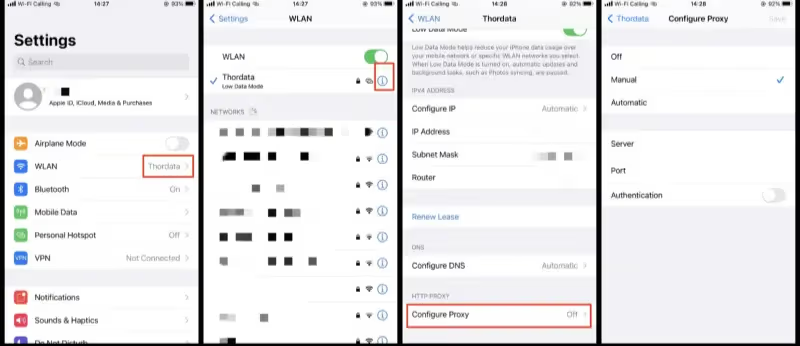
Optionally, input your username and password if authentication is required.
Tap Save, return to your browser, and reload a page to verify your IP has changed.
Residential proxies ensure high anonymity and real-user routing, even on mobile devices. Whether you're verifying location-based content or accessing geo-restricted apps, iOS lets you bring proxy power on the go.
Using Proxies for Web Scraping
When performing large-scale data extraction tasks, developers often rely on automation frameworks such as Python, Selenium, or Puppeteer. However, sending high-frequency requests from a single source inevitably triggers CAPTCHAs and strict anti-scraping systems. To successfully bypass these anti-scraping mechanisms, you must rely on the auto-rotation capabilities of a residential proxy network:
Request-based switching: Assigns a fresh, genuine residential IP address to every connection request.
Traffic masking: Effectively disguises automated scripts as legitimate, organic traffic.
Uninterrupted operation: Ensures a high scraping success rate while avoiding server-side blocks or bandwidth throttling.
FAQ
Are residential proxies legal?
Yes, using residential proxies is entirely legal in most jurisdictions. The technology itself is a legitimate tool used for market research, ad verification, and privacy protection.
However, the legality of your actions depends strictly on your specific use case and whether you comply with the target website’s Terms of Service (TOS).
Can I make or host my own residential proxy?
If you search for “how to make residential proxies,” you will find that it requires configuring dedicated physical hardware. Common DIY solutions include:
Raspberry Pi configurations.
Custom software-based router devices.
Clusters of mobile device (smartphone) nodes.
This self-hosting approach requires ongoing network maintenance and offers only extremely limited bandwidth. Ultimately, purchasing proxies through commercial self-service platforms offers far greater reliability and cost-effectiveness.
Final Word
As you've learned in this guide, using a residential proxy is not as complex as it may seem, whether you're on Windows 10, macOS, Android, or iOS, setting up an IP residential proxy takes just a few steps. With the right provider, configuration becomes seamless across devices.
Beyond easy setup, the true value of residential proxies lies in their ability to bypass geo-blocks, reduce the risk of bans, and mimic real user behavior. Whether you're managing multiple accounts, scraping protected content, or verifying ads worldwide, a reliable proxy network is essential. That's why we recommend IPcook, a secure, scalable solution designed to help you unlock the full potential of residential proxy technology.
- How to Get Residential Proxies via Self-Service Platforms
- How to Set up Residential Proxy on Any Device
- How to Use Residential Proxies on Windows 10/11
- How to Use Residential Proxies on macOS
- How to Use Residential Proxies on Android Devices
- How to Use Residential Proxies on iPhone and iPad
- Using Proxies for Web Scraping
- FAQ
- Final Word