What Is a Sticky Session and What Does It Do?

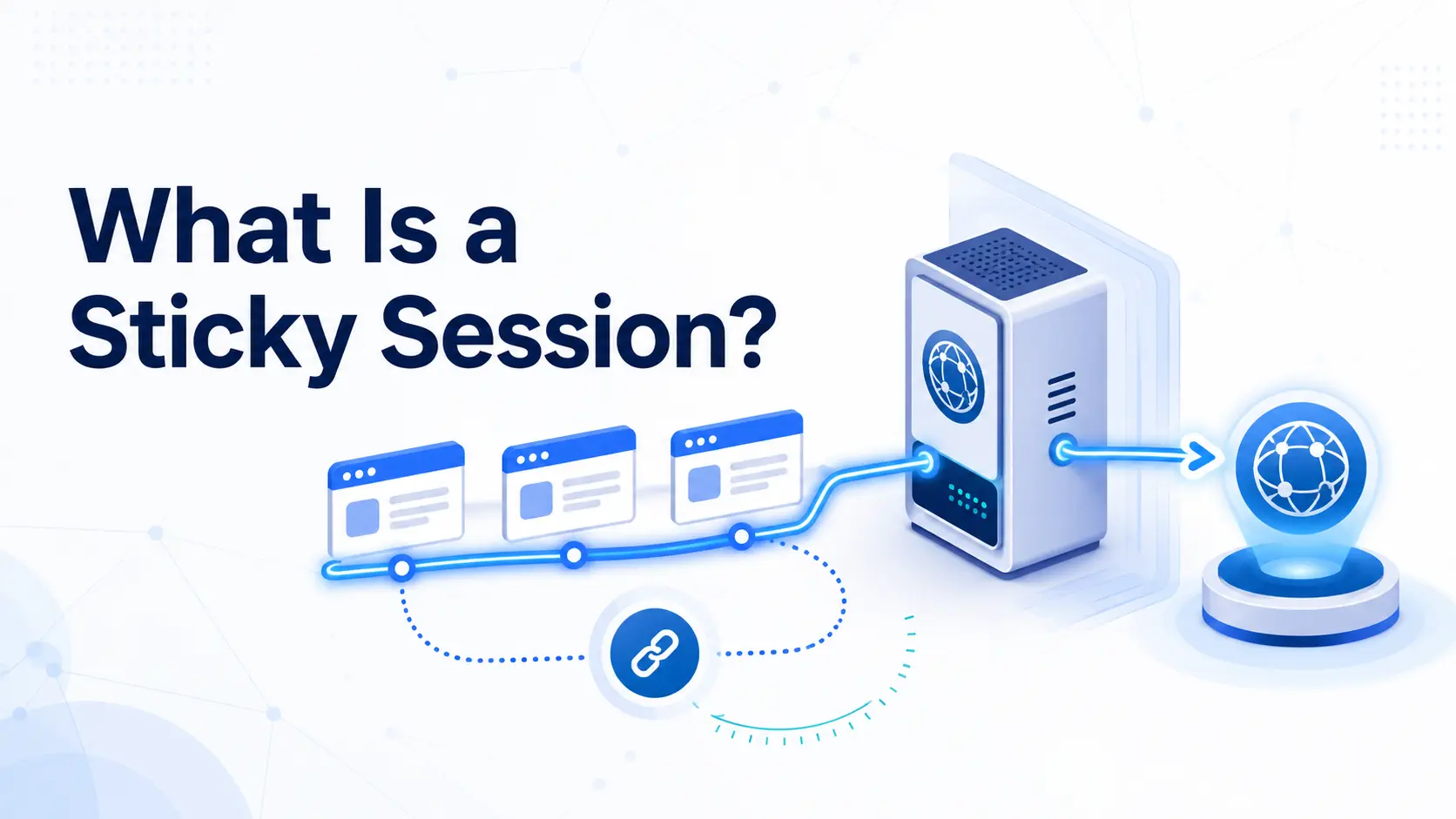
Moving through pages after signing in, completing a multi-step form, or testing a checkout flow often requires several connected requests. If a proxy changes its exit IP during that process, the website may treat the next request as coming from a different visitor or location. This can trigger additional verification, invalidate an IP-sensitive step, or interrupt the workflow.
A sticky session solves this problem by keeping the same proxy exit IP during one continuous task. This guide walks you through what sticky sessions are, how they work, how they compare to rotating and static proxies, and how you can set one up and verify it.
What Is a Sticky Session in Proxies?
A sticky session is a proxy rotation setting that links an exit IP to a specific session. Requests using the same session ID continue through that address for a configured period, provided the assigned proxy node remains available. However, it only keeps the proxy exit IP seen by the destination website consistent; it does not preserve your original IP, account login, cookies, browser data, or the website’s backend server connection.
This option is commonly available with residential proxies and mobile proxies. They are not a separate type of proxy or a permanently assigned IP address. The exit IP may change when the session expires, the session ID changes, or the underlying node becomes unavailable. Its main purpose is to maintain temporary IP continuity during a connected sequence of requests.
How Does a Sticky Session Work?
A sticky session does not permanently assign a residential IP to one customer. Instead, the proxy gateway temporarily connects a session ID to an available exit node. From the first connection to a later IP change, the process works as follows:
Connect to the proxy gateway. Your browser, application, or script sends a request using the proxy hostname, port, and authentication details.
Assign an exit IP. The gateway selects an available address from its proxy pool.
Create the session association. The system links the selected exit IP to your session ID.
Reuse the same route. Later requests carrying the same ID continue through that address while the session remains active.
Replace the exit IP when needed. The gateway assigns another address if the session ends, the identifier changes, or the current node goes offline.
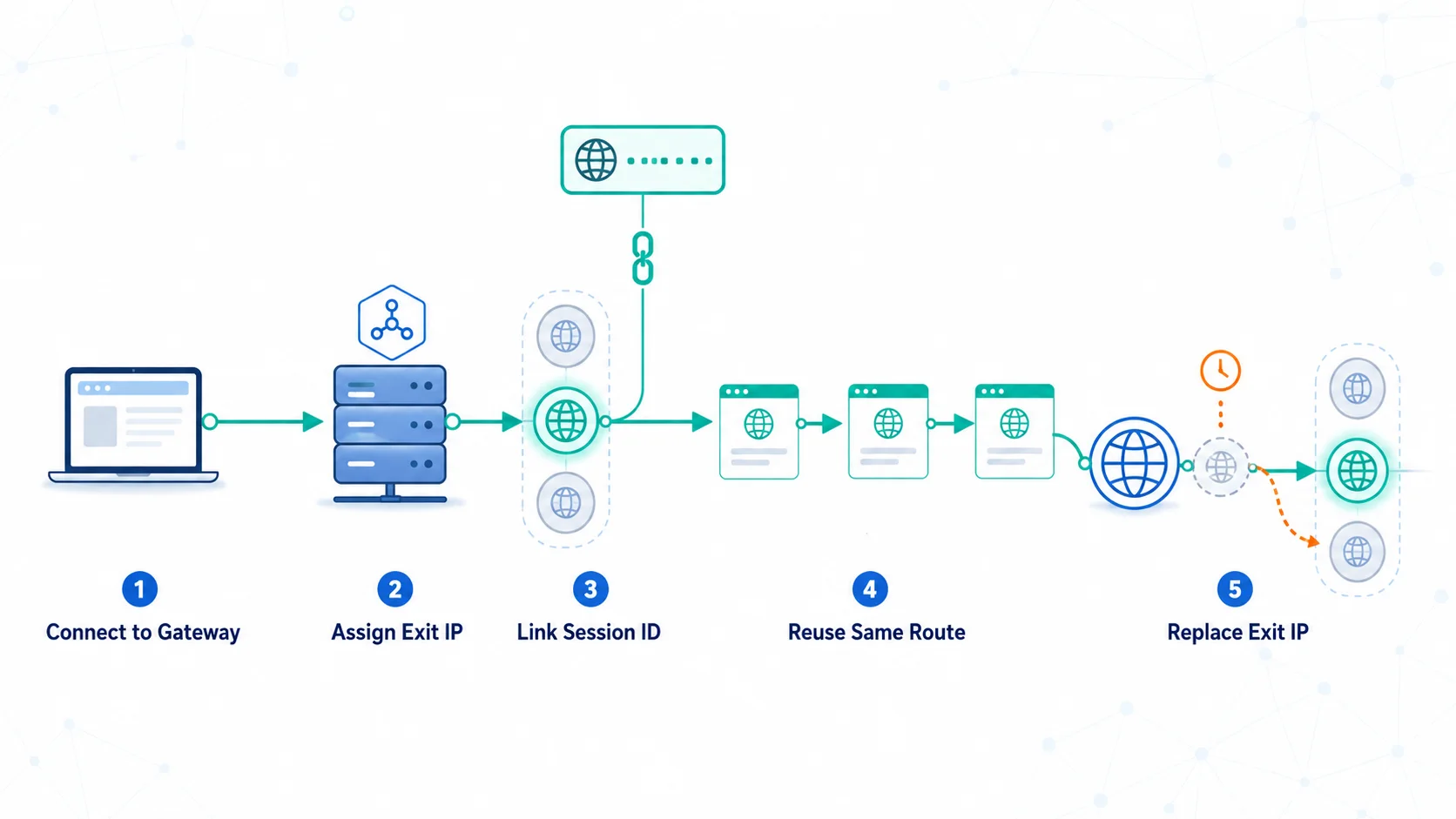
The session ID may be included in the proxy username or another authentication string, although some providers generate it automatically through a dashboard or API. The exact format depends on the service, as does the available session length, which may range from a few minutes to several hours or longer.
However, the selected duration represents the intended IP retention window rather than an unconditional guarantee. Residential proxies rely on real endpoint devices, so the gateway may need to assign another address before the configured period ends if the current node disconnects early.
Sticky vs Rotating vs Static Proxies
Sticky sessions are often confused with rotating and static proxies because all three determine how long an exit IP remains in use. The main difference is how they handle IP rotation: sticky sessions provide temporary IP continuity, rotating proxies change IPs according to a rotation rule, and static proxies keep one assigned IP for longer-term use.
The table below highlights the key differences:
Comparison | Sticky Session | Rotating Proxy | Static Proxy |
IP behavior | Keeps one IP during a session | Changes by request or rotation rule | Keeps one assigned IP |
Typical duration | Minutes or hours | One request or a set interval | Assignment or purchase period |
Common source | Residential or mobile pool | Residential, mobile, or datacenter pool | ISP or datacenter infrastructure |
Best for | Connected, multi-step workflows | Large groups of independent requests | Tasks requiring longer IP consistency |
Main limitation | May change when the session or node ends | Can interrupt stateful workflows | Provides limited IP diversity |
The different IP management methods also affect how you choose a proxy mode for a particular workflow. A sticky session can keep the same IP during an authorized login or regional check, while a rotating proxy can provide a new IP for separate requests that do not need to share the same IP. For longer-term workflows that require a consistent address, a static proxy may be more suitable.
With IPcook Residential Proxies, you can choose between Sticky IP, configurable from 1 minute up to 24 hours, and Randomize IP modes depending on whether the workflow requires IP rotation or continuity. For workflows that need a fixed address beyond the available sticky session period, IPcook Static ISP Proxies provide a dedicated IP for longer-term use, such as daily logins or ongoing monitoring.
👀Want to take a closer look at how static and rotating proxies differ? See Static vs Rotating Proxies for a detailed comparison of their IP behavior, use cases, and limitations.
When Should You Use a Sticky Session?
A sticky session is useful when a workflow requires multiple requests to maintain the same exit IP, such as when consistent IP location or activity continuity matters during an authorized login or regional check.
Common situations where a sticky session can be helpful include:
Logged-in and authenticated workflows: Continue through authorized account pages without changing the exit IP during the same session.
Multi-step web data collection: Keep the same IP across permitted pagination, regional selections, or queries that depend on earlier steps.
Forms and checkout testing: Test multi-page forms, shopping carts, and checkout flows on systems you own or have permission to evaluate.
Location-based monitoring and verification: Review localized pages, advertisements, or search results while maintaining the same geographic exit IP throughout a check.
A sticky session works best when the same proxy session needs to be maintained throughout a workflow. Switching sessions midway may assign a different exit IP and interrupt workflows that depend on IP continuity. However, a sticky session only maintains continuity at the proxy level. It does not preserve application-level session data, such as cookies, authentication tokens, or local storage, which are managed by the browser or application.
How to Set Up and Verify a Sticky Session
The exact steps for setting up a sticky session vary by proxy provider and dashboard. To make the process more concrete, the following steps use IPcook as an example, showing how to select the required proxy settings and generate the connection details.
Set Up a Sticky Session
Sign in to the IPcook Dashboard and select Residential from the left-hand menu.
Open Proxy Generator and select Credentials. Choose the required Country, City/State, and Protocol. If precise location targeting is not needed, leave the location set to Global or Random.
Open the Rotation menu and select Sticky IP. Set a session duration that covers the expected workflow.
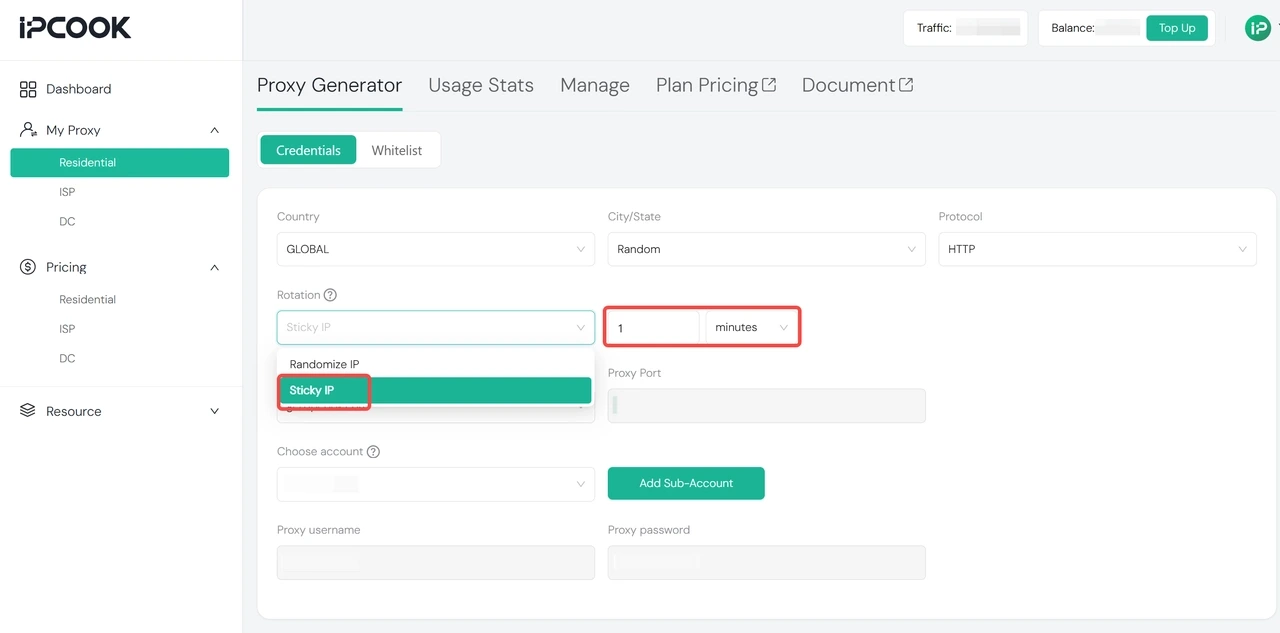
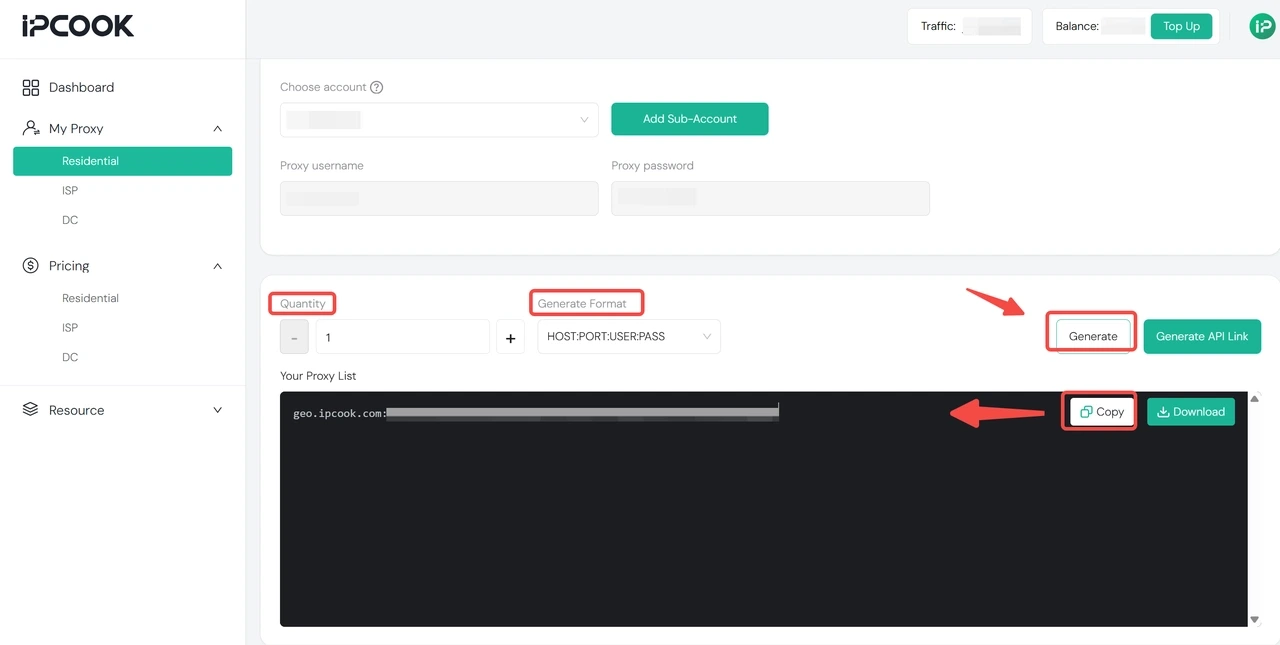
Select a sub-account. If none is available, create one and allocate traffic to it.
Select the required proxy format and generate the connection details. Copy the hostname, port, username, and password into your browser, proxy tool, or application.
Verify the Sticky Session
After connecting, check the exit IP without changing the generated credentials or session settings.
Visit IPinfo through the proxy and record the displayed IP address, city, region, and country.
Keep the same connection details and check the page again after several minutes.
Compare the results. If the IP address remains the same, the sticky session maintains the same exit IP during the checks.
Check the IP again after the configured session duration ends or after generating a new session. The exit IP may then change.
IPcook Sticky IP sessions can be configured for up to 24 hours. However, a residential node may disconnect before the selected duration ends, which can interrupt the connection. If the IP remains unchanged but a website loses its login state, check the cookies, authentication tokens, local storage, or browser profile instead of assuming that the proxy session has failed.
Final Thoughts
A sticky session keeps related proxy requests on the same exit IP for a limited time. It is useful for short, connected workflows, but it does not provide the long-term stability of a static proxy.
If temporary IP continuity fits your workflow, IPcook Residential Proxies let you switch between rotating connections and Sticky IP sessions lasting up to 24 hours. New users receive 100MB of free traffic with no expiration. Try it for free and see how a sticky session works for your task.