What Is a Proxy Port? Meaning, Common Ports, and Setup

A proxy setup usually requires a server address, port, protocol, and sometimes login credentials. Each detail must match the information provided by the proxy service. If the port is missing or incorrect, a browser, application, or script may be unable to connect even when the proxy address is correct.
This guide explains the role of a proxy port in a connection, how to choose and find the correct port, and how to configure it on different devices and applications. It also covers common setup errors and the steps you can take when a proxy connection fails.
What Is a Proxy Port?
A proxy port is a numbered endpoint on a server where proxy software listens for incoming connections. It directs each connection to the correct proxy service or process running on that host.
proxy.example.com:8080proxy.example.comidentifies the host running the proxy service.8080identifies the port on that host that accepts the connection.
Port numbers range from 1 to 65535, but the correct number depends on how the proxy server is configured. A commonly used port is not a universal default for every proxy. A proxy port also does not identify the exit IP, proxy type, IP location, or a separate proxy product. Two proxies can use the same port without belonging to the same service.
How Does a Proxy Port Work?
Once your application has a proxy address and port, it uses both to establish a connection with the correct service on the proxy server. The port determines where the connection request should go after the application locates the host.
Locate the host: The application uses the proxy hostname or IP address to find the server.
Reach the port: The connection request arrives at the specified port on that server.
Verify the connection: The service checks the proxy protocol and any required authentication details.
Forward the request: The proxy sends the request to the target website.
Return the response: Data from the website travels back to the application through the established proxy connection.
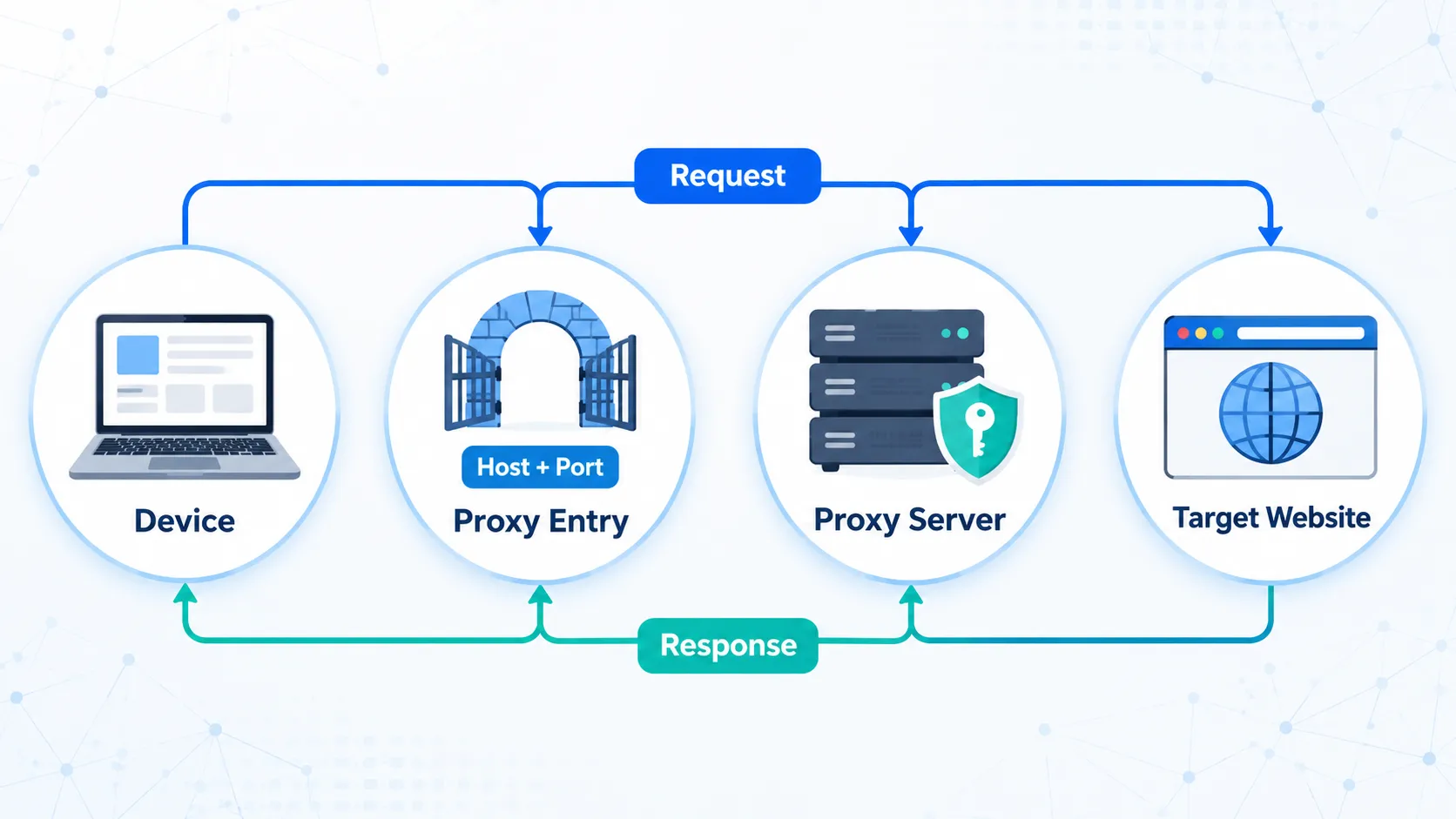
The proxy port is the entry point used to connect to the proxy server. It is not the port used by the target website. For example, a website may use port 80 for HTTP or 443 for HTTPS, but those numbers do not replace the port in your proxy settings. If the proxy port is incorrect, the connection may be refused, time out, or reach a different service running on the same host.
Proxy Address vs. Proxy Port
The host:port format can make a proxy address and port look like one value, which may lead to an incorrect setup. A proxy address identifies which host your device or application should contact, while a proxy port identifies which service to connect to on that host.
Item | What It Identifies | Possible Value | Typical Field |
Proxy address/host | The server or gateway | Domain name or IP address | Address/Host |
Proxy port | The listening service | Numeric port | Port |
A proxy address may be a hostname, such as proxy.example.com, or an IPv4 or IPv6 address. When paired with a port, it forms the connection entry point commonly written as host:port.
Common Proxy Port Numbers and Which One Should You Use?
Some port numbers are commonly associated with particular protocols or proxy software. These associations are conventions rather than fixed rules, and a proxy administrator can configure a service to listen on a different port.
Port | Common Association | Important Limitation |
80 | HTTP traffic | Not exclusive to proxy services |
443 | HTTPS traffic | Also used by regular websites |
8080 | Alternative HTTP and proxy services | Not a universal proxy setting |
3128 | Squid and HTTP proxies | Other services can also use it |
1080 | SOCKS4 and SOCKS5 proxies | SOCKS proxies may use custom ports |
Choose the port based on how the proxy is provided or configured:
Provider or company proxy: Use the exact port assigned by the proxy provider or network administrator.
Existing configuration: Check the port already saved in the working proxy settings and confirm that it matches the current connection details.
Self-hosted proxy: Use the same port in the proxy server configuration, client settings, and firewall rules.
Do not enter 1080 simply because you are using SOCKS5, and do not assume that a service on 8080 is necessarily a proxy. The correct port is always the one configured for that specific proxy service.
How to Find Your Proxy Port
For a new proxy, get the port from your proxy provider or network administrator. For a proxy that is already configured, check the proxy settings on the device or application. Your device does not have a fixed “personal proxy port,” and it will not generate one unless a proxy service has been configured.
Find the Port From Your Proxy Provider
The port shown or generated by your provider takes priority over common port conventions. Numbers such as 8080, 3128, and 1080 may be associated with proxies, but they should not be used to guess your assigned port.
To find a proxy port in IPcook:
Sign in to the IPcook dashboard and expand My Proxy.
For a Residential Proxy, open Residential and select Credentials.
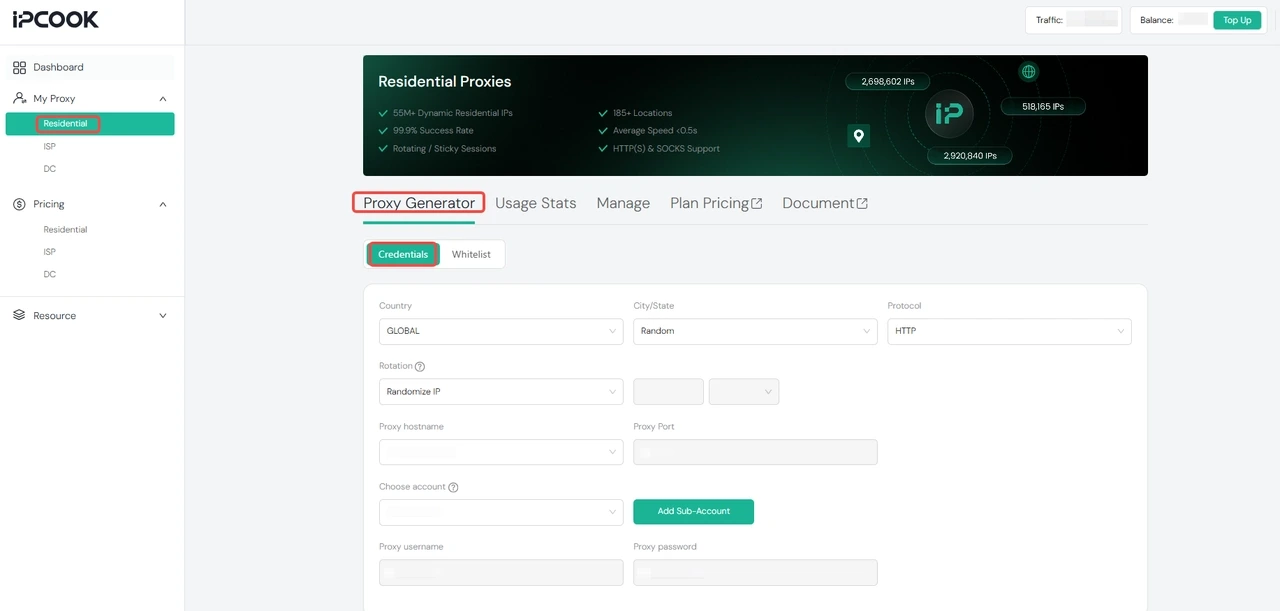
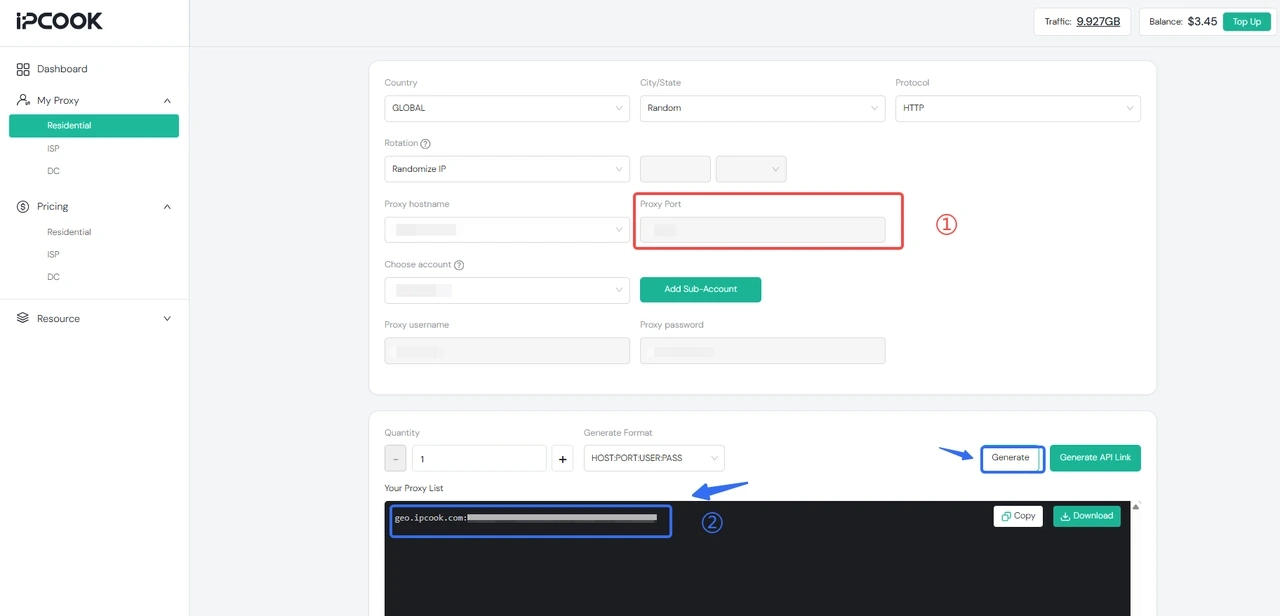
Find the Proxy Port. You can either view the Proxy Port directly on the page or select the generate format like
HOST:PORT:USER:PASSand click Generate. In the generated proxy string, the second value is the Proxy Port.
📌Note: Proxy string formats may vary between providers. For example, a provider may use USER:PASS@HOST:PORT, HOST:PORT@USER:PASS, or another format. Always refer to your proxy provider’s documentation to confirm the correct order of the parameters and identify the Proxy Port.
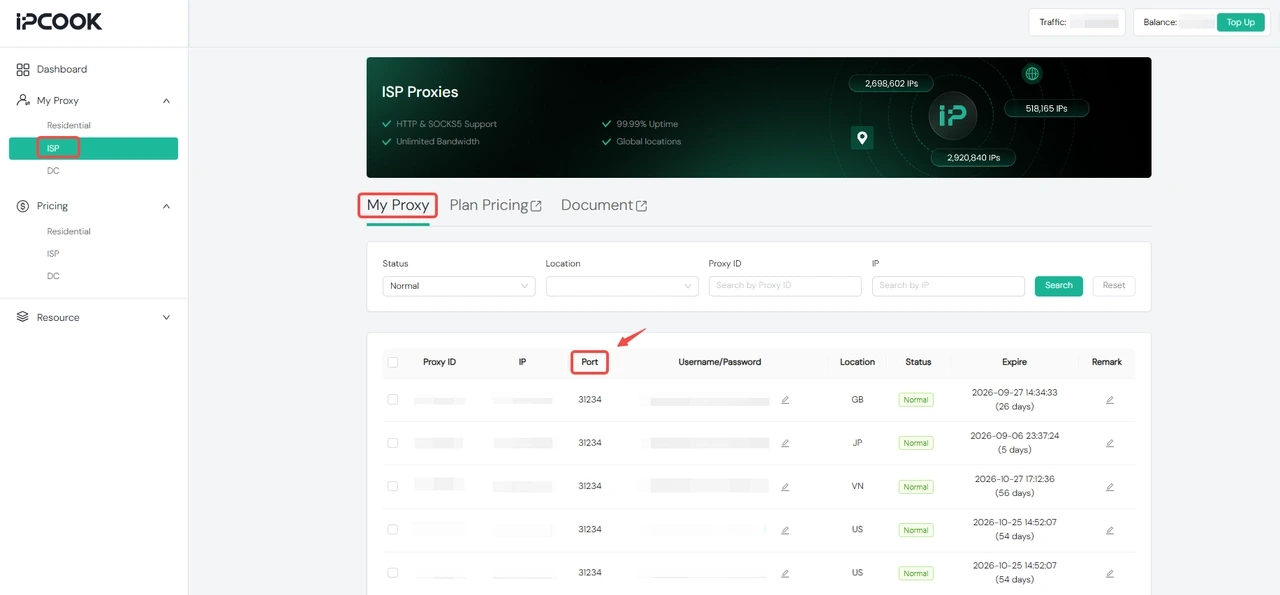
For an ISP Proxy, open ISP and find the Port column in the corresponding proxy record.
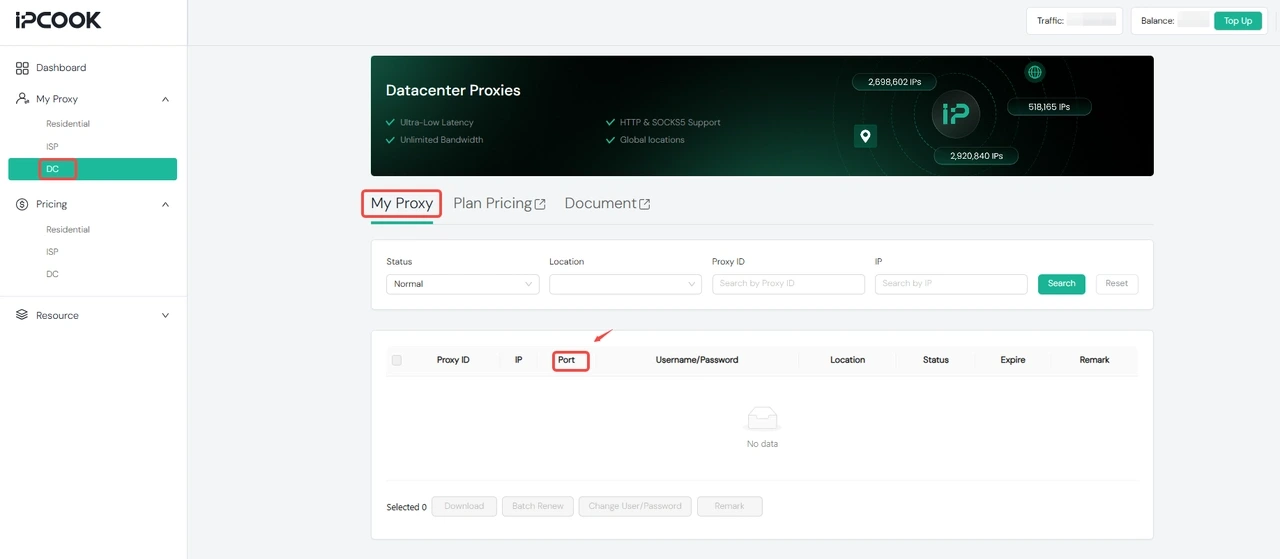
For a Datacenter Proxy, open DC. After purchasing and generating the proxy, find its port in the Port column.
Copy all connection details from the same generated entry or proxy record, rather than copying the port alone.
A generated Residential Proxy may appear in this format:
geo.ipcook.com:32345:username:passwordgeo.ipcook.com: Proxy hostname32345: Proxy portusername: Authentication usernamepassword: Authentication password
Think of a proxy configuration like a key and its lock: all the connection details need to belong to the same proxy. If you change the protocol, account, location, or another proxy setting, use the newly generated details for that configuration. Do not mix details from different proxy configurations or guess the port based on a commonly used number.
Find the Port on Your Device or Application
If a proxy is already configured, you can find its host and port in your device, browser, or application settings. Check the settings used by the application, as some apps use their own proxy settings instead of the system settings.
Platform | Where to Check |
Windows | Settings → Network & Internet → Proxy |
macOS | System Settings → Network → Network Service → Details → Proxies |
iPhone/iPad | Settings → Wi-Fi → Current Network → Configure Proxy |
Android | Settings → Network & Internet → Internet/Wi-Fi → Current Network → Edit or Advanced Options → Proxy |
Firefox | Settings → Proxy Settings or Network Settings |
Chrome/Edge | Browser Settings → Open the operating system’s proxy settings |
On Windows, you can also use netsh winhttp show advproxy to view WinHTTP proxy settings. Note that WinHTTP settings may differ from your system, browser, or application proxy settings.
On phones, manual proxy settings are usually tied to a specific Wi-Fi network. They may no longer apply when you switch to another Wi-Fi network or mobile data. If the settings show Direct connection, Off, or No proxy, the current connection is not using a manually configured proxy.
How to Configure a Proxy Address and Port
Once you have the port, make sure it matches the correct host, proxy protocol, and authentication details. A complete proxy configuration may include:
Proxy protocol
Hostname or IP address
Port
Username and password, or IP allowlisting
Proxy providers may provide connection details in different formats, such as:
host:port
host:port:username:password
protocol://username:password@host:port
The format depends on the application. Some applications ask you to enter each field separately, while others accept a complete proxy string. Always follow the format required by the application.
Select the proxy protocol: Check which proxy protocol the application supports, such as HTTP, HTTPS, or SOCKS5, and select the one provided for your proxy.
Enter the host and port: Enter the hostname or IP address and port in their corresponding fields. Use
host:portas a single value only if the application requires this format.Enter authentication details: Enter the assigned username and password, or make sure your current public IP address is allowed by the proxy.
Save and test the connection: Use the application's connection test or visit an IP-checking website to verify that the proxy is working.
Not every application supports manual proxy settings or every proxy protocol. If the connection fails, check the protocol, format, authentication, and port rather than changing the port alone.
Common Proxy Port Errors and How to Fix Them
A failed proxy connection can result from incorrect connection details, proxy service issues, application settings, or local network restrictions. Check each possible cause in the following order:
Incorrect host or port: Look for spelling errors, extra spaces, or an outdated port. Make sure the host and port belong to the same proxy configuration. If you have an address but no port, retrieve it from the provider instead of guessing.
Protocol mismatch: Confirm that the application is using the proxy protocol provided for the connection, such as HTTP, HTTPS, or SOCKS5.
Authentication failure: Re-enter the username and password, or verify that the IP address used by your connection is on the proxy's allowlist.
Connection refused or timeout: Check the proxy service status, firewall rules, corporate network restrictions, and security software.
Application incompatibility: Confirm that the application supports manual proxy configuration and the required protocol. If the proxy works in one application but not another, check whether they use different proxy settings or support different proxy protocols.
Use this path for a quick check:
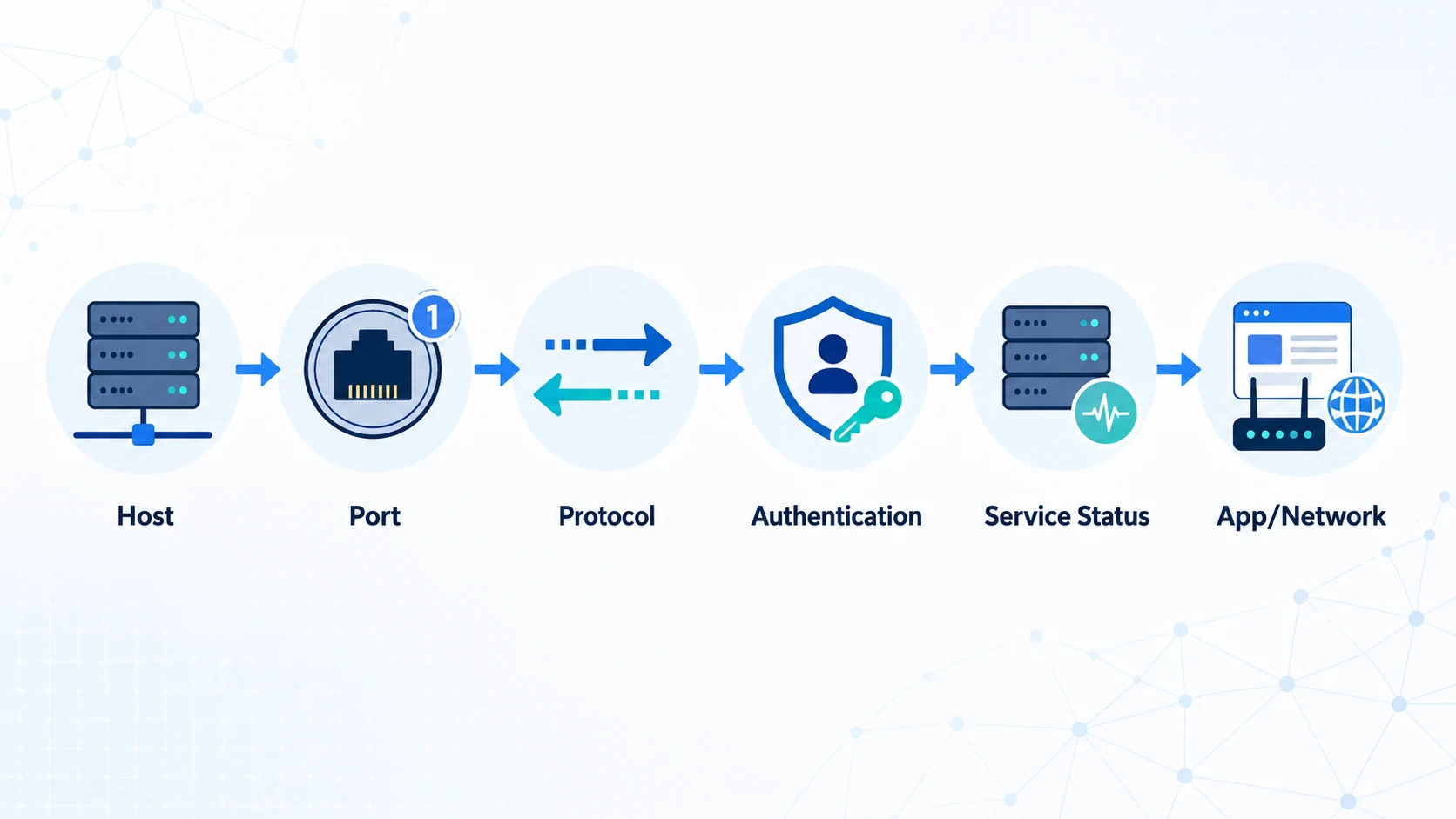
A connection can still fail even when the port is correct. Authentication may have expired, an allowlisted IP may have changed, the proxy service may be offline, or the plan may no longer be active.
Some proxy issues may look like port errors but are actually related to how the proxy session works. A proxy port is the connection entry point, while a sticky session determines how long the proxy keeps the same exit IP before it changes. If a sticky session ends or the exit IP changes as designed, the port is not necessarily incorrect.
📚Related Reading:
Final Thoughts
A proxy port is one part of a complete proxy connection and works with the host, protocol, and authentication details. Ports such as 8080, 3128, and 1080 are commonly associated with proxies, but the appropriate port depends on the specific proxy service.
If you use a proxy provider, having these details available in one place can make setup easier. For example, IPcook provides the hostname, port, protocol, and authentication details in your account in standard proxy formats, helping simplify configuration and reduce errors caused by incomplete or mismatched connection details. Explore IPcook’s proxy solutions to find a setup that fits your needs.