Your IP Has Been Temporarily Blocked: How to Fix It

The error "Your IP Has Been Temporarily Blocked" usually shows up out of nowhere, and most people's first move is to refresh the page, log out and back in, or just switch networks and hope for the best. Sometimes that clears things up. Often it doesn't, because an IP block isn't always caused by the same thing, and two people seeing the exact same error could be dealing with completely different problems.
Below, we'll walk through what this error actually means, how to check if your IP is really blocked, the most common reasons it happens, and how to get back online, plus how to avoid running into the same issue again.
What Does "Your IP Has Been Temporarily Blocked" Mean?
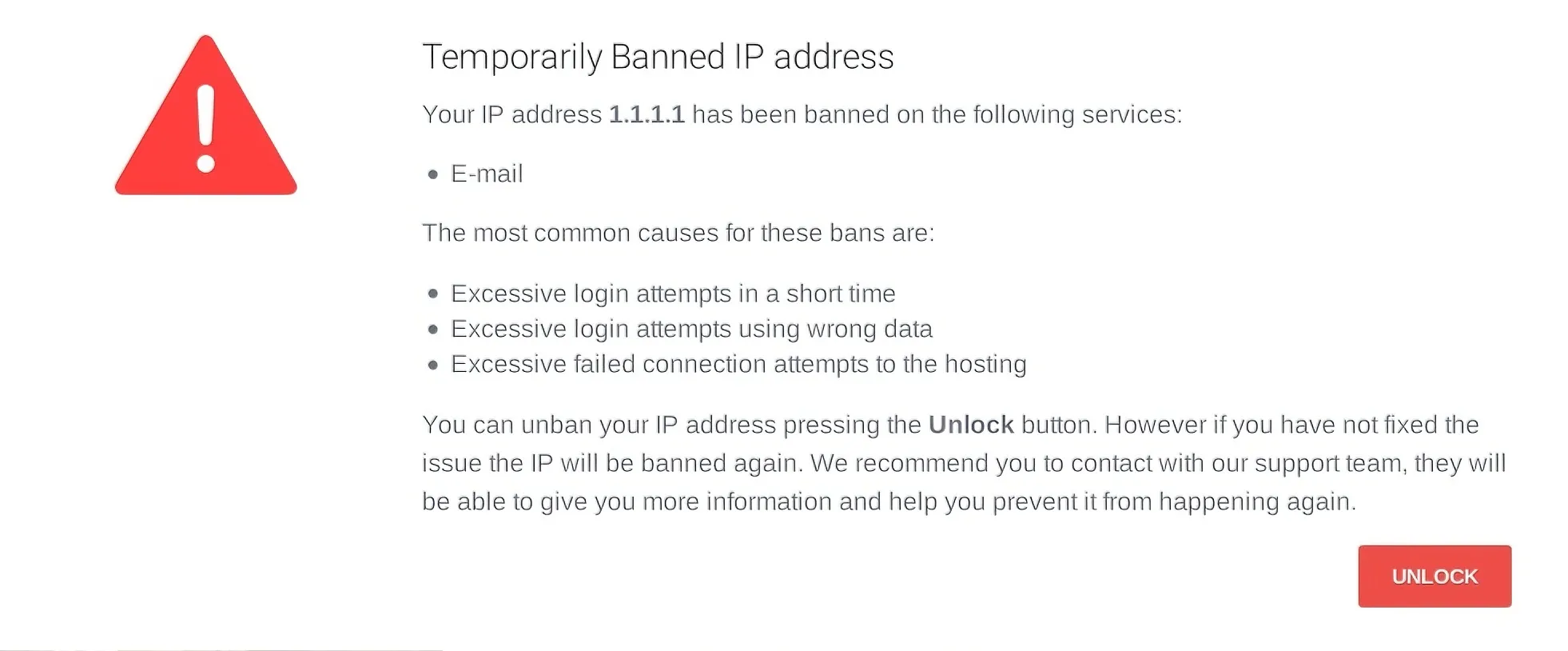
An IP block means a website is temporarily restricting requests from a specific IP address. This can happen when its security system detects too many requests, unusual traffic, or other activity that matches its blocking rules. Depending on the website, you may see different messages. For example, you may see "Your IP address has been banned" when you are blocked by Cloudflare because the website owner has used its security settings to block traffic from your IP address.
Websites typically enforce these restrictions through security measures such as firewalls, Web Application Firewalls (WAFs), or rate limiting. Depending on how the website is configured, the restriction may be lifted automatically after a set period or remain in place until the triggering condition is resolved.
An IP block is also different from an account, device, or session restriction. An IP restriction applies to requests from a particular network address, while the other types target a specific account, device, or browsing session.
How to Check If Your IP Is Blocked
Before trying to fix the problem, first confirm whether the restriction is actually related to your IP address.
Try another network. Switch from Wi-Fi to a mobile network or connect through another network. If the website works on the second network but not the first, your original public IP may be involved.
Test another device. Open the same website on another device connected to the same network. If multiple devices have the same problem, the shared public IP is more likely to be the cause.
Check the error message. Look for clues such as "Your IP Has Been Temporarily Blocked," "This IP address has been temporarily rate limited," or "Our system has detected abnormal activity from your IP address."
Check your IP reputation. You can also check whether your IP address is blacklisted using an IP reputation or blacklist checker. However, a public blacklist result does not confirm that the specific website has blocked your IP.
👀Some websites may also block connections based on the type or reputation of the IP being used. For more troubleshooting steps, see our guide to proxy, VPN, and Tor access restrictions.
These checks help distinguish an IP-related restriction from problems caused by the website, device, browser, or account. Confirming the source of the restriction first can prevent unnecessary changes and give you a clearer starting point for resolving the access issue.
Why Was Your IP Blocked?
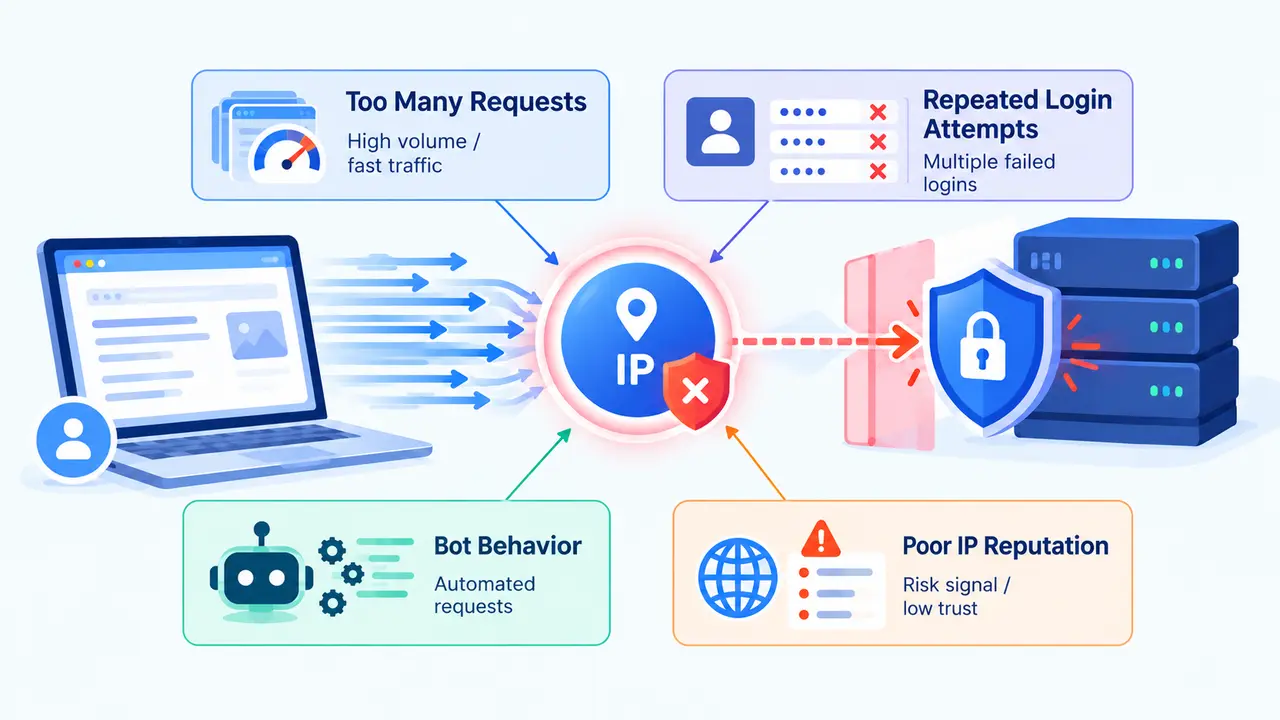
Understanding why your IP address is blocked can help you choose the right way to restore access. Common causes include request volume, login behavior, automated traffic, and IP reputation.
Too Many Requests
Sending too many requests within a short period can trigger an IP restriction. This can happen when you repeatedly refresh a page, open many pages in quick succession, or send a large number of requests at once.
Websites use request limits to protect server resources and control traffic. Normal users can also trigger a rate limit if they perform many actions within a short period.
This is also common in automated workflows. A script or tool that sends requests faster than expected can reach a website’s threshold much sooner than a normal browser session.
Repeated Login Attempts
Repeated failed login attempts can trigger a website’s login protection. If the same IP sends many unsuccessful login requests, the website may temporarily restrict further attempts.
This type of protection is commonly used to reduce brute-force attacks and account abuse. The IP itself may not be malicious. The website may simply be responding to a login pattern that matches a known security risk.
Bot Behavior
Websites may analyze request frequency, timing, and access patterns to determine whether traffic looks automated. Scraping tools, automation software, and rapid requests can therefore trigger bot protection.
For example, a website may see a large number of similar requests arriving at a consistent interval and classify the traffic as automated. Bot detection is not always a sign of malicious activity.
Legitimate automation can still trigger these systems because security rules often rely on traffic patterns rather than the user’s actual intent.
Poor IP Reputation
IP reputation refers to how an IP address is viewed based on its previous or current network activity. Websites and security services may consider reputation when deciding whether to allow traffic.
An IP can have a poor reputation because it is shared by many users, belongs to infrastructure associated with high-volume traffic, or has previously been involved in suspicious activity. Shared IPs can affect individual users.
Websites may combine reputation signals with actual access behavior. An IP with a poor reputation may face stricter controls, especially when its current traffic also matches patterns associated with abuse.
How to Unblock Your IP Address
Once you understand why the restriction occurred, you can choose a suitable way to restore access. There are several ways to unblock your IP address, depending on why the restriction was triggered. For a temporary block, it is usually best to start with simple methods that do not require additional tools.
Wait for the Block to Expire
When the message indicates a temporary block, the simplest approach is to stop the activity that may have triggered the restriction and wait for the block to expire.
There is no universal duration for an IP block. Each website can set its own security rules and expiration period. Continuing to send requests or repeatedly attempting to log in during the restriction may trigger the same protection again.
Some websites provide a specific recovery time, while others do not. In the latter case, avoid repeated attempts and try accessing the site again later.
Restart Your Router or Change Your Network
With a dynamic public IP, restarting your router may result in a different IP address after the connection is re-established. Another option is to temporarily switch to a different network, such as a mobile connection, and check whether access is restored.
This method is mainly useful for determining whether the restriction is tied to your current public IP. It will not remove account or device restrictions.
A block that follows the same account across different networks may point to a different type of restriction.
Try a Web Proxy
A web proxy offers another way to test access when your current IP is blocked. Rather than sending the request directly from your public IP, the proxy forwards it through another server.
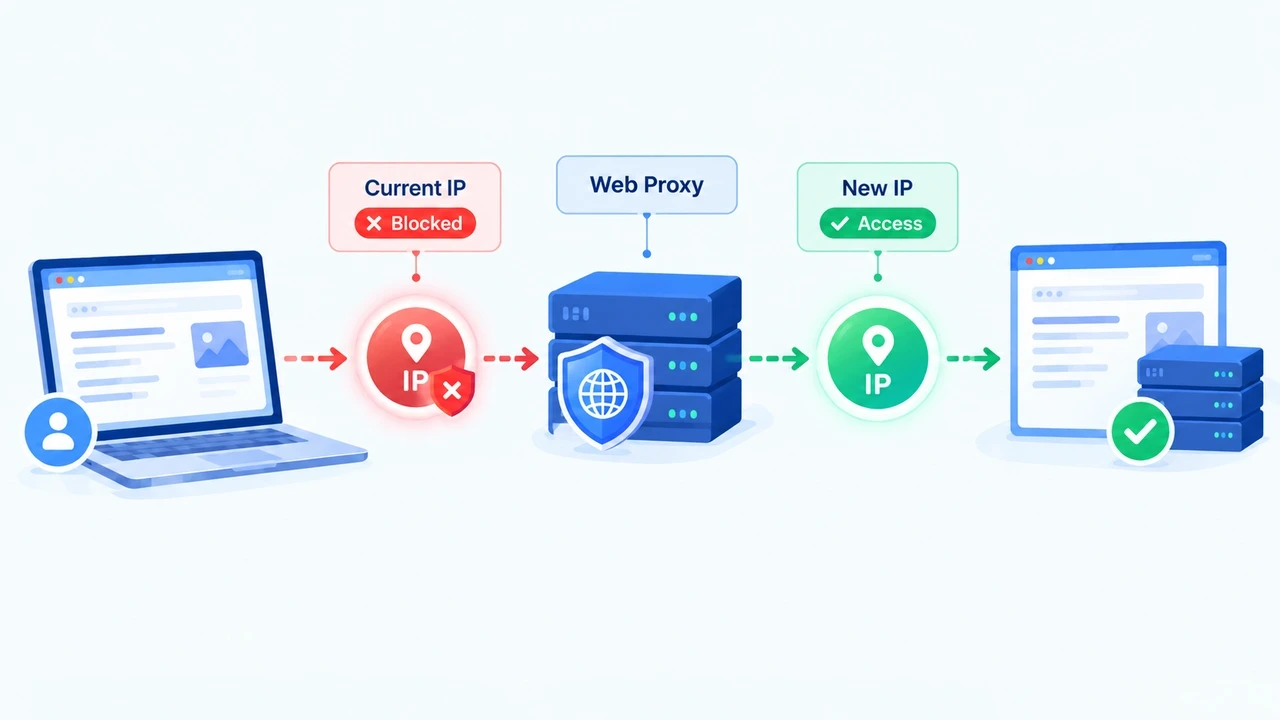
For a quick test, you can try an online web proxy such as Freeproxypro to see whether the website is accessible through another IP. For longer-term use, choose a proxy type that matches your needs, such as a Static ISP Proxy when a stable IP is important. If you need help configuring a proxy connection, see our guide on how to use a proxy server.
Clear Your Cookies and Cache
Cookies and session data can preserve information about your current browsing state. Clearing them can therefore help rule out a browser-side issue.
After clearing your cookies and cache, close and reopen the browser before accessing the website again.
Keep in mind that cookies cannot remove an IP block. A server-side restriction remains in place even after local browser data has been deleted.
Contact the Website Administrator
When the restriction persists after basic troubleshooting, contacting the website administrator or support team is the next practical step.
Provide the error message, the approximate time when the block occurred, and your current IP address where appropriate. These details can help the administrator determine whether the issue involves an IP block, an account restriction, or another security rule.
For persistent restrictions, use the website's official support channel rather than repeatedly attempting to access the site.
📚Platform-Specific IP Ban Guides
IP restrictions can vary by platform. If you're dealing with a ban on a specific service, see our guides for Reddit, Instagram, and Pinterest.
How to Prevent Future IP Blocks
Fixing the current restriction does not necessarily prevent it from happening again. When the same traffic pattern continues, similar security rules may be triggered. Adjusting request behavior and choosing an IP setup that matches the task can help reduce repeated restrictions.
Control Your Request Rate
Avoid rapid refreshes, repeated requests, and large bursts of traffic. For automated tasks, pay particular attention to request frequency and concurrency.
This is especially important for API access, data collection, and other automated workflows. Keeping request activity at a reasonable rate can reduce unnecessary rate-limit triggers.
Avoid Suspicious Traffic
Highly repetitive or concentrated access patterns can appear unusual to automated security systems. Avoid sending large numbers of identical requests within a short period or repeatedly performing the same action at high speed.
For automation, use a consistent and reasonable request pattern rather than trying to imitate normal users artificially. The goal is to reduce traffic patterns that are likely to trigger security controls.
Use a Reliable IP
The IP setup can also affect how consistently a website recognizes your traffic. For long-term access, account management, and session-based workflows, IP stability and consistency can be important.
Some workflows may instead require access from multiple IPs or locations. In those cases, a suitable IP rotation strategy can provide greater flexibility. The right approach depends on the website, access pattern, and requirements of the task.
How IPcook Helps Reduce Repeated IP Blocks
When the same IP repeatedly triggers a website's security rules, changing how requests are routed can help reduce repeated restrictions. IPcook provides different proxy types for workflows that require either IP rotation or a stable IP.

Residential Proxies can be useful when repeated requests from the same IP are more likely to trigger restrictions. IP rotation and location targeting allow requests to be routed through different residential IPs or locations. For example, web data analysts can use rotating IPs to distribute requests, while SEO and market research professionals can test website access from different regions.
For workflows that require consistent access, Static ISP Proxies provide a stable IP instead. A consistent IP can be useful for continuous sessions or multi-account operations, where frequent IP changes may trigger additional security checks. For example, digital marketers using fingerprint browsers can use a Static ISP Proxy to maintain the same IP while managing multiple accounts.
If IP restrictions are a recurring problem, IPcook gives you more flexibility to change or maintain your access IP based on your needs. Explore IPcook to find a proxy option that fits your workflow.