How to Scrape Walmart Data: A Step-by-Step Python Guide

Web scraping Walmart with Python can be challenging due to dynamically loaded content, complex HTML structures, and access restrictions. In our tests, a basic Python requests script returned a "Robot or human?" verification page instead of the product page, even when the status code was 200.
This guide shows a method that worked in our tests: sending requests with curl_cffi, which imitates the network characteristics of a real Chrome browser, and routing them through an IPcook residential proxy. You'll learn how to set up your environment, verify your proxy, extract product titles and prices from multiple product pages, export the results to CSV, and handle common access issues.
⚠️Important: Check Walmart's Terms of Service
Before scraping Walmart data, review its applicable terms and obtain written permission if required. Unauthorized scraping may violate Walmart's terms of service. Walmart's protection systems change over time, so the method in this guide may stop working in the future.
Why Scrape Walmart Product Data?
Walmart product pages contain information that can support pricing research, product development, and competitive analysis. By scraping Walmart product data, businesses can organize product information and track changes over time. Depending on their goals, they can use this data in several ways:
Price monitoring: Scrape Walmart prices to track regular prices, promotional prices, and price changes over time. These records can help identify discounts and pricing trends, informing pricing adjustments and promotional planning.
Product research: Collect product names, URLs, specifications, features, descriptions, and categories to understand product attributes and compare product configurations. This information can support product selection, new product development, and assortment planning.
Competitive analysis: Compare prices, promotions, product configurations, and product assortments across similar items. These comparisons can reveal differences in positioning and pricing changes among competing products.
The data you collect should match your research goals. For example, to scrape price data, you need consistent price records and timestamps, while product research benefits from detailed product attributes. By selecting relevant fields, you can build a dataset that supports more meaningful comparisons and analysis.
How to Set Up a Python Environment for Walmart Scraping
Before scraping product data from Walmart, you should prepare a Python environment with the libraries needed to send requests, parse HTML, and save structured records. A virtual environment helps keep your project dependencies separate from other Python projects.
1. Install Python
Go to the official Python website and download the Python install manager for Windows.
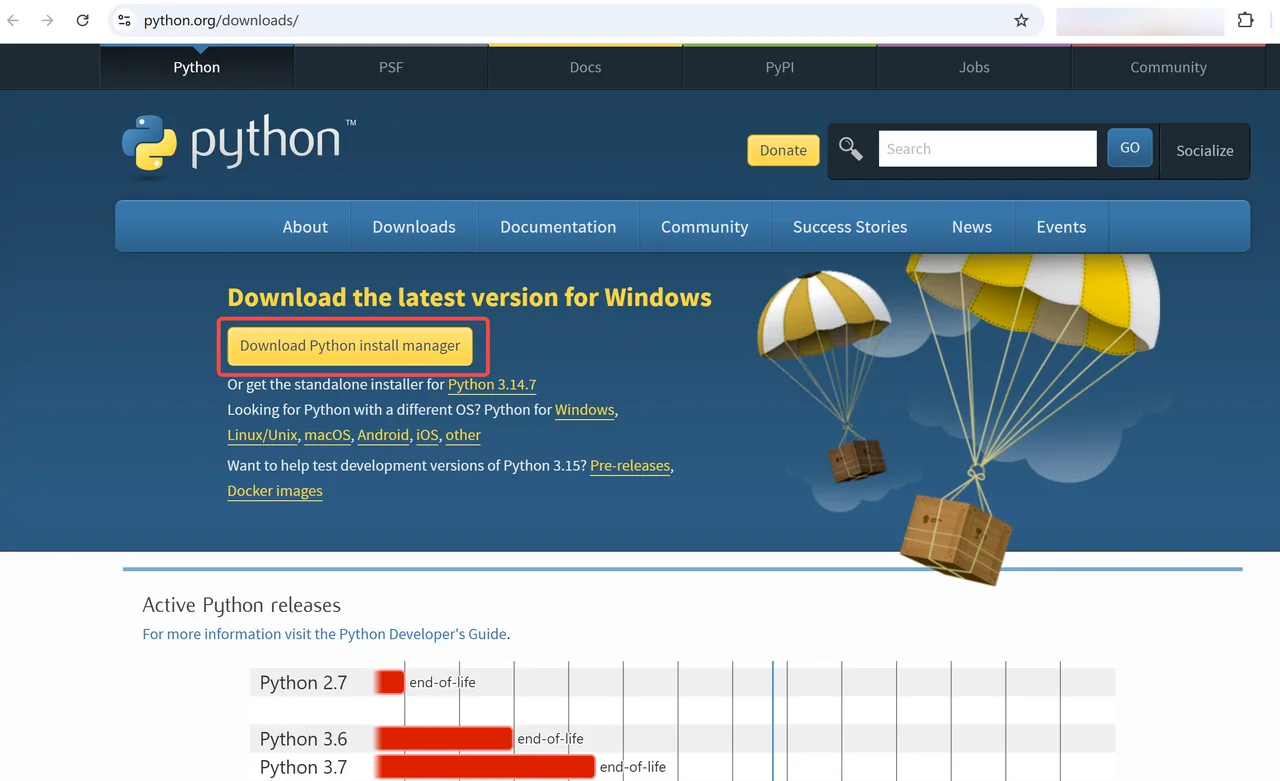
Open the installer and follow the instructions. During setup, you may see several questions:
Update setting now? [y/N] — Type
yand press Enter to enable long path support.Add commands directory to your PATH now? [y/N] — Type
yand press Enter to make Python easier to run from the terminal.Install CPython now? [Y/n] — Press Enter to install Python. You can also type
yand press Enter.View online help? [y/N] — Type
nand press Enter to skip the online help.
Once the installation is complete, close the terminal and open it again.
To check whether Python is installed, enter the following command and press Enter:
python --versionIf you see a version number, such as Python 3.14.7, Python is ready to use.
2. Create a project folder and virtual environment
First, create a folder for your Walmart scraper project.
Step 1: Create a folder.
Enter the following command and press Enter:
mkdir walmart-scraperNote: If the command runs successfully, the terminal will not display any message. This is normal and means the folder has been created.
Step 2: Move into the folder.
Enter the following command and press Enter:
cd walmart-scraperIf successful, the command prompt will change to a path ending in:
\walmart-scraper>This means you are now inside the project folder.
Step 3: Create a virtual environment.
Enter the following command and press Enter:
python -m venv .venvThis creates a virtual environment named .venv to keep your project's Python packages separate from other projects.
Note: Creating the virtual environment may take a few seconds. If no error appears and the terminal returns to the prompt, the environment has likely been created successfully.
Step 4: Activate the virtual environment.
Choose the command for your operating system.
On Windows, enter:
.venv\Scripts\activateOn macOS or Linux, enter:
source .venv/bin/activateIf activation is successful, you will see (.venv) at the beginning of your terminal prompt. This means your virtual environment is active and ready to use.
Keep the virtual environment active while installing packages and running your scraper.
3. Install the required libraries
Next, install the three Python libraries needed for your Walmart scraper: curl_cffi, beautifulsoup4, and pandas.
Make sure your virtual environment is active, then enter the following command and press Enter:
pip install curl_cffi beautifulsoup4 pandasThese libraries serve different purposes:
curl_cffi sends HTTP requests to Walmart and receives responses. It can imitate the TLS and HTTP characteristics of a real browser such as Chrome, which a standard
requestscall does not do. Its interface is similar torequests, so the code is easy to read.beautifulsoup4 parses HTML and helps you find product information, such as titles and prices.
pandas organizes the extracted data into a table and exports it to a CSV file.
Wait for the installation to finish. If no error appears and the terminal returns to the prompt, the libraries are ready to use.
📌Note: The package name is curl_cffi with an underscore, and the same name is used in the import statement.
4. Create the Python Script
Next, create a Python file named walmart_scraper.py in your walmart-scraper project folder. You'll use this file to write and run your scraper.
Step 1: Open the file.
In your terminal, enter the following command and press Enter:
notepad walmart_scraper.pyThis opens the file in Notepad. If prompted to create a new file, click Yes.
Step 2: Save the file.
Press Ctrl + S to save the file. Since you opened it from your project folder, it will be saved there automatically.
Your Python environment is now ready. In the next section, you'll connect an IPcook proxy and start building the Walmart scraper step by step.
How to Scrape Walmart Product Data with Python
In this section, you'll build a scraper that processes multiple Walmart product URLs through an IPcook residential proxy and saves the titles, prices, and URLs to a CSV file.
In this section, you'll build a Python scraper to scrape product data from Walmart through an IPcook residential proxy. The script processes multiple product URLs and saves the titles, prices, and URLs to a CSV file.
👀New to IPcook?
Before getting started, create an IPcook account and log in to access the dashboard and generate your residential proxy.
1. Get your IPcook proxy details
In your IPcook dashboard, generate a residential proxy and choose the following settings:
Country: United States, because Walmart.com is the U.S. site.
Protocol: HTTP.
Rotation: Choose Randomize IP or Sticky IP depending on your task.
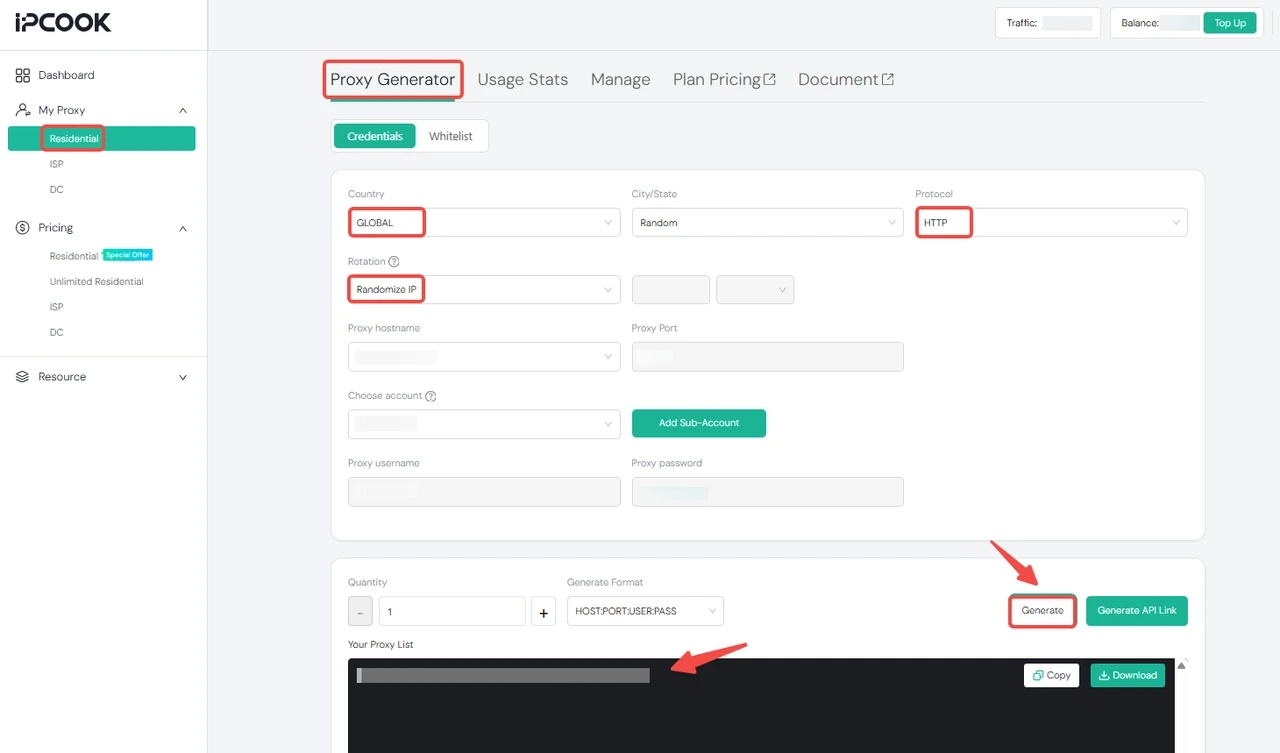
Then copy the proxy host, port, username, and password. Combine them into a proxy URL in this format:
http://username:password@proxy-host:portYou'll paste this URL into your script in the next steps. Replace username, password, proxy-host, and port with your own details.
📌Note: If your username or password contains special characters such as @, :, or /, URL-encode them to avoid authentication errors. Your proxy URL contains login credentials, so don't share it publicly or upload your script to a public repository with the credentials inside.
2. Verify the proxy connection
Before requesting Walmart, confirm that the proxy works. In your terminal, enter notepad test_proxy.py, click Yes if prompted to create a new file, then paste the following code and save it:
from curl_cffi import requests

proxy_url = "http://username:password@proxy-host:port"
proxies = {"http": proxy_url, "https": proxy_url}

response = requests.get("https://httpbin.org/ip", proxies=proxies, timeout=30)
print(response.text)
Replace the proxy_url value with your own proxy URL, then run:
python test_proxy.pyThe output shows the IP address seen by the website. If it differs from your own public IP, your request was routed through the proxy. If you use a rotating proxy, the IP may change each time you run the script. If the request fails, check the host, port, credentials, and protocol.
3. Test a single Walmart product page
Now test one Walmart product page. Open walmart_scraper.py with notepad walmart_scraper.py, paste the following code, and save the file:
from bs4 import BeautifulSoup
from curl_cffi import requests

url = "https://www.walmart.com/ip/product-1"

proxy_url = "http://username:password@proxy-host:port"
proxies = {"http": proxy_url, "https": proxy_url}

response = requests.get(
    url,
    impersonate="chrome",
    proxies=proxies,
    timeout=30,
)

print("Status code:", response.status_code)

soup = BeautifulSoup(response.content, "html.parser")
print("Title:", soup.title.text if soup.title else "no title")

h1 = soup.find("h1")
print("h1:", h1.text if h1 else "not found")
The impersonate="chrome" parameter makes the request imitate a Chrome browser at the network level, so you don't need to set a User-Agent header manually.
Replace the example URL with a real Walmart product page and the proxy_url value with your own proxy URL, then run:
python walmart_scraper.pyIf the page title and h1 show the product name, the request returned the product page. If the title is still "Robot or human?", see the troubleshooting section below.
4. Prepare a List of Walmart Product URLs
Next, create a list of Walmart product URLs to scrape. Replace the example URLs with the actual Walmart product pages you want to collect:
product_urls = [
    "https://www.walmart.com/ip/product-1",
    "https://www.walmart.com/ip/product-2",
    "https://www.walmart.com/ip/product-3",
]
This list is already included in the full script in the next step, so you don't need to run it separately.
Use product detail pages, which contain /ip/ in the URL. Search result pages and category pages have a different structure, and the extraction code below does not apply to them. Query parameters after the ? in a product URL are not required and can be removed.
5. Extract Product Titles and Prices
Now build the full script. Replace the contents of walmart_scraper.py with the following code. It fetches each page, checks whether a verification page was returned, extracts the title and price, and waits between requests:
import json
import time
import random

import pandas as pd
from bs4 import BeautifulSoup
from curl_cffi import requests

product_urls = [
    "https://www.walmart.com/ip/product-1",
    "https://www.walmart.com/ip/product-2",
    "https://www.walmart.com/ip/product-3",
]

proxy_url = "http://username:password@proxy-host:port"
proxies = {"http": proxy_url, "https": proxy_url}


def fetch(url, retries=3):
    """Request a page. Retry a limited number of times if a
    verification page is returned or the request fails."""
    for attempt in range(1, retries + 1):
        try:
            response = requests.get(
                url,
                impersonate="chrome",
                proxies=proxies,
                timeout=30,
            )
            soup = BeautifulSoup(response.content, "html.parser")

            if soup.title and "Robot or human" in soup.title.text:
                print(f"  Attempt {attempt}: verification page returned")
            else:
                return soup
        except Exception as e:
            print(f"  Attempt {attempt}: request error: {e}")

        time.sleep(random.uniform(3, 6))

    return None


def parse(soup):
    """Extract the product title and price from the page."""
    h1 = soup.find("h1")
    title = h1.get_text(" ", strip=True) if h1 else ""

    price = ""
    price_element = soup.find("span", {"itemprop": "price"})
    if price_element:
        price = price_element.get_text(" ", strip=True)

    # Fallback: read the price from the JSON data embedded in the page
    if not price:
        script = soup.find("script", {"id": "__NEXT_DATA__"})
        if script and script.string:
            try:
                data = json.loads(script.string)
                product = data["props"]["pageProps"]["initialData"]["data"]["product"]
                price = product["priceInfo"]["currentPrice"]["priceString"]
            except (KeyError, TypeError, ValueError):
                pass

    return title, price


product_data = []

for i, url in enumerate(product_urls, 1):
    print(f"[{i}/{len(product_urls)}] {url}")

    soup = fetch(url)

    if soup is None:
        print("  Failed: no product page returned")
        product_data.append({
            "Product title": "",
            "Price": "",
            "Product URL": url,
            "Status": "failed",
        })
    else:
        title, price = parse(soup)
        print(f"  {title} | {price}")
        product_data.append({
            "Product title": title,
            "Price": price,
            "Product URL": url,
            "Status": "ok",
        })

    # Wait between products to keep the request rate low
    time.sleep(random.uniform(3, 6))
The script works as follows:
fetch()sends the request and checks the page title. If a verification page is returned, it waits and retries up to three times. It does not try to solve a verification challenge. If the challenge keeps appearing, the URL is marked as failed and the script moves on.parse()extracts the title from theh1tag and the price from theitemprop="price"element. If that element is missing, it tries the JSON data embedded in the page.A random 3 to 6 second delay separates requests, which keeps the request rate low and reduces proxy traffic.
The
Statuscolumn records which products were collected, so you can identify failed URLs and retry them later.
The selectors and JSON path may need adjustment depending on the HTML returned by each product page. Walmart can change its page structure at any time.
Save the file, then continue to the next step to add the code that exports the results to a CSV file.
6. Save the Scraped Data to a CSV File
After the loop, add the following code at the end of walmart_scraper.py to save the results with pandas:
df = pd.DataFrame(product_data)

df.to_csv(
    "walmart_products.csv",
    index=False,
    encoding="utf-8-sig",
)

ok_count = (df["Status"] == "ok").sum()
print(f"Saved {len(df)} rows to walmart_products.csv ({ok_count} succeeded)")
The utf-8-sig encoding prevents garbled characters when you open the file in Excel. Each run overwrites the previous file, so rename the file or add a date to the file name if you want to keep historical records for price monitoring.
7. Run the Scraper
Save the file, then run:
python walmart_scraper.pyThe terminal shows the progress of each product, and the collected data is saved in walmart_products.csv in your project folder. Open the file in Excel to review the results.
Note: Products with several variants, such as different colors or storage sizes, may show the price of the variant selected by default in the URL. Compare a few results with the product page in your browser to confirm they match.
📚Related Reading:
Explore these guides for more examples of scraping product data and prices from other e-commerce platforms:
How to Troubleshoot Walmart Access Issues
Walmart web scraping may return a verification page or an error instead of the expected product data. A status code of 200 does not guarantee that the response contains product information. Check the page content for messages such as "Robot or human?" and watch for HTTP 403 or 429 errors.
If your scraper fails to retrieve product data, try the following:
Confirm that the product URL opens normally in your browser.
Run
test_proxy.pyto verify the proxy connection and check that the country is set to the United States.Reduce request frequency and add delays between requests.
Update
curl_cffiwithpip install --upgrade curl_cffi.Check whether Walmart has changed its page structure.
If access remains restricted, consider permitted alternatives such as Walmart's official APIs.
Conclusion
Scraping Walmart data with Python involves setting up your environment, requesting product pages, extracting product information, and exporting the results to CSV. In our tests, curl_cffi combined with an IPcook residential proxy returned Walmart product pages that could be parsed and saved. Keep your request rate low and use permitted data access methods.
For projects that involve collecting Walmart product data over time, connection stability and geographic targeting may also matter. IPcook residential proxies support country- and city-level targeting across 185+ countries and regions, giving you more flexibility when configuring your data collection setup.